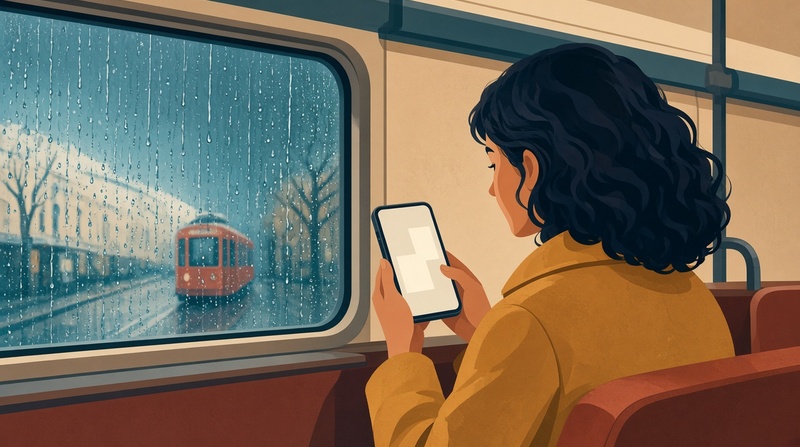
You open a scanned volume on your iPhone and the page looks small. A thick white frame sits around the art. Sometimes it is a black frame, from a scan made with the lid open. On a phone screen, those borders take space the speech bubbles need.
ComicFlow 3.8 adds Trim Margins. Switch it on and ComicFlow crops the border around each page, so the art fills more of the screen. I build ComicFlow: $2.99 once, with an optional $6.99 one-time Pro unlock. Neither renews. Trim Margins does not need Pro.
Disclosure: I make ComicFlow at Applestan. Features and prices below match the live App Store listing and the ComicFlow support FAQ. Only use files you own or that are DRM-free.

The short answer #
Open a manga volume in ComicFlow, tap the gear to open Reader Settings, and switch on Trim Margins in the Display section, right below Page curl. It is off by default. The page you are on redraws without its border, and every page after it does the same.
Your files stay as they are. Trim Margins changes how a page is shown, not the CBZ, CBR or PDF on your phone. Switch it off and the full pages come back.
Why manga files have borders at all #
Most of the borders you see come from how the file was made:
- Scans of printed volumes. A tankobon page has paper margins around the art. A flatbed scanner keeps all of it, plus a strip of the scanner glass.
- Scans made with the lid open. The area outside the page turns black, so the page sits in a dark frame.
- Your own scans. If you scan manga you own to read on iPhone, the camera or scanner usually catches the table or a white sheet behind the page.
- Older digital releases. Some files were made for a different screen shape and carry white or black bars to fill it.
On a big monitor, that frame does not matter much. On a phone, a border of a few millimetres on each side is space taken from the art, and the text in the bubbles ends up smaller.
What Trim Margins does to each page #
ComicFlow looks at each page on its own as it loads:
- White edge: if the outer edge of the page is mostly white, it trims the white.
- Black edge: if the outer edge is mostly black, it trims the black.
- Art to the edge: if neither, as on a full-bleed splash page, the page stays as it is.
It only removes rows and columns that are almost pure border, so a few specks of scanner dust do not stop the trim. It also will not shrink a mostly white page, like a single small panel in a sea of white, down to a tiny patch. Those pages keep their space.
The result is a page that sits closer to the edges of the screen. On a manga page, that mostly means bigger lettering. If the text is still too small, manga text too small on iPhone covers double-tap zoom and the other fixes.
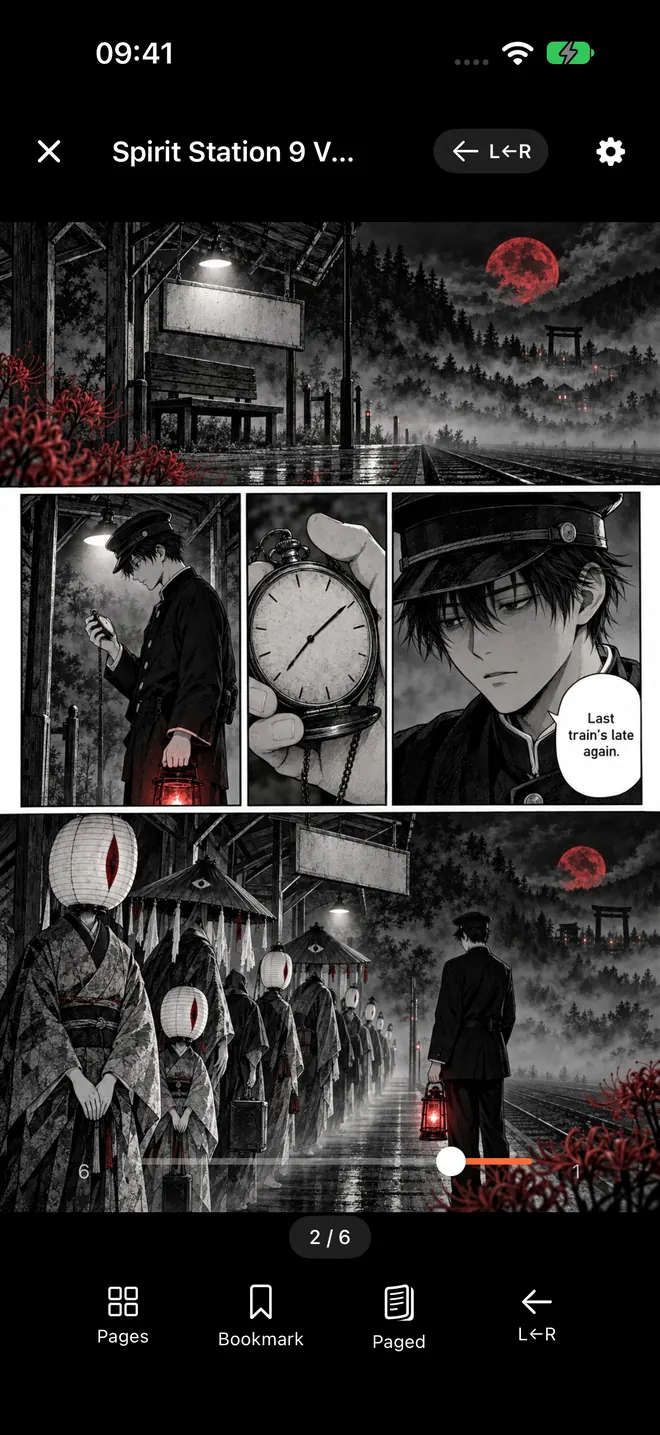
The ComicFlow reader on iPhone in right-to-left manga mode. The gear at the top right opens Reader Settings, where Trim Margins sits in the Display section. This file has no scan border, so there is nothing to trim on it.
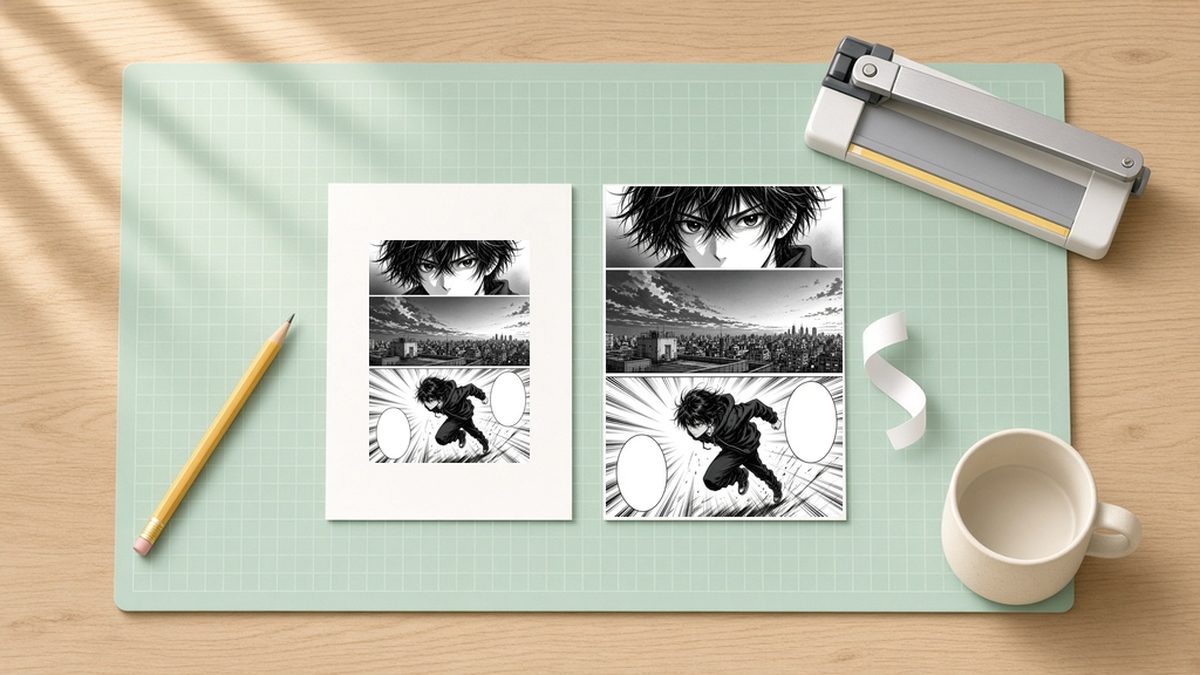
An illustration drawn for this post. The manga page is original art, not a screenshot and not output from the app. The left copy keeps a wide white margin. The right copy is the same page with that margin trimmed.
Spreads, split pages and PDFs #
Manga is not only single pages, so here is how the trim behaves with the rest:
- Two-page spreads. When Auto layout shows two pages (phone sideways, or an iPad in portrait), each page is trimmed on its own, and then the two are placed side by side. A spread with one bordered page and one clean page still lines up.
- Split Wide Pages. If a file stores a spread as one wide image and you read upright with Split Wide Pages on, the wide page is trimmed first, then cut in half. Each half gets the same crop.
- PDFs. PDF manga is trimmed too. With Trim Margins on, ComicFlow shows a PDF page by page, the same way it shows a CBZ. For scanned manga that looks the same. If you deep-zoom into a crisp, text-heavy PDF a lot, you may prefer to switch the trim off for that book.
- Right to left. The trim does not touch reading direction. Read manga right to left on iPhone covers that setting.
When the toggle is not there #
Trim Margins belongs to Paged reading mode. In Vertical Scroll (webtoon mode) the toggle is hidden, because a long strip has no page frame to crop. If you do not see it, switch Reading Mode back to Paged and open Reader Settings again.
The same is true of page curl, the other 3.8 toggle in that spot. You can use both together: the leaf curls, and the page under it has no border.
Presets remember it #
If you use ComicFlow Pro, reader presets save your setup for each kind of book. A preset you save yourself also remembers whether Trim Margins was on, so a "scanned manga" preset can turn it on and a "clean digital" preset can leave it off. The built-in Duo preset turns Trim Margins and page curl on, and keeps each book's reading direction. It was made for the iPhone Duo, but you can use it on any iPhone.
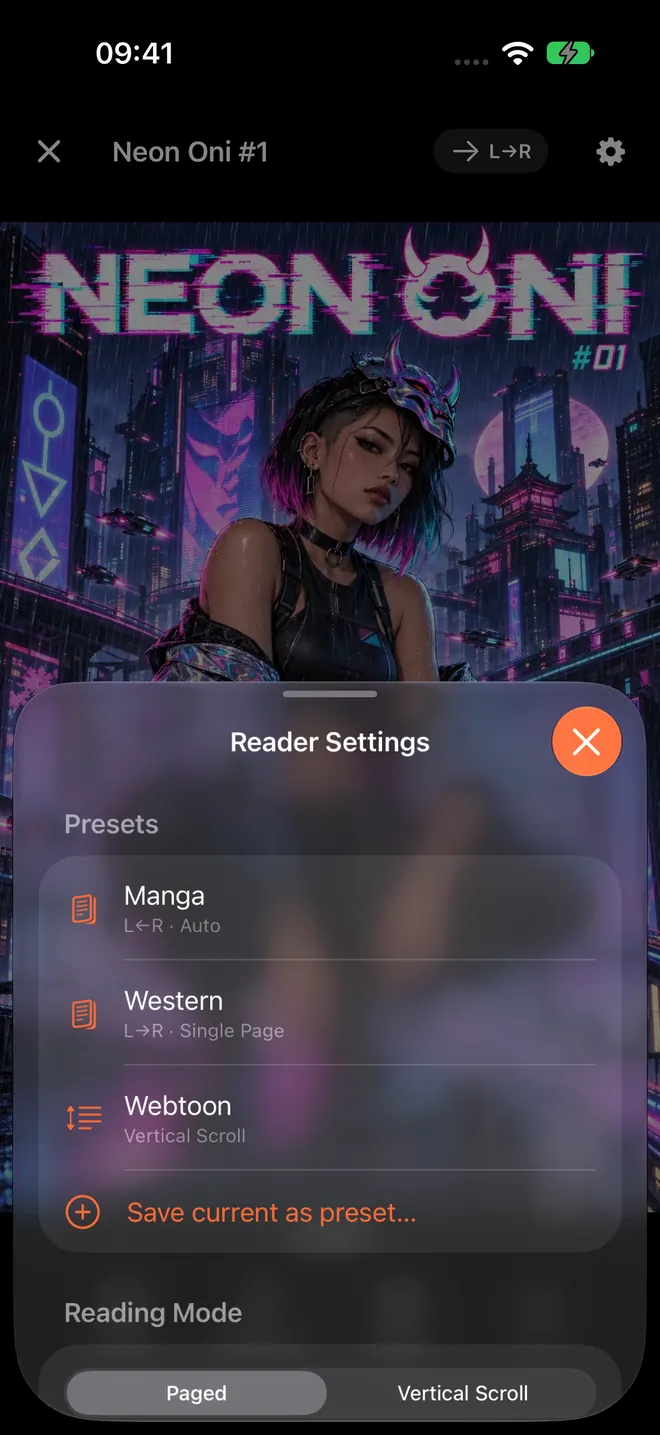
Reader Settings with presets at the top. This screenshot is from before 3.8, which added the Duo preset and the Trim Margins and Page curl toggles further down in Display.
Presets are the Pro part. The Trim Margins switch itself is in the $2.99 app.
If you send manga to a Kobo, Boox, reMarkable or PocketBook with EPUB export (Pro), the export has its own Auto-crop borders option in its Enhancement settings, so the border is gone on the e-reader too. More on that in read comics on Kobo, Boox and reMarkable.
Included in the $2.99 app #
Trim Margins, page curl and importing a ZIP or RAR with several manga volumes all came in ComicFlow 3.8, and all three are in the $2.99 app. They do not need Pro.
ComicFlow Pro is an optional $6.99 one-time unlock. It is not a subscription. It adds comic server reading (Komga, Kavita and OPDS), Face ID-locked collections, EPUB export for e-readers, and reader presets, including Duo.
If you just want scanned manga to fill your phone screen, you do not need any of that. Update to 3.8, open Reader Settings, and switch on Trim Margins.
Related reading #
- Best manga reader settings on iPhone: direction, layout, background and presets
- Manga text too small on iPhone: zoom and layout fixes for small lettering
- Scan manga you own and read it on iPhone: where many bordered pages come from
- Manga page curl on iPhone: the other new toggle in Display
Frequently asked questions
How do I remove white borders from manga on iPhone?
In ComicFlow 3.8, open a volume, tap the gear for Reader Settings, and switch on Trim Margins in the Display section. ComicFlow then crops the white or black border around each page as it shows it, so the art fills more of the screen. Your file is not changed.
Does Trim Margins need ComicFlow Pro?
No. Trim Margins is part of the $2.99 app, the same as page curl and importing a ZIP or RAR with several comics. ComicFlow Pro is a separate optional $6.99 one-time unlock for comic servers, Face ID-locked collections, EPUB export and reader presets.
Does it also remove black borders from scans?
Yes. For each page, ComicFlow looks at the outer edge. If it is mostly white, it trims white. If it is mostly black, as on a scan made with the lid open, it trims black. If the art runs to the edge, the page is left as it is.
Will Trim Margins cut off part of the art?
It is built not to. It only removes rows and columns that are almost pure border, and it never shrinks a mostly white page down to a small patch around one drawing. If a page looks wrong, switch the toggle off and the full page comes back right away.
Why can't I find the Trim Margins toggle?
Trim Margins appears in Paged reading mode, next to Page curl in the Display section. In Vertical Scroll (webtoon mode) it is hidden. Switch Reading Mode to Paged, then open Reader Settings again.
Does Trim Margins work with two-page spreads and PDFs?
Yes. In a spread, each page is trimmed on its own before the two are placed side by side. A wide page is trimmed before Split Wide Pages cuts it in half. PDFs are trimmed too: with the toggle on, ComicFlow shows a PDF page by page like a CBZ.