You open a new volume on the train, the art looks great, and then you hit a page of dialogue. The speech bubbles are the size of a grain of rice. You pinch, you squint, you hold the phone closer, and by page ten your eyes are done.
It is not your eyesight. Manga is lettered for a printed tankobon page, and an iPhone screen is much narrower than that page. Fit the whole page on screen and the lettering shrinks with it. The good news is that a manga reader can fix most of this with a few habits. ComicFlow is the one I build for that: $2.99 once for the reader and library, with an optional $6.99 one-time Pro unlock. Neither renews.
Disclosure: I make ComicFlow at Applestan. Features and prices below match the live App Store listing and the ComicFlow support FAQ.

Why Larger Text in Settings does not help #
The first thing most people try is Settings, then Accessibility, then Display & Text Size, then Larger Text. It makes menus and messages bigger and leaves manga exactly as it was.
That is because the lettering in a manga volume is not text the phone can resize. It is drawn or typeset into the page and then scanned, so every bubble is part of the image. A CBZ or CBR file is a stack of those page images. The only ways to make the words bigger are to zoom into the page or to give the page more screen width.
So the fix lives in the reader, not in iOS settings.
Fix 1: Double-tap the bubble you want to read #
This is the habit that solves most small-text pages. In ComicFlow, double-tap a speech bubble and the reader zooms in to 3x around the spot you tapped. Read it, then double-tap again and the page snaps back to full size. This works in CBZ, CBR, ZIP and RAR volumes, which is how most manga files come.
For tiny handwritten asides, sound effects squeezed between panels or translator notes in the gutter, pinch to zoom further, up to 5x, and drag to move around the page.
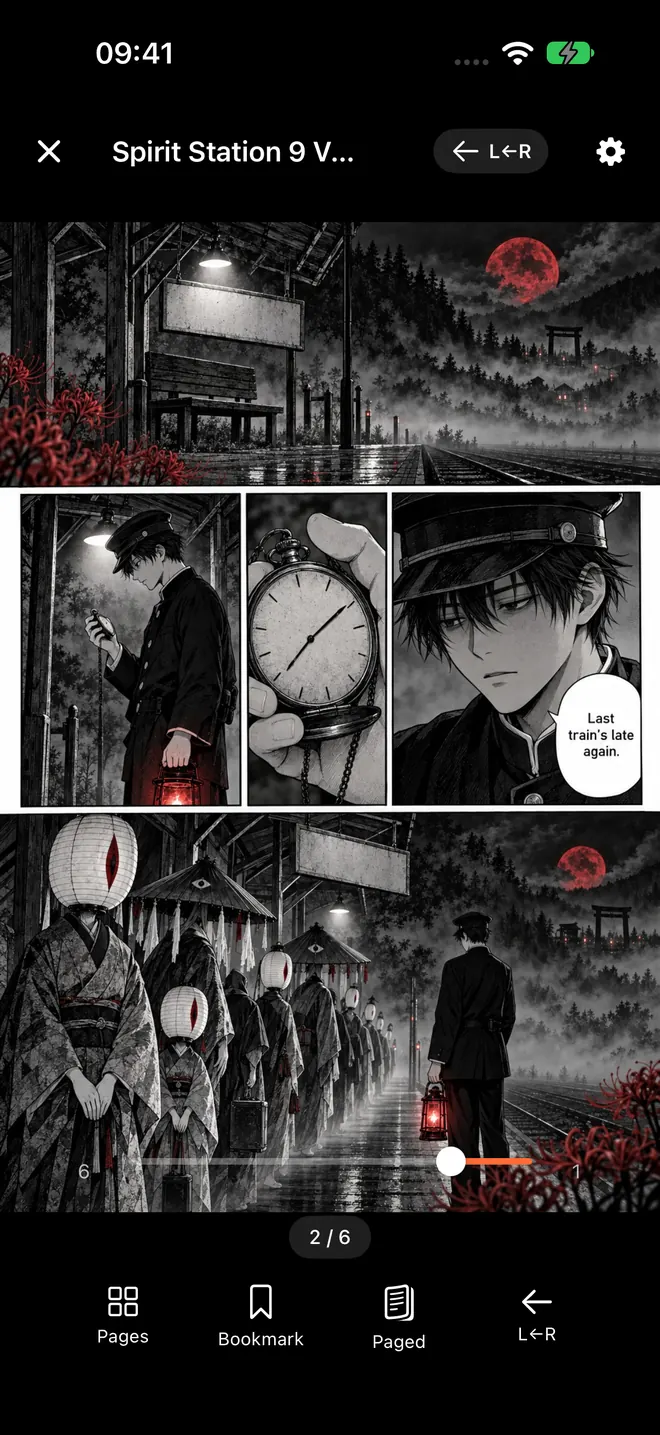
That screenshot is a typical case. The page reads fine as art, but the bubble in the middle panel is small at full-page size. One double-tap on it and it fills the screen.
Single taps keep working while you do this. Tapping the outer quarter of the screen on either side turns the page, and tapping the middle shows or hides the reader controls. With right-to-left switched on, the left side goes forward, the way a tankobon turns. If you would rather use swipes only, switch off Tap to Turn Page in Reader Settings.
Fix 2: Read dialogue in portrait, turn sideways for spreads #
It sounds backwards, but for text-heavy pages portrait is usually better than landscape. A manga page is taller than it is wide, so in portrait it gets the full width of the screen. Turn the phone sideways in paged mode and the page has to fit the shorter height instead, so it gets smaller.
Landscape earns its place on double-page spreads. Mangaka draw big reveals, fight climaxes and landscape shots across two facing pages, and on a phone held upright you only ever see half of one.
ComicFlow handles this with the Page Layout setting in Reader Settings (the gear icon at the top right of the reader):
- Auto shows a two-page spread when the screen is wide enough for two readable pages, and single pages otherwise. On most iPhones that means single pages in portrait and a spread when you turn sideways.
- Single Page always shows one page at a time.
- Double Page always shows two pages side by side, even in portrait, where they get very small.
Leave it on Auto. Read in portrait, and when you reach a spread, turn the phone. With right-to-left switched on, the spread sits in manga order, the first page on the right.
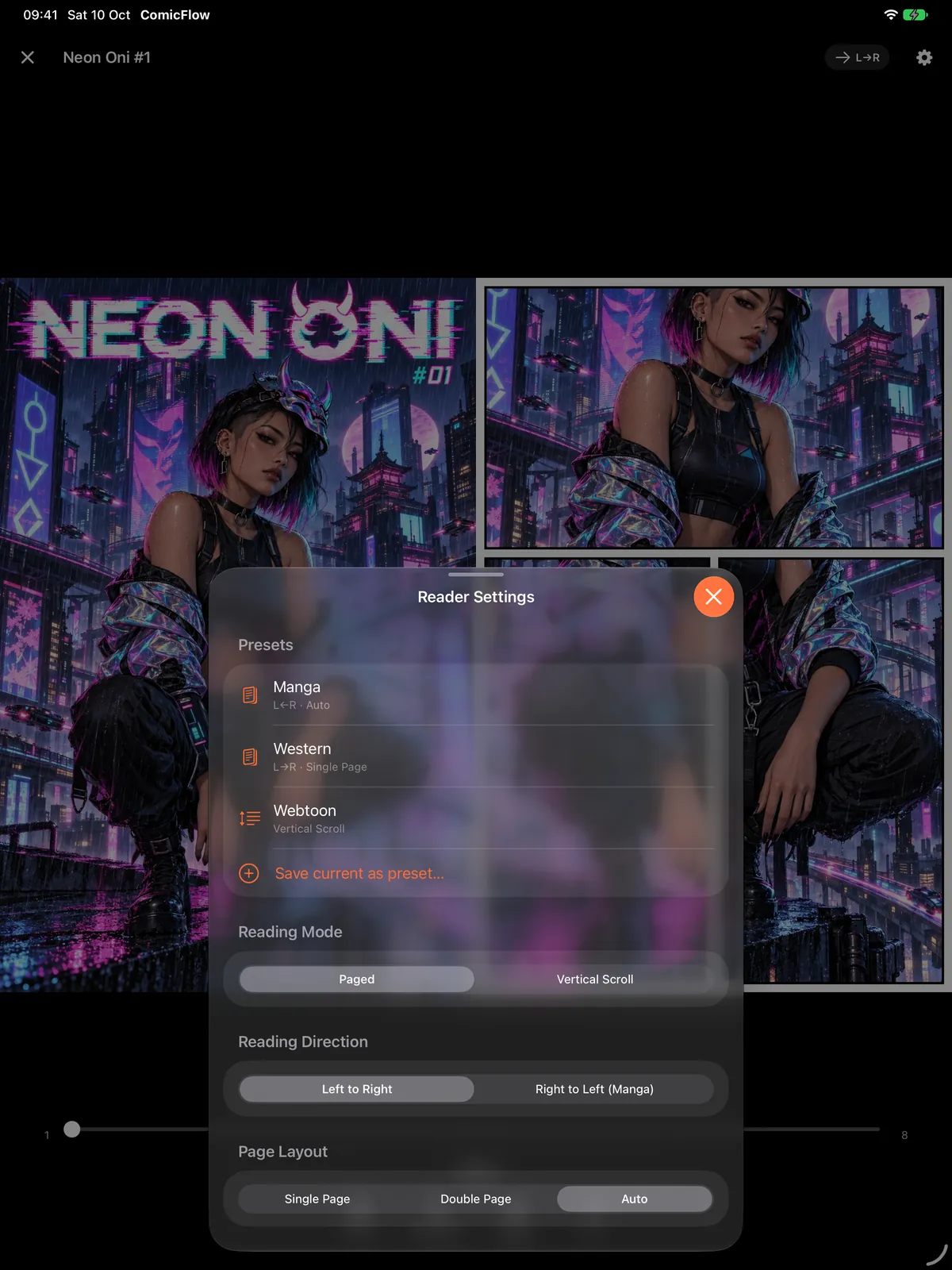
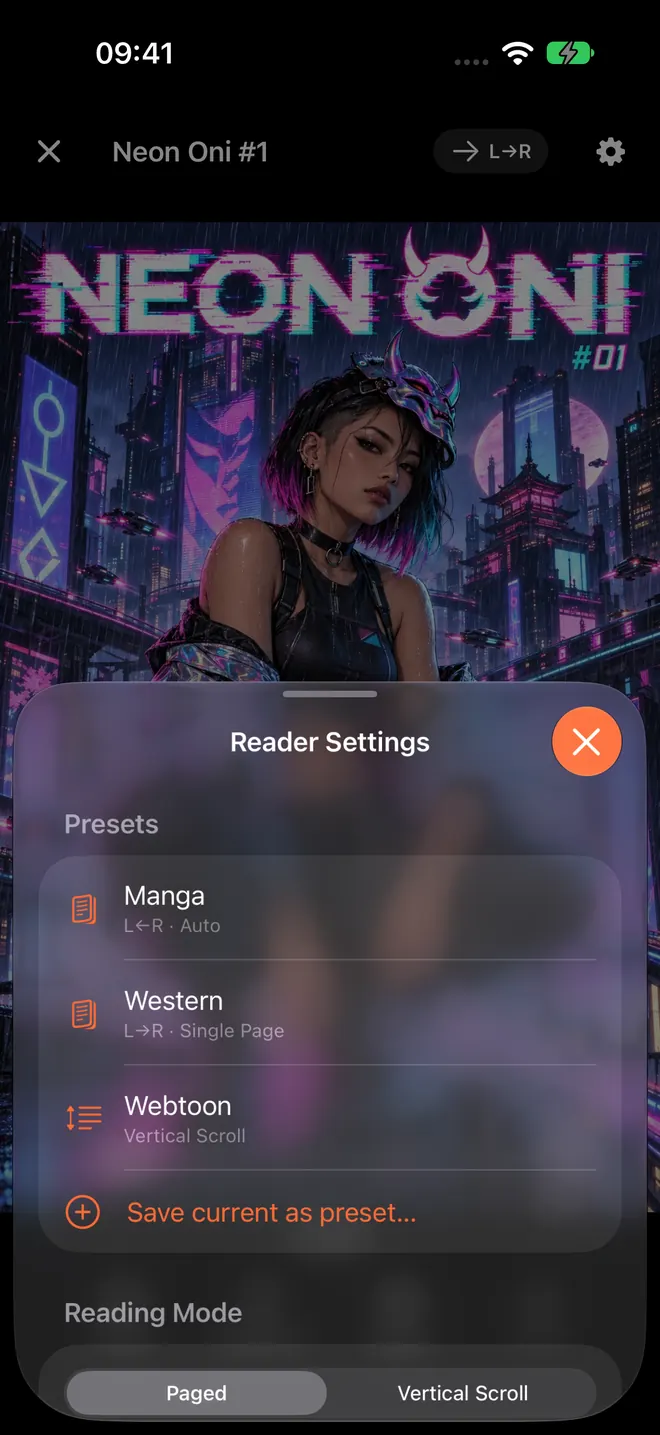
The screenshot above is from an iPad, which has room to show the whole sheet. The iPhone has the same Reading Mode, Reading Direction and Page Layout options in the same order.

Fix 3: Turn sideways and scroll for the biggest lettering #
This is the trick most manga readers never try. Switch Reading Mode to Vertical Scroll, then turn the phone sideways.
In vertical scroll, every page of a CBZ or CBR volume is sized to the full width of the screen and the pages run down one after another. In landscape that width is the long side of your iPhone, so the page is much wider than it is in portrait, and so is every speech bubble. You scroll down through the page instead of zooming in and out of it.
It works best for dialogue-heavy chapters, slice-of-life series and anything with dense narration boxes. For a fight chapter where you want to see the full page layout at a glance, switch back to Paged. Page order in vertical scroll simply runs from top to bottom, so right-to-left only matters again once you are back in paged mode.
Vertical scroll is also the right mode for webtoons, which are drawn as one long strip. Reading webtoons on iPhone covers that setup.
Small settings that make long sessions easier #
A few options in the same Reader Settings sheet help when you are squinting at small lettering for an hour:
- Background Color. Choose Black, Dark Gray, Gray or White for the area around the page. Black keeps the bright page edges from glaring at night. Gray or White can look calmer with scans that have white margins.
- Keep Screen On. On by default, so the screen does not dim while you are working through a dense page.
- Show Page Number. Switch it off if the page counter sits over a bubble you are trying to read.
Reading in bed? Reading comics at night on iPhone has more on brightness and eye strain.
If you still need more magnification, iOS has its own Zoom feature under Settings, then Accessibility, then Zoom. It magnifies anything on screen, including a manga page, and you toggle it with a three-finger double-tap. It is clumsier than zooming inside the reader, but it is there.
Save your setups as presets (optional Pro) #
Switching between portrait paged, landscape scroll and spreads by hand is quick, but you can make it one tap. The optional Pro unlock adds reader presets. Manga sets right-to-left with automatic page layout, Webtoon sets vertical scroll, and you can save your current setup as your own preset, for example a "sideways scroll" preset for text-heavy series.
ComicFlow Pro is a $6.99 one-time unlock, not a subscription. Besides presets, it adds Face ID-locked collections and EPUB export for Kobo, Boox, reMarkable and PocketBook e-readers. Everything else in this post, from double-tap zoom to vertical scroll, is in the $2.99 app.
When a bigger screen is the real answer #
Some volumes are lettered so small that a phone will always mean zooming. If you also have an iPad, ComicFlow shows a two-page spread whenever there is room for two readable pages, in portrait as well as landscape, and a single page on an iPad is close to print size. One purchase covers both iPhone and iPad. The iPad reading guide has the details.
On an iPhone Duo, unfold it like a book and each page of a spread gets its own side of the fold. Reading manga on iPhone Duo shows how that looks.
A quick routine for small-text manga #
- Set the volume to right-to-left and leave Page Layout on Auto
- Read in portrait, double-tapping any bubble that is too small
- Turn sideways when a two-page spread comes up
- For a dialogue-heavy chapter, switch to Vertical Scroll and read sideways
- Switch back to Paged when the chapter ends
Related reading #
- Read manga right-to-left on iPhone: the reader settings for manga order
- How to build a manga library on iPhone: DRM-free sources and setup
- How to track manga series on iPhone: Continue Reading and smart collections
- Read manga on iPhone Duo: two-page spreads on either side of the fold
- Comic reader app with no subscription: what $2.99 and the optional $6.99 Pro include
ComicFlow sends anonymous usage analytics to help improve the app, and you can switch that off in Settings, then Privacy, then Share Usage Data. Your manga files stay on your device. The privacy policy has the full list.
Frequently asked questions
Why is manga text so small on my iPhone?
Manga is lettered for a printed tankobon page, and an iPhone screen is much narrower than that page. When a reader fits the whole page on screen, the lettering shrinks with it. The text is part of the scanned image, so it only gets bigger when you zoom the page or give it more width.
Does Larger Text in iPhone Settings make manga text bigger?
No. Larger Text and Bold Text change text drawn by apps, such as menus and messages. Manga lettering is part of the page image, so those settings leave it unchanged. Zooming the page, or reading sideways with the page filling the width of the screen, is what makes it bigger.
How do I zoom into a speech bubble in ComicFlow?
Double-tap the bubble. ComicFlow zooms in to 3x around the spot you tapped, and a second double-tap zooms back out. You can also pinch to zoom up to 5x and drag to move around the page.
Can I read manga double-page spreads on an iPhone?
Yes. With Page Layout set to Auto, ComicFlow shows a two-page spread when the screen is wide enough for two readable pages, which on most iPhones means turning the phone sideways. Switch on right-to-left and the spread sits in manga order.
Do I need ComicFlow Pro for zoom, landscape or vertical scroll?
No. Double-tap zoom, pinch zoom, page layouts, vertical scroll, right-to-left reading and reader backgrounds are all in the base $2.99 app. The optional $6.99 one-time Pro unlock adds saved reader presets, Face ID-locked collections and EPUB export for e-readers.