
You tap the edge of the page, and it jumps. Fine for a PDF. For a tankobon, a lot of manga readers want the leaf to turn, the way a printed volume does under your thumb.
ComicFlow 3.8 adds that. A Page curl toggle makes each page or spread curl like paper, including when you read right to left. I build ComicFlow: $2.99 once, with an optional $6.99 one-time Pro unlock. Neither renews. Page curl does not need Pro.
Disclosure: I make ComicFlow at Applestan. Features and prices below match the live App Store listing and the ComicFlow support FAQ. Only use files you own or that are DRM-free.

The short answer #
Open a manga volume in ComicFlow, tap the gear to open Reader Settings, find Page curl in the Display section (near Tap to Turn Page), and switch it on. It is off by default. Set Reading Direction to Right to Left (Manga) if the volume needs it. The curl then follows that direction.
That is all. No Pro, no preset, no extra download.
Where the toggle lives #
Page curl sits with the other Display options in Reader Settings, next to Tap to Turn Page. Open any volume, tap the gear at the top right, scroll to Display, and you will see it.
A few details that matter on a phone:
- Off by default. You choose it. Leaving it off keeps the usual instant turn.
- Whole leaf. It curls the full page, or the full spread when two pages are on screen. It does not peel a single panel.
- Does not change the art. The curl is the turn animation. Cropping, zoom and layout stay as you set them.
There is no dedicated page-curl screenshot in the App Store set yet, so the shots below show the reader and settings you already have. The toggle itself is the Page curl switch in Display.
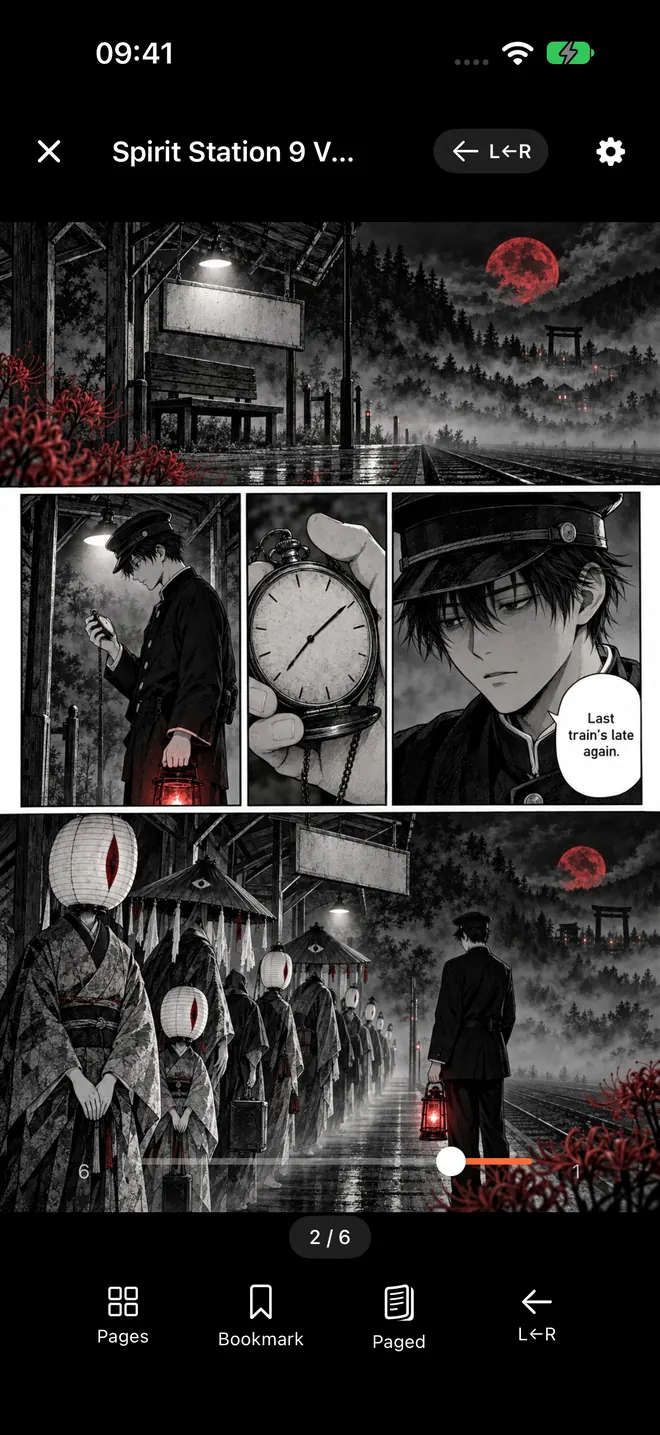
Manga in right-to-left mode on iPhone. Open the gear at the top right for Reader Settings, where Page curl lives under Display.

Right-to-left manga, spreads and taps #
Page curl follows your reading direction. With Right to Left (Manga) on, the leaf turns the manga way. Read manga right to left on iPhone covers that setting if you still need to flip it.
When Auto layout shows a two-page spread (phone sideways, or an iPad in portrait), the curl turns the whole spread as one leaf. That matches how a printed volume opens across the gutter.
Tap to Turn Page still works with the curl on. In right-to-left mode, a tap on the left edge goes forward, the same way your thumb moves through a printed tankobon. Swipes work too.
For the wider manga setup (Paged mode, Auto layout, black background, Trim Margins and the rest), see best manga reader settings on iPhone.
When page curl does not appear #
Two cases hide or replace the paper turn:
- Vertical Scroll / webtoon mode. Long strips have no page leaf. In that mode the Page curl toggle is hidden or disabled. Switch Reading Mode back to Paged if you want the curl.
- Reduce Motion. If Reduce Motion is on in iOS Accessibility, ComicFlow uses a simple slide instead of the paper curl. Turn Reduce Motion off if you want the full curl back.
Neither is a bug. Both keep the reader honest about what the screen can show.
Trim Margins, the nearby 3.8 toggle #
Next to the paper feel, version 3.8 also added Trim Margins. That separate toggle cuts white or black borders around each page so the art fills more of the screen. Scanned volumes with wide paper margins gain the most. It is also in the $2.99 app. The settings guide above walks through it with the other Display options.
Duo preset turns it on for you #
If you use ComicFlow Pro, the Duo reader preset turns Page curl on (and Trim Margins), and keeps each book's own reading direction. That is handy on an iPhone Duo, and you can still use the same preset on a regular iPhone. Presets are the Pro part. The Page curl switch itself is not.
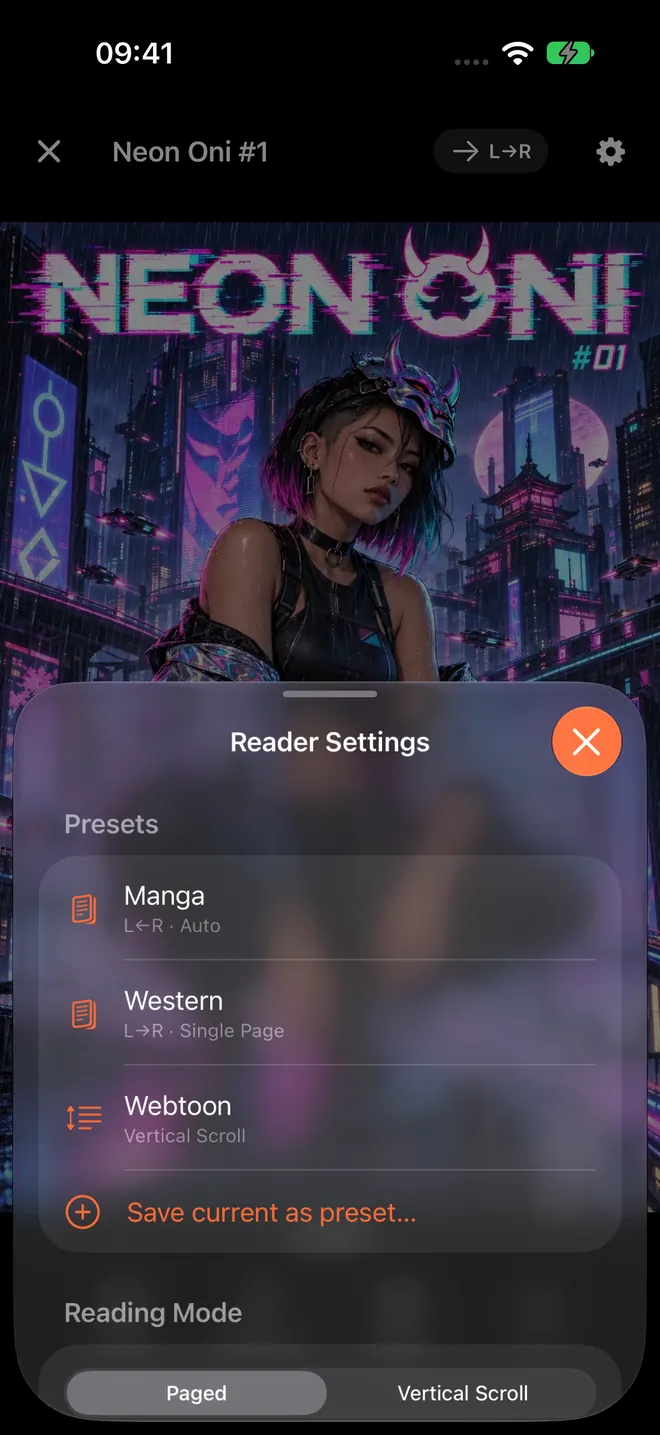
Reader Settings with presets at the top. This screenshot is from before 3.8, which added the Duo preset and the Page curl toggle further down in Display. Open the sheet on a current build to see both.
Included in the $2.99 app #
Page curl, Trim Margins and importing a ZIP or RAR with several manga volumes are all in ComicFlow 3.8 inside the $2.99 app. They do not need Pro.
ComicFlow Pro is an optional $6.99 one-time unlock. It is not a subscription. It adds comic server reading (Komga, Kavita and OPDS), Face ID-locked collections, EPUB export for Kobo, Boox, reMarkable and PocketBook, and reader presets, including Duo.
If you mostly want pages that turn like paper on your phone, you do not need any of that.
Related reading #
- Best manga reader settings on iPhone: direction, layout, Trim Margins and presets
- Read manga right to left on iPhone: the RTL setting page curl follows
- Import a whole manga series from one ZIP or RAR: the other big 3.8 library feature
- Read manga on iPhone Duo: spreads across the fold, where the Duo preset helps
Frequently asked questions
Does ComicFlow have a manga page curl on iPhone?
Yes. ComicFlow 3.8 adds a Page curl toggle in Reader Settings, in the Display section near Tap to Turn Page. It is off by default. Turn it on and each page or spread curls like a paper leaf, including in right-to-left manga mode.
Do I need ComicFlow Pro for page curl?
No. Page curl is part of the $2.99 app, the same as Trim Margins and importing a ZIP or RAR with several comics. ComicFlow Pro is a separate optional $6.99 one-time unlock for comic servers, Face ID-locked collections, EPUB export and reader presets.
Does page curl work right to left for manga?
Yes. When Reading Direction is Right to Left (Manga), the curl follows that direction. The whole leaf curls for a single page and for a two-page spread.
Why can't I find the Page curl toggle?
Page curl only applies in Paged reading mode. In Vertical Scroll (webtoon mode) the toggle is hidden or disabled, because there is no page leaf to curl. Switch Reading Mode to Paged, then open Reader Settings again.
What happens if Reduce Motion is on?
If Reduce Motion is enabled in iOS Accessibility settings, ComicFlow falls back to a simple slide instead of the paper curl, so the turn stays gentle.
Does the Duo preset turn page curl on?
Yes. The Duo reader preset, part of ComicFlow Pro, turns Page curl on and keeps each book's reading direction. You can also turn Page curl on by hand in the $2.99 app without using any preset.