You finish a volume of your manga on the train. At home you open a manhwa, and it starts in the wrong direction with tiny pages. You fix it. Next day you open a Western comic your friend gave you, and now that one reads right to left. You fix it again.
Most manga readers end up in this loop, because they read more than one kind of book. This guide gives you the settings that work best for manga on an iPhone and an iPad, and then shows how to stop setting them by hand. I build ComicFlow, the reader in the screenshots: $2.99 once for the reader and library, with an optional $6.99 one-time Pro unlock. Neither renews.
Disclosure: I make ComicFlow at Applestan. Features and prices below match the live App Store listing and the ComicFlow support FAQ.

The short answer: the best manga settings #
If you only read manga, these four settings are the ones that matter. In ComicFlow, open a volume and tap the gear at the top right to open Reader Settings.
| Setting | Best for manga | Why |
|---|---|---|
| Reading Mode | Paged | One page at a time, like a printed tankobon |
| Reading Direction | Right to Left (Manga) | Pages and spreads in the order the mangaka drew them |
| Page Layout | Auto | One page when the phone is upright, a spread when it is sideways |
| Background | Black | The page edges do not glow, which helps in bed and on night trains |
A few more help on a phone screen:
- Tap to Turn Page. Leave it on, so a tap on the edge turns the page. In right-to-left mode, the left edge goes forward, the same way your thumb moves through a printed volume.
- Keep Screen On. It is on by default, so the screen does not dim in the middle of a fight scene.
- Trim Margins. Switch it on to cut the white or black borders around each page, so the art fills more of the screen. Scanned volumes with wide paper margins gain the most.
- Page Curl. Switch it on if you want pages to turn like paper. It is a matter of taste, and it does not change what you see on the page.
- Double-tap to zoom. A double-tap zooms in to 3x around a speech bubble, and a second double-tap zooms back out. Pinch zoom goes up to 5x. Manga text too small on iPhone has more on small lettering.
All of this is in the $2.99 app. You do not need Pro for any single setting.
Spreads: when to turn the phone sideways #
Manga artists love the double-page spread. A big reveal, a battle, a city at night across two pages. On an upright iPhone, Auto layout shows those as two separate pages, because two pages side by side would be too small to read.
Turn the phone sideways and Auto shows the spread as one picture. On an iPad there is room for two readable pages even in portrait, so spreads show up without turning anything. In right-to-left mode, the right page comes first, so the spread sits in manga order.
If a spread looks wrong, with the left half of one picture next to the right half of another, the cover is the reason. Most volumes start with a single cover page, and that pushes every later pair one page out of step. While two pages are on screen, open Reader Settings and switch Show Cover Alone on or off until the spread lines up.
Some scans already put a spread into one wide image. When you are reading one page at a time, Split Wide Pages cuts those into two halves, so you can read each half at full size.
Manhwa, manhua and Western comics need other settings #
The manga settings above are wrong for half the books a manga reader owns.
- Manhwa and webtoons are long vertical strips made for scrolling. They read best in Vertical Scroll, with the strip filling the width of the screen. Reading webtoons on iPhone covers them.
- Manhua depends on where it comes from. Printed manhua often reads left to right, and web manhua is often a vertical strip. Reading manhua on iPhone explains how to tell.
- Western comics read Left to Right, usually one page at a time.
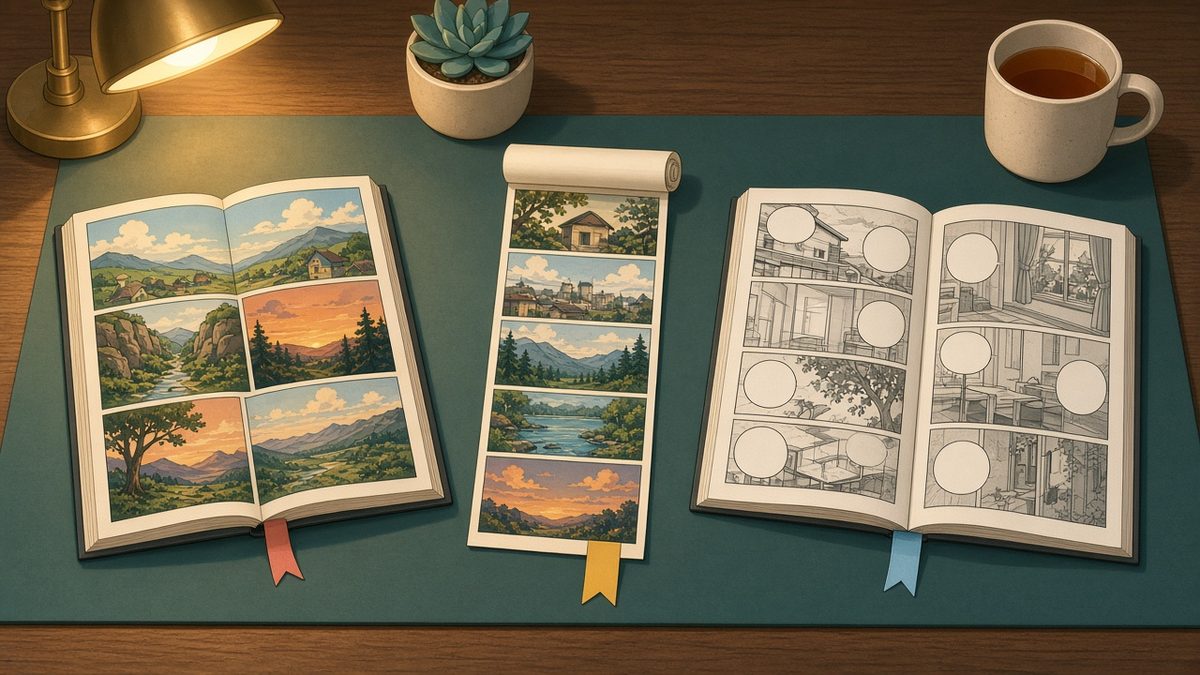
ComicFlow helps here without Pro. It remembers the direction for each volume, so a manga you set to right to left opens that way next time. When it knows the series, from the ComicInfo data that many CBZ and CBR files carry or from your Komga or Kavita server, the direction and reading mode are remembered for every book of that series. Reader Settings shows "Remembered for every book in this series" under the direction when that is the case.
What it cannot guess is the setup for a brand new book from a different world. That is where presets come in.
Reader presets: one tap for each kind of book #
A preset is a saved reading style. It sets the reading mode, direction, page layout and background in one tap, and your own presets also remember whether Trim Margins was on. Presets sit at the top of Reader Settings, so they are the first thing you see when you open it.
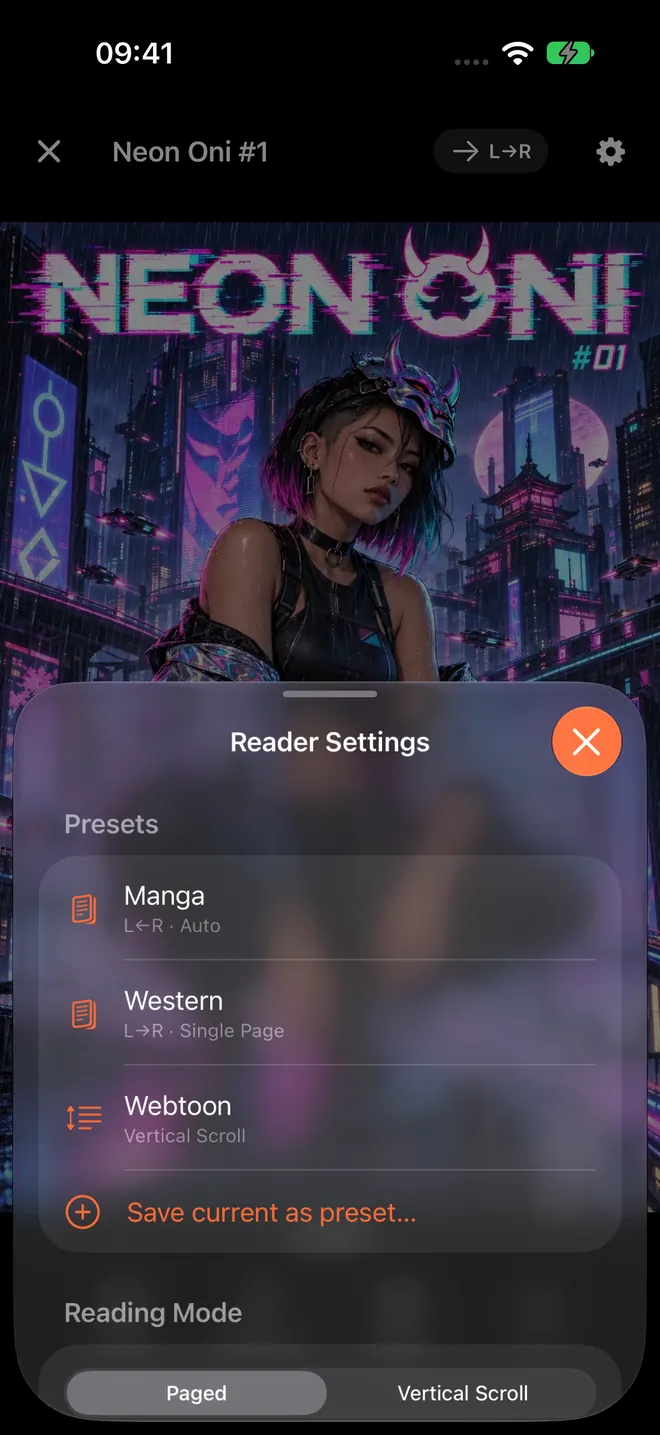
Reader Settings on iPhone, with the built-in presets at the top. This screenshot is from before version 3.8, which added a fourth preset, Duo.
ComicFlow comes with four:
- Manga: Paged, Right to Left, Auto layout, black background. This is the short answer from the top of this guide in one tap.
- Western: Paged, Left to Right, Single Page, black background.
- Webtoon: Vertical Scroll with the strip fitted to the width of the screen, black background. Use it for manhwa and web manhua too.
- Duo: made for the iPhone Duo. It switches on Trim Margins and Page Curl, lets spreads follow the fold, and keeps each book's own direction, so it works for manga and comics alike.
So the loop from the start of this post becomes three taps on three days. Open the manga, tap Manga. Open the manhwa, tap Webtoon. Open your friend's comic, tap Western.
Save your own presets #
The built-in four cover most books. Your own presets cover the habits that are only yours. To save one, set up the reader the way you like it, open Reader Settings, tap Save current as preset, and give it a name. It appears in the list next to the built-in ones. To remove one of yours, swipe left on it. The four built-in presets always stay.
Some setups worth saving if you read a lot of manga:
- iPad Spreads. Paged, Right to Left, Double Page. Good for action series and art-heavy volumes on an iPad, where you always want two pages side by side. On an upright iPhone, stay with Auto instead, because Double squeezes two pages into a narrow screen.
- Scans. Paged, Right to Left, Auto, with Trim Margins on. Volumes you scanned yourself often have wide paper borders, and trimming them makes the lettering bigger on a phone.
- Daylight. The manga setup with a White background, for a sunny train, where a bright page in a black frame can feel like a hole in the screen.
- Grey for long sessions. The same manga setup with a Dark Gray or Gray background, if pure black around a white page feels too harsh to you.
- Western on iPad. If you read a lot of Western comics on an iPad, a Left to Right preset with Double Page shows them as open books too.
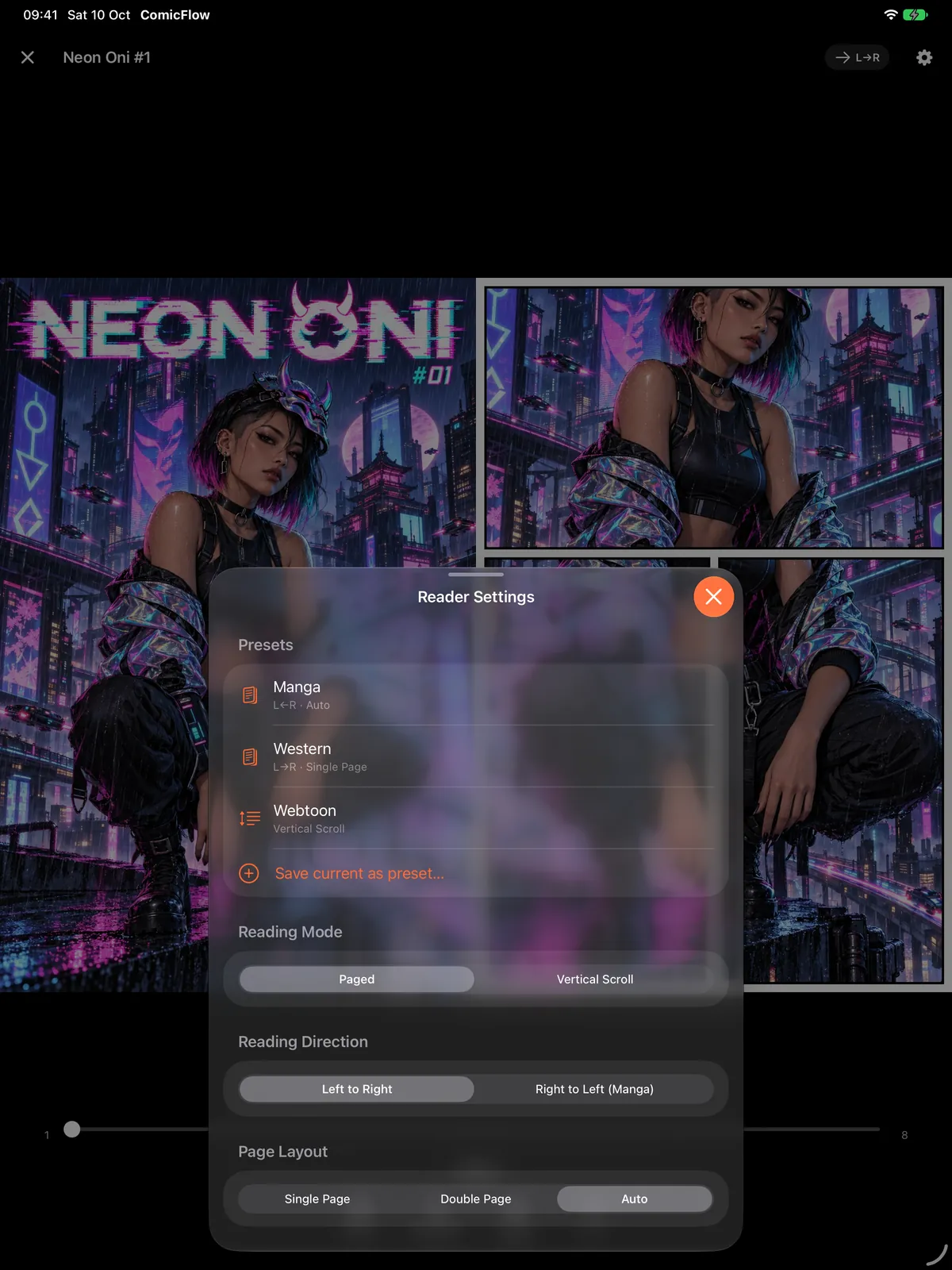
Presets on iPad, where Auto already shows two pages in portrait. This screenshot is also from before 3.8.
Presets are saved on the iPhone or iPad where you make them, so set them up on each device you read on.
Presets are part of ComicFlow Pro #
Every setting in this guide is in the $2.99 app. Presets are the one-tap switch between them, and they are part of ComicFlow Pro, an optional $6.99 one-time unlock. It is not a subscription, so you pay once and keep it. Without Pro you can still see the preset list in Reader Settings, with a small lock next to each one, so you know where they will be.
Pro also adds:
- Komga, Kavita and OPDS servers, so you can stream or download manga from your own server, and a series the server marks as manga opens right to left without you doing anything.
- Face ID-locked collections for the shelf you would rather keep private.
- EPUB export for Kobo, Boox, reMarkable and PocketBook e-readers.
If you read only manga, the built-in direction memory may be all you need. If you read manga, manhwa and comics in the same week, presets save you the same five taps every time you change books.
Related reading #
- Read manga right to left on iPhone: the direction setting in detail
- Manga text too small on iPhone: zoom, sideways reading and spreads
- Read webtoons on iPhone: vertical scroll for manhwa
- Read manga one-handed on iPhone: tap zones for the train
- Comic reader app with no subscription: what $2.99 once gets you, and what Pro adds
Frequently asked questions
What are the best settings for reading manga on iPhone?
Paged reading mode, Right to Left (Manga) direction, Auto page layout and a black background. Paged turns one page at a time like a printed volume. Right to left puts the pages in the order the mangaka drew them. Auto shows one page when the phone is upright and a two-page spread when you turn it sideways. Black keeps the edges of the page from glowing at night.
Do I have to change the settings every time I switch from manga to a webtoon?
Not with reader presets. ComicFlow comes with four built-in presets, Manga, Western, Webtoon and Duo, and each one sets the reading mode, direction, layout and background in one tap. You can also save your own. Presets are part of the optional $6.99 one-time ComicFlow Pro unlock.
Can I use these settings without ComicFlow Pro?
Yes. Every single setting in the presets is in the $2.99 app: Paged or Vertical Scroll, Right to Left, Single, Double or Auto layout, Show Cover Alone, Trim Margins, Page Curl and the background colour. ComicFlow also remembers the direction for each volume, and for a whole series when it knows the series. Pro only adds the one-tap switch between saved setups.
Why are manga double-page spreads paired wrong?
Most volumes open with a cover on its own, and that pushes every later pair one page out of step. In ComicFlow, open Reader Settings while two pages are showing and switch Show Cover Alone on or off until the spread lines up. Turn the iPhone sideways first, because an upright phone shows one page at a time in Auto layout.
Can I save my own manga reader preset?
Yes, with ComicFlow Pro. Set up the reader the way you like it, open Reader Settings, tap Save current as preset, and give it a name. It joins the list under Presets. Swipe left on one of your own presets to delete it. The four built-in presets always stay.