
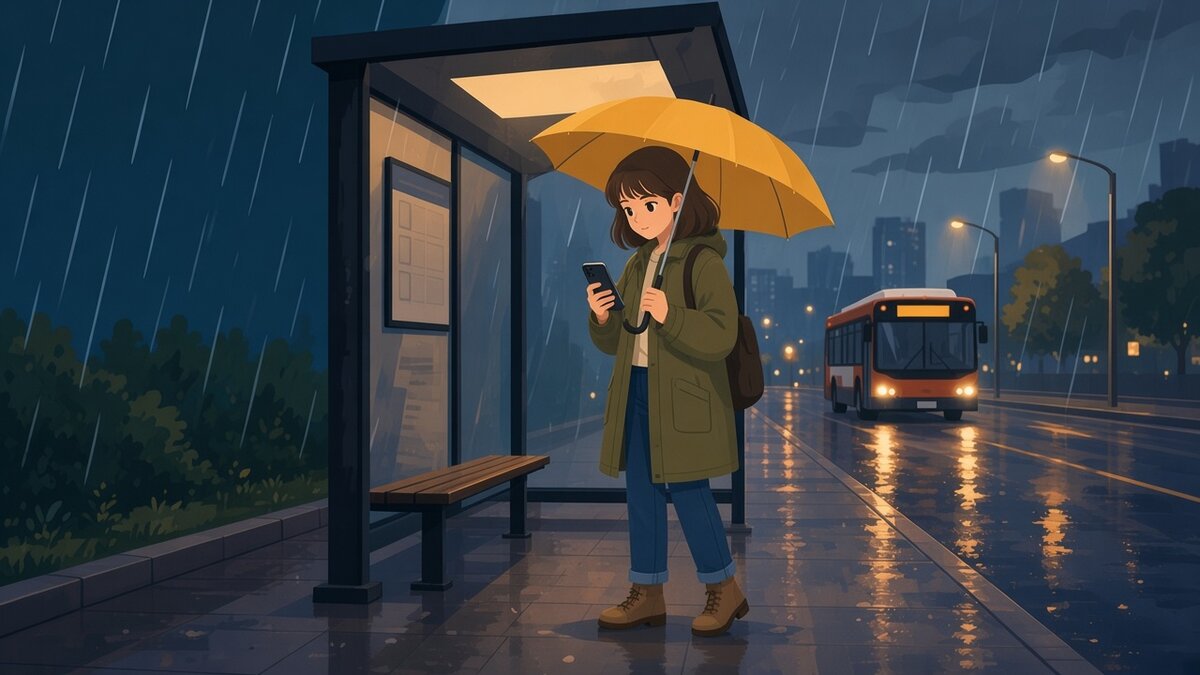
Most manga I read on my phone, I read with one hand. The other one is holding a strap on a packed train, an umbrella at a bus stop, a coffee, or a pillow at six in the morning. A reader that needs two hands for every page turn stays closed in those moments.
Reading one-handed comes down to a few settings and habits, and one surprise for manga readers: in right-to-left mode, the next page is on the side your thumb probably cannot reach. This guide covers where to tap, how to zoom with one thumb, and how to stop the page jumping when someone bumps into you. The reader I use is ComicFlow, which I build: $2.99 once for the reader and library, with an optional $6.99 one-time Pro unlock. Neither renews.
Disclosure: I make ComicFlow at Applestan. Features and prices below match the live App Store listing and the ComicFlow support FAQ.

Where your thumb can reach #
Hold your iPhone in one hand and move your thumb around the screen without shifting your grip. On most phones the bottom half and the edge nearest your palm are easy. The top corners and the far edge are a stretch, and on a Pro Max they are out of reach.
ComicFlow's reader is laid out with that in mind:
- Page turns happen on the outer quarter of the screen on each side, so you never have to hit a small button.
- The center of the page shows and hides the controls.
- The bar at the bottom holds Pages (a thumbnail grid of the volume), Bookmark, the Paged or Vertical Scroll switch, and the reading direction, plus a slider to jump through the volume.
The top bar holds the close button, the title, the direction switch and the Reader Settings gear. Those are things you set once per volume, not on every page.
Set manga mode first, then learn your edge #
Japanese manga reads right to left, so the first thing to do is open Reader Settings (the gear at the top right) and set Reading Direction to Right to Left (Manga). Reading manga right-to-left on iPhone has the full setup. ComicFlow remembers the direction for each volume.
Here is the part that matters for one hand. In right-to-left mode, the reader behaves like a printed tankobon:
- Tap the left edge to go to the next page.
- Tap the right edge to go back.
- Swipe the page from left to right to go forward, the same motion as turning a paper page.
If you hold the phone in your left hand, your thumb sits right on the forward edge, and reading is effortless. If you hold it in your right hand, the forward edge is the far side of the screen. Do not stretch for it. Swipe instead: a short drag to the right with your thumb, anywhere on the page, turns it forward.
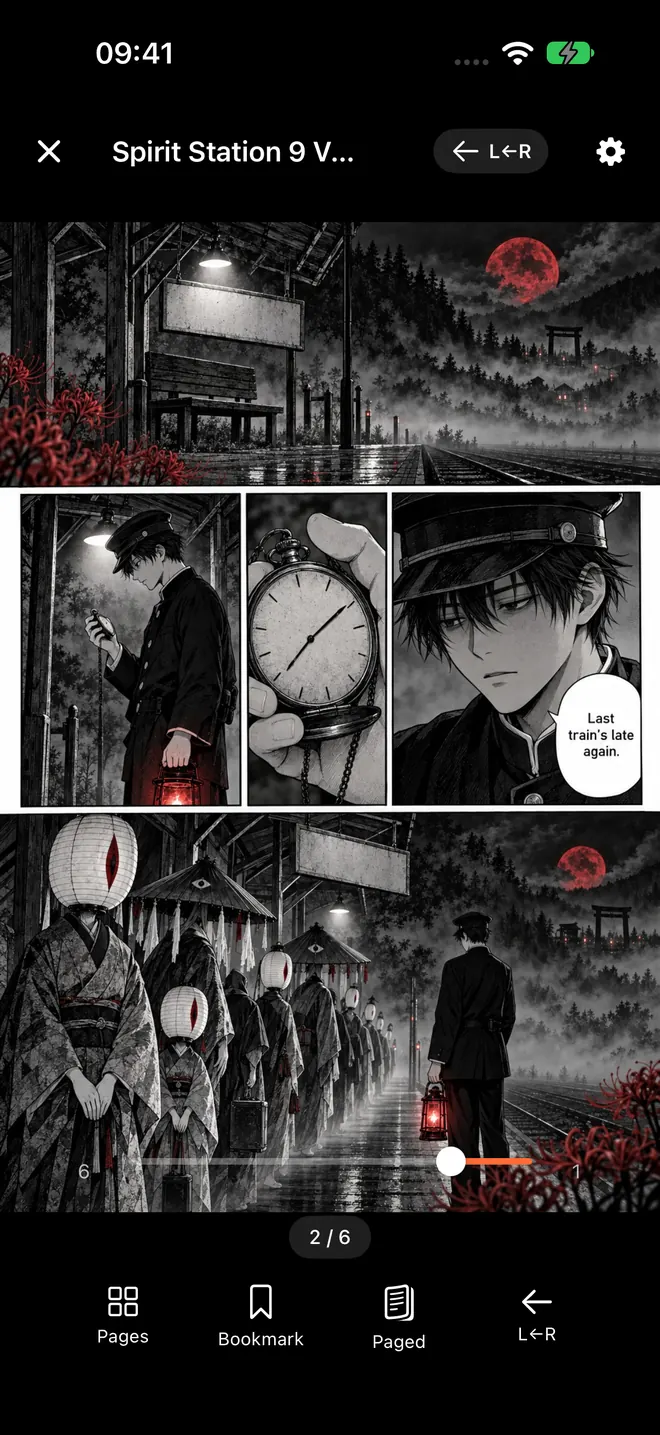
Notice that the page slider in that screenshot runs the manga way too, with the start of the volume on the right.
Zoom with one thumb #
Pinch zoom needs two fingers, which you do not have to spare on a train. Double-tap does the same job with one: ComicFlow zooms in to 3x around the spot you tapped, which is usually right on top of the speech bubble you could not read. Drag with your thumb to move around the page, then double-tap again to return to the full page.
If a volume has a lot of small lettering, manga text too small on iPhone has more fixes, including reading sideways in Vertical Scroll.
Stop accidental page turns #
On a crowded train, your thumb rests on the edge of the screen, the train brakes, and you are three pages further than you were. If that keeps happening, open Reader Settings and switch off Tap to Turn Page.
With it off, taps anywhere on the page only show and hide the controls. You turn pages by swiping, which takes a deliberate movement and almost never happens by accident. Switch it back on when you are sitting down again.
Keep the screen awake #
Nothing breaks a one-handed reading session like the screen dimming and locking while you study a two-page fight scene, then asking for Face ID while your hand is busy. ComicFlow's reader has Keep Screen On switched on by default, in the Display section of Reader Settings, so the screen stays awake for as long as the reader is open. It goes back to your normal Auto-Lock when you close the volume.
Two iPhone settings help as well:
- Portrait Orientation Lock. Open Control Center and tap the lock icon with the circular arrow. Reading lying down on your side will no longer flip the page sideways.
- Reachability. Go to Settings, then Accessibility, then Touch, and switch on Reachability. Swipe down on the bottom edge of the screen and the top half of the screen slides down within reach of your thumb, including the reader's close button and the Reader Settings gear.
Read in bed without waking up your arm #
Early morning reading is where one hand really matters, because the other one is under a pillow. A few tips that work with ComicFlow:
- Pick a background that suits the light. Reader Settings has Black, Dark Gray, Gray and White backgrounds behind the page. Black is the gentlest in a dark room. Reading comics at night on iPhone covers brightness and eye strain.
- Use the Pages grid to skip ahead. Tap the middle of the page to show the controls, then Pages to see the whole volume as thumbnails and jump with one tap.
- Bookmark with your thumb. The Bookmark button sits in the bottom bar, so marking a page you want to come back to is one tap.

Pick up where you stopped #
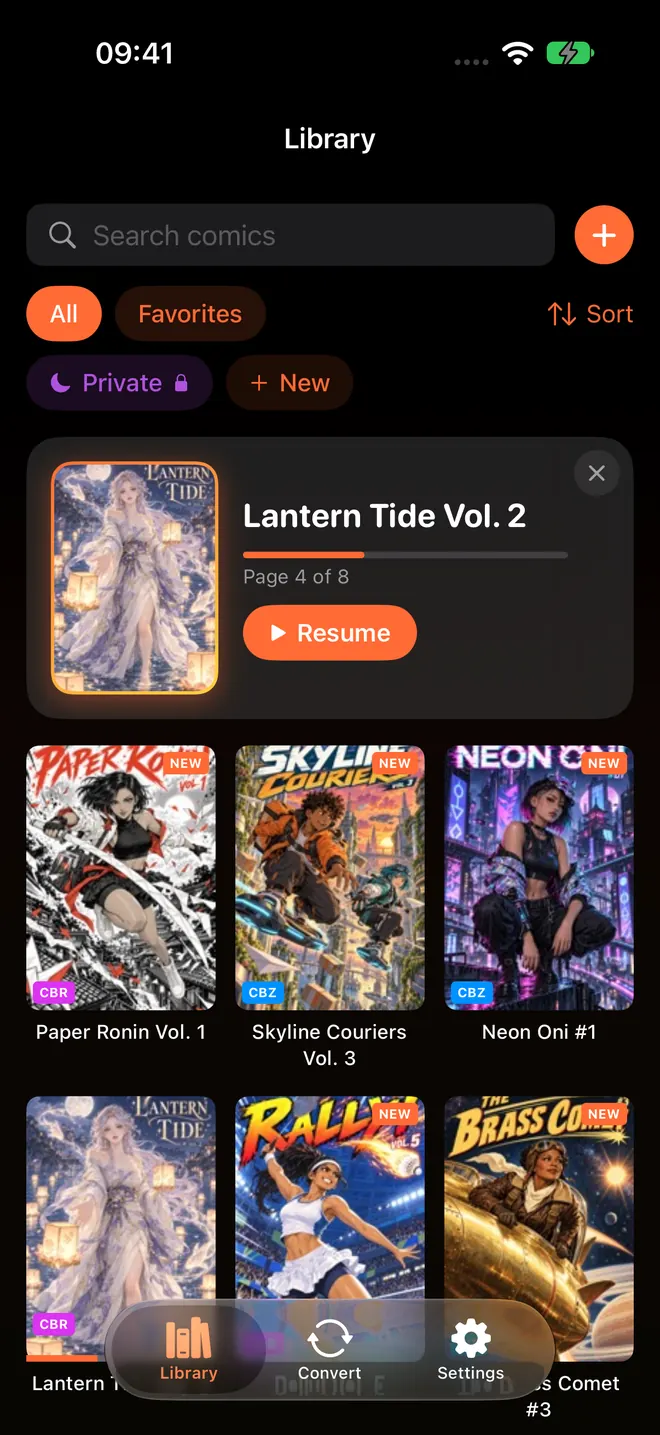
One-handed reading tends to happen in short bursts: three stops on the train, five minutes at the bus stop. ComicFlow saves your page in every volume automatically, so you can close the app mid-chapter without thinking about it. Next time, the Continue Reading card at the top of the library takes you back to the same page with one tap on Resume.
If you read across several series at once, tracking manga series on iPhone shows how to keep them apart with collections.
Load your volumes before you leave #
Mobile signal in a tunnel or on a rural line comes and goes, and you do not want to be waiting on a download with your one free hand. ComicFlow reads your own DRM-free CBZ, CBR, ZIP, RAR and PDF files from the iPhone itself, so once a volume is in your library it opens without a connection. Add new volumes at home with Wi-Fi Upload, a watched folder in Files, or AirDrop. Reading comics offline on iPhone and iPad and transferring comics over Wi-Fi cover both steps.
Books bought inside store apps such as Kindle or BookWalker stay in those apps and will not open in ComicFlow.
Save your commute setup (optional Pro) #
If you switch between manga and other comics, the optional Pro unlock adds reader presets. The built-in Manga preset sets right-to-left reading in one tap from the Reader Settings sheet, and you can save your current reading mode, direction, page layout and background as a preset of your own.
ComicFlow Pro is a $6.99 one-time unlock, not a subscription. Besides presets, it adds Face ID-locked collections and EPUB export for Kobo, Boox, reMarkable and PocketBook e-readers. Everything else in this guide, from tap zones to double-tap zoom and Continue Reading, is in the $2.99 app, with no ads and no account.
Related reading #
- Read manga right-to-left on iPhone: the reader settings for manga order
- Manga text too small on iPhone: zoom, landscape and vertical scroll for small lettering
- Read comics at night on iPhone: brightness and backgrounds for reading in bed
- Read comics offline on iPhone and iPad: get your volumes ready before the commute
- Manga to binge in a weekend: something to read on the way
ComicFlow sends anonymous usage analytics to help improve the app, and you can switch that off in Settings, then Privacy, then Share Usage Data. Your manga files stay on your device. The privacy policy has the full list.
Frequently asked questions
Can I read manga with one hand on an iPhone?
Yes. In ComicFlow you turn pages by tapping the outer quarter of the screen on either side or by swiping, so a single thumb is enough. Double-tap zooms in without a second finger, and the controls you use most sit in a bar at the bottom of the reader.
Which side do I tap for the next page in manga mode?
With Reading Direction set to Right to Left (Manga), tapping the left edge goes forward and tapping the right edge goes back, just like turning the pages of a printed tankobon. Swiping the page from left to right also moves forward.
How do I stop pages turning by accident?
Open Reader Settings with the gear icon and switch off Tap to Turn Page. Taps then only show and hide the controls, and you still turn pages by swiping.
How do I zoom into a manga page with one thumb?
Double-tap the spot you want to read. ComicFlow zooms in to 3x around it, and a second double-tap returns to the full page. Pinch zoom goes up to 5x but needs two fingers.
Will my iPhone lock while I am reading?
Not by default. Keep Screen On is switched on in ComicFlow's Reader Settings, so the screen stays awake while the reader is open even if you stop touching it for a while.
Do I need ComicFlow Pro to read one-handed?
No. Tap zones, swiping, right-to-left reading, double-tap zoom, Keep Screen On and Continue Reading are all in the base $2.99 app. The optional $6.99 one-time Pro unlock adds saved reader presets, Face ID-locked collections and EPUB export for e-readers.