
Your comics live on a computer. Your reader lives on an iPhone. Getting CBR, CBZ and PDF files across without a cable, without iTunes, and without installing another desktop tool is the gap most comic apps leave open.
ComicFlow closes it with Wi-Fi Upload: the phone runs a small local page, you open that page in any browser on the same network, and you drag files onto it. Mac, Windows and Linux all work the same way, because the computer only needs a browser.
Disclosure: I make ComicFlow at Applestan. Prices and features below match the live App Store listing and the ComicFlow support FAQ.

What you need before you start #
- ComicFlow on an iPhone or iPad (base app is enough; Wi-Fi Upload is not behind Pro)
- A Mac, Windows PC, or Linux machine on the same Wi-Fi as the phone
- Comic files as CBR, CBZ, PDF, RAR, or ZIP
- A few minutes with the Wi-Fi Upload screen left open on the phone
You do not need a cable, Apple ID on the computer, cloud storage, or anything installed next to your browser.
Step by step: Wi-Fi Upload in ComicFlow #
- Open ComicFlow on the iPhone or iPad.
- Go to Settings, then Wi-Fi Upload.
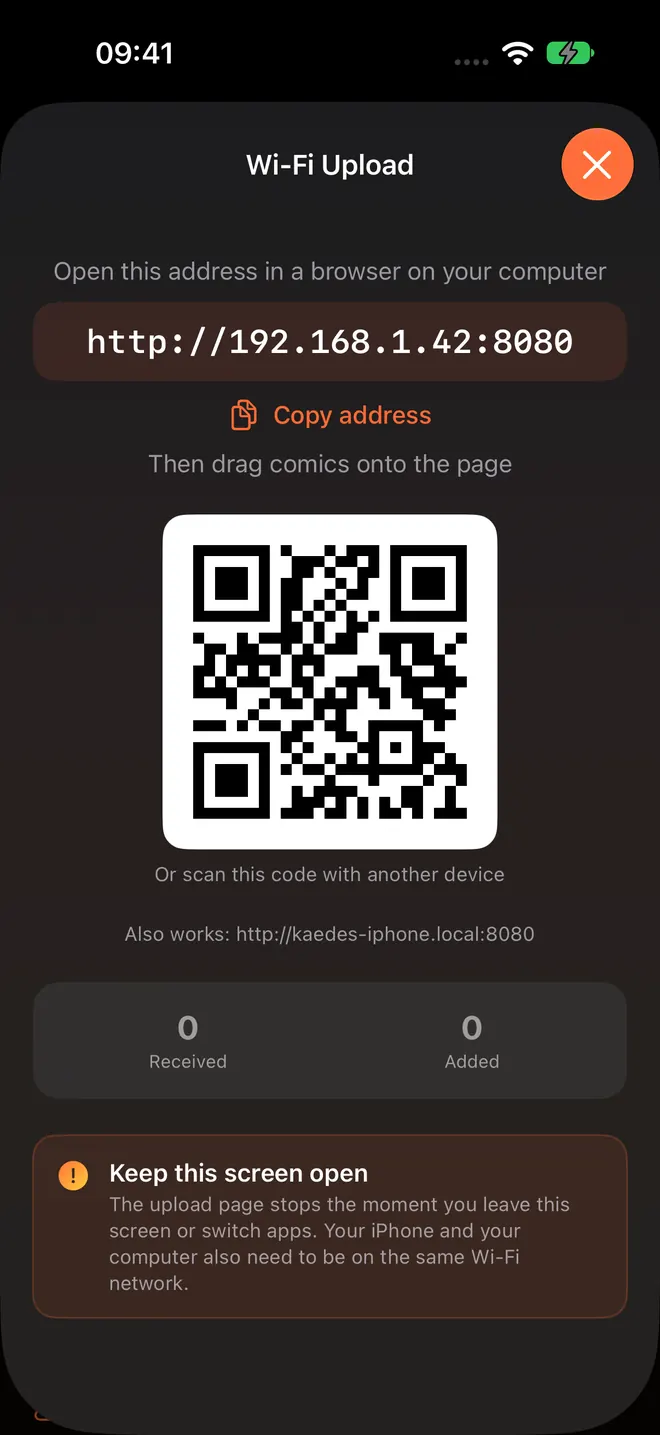
- Leave that screen open. The app shows an address such as
http://192.168.1.42:8080, a Copy address button, a QR code, and often a.localalias for the same device. - On the computer, open any browser and paste the address, or scan the QR code from another device that can share the link.
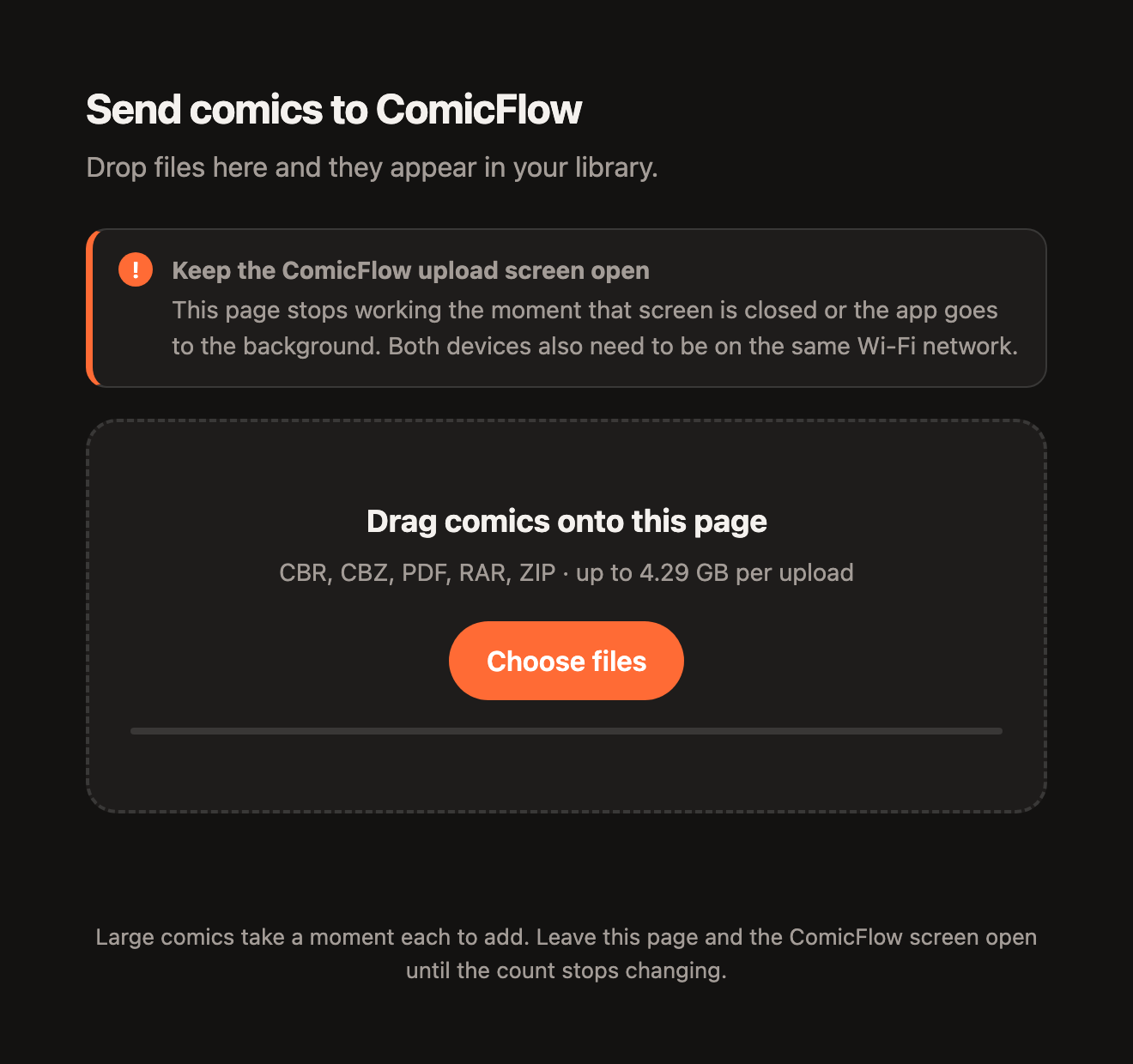
- Drag comics onto the dashed drop zone, or use Choose files.
- Watch Received and Added on the phone. Wait until both stop changing before you leave the screen or close the browser tab.
Uploads can be up to 4.29 GB each. Large files take longer to appear in the library; the counters are the signal that the job is done.
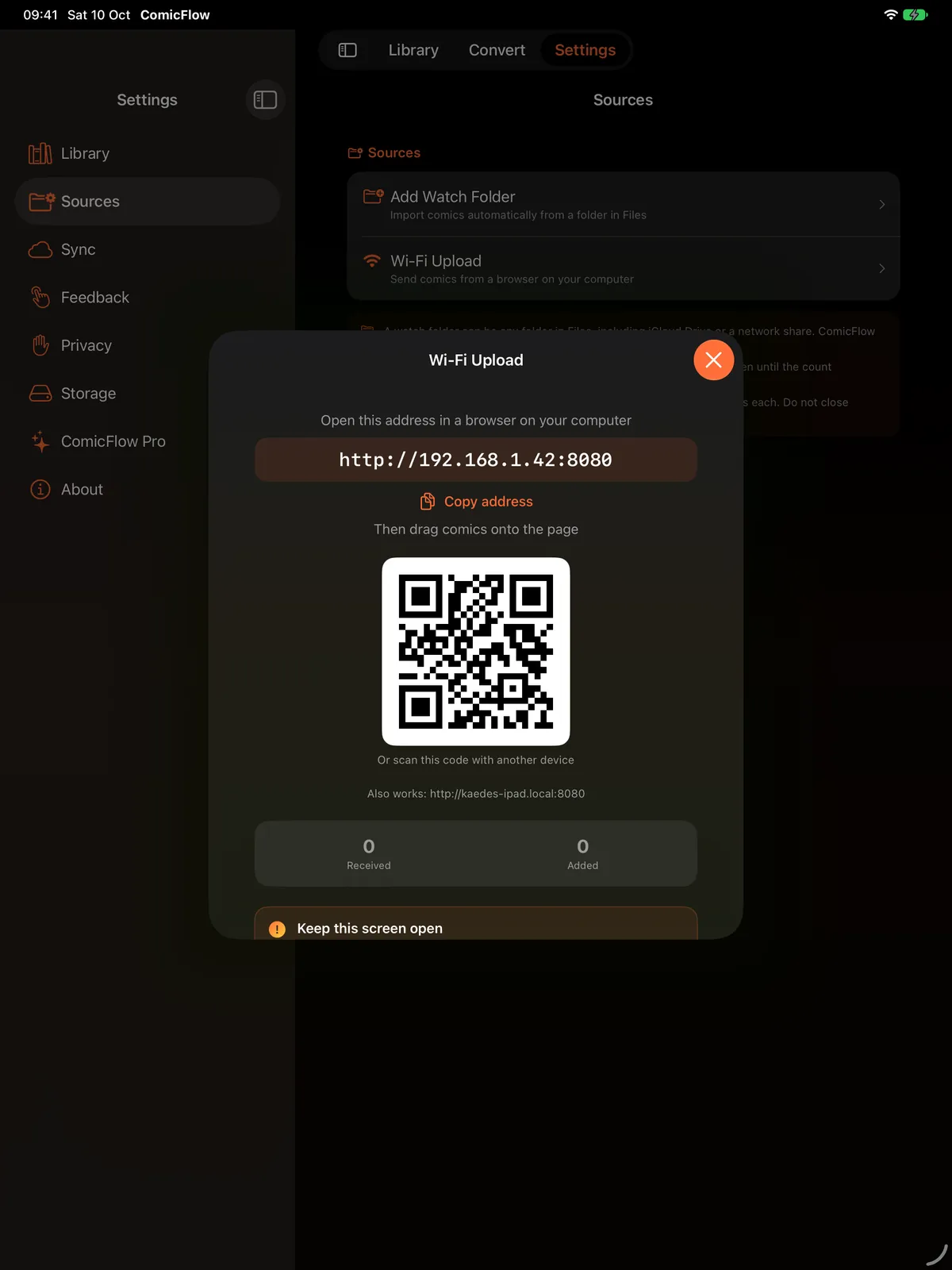
On iPad the same sheet opens from Settings, with the Settings sidebar still visible behind it.
What the browser page does (and does not do) #
The page is a drop zone titled along the lines of Send comics to ComicFlow. It accepts CBR, CBZ, PDF, RAR and ZIP. It does not create an account, sync to a cloud, or keep running after you close it.
Two rules matter more than the UI:
- Same Wi-Fi. Guest networks, client isolation, and phone hotspots often block device-to-device traffic. Use the ordinary home or office network both devices already share.
- Keep the app screen open. Leave Wi-Fi Upload and the local server stops. That is intentional so nothing listens in the background.
If the page will not load, check that both devices show the same network name, that the address matches what the phone displays (including the port), and that a VPN on either side is not splitting traffic.
When Wi-Fi Upload beats the other routes #
The longer transfer guide still covers AirDrop, iCloud, USB, cloud folders and email. Wi-Fi Upload wins when:
- The computer is Windows or Linux (AirDrop is Mac-only)
- You want bulk drops without a cable or Finder/iTunes file sharing
- You do not want comics sitting in iCloud just to move them once
- You already have ComicFlow open and the files are on a nearby machine
Prefer a watched folder instead when the library lives in iCloud Drive, on a NAS mounted in Files, or on a USB drive you plug into the phone. New files in that folder import themselves when the app opens or when you pull to refresh the library. Watched folders and Wi-Fi Upload are both in the base $2.99 app.
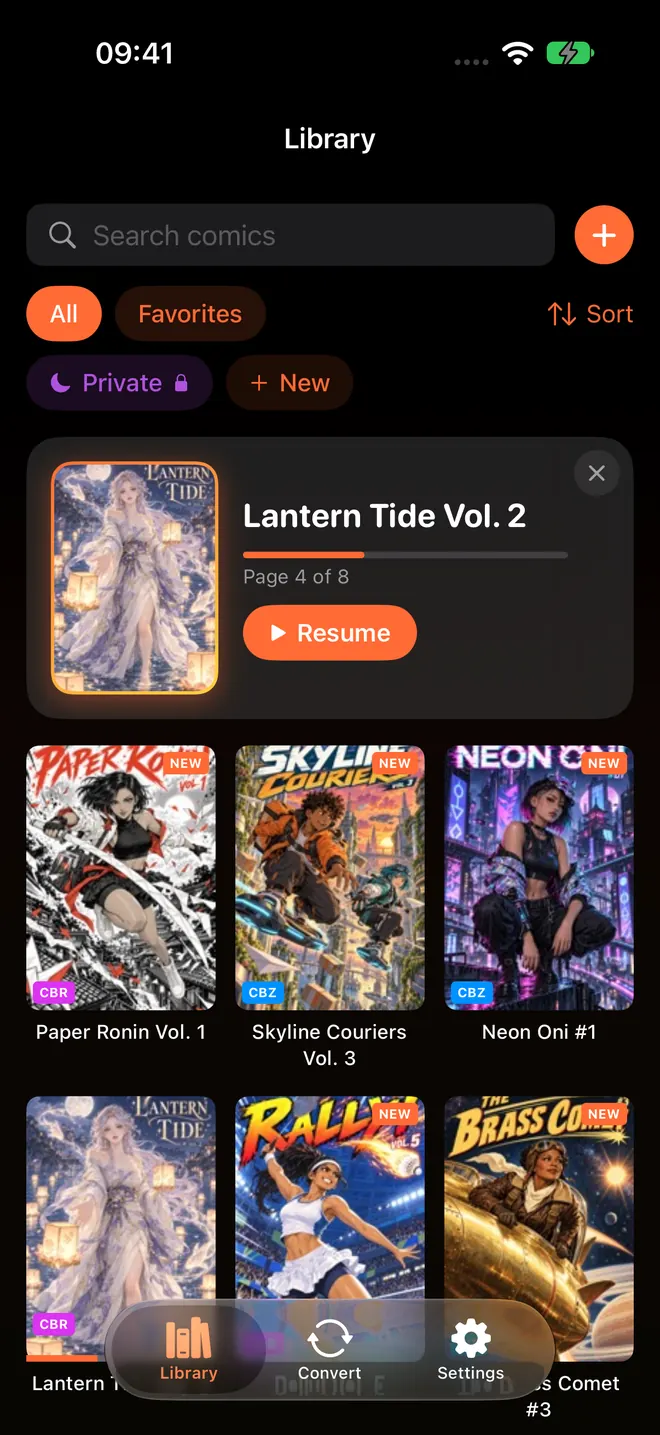
After files land, open the library and start reading. ComicFlow tracks progress automatically, so the Continue Reading card picks up where you stop.
Price, Pro, and what stays free #
ComicFlow is $2.99 once. Wi-Fi Upload, watched folders, reading CBR/CBZ/RAR/ZIP/PDF, PDF and CBZ conversion, collections, ratings, tags, bookmarks and reading progress are all in that base purchase.
ComicFlow Pro is an optional $6.99 one-time unlock (not a subscription). It adds EPUB export for Kobo, Boox, reMarkable and PocketBook, Face ID-locked collections, and saved reader presets. You do not need Pro to move files over Wi-Fi.
Troubleshooting quick list #
| Symptom | Likely cause | What to try |
|---|---|---|
| Browser cannot open the address | Different Wi-Fi, VPN, or guest network isolation | Join the same SSID, turn VPN off briefly, retry the exact URL from the phone |
| Page loads, files never appear | Left the Wi-Fi Upload screen | Return to Wi-Fi Upload and send again; wait for Added to catch up |
| Transfer stalls on a huge file | Size or slow network | Stay under 4.29 GB per upload; keep both screens open; try one file first |
| File opens blank or errors later | Archive problem, not the transfer | See Why your CBZ or CBR won't open |
Related reading #
- How to transfer comics to iPhone from PC or Mac: every common route ranked, including AirDrop and USB
- ComicFlow 3.4 release notes: when Wi-Fi Upload and watched folders shipped
- Read CBR and CBZ files on iPhone: what to do once the files are on the device
- Send comics to a Kobo, Boox or reMarkable: next step if the destination is an e-reader (Pro)
Frequently asked questions
How do I transfer comics to iPhone over Wi-Fi without a cable?
In ComicFlow, open Settings, then Wi-Fi Upload. The app shows an address like http://192.168.1.42:8080 and a QR code. Open that address in any browser on a Mac, Windows, or Linux computer on the same Wi-Fi network and drag CBR, CBZ, PDF, RAR, or ZIP files onto the page. Nothing installs on the computer. Keep the Wi-Fi Upload screen open until the transfer finishes.
Do I need to install software on my computer to upload comics to ComicFlow?
No. Wi-Fi Upload only needs a browser. The iPhone or iPad runs a local upload page. Your computer opens that page and drops files. There is no desktop app, no account, and no Finder or iTunes sync step.
What file types and size limits does ComicFlow Wi-Fi Upload support?
CBR, CBZ, PDF, RAR, and ZIP, up to 4.29 GB per upload. Both devices must stay on the same Wi-Fi network, and the upload page only answers while the Wi-Fi Upload screen is open in the app.
Is Wi-Fi Upload part of ComicFlow Pro?
No. Wi-Fi Upload and watched folders are in the base ComicFlow app, a one-time $2.99 purchase. ComicFlow Pro is a separate optional $6.99 unlock for EPUB e-reader export, Face ID-locked collections, and reader presets.
Why does Wi-Fi Upload stop when I leave the screen?
By design. The upload page only answers while that screen is open, so the local server never runs in the background. Leave the screen and transfers stop. Stay on it until Received and Added settle.