TL;DR: Most e-readers can already read CBZ, so the fastest route is to repack your CBR archives as CBZ and copy them over. If your device handles CBZ badly, a fixed-layout EPUB sized for e-ink reads better. Kindle is the exception and needs Calibre, because Send to Kindle re-converts EPUB and throws away the layout a comic depends on.
Getting comics onto an e-reader was the single most common request ComicFlow received, and it arrived in App Store reviews and emails in almost the same words every time: can I get these onto my Kobo. It is the reason the export feature exists at all.
The awkward part is that the answer depends on which device you own, and most of the advice online collapses that into one instruction that is wrong for at least half of the readers who follow it.
Why the file you have does not open #
Comic archives are simple. A CBZ is a ZIP full of numbered page images. A CBR is a RAR full of the same thing. Neither contains anything clever; the extension just tells a reader app what to expect.
The problem is that RAR is proprietary. Most e-reader firmware includes a ZIP decoder because ZIP is everywhere, and does not include a RAR decoder because licensing it is a decision nobody at a hardware company wants to make for a niche feature. So CBZ tends to work and CBR tends to sit there doing nothing.
Which means the first question is not "how do I convert my comics", it is "which of these do I actually need to touch".
Route one: repack CBR as CBZ #
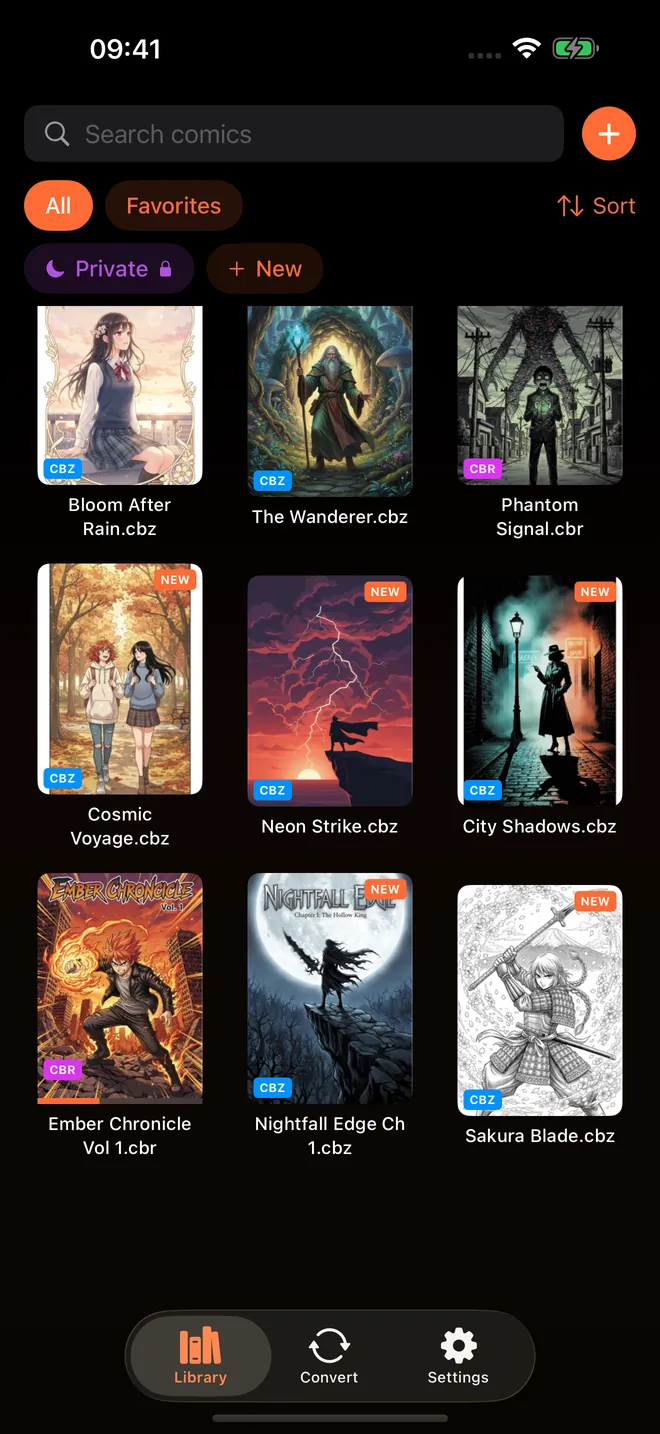
If your device is a Kobo, a Boox, a PocketBook, or anything running KOReader, it already reads CBZ. You do not need a conversion, you need a repack: take the images out of the RAR and put them into a ZIP.
This is worth understanding because it is lossless. Nothing is re-encoded. The JPEGs inside the archive are the same JPEGs afterwards, so there is no generational quality loss the way there is when you convert to PDF at a quality setting.
ComicFlow does this, and CBZ export is free for everyone rather than sitting behind the Pro unlock. Open the CBR, export as CBZ, then copy it to the device over USB or through whatever sync the device offers.
Then read it with the device's own reader. This is the route I would try first, because it involves the fewest moving parts and the file you end up with is a standard one that every other comic app can also open.
Route two: fixed-layout EPUB #
Some devices have a mediocre CBZ reader. Page fit is wrong, contrast is flat on e-ink, or the reader is slow at turning pages on a large archive. reMarkable in particular is happier with a document format than with a comic archive.
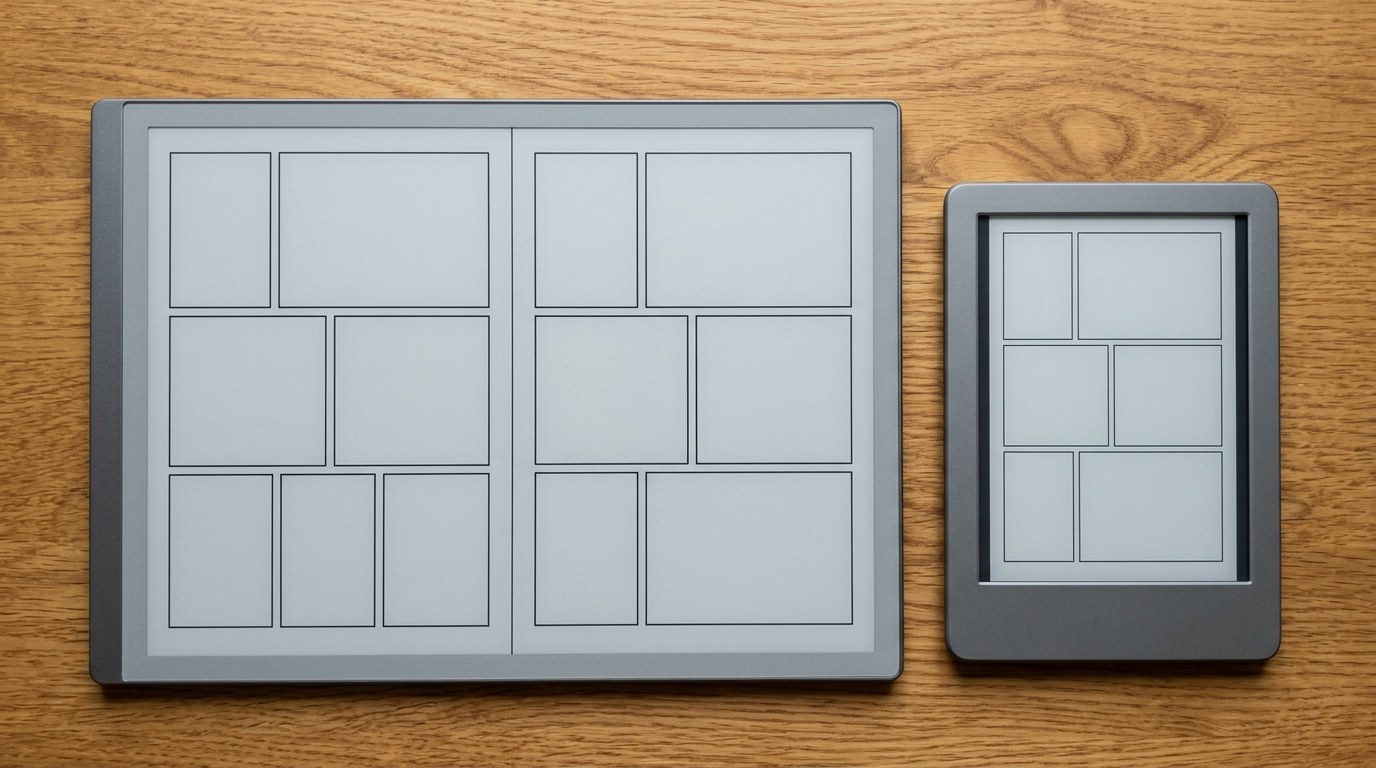
The alternative is a fixed-layout EPUB, meaning an EPUB where each page is an image at a set size rather than reflowable text. The pages get sized for the screen and the contrast gets adjusted for e-ink before the file ever reaches the device, so the reader is displaying something already prepared rather than scaling on the fly.
This is the part of ComicFlow that sits behind Pro, a one-time $6.99 unlock on top of the $2.99 app. There is no subscription anywhere in it. Pro adds device profiles for Kobo, Boox, reMarkable and PocketBook, so the export is sized for the specific screen rather than to a generic default.
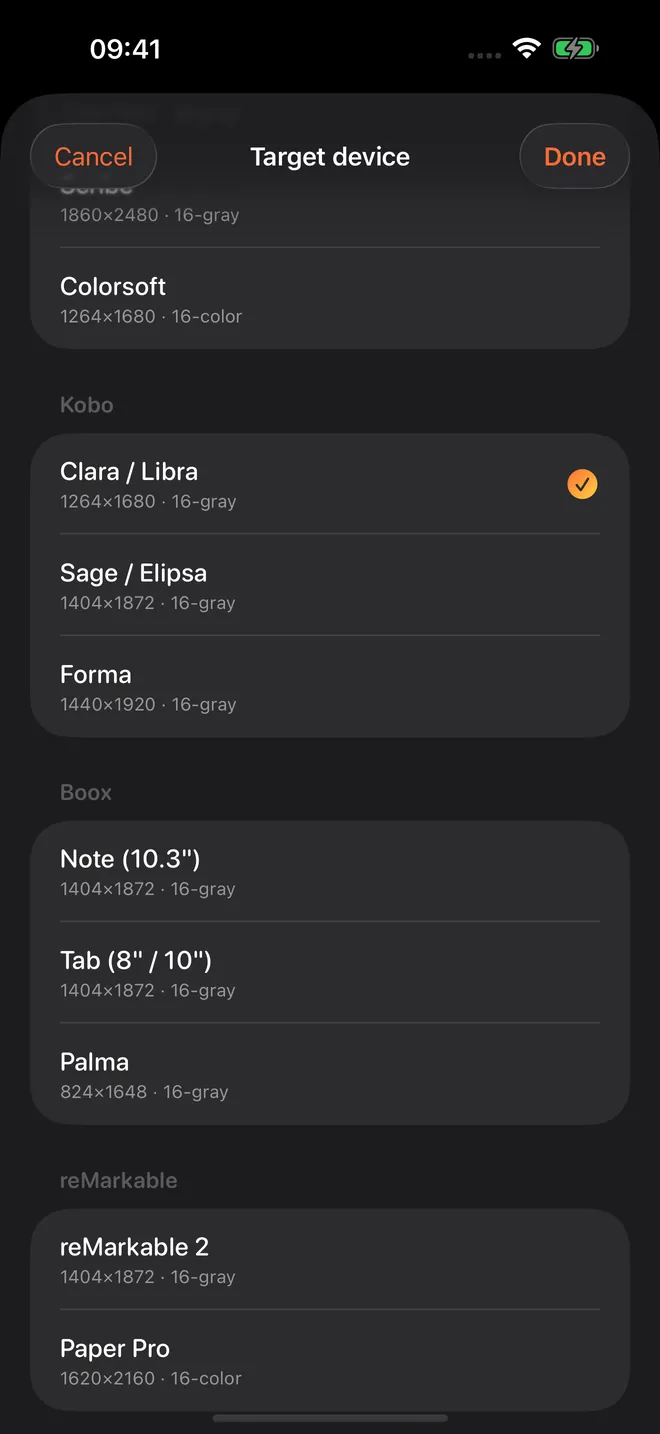
The change in version 3.2, which shipped in August, is that this now works from your library rather than only at conversion time. Long-press any comic and choose Export for E-Reader, including comics you converted to PDF months ago. Previously getting an older comic onto a device meant finding the original archive and running it through again.

Route three: Kindle, which is its own problem #
Kindle needs separating out, because the advice you will find is often wrong in a specific way.
A Kindle will not open an EPUB you drag across over USB. Sideloading, in the sense of plugging the device in and copying a file, does not work for EPUB and does not work for CBZ either.
Send to Kindle is different and this is where the confusion comes from. Since 2022 it has accepted EPUB, so "Kindle cannot do EPUB" is not quite right. What it does is convert the EPUB on Amazon's servers into Amazon's own format, and that conversion is built for reflowable text. It will reflow your comic and discard the fixed layout, which is the one property a comic actually needs.
So the file arrives, and it reads badly.
The route that works is Calibre, which is free desktop software. Convert the comic to AZW3, which supports fixed layout, then transfer that. ComicFlow's EPUB export is designed to feed into this: export the EPUB, convert it in Calibre, send the AZW3 to the device.
It is more steps than the other two routes and there is no way around that. It is an Amazon format decision, not something an iOS app can fix by trying harder.
Which route for which device #
| Device | Best route |
|---|---|
| Kobo | CBZ directly. EPUB if the built-in reader annoys you |
| Boox | CBZ directly, or KOReader from the app store for more control |
| PocketBook | CBZ directly |
| reMarkable | Fixed-layout EPUB, sized for the screen |
| Kindle | EPUB, then Calibre to AZW3 |
A few things worth knowing before you bulk convert #
Check one comic first. Screen sizes and firmware differ more than the spec sheets suggest. Push one file through the whole chain, read a few pages on the actual device, and only then run the rest.
Colour comics on e-ink are a compromise. Greyscale e-ink turns colour pages into grey ones, and a busy colour comic can lose panel separation. Colour e-ink panels exist and are getting better but are still dimmer and lower resolution than the greyscale equivalents. Manga and black-and-white work is where e-ink genuinely shines.
Keep the originals. Whatever you convert to, keep the CBR or CBZ you started from. Formats and devices change; your archive should not have to.
Two-page spreads. A spread designed for print will be shrunk to fit a single e-ink page and become unreadable. Some readers can split spreads automatically. If yours cannot, that is a reason to prefer a reader with more layout control, like KOReader, over the stock one.
What ComicFlow does and does not do here #
To be clear about where the line is: ComicFlow prepares files on your iPhone or iPad. It does not sync to your e-reader, it does not manage your device's library, and it does not replace Calibre for people who want deep metadata editing and format conversion on a desktop. Calibre is free, does more, and if you are happy at a computer it is a perfectly good answer on its own.
What ComicFlow is for is doing this on a phone, without a computer in the loop, on files that are already on your device. Everything runs locally, nothing is uploaded, there is no account, and it is a one-time purchase rather than a subscription. It also reads the comics directly if you want to read on the phone instead, in 18 languages, fully offline.
If you mostly sit at a desk, use Calibre. If your comics live on your phone and the desktop step is the thing stopping you, that gap is the one this fills.
Frequently asked questions
Can a Kobo read CBZ files?
Yes. Kobo has supported CBZ natively for years, and so do Boox, PocketBook and KOReader. You copy the CBZ across and it appears in the library. CBR is the one that usually fails, because it uses RAR compression that most e-reader firmware does not include.
Why won't my CBR file open on my e-reader?
CBR is a RAR archive with a different extension, and RAR is proprietary. Most e-reader firmware ships with ZIP support but not RAR. Repacking the CBR as a CBZ, which is the same images in a ZIP, fixes it without re-encoding anything or losing quality.
Can a Kindle read comics from a CBZ or EPUB file?
Not by dragging the file over USB. Kindles do not open sideloaded EPUB, and CBZ is not supported either. Send to Kindle does accept EPUB and converts it on Amazon's servers, but that conversion reflows the book and discards the fixed layout, which is exactly what a comic needs. For comics, converting to AZW3 with Calibre first gives a much better result.
Is EPUB or CBZ better for comics on an e-reader?
CBZ if your device supports it, because it is just the page images with nothing in between. A fixed-layout EPUB is the better option for devices with a weaker CBZ reader, or where you want the pages pre-sized and contrast-adjusted for e-ink rather than scaled on the fly by the device.