The first question anyone asks about a comic reader is not about reading. It's "how do I get my comics in?"
For most of ComicFlow's life the answer was the ordinary iOS one: AirDrop them, or open them from the Files app. That works, and it still works. But it's a file at a time, and it means picking up the phone every time you want to move something across from the machine where your library actually lives.
ComicFlow 3.4 adds two more ways, and neither one needs a cable. Both are in the base app rather than the Pro unlock.

Watch folders: set it once and forget it #
Point ComicFlow at a folder in Files, and it keeps an eye on that folder. New comics you put there import themselves, with covers and page counts rather than a bare filename.
The folder can be anywhere Files can reach. iCloud Drive is the obvious one, and it's the setup that makes this feel like magic: drop a CBZ into a synced folder on your desktop, and by the time you pick up your phone it's already in the library. A network share you've mounted in Files works the same way, which is the answer if your collection lives on a NAS. So does a USB drive plugged into the phone.
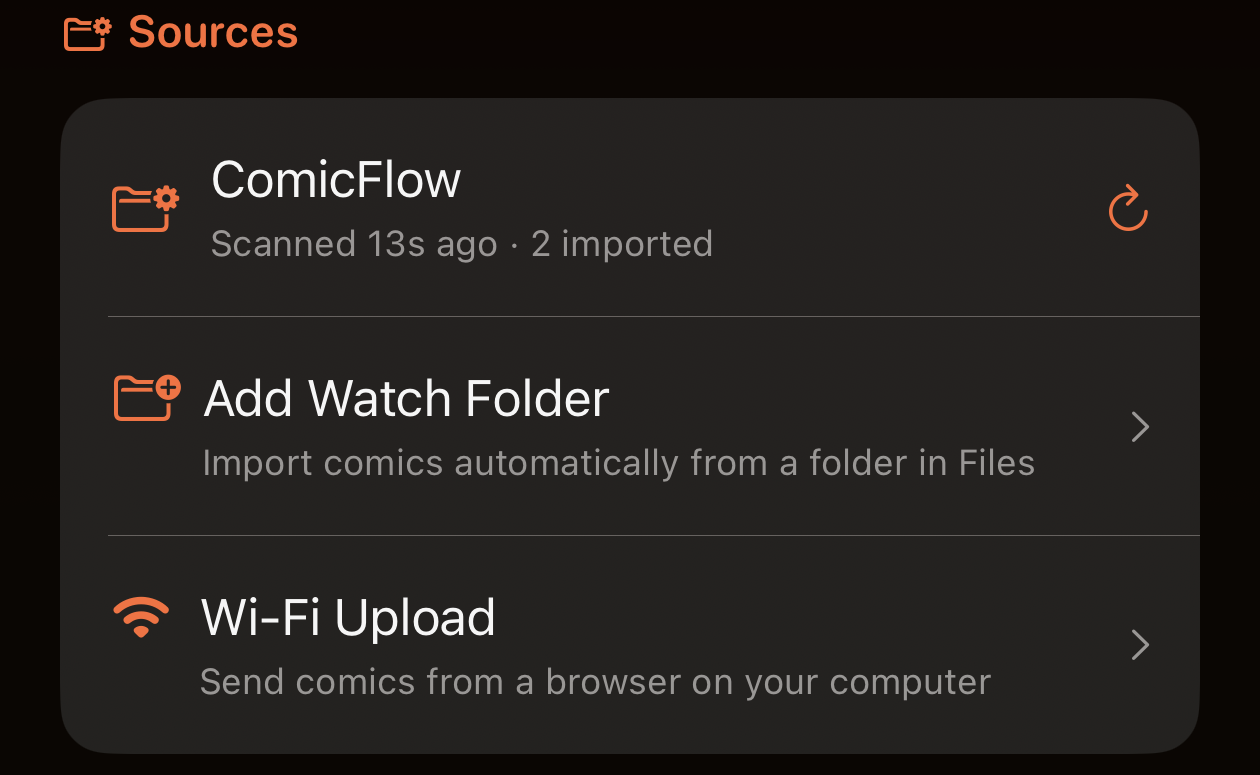
Watched folders are rescanned when the app opens, and again when you pull down to refresh in the Library. They're managed in Settings, under Sources, and each one tells you when it last scanned and how many comics it brought in. CBR, CBZ, RAR, ZIP and PDF are all picked up.
Wi-Fi Upload: your computer is just a browser #
The other route runs the other way around. Instead of the phone reaching out to a folder, the phone becomes a small web server and your computer connects to it.
Open Settings, then Wi-Fi Upload, and ComicFlow shows an address like http://192.168.1.42:8080, along with a QR code you can scan from another device.
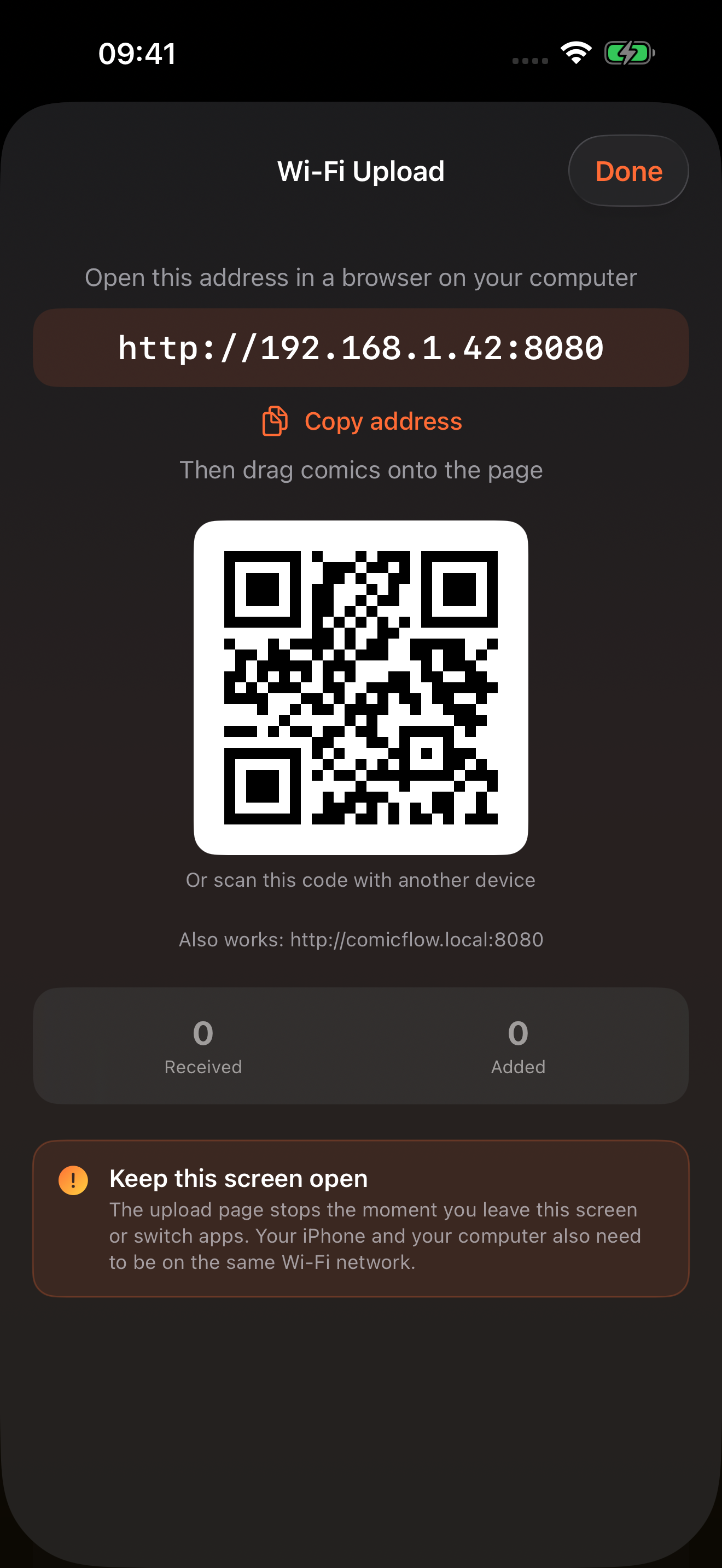
Type that address into any browser on your Mac, Windows, or Linux machine and you get a drop zone. Drag comics onto it and they land in the library.
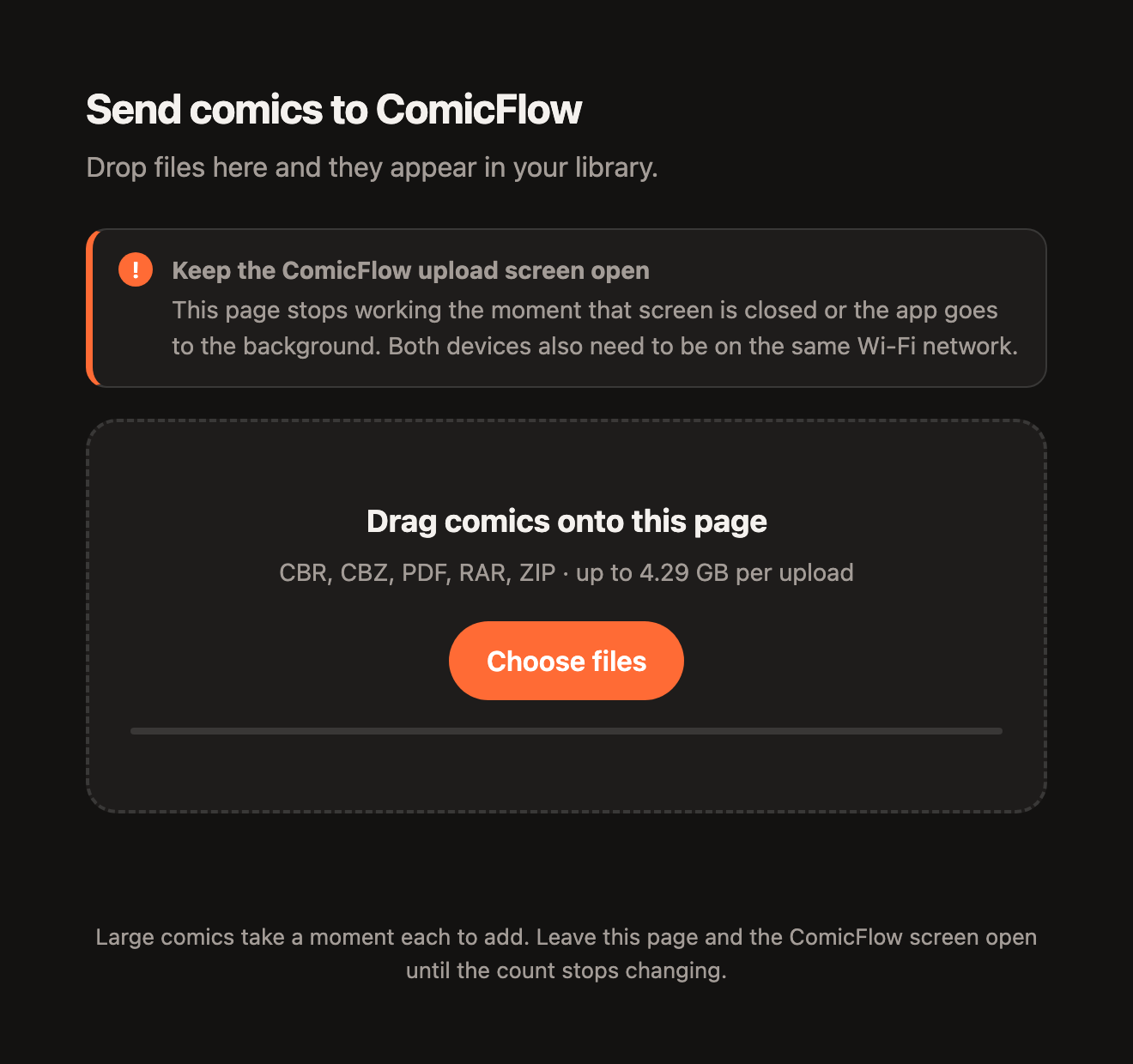
That's the whole thing. Nothing gets installed on the computer, there's no account, and no cable or Finder sync is involved. It doesn't care what operating system you're on, because a browser is all it needs. Uploads can be up to 4.29 GB each, which is per drop rather than per file, and it takes CBR, CBZ, PDF, RAR and ZIP.
One detail worth knowing, because it's deliberate: the upload page only answers while that screen is open in the app. Leave the screen and the server stops. It never runs in the background, and both devices need to be on the same Wi-Fi network for it to work at all.
When a file won't open, the app says why #
Comic archives are a messy format in practice, and some files genuinely cannot be opened. A password-protected archive. One part of a RAR split across several volumes. A .rar that turns out to hold .cbr files inside it. A download that saved a web page and got a comic extension stuck on the end.
ComicFlow 3.4 names the reason in each of those cases, in plain language, rather than presenting an empty book. Files it can't read are refused at the point you add them, so nothing blank ends up sitting in your library waiting to disappoint you later.
Solid RAR archives also convert considerably faster in this release.
Everything else #
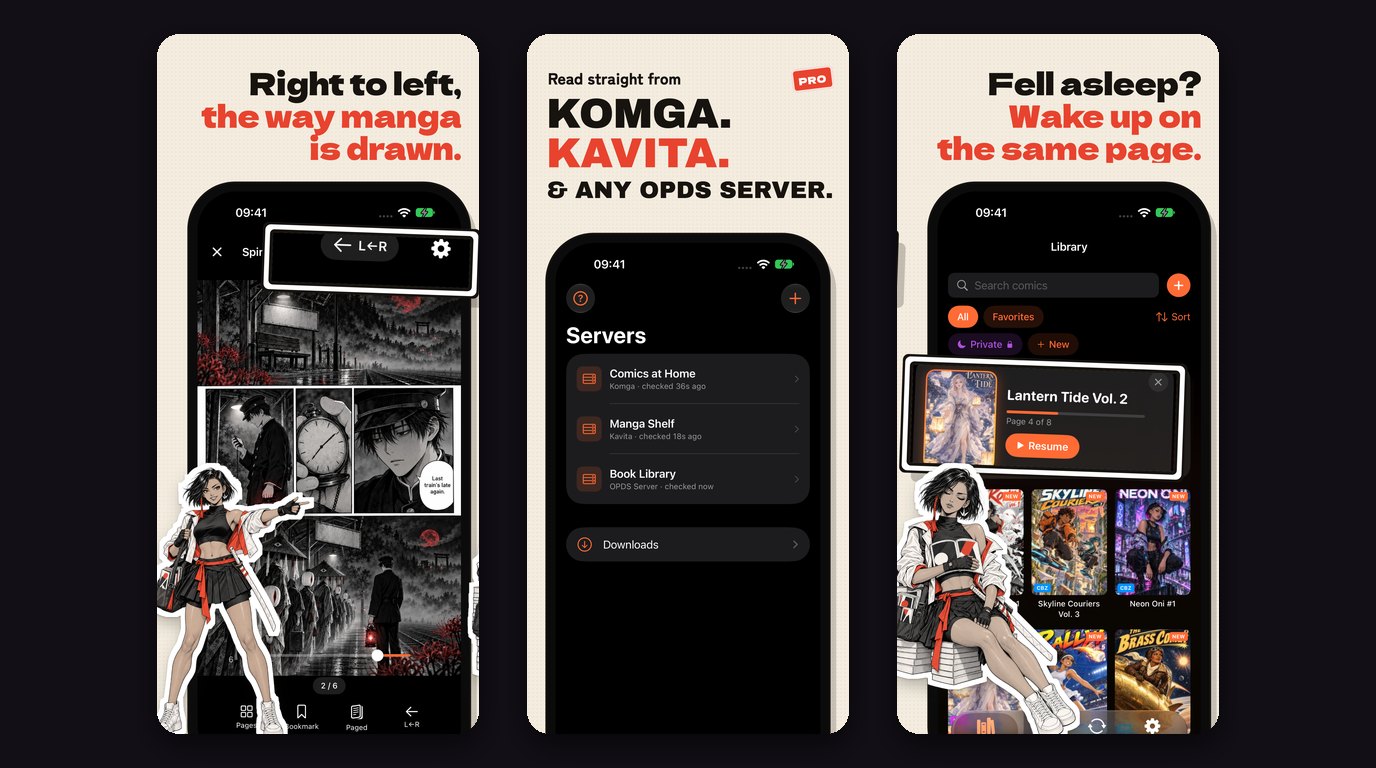
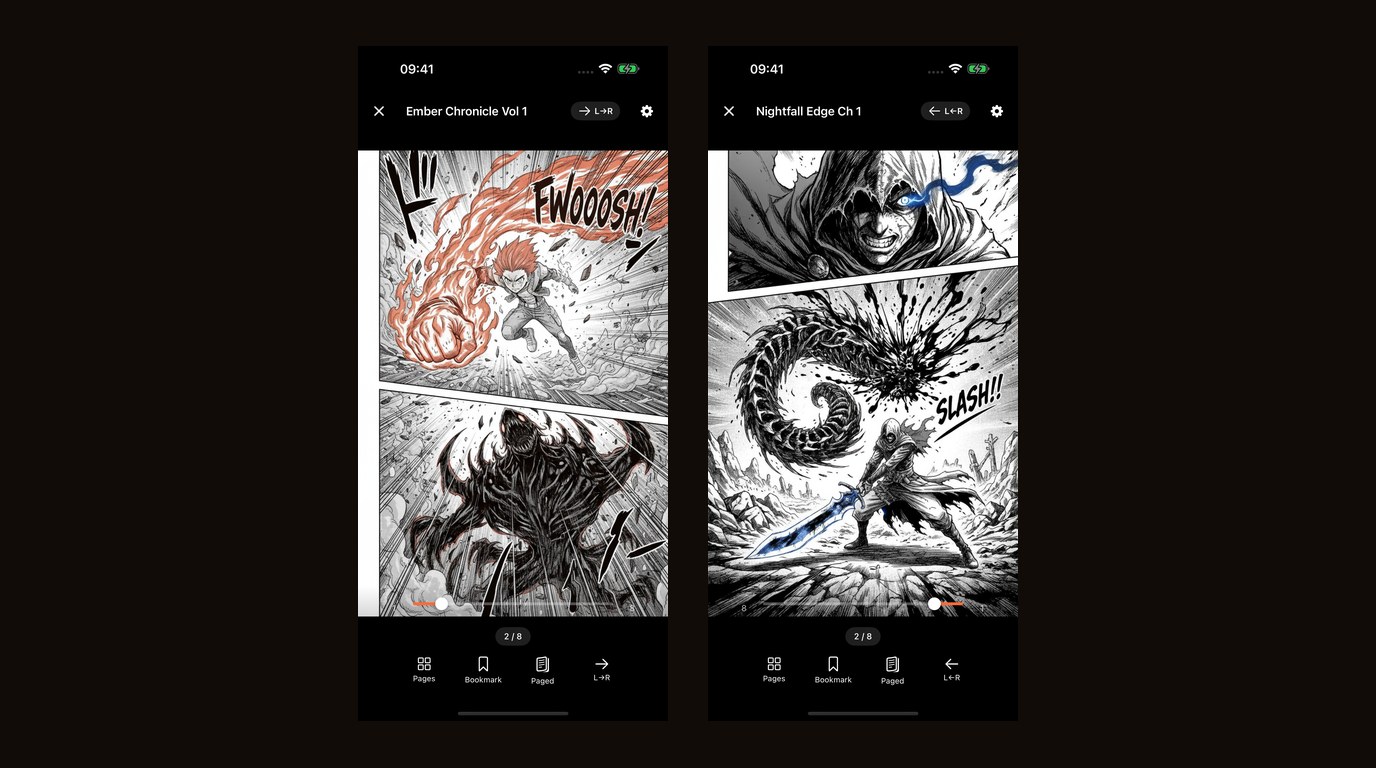
3.4 keeps what the app already did. Read CBR, CBZ, RAR, ZIP and PDF directly with the native reader. Convert archives to PDF at three quality levels or repack them as CBZ, single or in batches. The full library with collections, ratings, tags, notes and bookmarks. Paged and vertical scroll, three page layouts, and right-to-left manga with a mirrored scrubber. 18 languages, optional iCloud sync, and it all still works offline.
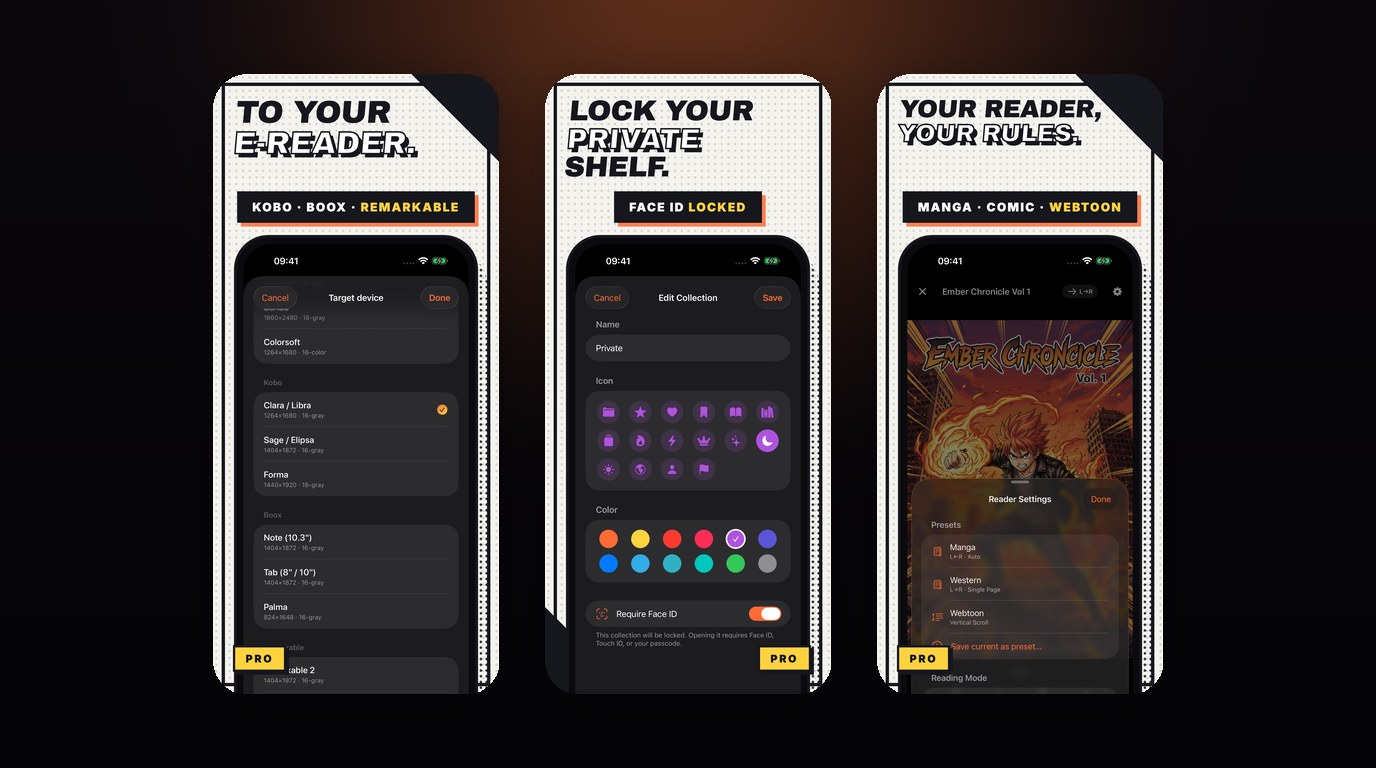
The optional Pro unlock is unchanged too: EPUB export for Kobo, Boox, reMarkable and PocketBook, Face ID-locked collections, and saved reader presets. Still a one-time purchase, still not a subscription, and the base app stays fully featured without it.
Related Articles #
- How to Transfer Comics to iPhone from PC or Mac: the full set of transfer routes, ranked by speed and effort
- ComicFlow 3.0: Send Comics to Your E-Reader, Lock Private Shelves, and Export to CBZ: the previous major release
- Why Won't My CBZ File Open?: what actually goes wrong inside a comic archive
- The Bug I Was Certain I Had, and the Six I Actually Had: the engineering side of the same release, on heynavid.com
- ComicFlow app page: full feature list, screenshots, and App Store link
Frequently asked questions
How do I get comics from my computer to my iPhone without a cable?
Open Settings, then Wi-Fi Upload, in ComicFlow 3.4. The app shows an address like http://192.168.1.42:8080 and a QR code. Open that address in any browser on your Mac, Windows, or Linux machine and drag comics onto the page. Nothing needs installing on the computer, and there is no cable or Finder sync involved. Uploads can be up to 4.29 GB each, covering CBR, CBZ, PDF, RAR, and ZIP. Both devices need to be on the same Wi-Fi network, and the upload page only answers while that screen is open in the app.
Can ComicFlow import new comics from a folder automatically?
Yes, from version 3.4. In Settings, under Sources, point ComicFlow at a folder in Files. That can be iCloud Drive, a network share you have mounted in Files, or a USB drive. New comics in that folder import themselves with covers and page counts. Watched folders are rescanned when the app opens and on pull-to-refresh in the Library.
Are watch folders and Wi-Fi Upload part of ComicFlow Pro?
No. Both are in the base app, which is a one-time purchase of $2.99. ComicFlow Pro is a separate optional unlock covering EPUB e-reader export, Face ID-locked collections, and reader presets. Neither of the 3.4 import features is behind it.
Does Wi-Fi Upload keep running in the background?
No. The upload page only answers while that screen is open in the app. Leave the screen and the server stops, so it never runs in the background.