iPhone has no built-in way to open CBR or CBZ files. Tap one in the Files app and nothing happens; try Apple Books and it refuses. To actually read them you need a dedicated comic reader app. Below: the three apps worth considering, what each one is best at, the workarounds that look like they should work but don't, and how to pick.
Disclosure: I'm the developer of ComicFlow, one of the three apps recommended here. I've tried to keep the comparison fair. Where Panels or Chunky is the better fit, I say so.

The Short Version #
- iPhone can't open CBR or CBZ natively. These are RAR and ZIP archives of images, and iOS doesn't treat them as readable comics
- You need a reader app. Three are worth considering in 2026: ComicFlow, Panels, Chunky
- For most people: install a reader, tap the file in Files → "Open in [app]," done. No conversion required for daily reading
- Convert to PDF only when you need to, share with someone, read in Apple Books, or print
The rest of this post explains the why and helps you pick.
Why iPhone Can't Open CBR or CBZ Files #
The technical reason, in one paragraph. A .cbz file is a regular ZIP archive containing image files (usually JPEG or PNG, one per page, numbered sequentially). A .cbr file is a regular RAR archive containing the same. iOS knows how to unzip ZIPs natively (since iOS 13), but it has zero built-in support for RAR. Apple never licensed the format. And even for CBZ files that iOS could open as ZIPs, the OS doesn't recognize that they're meant to be read in sequence as a comic. You get a folder of loose images, not a reader experience.
The file extensions look proprietary, but the formats aren't. It's just that nothing on a stock iPhone treats them as comics.
Things That Look Like They'd Work But Don't #
Before you try the dead-end workarounds, here's what I've tested. None of these are real solutions on iPhone. Save yourself the hour.
Rename .cbz to .zip and open in Files. Files will extract it. You get a folder of page_001.jpg, page_002.jpg, etc. To "read" it you'd swipe through the Photos app one image at a time. There's no page snap, no double-page spread, no progress saving, no right-to-left mode for manga. Tolerable for a 12-page issue, miserable for a 200-page graphic novel.
Open in Apple Books. Books accepts PDFs and EPUBs. It will not accept CBR or CBZ. It's the single most common thing people try, so it gets its own section immediately below.
iCloud Drive Quick Look. Long-press a CBR/CBZ in iCloud Drive and Quick Look sometimes shows the first page as a preview. It does not let you turn pages. It's a single thumbnail.
The Shortcuts app. A Shortcut that extracts a CBZ and opens the images in a Photos slideshow works for tiny files. It chokes hard on anything over ~30MB, and the Photos slideshow can't do right-to-left for manga.
Web-based converters. Sites like CloudConvert or Zamzar will turn a CBR into a PDF. They work, but you have to upload your file to a third party, wait, then download a PDF back. Fine for a one-off; a no-go for a library. Also: most have a 100MB upload cap and many comic files exceed that. And anything uploaded sits on their servers longer than they advertise.
The pattern: anything that doesn't treat comics as comics will get tedious by the third file.
Can Apple Books Read CBZ or CBR? #
No. Apple Books reads EPUB and PDF, and that's the whole list. Hand it a .cbz or .cbr and you get an unsupported-file-type error. That hasn't changed for any iOS version I've tested back to iOS 16, and some old guides online still claim otherwise. They're wrong.
This is the first thing almost everyone tries, and it makes sense: Books is already on the phone, it's already where your ebooks live, so it should be the place comics go. It isn't. A CBZ is a ZIP of numbered images and a CBR is a RAR of the same. Books wants a book, meaning a document with a defined structure, not an archive it has to interpret as a page sequence.
So you have two real options, and which one is right depends on what you're actually trying to do.
Option 1: use a reader that opens it directly #
If your goal is reading comics on your iPhone, you don't need Apple Books at all, and you don't need to convert anything. Any of the three readers below opens a CBZ or CBR as-is. This is the right answer for most people, and it's worth saying plainly because the question itself assumes Books is the destination, and for the majority of people asking, it shouldn't be.
Option 2: convert to PDF, then read in Books #
This genuinely works, and there are good reasons to want it. But it isn't free, and the costs don't show up until you're reading:
- Right-to-left order is gone. Books has no RTL toggle for PDFs. Manga will page in the wrong direction, and there's no fixing it after the fact. This is the big one. If you read manga, convert-to-Books is the wrong path.
- Every page gets re-encoded. You pick a quality level, and that's a real tradeoff: High keeps the detail and the file gets big, Low keeps it small and soft text in scanned pages suffers. The original CBZ pages were whatever the scanner produced; the PDF is a second-generation copy.
- You now maintain two files. The CBZ and the PDF. Delete the wrong one and you've thrown away either your archive or your reading copy.
- Spreads get awkward. A double-page spread is one wide image inside a CBZ. As a PDF page it stays one wide page, which means it renders small in portrait. Fine on iPad, cramped on a phone.
Books does keep your place in a PDF, so you don't lose reading position. That part is fine.
When converting is genuinely the right call #
- Your library lives in Books and you want comics beside your ebooks rather than in a separate app
- You read on a Mac, where dedicated comic readers are thinner on the ground than on iOS
- You want to hand the file to someone who has no comic reader installed
- You want to annotate or print pages
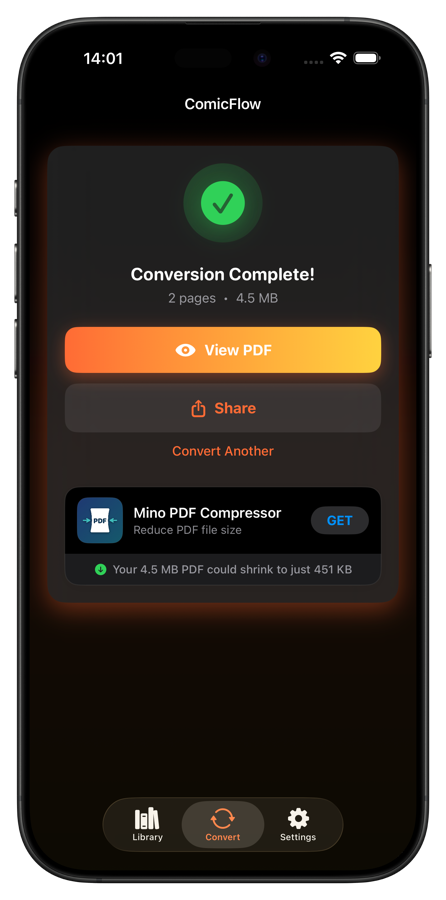
If that's you, ComicFlow converts on-device, with no upload. Pick High/Medium/Low and the PDF lands in Files ready to open in Books. For converting hundreds of files at once, Calibre on a Mac or PC is free and better suited to the job. Full walkthrough either way: How to Convert CBR and CBZ to PDF on iPhone.
One thing to be clear about: Apple Books is genuinely better than any comic reader for things that are actually books, and for keeping a mixed library synced across your Apple devices. It just isn't a comic reader, and converting your comics to make it one costs more than most people expect going in.
The Three Reader Apps Worth Considering #
On iOS in 2026, these are the three apps I'd actually recommend, and what each is best at.
Panels: best for heavy collectors #
Beautiful UI, the strongest cloud sync in the category (Dropbox, Google Drive, OPDS). Supports CBR/CBZ/PDF. Costs $10 outright + $30/year for the cloud features. If you have a multi-thousand-issue library spread across cloud providers, or you run a self-hosted Komga/Kavita server and want OPDS, Panels is the pick. The catch: built for serious collectors and the price reflects that.
Chunky Comic Reader: best free option #
Long-running, originally Mac-and-iPad-focused, has a free tier with a paid Pro upgrade (~$5). Strong on iPad in landscape with dual-page view. The free tier caps recent-issue access; Pro lifts it. Hasn't had a major design refresh in a couple of years but it works reliably.
ComicFlow: best for "tap file, read, done" #
$2.99 one-time, no subscription, no ads, no tracking. Opens CBR, CBZ, RAR, ZIP, PDF. Built-in CBR/CBZ → PDF conversion if you need it. Things it deliberately doesn't have: cloud library sync, OPDS, series auto-matching from filename, server streaming. If you want those, Panels is the better fit. ComicFlow is built for the casual middle of the market, people with a few hundred files on iCloud who want to read them, not manage a multi-cloud library.
How to pick #
- 5,000+ issues, multiple cloud providers, OPDS server → Panels
- iPad-first, free, occasional reading → Chunky
- iCloud or local files, one-time purchase, no subscription → ComicFlow
All three actually work. The wrong choice here is not reading your comics, not picking the wrong app.
How to Open a CBR/CBZ Once You Have a Reader #
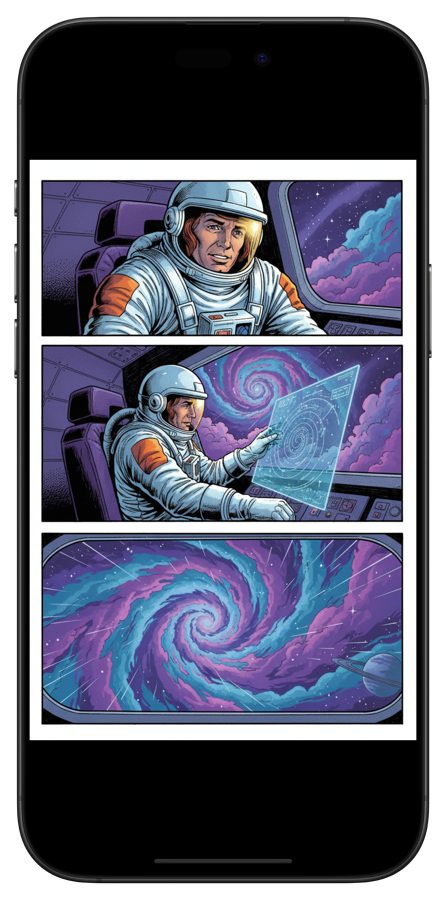
The flow is the same for all three apps:
- From Files: Open Files → find the comic file → tap → "Open in [your app]"
- From Safari: Tap the downloaded file → share → choose your reader
- From email: Tap the attachment → share to your reader
- From AirDrop: AirDrop from a Mac → choose your reader as the destination
- From Dropbox/Google Drive: Open the file in the cloud app → share → your reader
Once imported, the comic stays in the app's library and is readable offline, important on flights.
The full breakdown of transfer methods is in How to Transfer Comics to iPhone from PC or Mac.
File Size Realities on iOS #
One thing worth knowing before you import large CBR files: sizes vary wildly. A Humble Bundle CBZ is often 30-60MB per issue. A scanned trade paperback can hit 300MB. A 4K-rescan archival CBZ can exceed 1GB.
Two things to expect:
- iOS has a per-app sandbox memory limit. Very large CBR files (>500MB) can stutter when extracting the first time. After the first read, they're cached and fast.
- iCloud syncs files on demand. If you tap a CBR you haven't read yet, expect a few-second download before it opens, depending on your connection.
For 95% of files you'll encounter, none of this matters. But if a 1.2GB Akira omnibus takes 8 seconds to open the first time, that's iOS, not the app.
All 5 Supported Formats, Cheat Sheet #
A quick reference for every format you might encounter:
| Format | Extension | What It Is | Can Read on iPhone? | Can Convert to PDF? |
|---|---|---|---|---|
| Comic Book RAR | .cbr |
RAR archive of images | Yes (with reader app) | Yes |
| Comic Book ZIP | .cbz |
ZIP archive of images | Yes (with reader app) | Yes |
| RAR Archive | .rar |
Same as CBR, different extension | Yes (with reader app) | Yes |
| ZIP Archive | .zip |
Same as CBZ, different extension | Yes (with reader app) | Yes |
.pdf |
Standard document format | Yes (Books or any PDF reader) | N/A |
If you're seeing .cb7 (7-Zip archives) those are rare and most readers don't open them, including ComicFlow. You'd need to convert them on a Mac with a tool like Calibre first.
When You Actually Want PDF Instead #
The Apple Books case is covered above. Two more reasons that have nothing to do with Books:
- A single archival format for a mixed collection, so everything opens anywhere in ten years' time
- Sending pages to someone who has no reader installed, or printing them for reference
For one-off conversions, ComicFlow does it on-device. Pick High/Medium/Low quality and get a standard PDF. For batch conversion of hundreds of files, Calibre on a Mac is the heavy-duty option. Don't upload anything personal to free web converters. They keep files longer than they advertise.
Where to Find Digital Comics #
A handful of legitimate sources for CBR and CBZ files:
- Humble Bundle, recurring DRM-free CBZ bundles, usually $10-25 for 50+ issues
- Image Comics direct, DRM-free CBZ on their store, single issues around $4
- DriveThruComics, large indie catalog, CBR/CBZ/PDF
- Internet Archive, public domain (pre-1928) comics, totally legal and free, surprisingly good selection
- Your existing collection, most people reading this have a CBR/CBZ folder on a hard drive somewhere from years ago. Those count
Most digital comic stores deliver CBZ or PDF. If you receive CBZ, you can read it directly without any conversion.
Try It #
The whole process takes about 30 seconds once you have a reader installed:
- Install one of: ComicFlow ($2.99 once), Panels ($10 + $30/yr), or Chunky (free + $5 Pro)
- Tap your first file → "Open in [app]"
- Read
All three work offline. None require an account. Pick based on your library size and budget, not on which one's the cheapest.
Related Articles #
- Best Comic Reader Apps for iPhone in 2026. Deeper comparison of all the major readers, with pros and cons
- Why I Built ComicFlow (And What I Learned Shipping a Niche iOS App). The origin story behind one of the three apps above
- Comic Book File Formats Explained: CBR vs CBZ vs PDF. More on the formats themselves
- How to Convert CBR and CBZ to PDF on iPhone. When and how to convert if you specifically need PDF
- How to Transfer Comics to iPhone from PC or Mac. All five transfer methods ranked
- How to Organize Your Digital Comic Collection. Once you have more than 50 issues