
Most people who start learning Japanese have the same goal somewhere in the back of their mind: read the manga they love in the language it was written in. No translation lag, no lost jokes, no waiting for the next English volume.
Manga is also one of the best study materials there is. The art tells you what is happening, so you can guess a word before you look it up. The dialogue is the Japanese people actually speak. And many series print small reading guides next to every kanji. This guide covers how to choose the right volumes, how to read them comfortably on an iPhone screen, and a simple routine that turns reading into steady progress. The reader I use for it is ComicFlow, which I build: $2.99 once for the reader and library, with an optional $6.99 one-time Pro unlock. Neither renews.
Disclosure: I make ComicFlow at Applestan. Features and prices below match the live App Store listing and the ComicFlow support FAQ.

When you are ready to start #
You do not need to be fluent, but you do need a base. Before your first Japanese volume, it helps to have:
- Hiragana and katakana down well enough that you read them without stopping
- Basic grammar from a course or textbook, so you can tell which word in a sentence is the verb
- A dictionary you can reach quickly, because you will look things up constantly at first
Then expect the first volume to be slow. Ten pages in an evening is a good start. The second volume of the same series is always easier, because the characters, their speech habits and the recurring words stay the same.
Pick manga that helps you learn #
The single most useful thing to look for is furigana: small kana printed beside a kanji to show how it is read. With furigana you can sound out a word you have never seen and look it up by its reading. Without them, an unknown kanji is a wall.
As a rule of thumb:
- Manga for younger readers, including many shonen series, usually print furigana on most kanji.
- Manga for older readers, seinen and josei, often print them only on rare kanji or not at all.
- Slice-of-life and comedy use everyday speech about ordinary days, which is exactly the Japanese you want to learn first. Yotsuba&! is the classic first pick among learners for this reason.
- A series you already know in English is easier, because you already know the story. Rereading a favorite in Japanese is a great first project.
Fantasy and sci-fi are tempting but harder, since they come with invented terms and formal speech you will rarely hear elsewhere. Save them for later.
Get your Japanese volumes onto the iPhone #
ComicFlow reads DRM-free manga files: CBZ, CBR, ZIP, RAR and PDF. Books bought inside store apps such as Kindle or BookWalker stay in those apps, so they will not open in ComicFlow or any other file reader. If you are building a library of files you own, where to find DRM-free comics and how to build a manga library on iPhone cover the sources.
To move the files across:
- Wi-Fi Upload. Open Settings, then Wi-Fi Upload, in ComicFlow, and drag volumes onto the page it shows in any browser on your computer. Transferring comics over Wi-Fi walks through it.
- A watched folder. Point ComicFlow at a folder in Files, such as one on iCloud Drive, and new volumes you drop there import themselves.
- The Files app or AirDrop for a single volume.
Then make a collection just for study, for example "Japanese", so your learning volumes do not get mixed in with everything else you read.
Read in the right direction #
Japanese manga reads right to left: panels from the top right, pages turning the other way from a Western book. Speech bubbles usually hold vertical text, read top to bottom, with columns running from right to left.
In ComicFlow, open Reader Settings (the gear icon at the top right of the reader) and set Reading Direction to Right to Left (Manga). Taps and swipes then turn pages in tankobon order, and a two-page spread shows its first page on the right. Reading manga right-to-left on iPhone has the full setup.
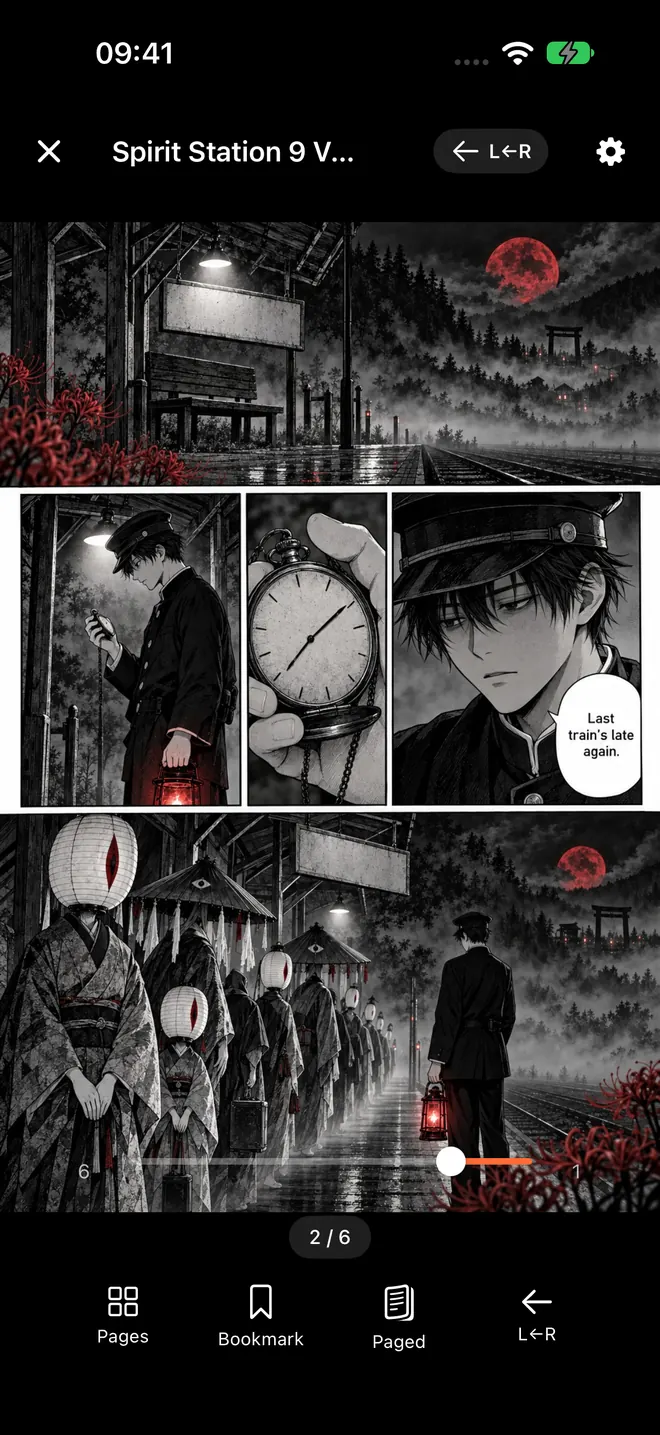
The sample volume in that screenshot is in English, but the setting works the same way for any manga.
Zoom in on the furigana #
Furigana are printed at a fraction of the size of the main text, and on an iPhone screen a full page shrinks them further. This is where most learners give up on reading manga on a phone.
The fix is to zoom. In ComicFlow, double-tap a speech bubble and the reader zooms in to 3x around the spot you tapped, which is usually enough to read the kana beside each kanji. For handwritten asides or very small print, pinch to zoom up to 5x and drag around the page. Double-tap again and you are back at the full page.
A dense page of dialogue is also easier to read in Vertical Scroll with the phone turned sideways, because each page then fills the full width of the screen. Manga text too small on iPhone explains that trick in detail.

Look up words without leaving your routine #
ComicFlow has no built-in dictionary or translation, and that is by design: it is a reader for your own files, and the best dictionary tools for Japanese already exist. Three that work well alongside it:
- The iOS dictionary. Go to Settings, then General, then Dictionary, and switch on a Japanese-English dictionary. It then works with Look Up in any app where you can select text, such as Notes or Safari.
- Live Text on a screenshot. Take a screenshot of the page (side button and volume up together), open it in Photos and tap the Live Text button. You can then select the Japanese, copy it, or tap Look Up. It handles clean printed type best; vertical columns, stylized lettering and sound effects can trip it up, so treat it as a helper rather than a reliable scanner.
- A dictionary app where you can draw a kanji by hand or type its reading from the furigana.
The furigana are what make the third option fast. You do not need to recognize a kanji to type its reading.
Bookmark the pages you want to come back to #
Looking up every word on every page burns out most learners within a week. A better habit is to read for the story, look up only the words that block you, and mark the pages you want to study properly later.
In ComicFlow, tap Bookmark in the bar at the bottom of the reader to mark the current page. A bookmark counter appears at the top of the reader, and tapping it opens a list of every marked page in that volume with a thumbnail, so you can jump straight back for a review session.
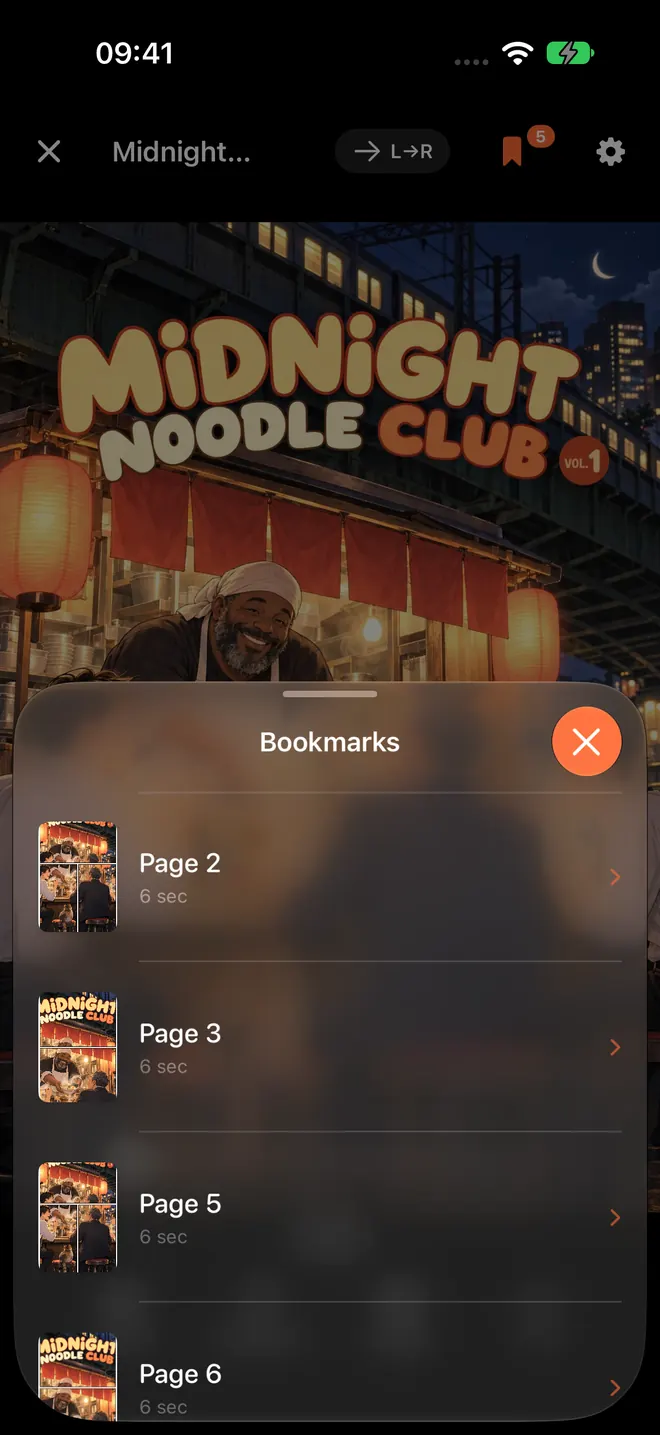
Bookmarks stay with the volume, so when you reread it a month later, the pages that gave you trouble are waiting. ComicFlow also remembers where you stopped in each volume and keeps unfinished ones in Continue Reading, which helps when you are working through several series at your own pace. Tracking manga series on iPhone covers that side.
A study routine that sticks #
- Read one chapter for the story. Look up only the words you cannot get past. Bookmark pages with lines you want to understand fully.
- Return to the bookmarks. Work through those pages line by line, with the dictionary open. Write the new words in a notebook or add them to a flashcard app.
- Reread the chapter the next day. It will be noticeably faster, and that feeling is what keeps you going.
- Finish the volume before switching series. The vocabulary repeats, so each chapter gets easier.
Short and regular beats long and rare. Fifteen minutes on the train every day will take you further than a three-hour session once a week, and an iPhone is the device you always have with you.
Save a study setup (optional Pro) #
If you switch between reading Japanese volumes and other comics, the optional Pro unlock adds reader presets. The built-in Manga preset sets right-to-left reading in one tap, and you can save your current setup as your own preset, for example a sideways vertical scroll for text-heavy chapters.
ComicFlow Pro is a $6.99 one-time unlock, not a subscription. Besides presets, it adds Face ID-locked collections and EPUB export for Kobo, Boox, reMarkable and PocketBook e-readers. Everything else in this guide, from right-to-left reading to zoom and bookmarks, is in the $2.99 app, with no ads and no account, and it works offline.
Related reading #
- Read manga right-to-left on iPhone: the reader settings for manga order
- Manga text too small on iPhone: zoom, landscape and vertical scroll for small lettering
- Best manga for beginners: 15 series that are easy to start
- How to track manga series on iPhone: Continue Reading and collections
- Comic reader app with no subscription: what $2.99 and the optional $6.99 Pro include
ComicFlow sends anonymous usage analytics to help improve the app, and you can switch that off in Settings, then Privacy, then Share Usage Data. Your manga files stay on your device. The privacy policy has the full list.
Frequently asked questions
Can you really learn Japanese by reading manga?
Manga is a strong reading practice once you know hiragana, katakana and some basic grammar. The art gives you context for every line, the dialogue is everyday spoken Japanese, and many series print furigana next to the kanji. It works best alongside a course or textbook, not as a replacement for one.
What is furigana and why does it matter for learners?
Furigana are small kana printed beside a kanji to show how it is read. Manga aimed at younger readers, including many shonen series, usually print them on most kanji, so you can sound out words you do not know yet and look them up. Manga for older readers often skip them.
Furigana are tiny on my iPhone. How do I read them?
Zoom in. In ComicFlow, double-tap a speech bubble to zoom in to 3x around the spot you tapped, and pinch to zoom up to 5x for the smallest kana. A second double-tap returns to the full page.
Can ComicFlow translate Japanese or look up words?
No. ComicFlow is a reader and library for manga files you own, with no built-in dictionary or translation. For lookups, use the Japanese dictionary built into iOS, a dictionary app, or Live Text on a screenshot in the Photos app.
Can ComicFlow open manga I bought on Kindle or BookWalker?
No. Books bought inside store apps stay in those apps. ComicFlow opens DRM-free CBZ, CBR, ZIP, RAR and PDF files, which you can add over Wi-Fi, from the Files app, or from a watched folder.
Do I need ComicFlow Pro to study with manga?
No. Right-to-left reading, double-tap and pinch zoom, page bookmarks, collections and Continue Reading are all in the base $2.99 app. The optional $6.99 one-time Pro unlock adds saved reader presets, Face ID-locked collections and EPUB export for e-readers.