If you read manga, you probably read some manhua too. Maybe a cultivation series, a palace drama, or a Chinese edition of a manga you love. And then you notice it: some of these books read left to right, some read right to left, and some are one long strip you scroll down.
Most reader apps make you pick one direction for everything. That is fine until you go from a manga volume to a manhua volume and the pages run the wrong way. ComicFlow, the manga and comic reader I build for iPhone and iPad, lets you set the direction for each book. You set it once, and it stays.
Disclosure: I make ComicFlow at Applestan. The ComicFlow steps below are checked against the app's source code for version 3.7.

Short version: open the book in ComicFlow. For a paged book, tap the L→R button at the top of the reader to flip it to right to left, or leave it. For a long strip, tap the gear and set Reading Mode to Vertical Scroll. ComicFlow remembers your choice for that book, and new books from the same series open the same way.
Manga, manhua, manhwa: which way does each one go? #
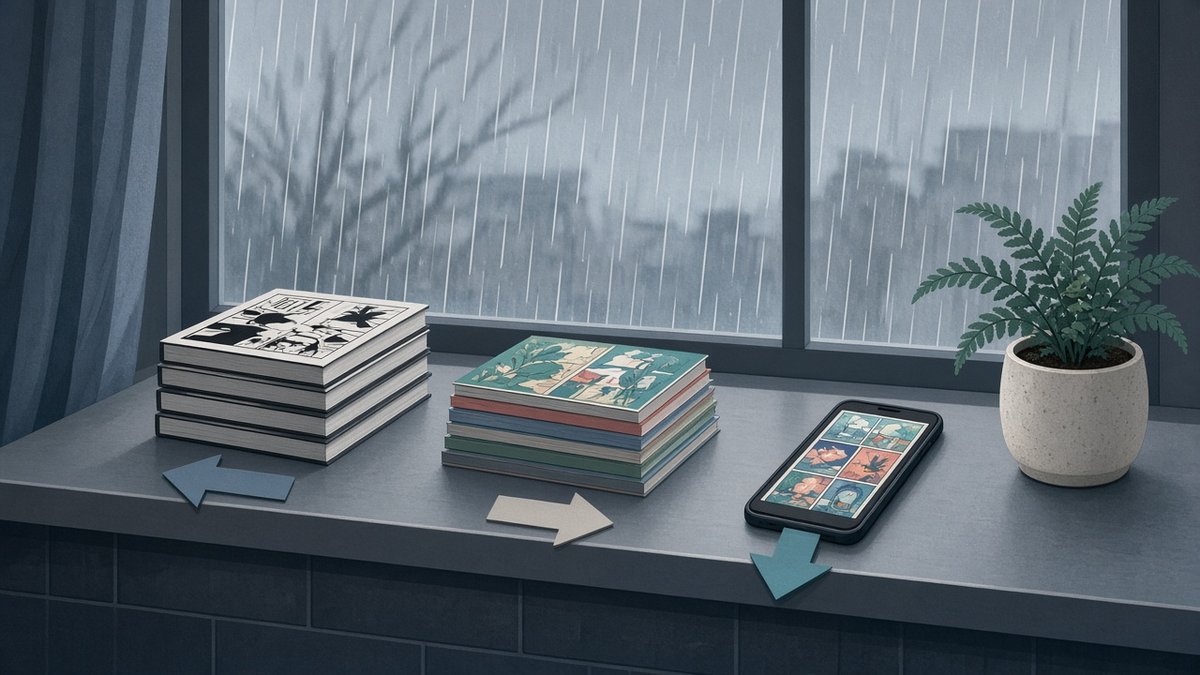
Here is the rough picture. There are exceptions to every line, so treat it as a starting point, not a law.
| What you are reading | Usual way to read it | Setting in ComicFlow |
|---|---|---|
| Japanese manga (and its Chinese, English or other translations) | Right to left, page by page | Paged, Right to Left (Manga) |
| Printed manhua | Often left to right, but not always | Paged, check the first page |
| Manhua made for phone apps | One long vertical strip, in color | Vertical Scroll |
| Korean manhwa and webtoons | Mostly one long vertical strip | Vertical Scroll |
| Western comics | Left to right, page by page | Paged, Left to Right |
The one that trips people up is manhua, because it does not have one rule. Some publishers follow the manga order. Others follow the Western order. And most new series are drawn as strips for phone screens.
How to tell which way a book reads #
You can tell in a few seconds from the first story page, not the cover:
- Where is the first speech bubble? If it sits at the top right, read right to left. If it sits at the top left, read left to right.
- Which way does the text run? Vertical columns of text in the bubbles usually mean the book reads right to left. Lines of text that run across usually mean left to right. This is a hint, not a rule.
- Are the pages very tall and narrow? Then it is a strip. Use Vertical Scroll.
- Does the story make sense? If someone answers a question before it is asked, you are going the wrong way. Flip it.
Step 1: Tell ComicFlow what you read most #
The first time you open ComicFlow, it asks What do you read most? You can pick Manga (right to left, double-page spreads), Western (left to right, single pages), Webtoon (vertical scroll, fit width) or A bit of everything.
This only sets the starting point for new books. If you read mostly manga with some manhua on the side, pick Manga. Then every new book opens right to left, and you only change the few that read the other way.
Step 2: Flip a paged book in one tap #
Open a book and tap the page once to show the controls. At the top you will see a small button with an arrow and L→R or L←R. Tap it to flip the reading direction. Swipes, the page slider and two-page spreads all flip with it.
You can also do it from the gear: open Reader Settings and set Reading Direction to Left to Right or Right to Left (Manga).
ComicFlow saves this for the book. When you come back next week, it opens the same way. If a book has a series name, from the ComicInfo file that many CBZ and CBR files carry or one you type into the book's details, new volumes of that series also open the way you set the last one. So you set it for volume 1, and the rest follow.
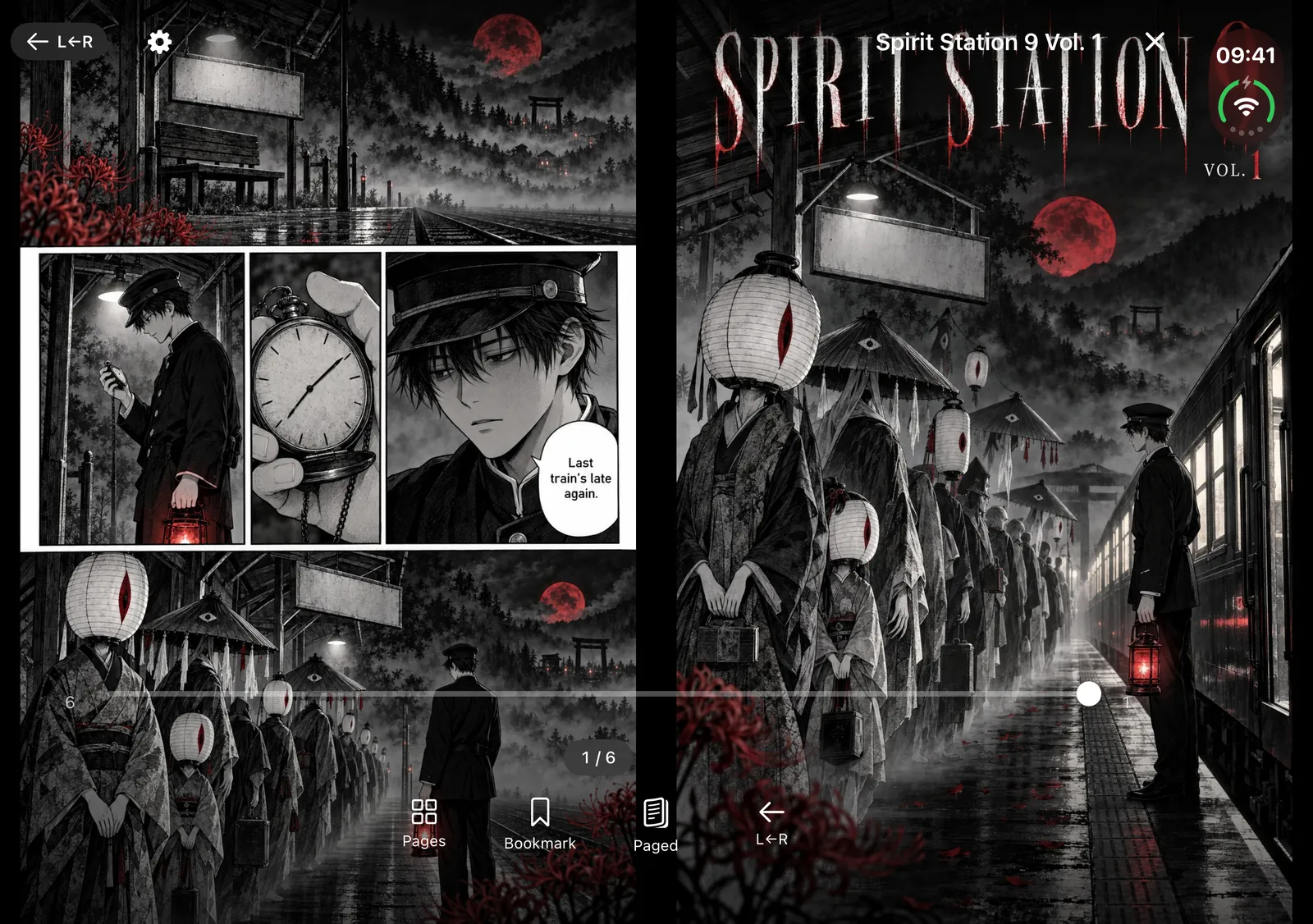
A manga volume read right to left on an unfolded iPhone Duo. The cover sits on the right, and the slider starts on the right too.
Step 3: Switch long-strip manhua to Vertical Scroll #
For a manhua drawn as one long strip, tap the gear and set Reading Mode to Vertical Scroll. Now the pages flow down as one strip and you scroll with your thumb, the way it was drawn for a phone.
In Vertical Scroll, reading direction does not matter, so the L→R button goes away. ComicFlow remembers the mode for the book and for its series, just like the direction. The webtoon guide has more on reading long strips.
Step 4 (optional): Save a setup for each kind of book #
If you jump between kinds of books a lot, flipping three settings every time gets old. ComicFlow Pro has Presets at the top of Reader Settings. It comes with three:
- Manga: right to left, paged, with spreads when the screen is wide enough
- Western: left to right, single pages
- Webtoon: vertical scroll, fit width
Tap one and the whole setup changes at once: reading mode, direction, page layout, fit and background. If your favorite manhua needs something else, set it up and tap Save current as preset... to keep it under your own name.
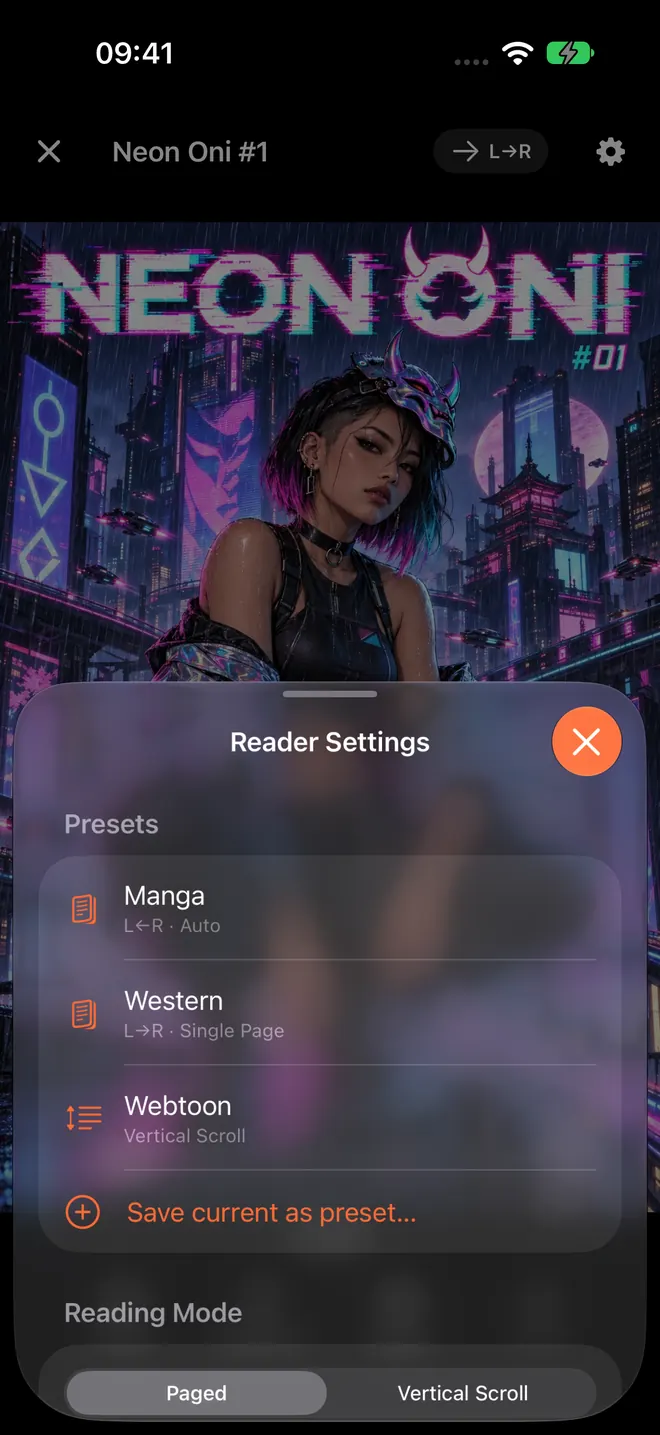
Reader Settings on iPhone. Presets are a Pro feature. Reading Mode and Reading Direction are not.
On iPad and iPhone Duo #
Everything above works the same on iPad. With a paged book, the iPad can show two pages side by side, even in portrait, and with right to left set, the spread is in the right order. Wide art across two pages looks the way it was drawn.
On an unfolded iPhone Duo, ComicFlow shows a two-page spread across the fold. Folded, it is a normal iPhone. The iPhone Duo guide goes through both.
On a regular iPhone, a two-page spread is often tiny. Turn on Split Wide Pages in Reader Settings and ComicFlow shows a wide page as two halves you swipe through, in the right order for the direction you chose.
Getting your manhua into ComicFlow #
ComicFlow reads CBZ, CBR and PDF, and ZIP or RAR archives of page images. It looks at what is inside the file, so a CBZ saved as .zip still opens.
- From your computer: Wi-Fi Upload lets you drag files into a page in any browser on the same Wi-Fi. No cable, nothing to install.
- From Files or iCloud Drive: tap a file and open it with ComicFlow, or set a folder to watch and new books import on their own.
- From a home server: with Pro, ComicFlow reads from Komga, Kavita and OPDS servers. When Komga marks a series as right to left, it opens that way without you doing anything. The NAS guide explains the setup.
What it costs #
ComicFlow is $2.99 once. Paged and Vertical Scroll, both reading directions, spreads and Split Wide Pages are all in that price. ComicFlow Pro is an optional $6.99 one-time unlock that adds saved reader presets, reading from your own comic server, EPUB export to e-readers and Face ID-locked collections. Neither is a subscription, and there are no ads.
How this was checked #
The ComicFlow behavior is checked against the app's source code for version 3.7: the first-launch question and its four choices (OnboardingView.swift), the direction button and Reader Settings sections (ReaderControlsOverlay.swift), direction saved per book (ReadingProgress.swift) and per series (ReaderContinuity.swift), the three built-in presets (ReaderPreset.swift), Split Wide Pages (ReaderSettings.swift) and the English screen labels (en.lproj/Localizable.strings).
Related Articles #
- How to Read Manga on iPhone: RTL Reading Setup: the right-to-left basics in more detail
- How to Read Webtoons on iPhone with Vertical Scroll: long strips, manhwa and color series
- How to Read Manga on iPhone Duo: one page folded, a full spread open
- How to Build a Manga Library on iPhone: collections, series and reading progress
- ComicFlow app page: full feature list, screenshots, and App Store link
Frequently asked questions
Does manhua read left to right or right to left?
There is no single rule. Many manhua read left to right, some read right to left like manga, and a lot of newer manhua made for phones are long vertical strips you scroll down. Chinese editions of Japanese manga keep the Japanese right-to-left order. Look at the first story page: if the first speech bubble sits at the top right, read right to left. If it sits at the top left, read left to right.
Can one iPhone app read manga and manhua with different directions?
Yes. In ComicFlow you set the direction per book. Tap the L→R button at the top of the reader to flip it, or pick it under Reading Direction in Reader Settings. ComicFlow remembers it for that book, and new books from the same series open the same way.
How do I read a vertical-strip manhua on iPhone?
Open it in ComicFlow, tap the gear for Reader Settings and set Reading Mode to Vertical Scroll. The pages then flow down as one long strip, which is how phone-first manhua and webtoons are drawn. Reading direction does not matter in this mode.
Do I need ComicFlow Pro to switch reading direction?
No. Paged and Vertical Scroll, left to right and right to left are all part of the $2.99 app. ComicFlow Pro, a one-time $6.99 unlock, adds saved reader presets, so you can switch a whole setup (direction, mode, layout, fit and background) in one tap. It also adds comic server reading, EPUB export and Face ID-locked collections.
What file formats does ComicFlow read for manhua?
CBZ, CBR and PDF, plus ZIP and RAR archives of page images. ComicFlow checks what is inside the file, so a CBZ saved as .zip or a CBR saved with the wrong extension still opens.