Manga is big. One volume as a CBZ is often 100 to 200 MB, and the series you love most are the long ones. Add a few of those to your phone, and one day the iPhone tells you its storage is almost full. That usually happens right before a trip, when you wanted to load up more volumes, not fewer.
You do not have to choose between your manga and your photos. Most of the space goes to a few things you can control. This guide shows how to find them in ComicFlow, the manga and comic reader I build for iPhone and iPad, and how to keep only what you are about to read on the phone.
Disclosure: I make ComicFlow at Applestan. The ComicFlow steps below are checked against the app's source code for version 3.7. The iPhone Storage steps are iOS settings, not part of ComicFlow.

Short version: Check what uses the space in ComicFlow's Settings, under Storage. Delete volumes you have finished. Do not keep a second copy of the same files in On My iPhone. If your manga lives on a Komga or Kavita server, let Keep Downloaded hold only the next few volumes and clear the rest for you.
Step 1: See where the space goes #
Start on the iPhone itself. Open Settings, tap General, then iPhone Storage. The list shows every app with its size, biggest first. If your manga reader is near the top, the volumes inside it are the reason.
Then open ComicFlow and go to Settings, then Storage. Storage Used shows the total, and under it ComicFlow lists what that total is made of. Only the parts that hold something are shown:
- Imported Comics: the volumes in your library. This is almost always the biggest one.
- Converted PDFs: files you made with the Convert tab.
- Exports: CBZ and EPUB files you made, for example for an e-reader.
- Thumbnails: the cover images in your library. These are small.
- Received Files and Temporary Files: files on their way in or left from a job. These are usually small or empty.
If Converted PDFs or Exports is large, you have made files you may not need anymore. If Imported Comics is large, the next steps are for you.
Step 2: Delete the volumes you have finished #
Most people keep every volume they have ever read on the phone. You probably do not need volume 3 of a series you finished last spring.
To delete one volume, touch and hold its cover in the library and tap Delete. ComicFlow asks once more, then removes it.
To clear out a whole series:
- Touch and hold any cover and tap Select.
- Tap the other volumes you want to remove, or use Select All.
- Tap Delete in the bar at the bottom.
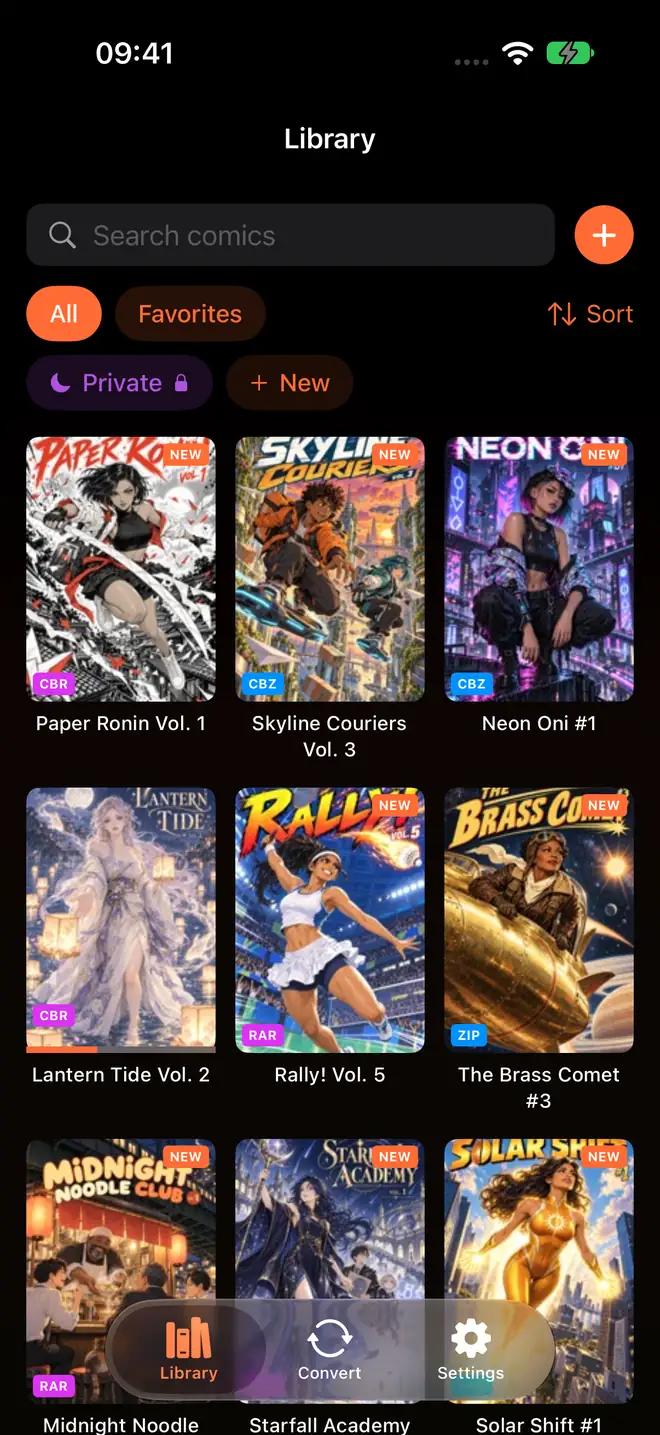
The library. Touch and hold a cover to delete it, or to start selecting several.
Deleting removes the file from your phone. Keep the original somewhere else, like your computer, a NAS or iCloud Drive, if you want to read it again later. The backup guide has simple ways to do that.
Step 3: Do not keep two copies of the same volume #
This one surprises a lot of people. When you add a volume to ComicFlow from the Files app, ComicFlow keeps its own copy. That is why it opens fast and works with no signal. But the original stays where it was.
If the original sits in On My iPhone in the Files app, the same volume is now on your phone twice. A 150 MB volume costs you 300 MB.
There are two easy fixes:
- Delete the original from On My iPhone after ComicFlow has added it. Keep your master copy on your computer or a NAS instead.
- Send new volumes with Wi-Fi Upload. In ComicFlow, open Settings, and under Sources tap Wi-Fi Upload. Then drag files onto the page in any browser on your computer. They go straight into ComicFlow, with no extra copy in Files. The Wi-Fi guide shows every step.
A watch folder works the same way as an import. ComicFlow copies new volumes from that folder into its library, so a watch folder on a NAS or a network share is a better fit than one in On My iPhone.

Step 4: Keep only the next few volumes (Komga or Kavita) #
The best fix is to stop carrying the whole collection. Keep it at home on a server, and keep on your phone only what you are about to read.
With ComicFlow Pro, ComicFlow reads from your own Komga, Kavita or OPDS server. You can stream a book or download it for offline. On Komga and Kavita you also get Keep Downloaded:
- Open the Servers tab and go to a series.
- Open the series menu and tap Keep Downloaded.
- Choose how many unread volumes to keep, from 1 to 30. It starts at 3.
- Leave Delete Books I've Read on, and choose how long to wait first: Right Away, or 1 to 30 days. It starts at 1 day.
The rule runs when ComicFlow opens and when you finish a book. Say you keep 3. You finish volume 12, so volume 15 starts downloading, and after the wait you chose, volume 12 is deleted. The phone always holds the next few volumes and never the whole series. A reading list on your server works the same way.
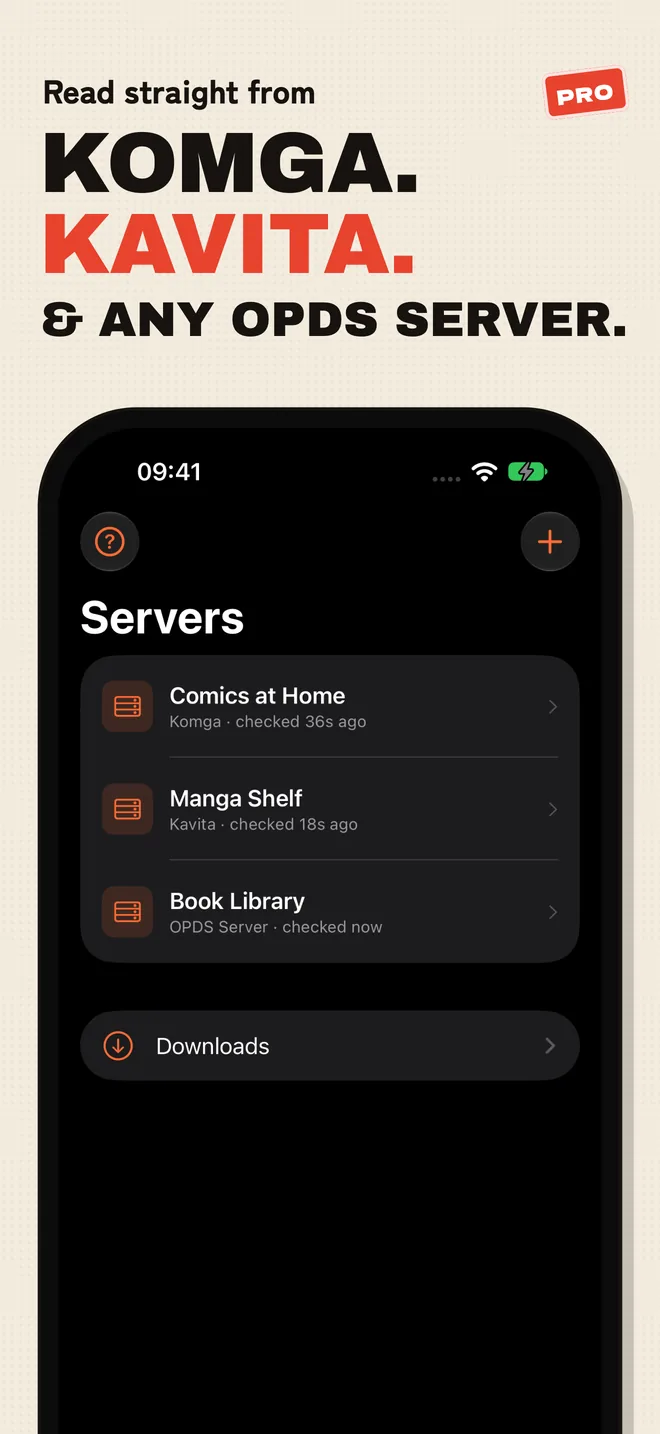
The Servers tab. The Downloads row lists what you downloaded from each server.
The Downloads screen for a server groups your downloaded books by series, with the size of each series at the top. When a series has volumes you have read, a Delete Read Books button clears just those. You can also swipe a single book to delete it.
Streaming uses even less space. When you stream from Komga or Kavita, the volume is not saved to your library. ComicFlow keeps recent pages in a cache so turning back is quick, and that cache is capped at 512 MB, with the oldest pages removed first. Streaming does need a connection, so download the next volumes before a flight.
If you use Calibre, ComicFlow downloads each volume before it opens, because Calibre sends whole files. Keep Downloaded needs Komga or Kavita. The NAS guide and the Calibre guide show how to connect each one.
One button to avoid #
In Settings, under Storage, there is also Clear All Data. It deletes everything ComicFlow holds: every volume, your collections and your reading progress. Use it only if you really want to start over. For freeing space, delete volumes instead.
On iPad and iPhone Duo #
Everything here works the same on iPad and on iPhone Duo. If you read on both an iPhone and an iPad, you do not need the same volumes on both. Keep the long series on the device with more free space, and the next few volumes on your phone.
What it costs #
ComicFlow is $2.99 once. The Storage page, deleting volumes, Wi-Fi Upload and watch folders are all part of that price. ComicFlow Pro is an optional $6.99 one-time unlock that adds reading from your own Komga, Kavita or OPDS server, Keep Downloaded, EPUB export to e-readers, Face ID-locked collections and saved reader presets. Neither one is a subscription, and there are no ads.
How this was checked #
The ComicFlow behavior is checked against the app's source code for version 3.7: the Storage page and its list of parts (StorageManager.swift, SettingsView.swift), deleting one or many volumes from the library (LibraryView.swift, ComicGridCell.swift), the copy ComicFlow keeps when it adds a file (ImportPipeline.swift), Keep Downloaded with its ranges and defaults (DownloadRulesEngine.swift, ServerDownloadsView.swift) and the 512 MB cache for streamed pages (ServerCaches.swift). The 100 to 200 MB size for a manga volume is a typical range for scanned CBZ files, not a fixed number. The iPhone Storage steps follow iOS.
Related Articles #
- How to Read Manga From Your NAS on iPhone: watch folders, Komga and Kavita
- How to Back Up Your Digital Comic Collection: keep a safe copy before you delete
- How to Transfer Comics to iPhone Over Wi-Fi: no cable, no extra copy in Files
- How to Read Comics Offline on iPhone and iPad: get ready for a flight
- ComicFlow app page: full feature list, screenshots, and App Store link
Frequently asked questions
How much space does manga take on an iPhone?
It depends on the scan. A manga volume as a CBZ is often between 100 and 200 MB, so a long series can take many gigabytes. Open Settings, then General, then iPhone Storage on your iPhone to see how much your reading app uses. In ComicFlow, Settings, then Storage shows the total and what it is made of.
Why does my manga take up twice the space?
ComicFlow keeps its own copy of every volume you add, so it opens fast and works offline. If you also keep the same file in On My iPhone in the Files app, the volume is on your phone twice. Keep the original on your computer or a NAS instead, or use Wi-Fi Upload, which sends files straight into ComicFlow.
How do I delete manga I have already read in ComicFlow?
Touch and hold a cover in the library and tap Delete. To remove many volumes at once, touch and hold a cover, tap Select, pick the volumes or use Select All, and tap Delete in the bar at the bottom. Deleting removes the file from the phone, so keep a copy somewhere else if you want to read it again.
Can ComicFlow keep only the next few volumes on my iPhone?
Yes, if your manga is on a Komga or Kavita server. Keep Downloaded keeps the next unread volumes of a series on the phone, from 1 to 30, and can delete the ones you have read right away or after a few days. It is part of ComicFlow Pro, a one-time $6.99 unlock.
Does streaming manga from a server use storage?
Only a little. When you stream a book from Komga or Kavita, ComicFlow keeps recent pages in a cache so turning back is quick. That cache is capped at 512 MB and the oldest pages are removed first. iOS can also clear it when the phone is low on space.