
If you read a lot of manga, the collection probably outgrew your phone a while ago. Hundreds of volumes as CBZ files, sorted into a folder per series, sitting on a Synology or some other NAS in a cupboard. The NAS keeps them safe. What you actually want is the next volume of whatever you are reading on the iPhone in your pocket.
There are two ways to get there with ComicFlow. The first needs nothing on the NAS except the file sharing it already does, and it is included in the $2.99 app. The second uses a comic server like Komga or Kavita, if you run one, and is part of the optional $6.99 one-time Pro unlock.
Disclosure: I make ComicFlow at Applestan. The watch folder and server behaviour below is checked against the app's source code for version 3.7. The Files steps follow Apple's iPhone User Guide. The Sources screenshot was captured in ComicFlow 3.4, and that section of Settings has not changed since.

Short version: connect to the NAS in the Files app, then add a folder on it as a watch folder in ComicFlow (Settings, then Sources, then Add Watch Folder). New volumes you drop into that folder show up in your library with covers and page counts, and they read offline. If you already run Komga or Kavita, add it on the Servers tab instead and stream volumes without copying them.
Route 1: a plain network share and a watch folder #
This is the route for most people, because almost every NAS can already share a folder over SMB. You do not install anything on it.
Step 1: Connect to the NAS in Files #
The iPhone's own Files app can open an SMB share. Apple's steps:
- Open Files and tap Browse.
- Tap the More button (the three dots), then Connect to Server.
- Enter the NAS's local name or address, for example
smb://192.168.1.20, and tap Connect. - Choose Registered User and sign in with your NAS account (or Guest, if your NAS allows it).
- Tap Next. The share now appears under Shared in the Browse sidebar.
If the connection fails, try the IP address instead of the name, and check that the NAS allows SMB 2 or newer. The Files app needs SMB 2.0 or later, and some older NAS setups are still set to SMB1 only.
Step 2: Pick the folder ComicFlow should watch #
In ComicFlow, open Settings, scroll to Sources and tap Add Watch Folder. The folder picker shows the share you just connected under Shared. Pick a folder on it.
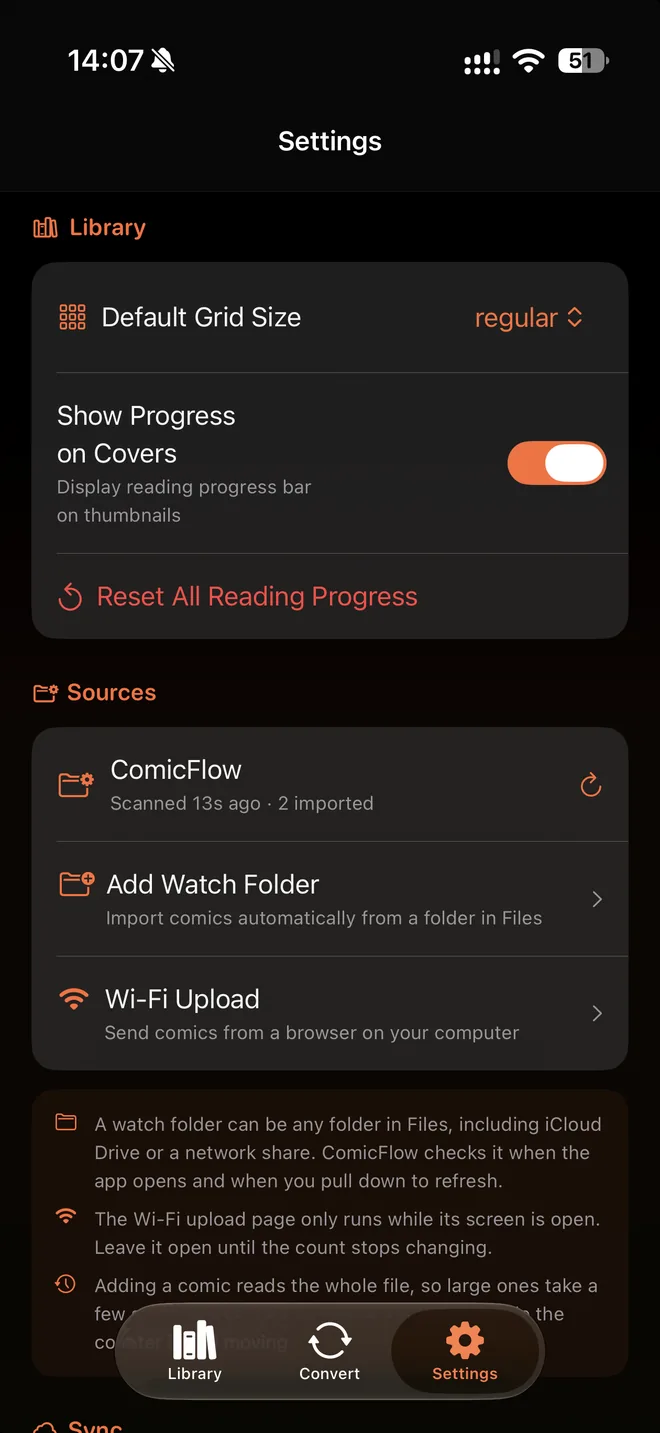
ComicFlow then scans the folder, and its subfolders too, for CBZ, CBR, ZIP, RAR and PDF files and adds every one it finds to your library, with a cover and page count. A folder per series is fine, so Manga/Frieren/Vol. 01.cbz is picked up the same way as a file sitting at the top.
After that it checks again on its own when the app opens and when you come back to it. Pull down in the library to check right away, or tap the refresh arrow on the folder's row in Sources. A file that is already in your library, with the same name and size, is skipped.
Step 3: Choose what to watch #
This part is worth a minute of thought. A watch folder copies each volume into ComicFlow's library on the iPhone. That is what lets it read on a plane with no connection at all, and it is also what fills up your phone if you point it at a 2 TB archive.
What works well for a big collection is a small "To read" folder on the NAS, next to the archive:
- Keep the full collection where it is.
- Copy the volumes you are about to read into the "To read" folder, from your computer or from Files on the iPhone.
- Let ComicFlow watch only that folder.
Finished a volume and want the space back? Move it out of the "To read" folder on the NAS first, then delete it in ComicFlow. The order matters: a volume you delete in ComicFlow but leave in the watched folder is simply added again on the next scan, because to the scan it looks new. If you ever remove the watch folder itself, ComicFlow stops checking it and keeps every volume it already imported.

One-off: import straight from the share #
You do not have to set up a watch folder to grab a single volume. Tap + in the library, choose Import Comics, go to the share under Shared and select one or more files. They are copied into your library the same way.
Set it up for manga once #
Files from a NAS are ordinary files, so the manga settings are the same as for anything else in your library.
Right to left. Open a volume, open the reader settings and set Reading Direction to Right to Left (Manga). ComicFlow keeps that for the file. If your CBZ files carry a ComicInfo.xml with a series name, which files saved by Mihon or a tagging tool often do, the setting is remembered for every book in that series. The right-to-left guide has the details.
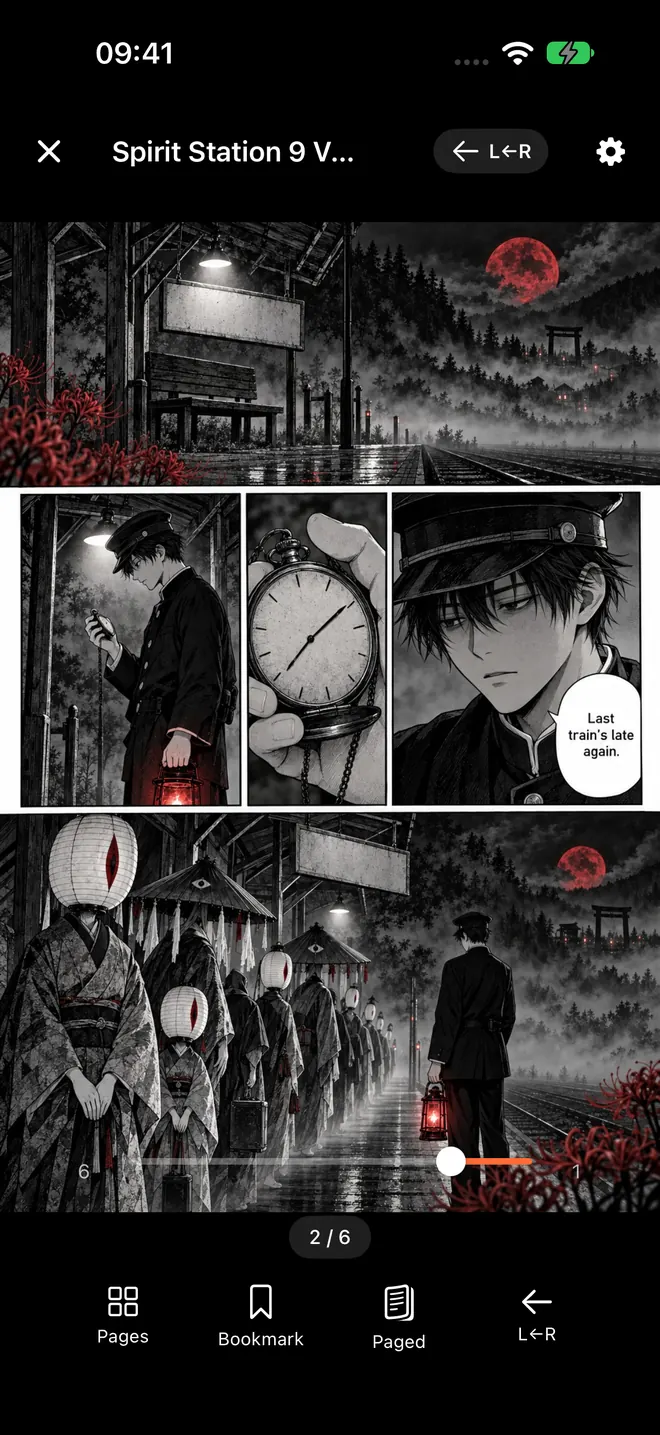
The next volume. On the last page of a volume, an Up next card offers the next unread book of the same ComicInfo.xml series, in volume and issue number order. It is included without Pro. Volumes with no series tag just end, and you pick the next one from the library or the Continue Reading card.
Keep track. The Reading, Unread and Completed smart collections update as you read. Tracking manga series on iPhone shows a setup for juggling several long runners.
Route 2: stream from Komga or Kavita on the NAS #
Plenty of manga readers already run Komga or Kavita on their NAS, often in Docker. If you do, ComicFlow 3.7 can read from it directly, and you skip the copying.
Open the Servers tab, add your server and type its address, for example nas:25600 for Komga on a NAS called nas. Home network and Tailscale addresses work over plain HTTP. Sign in with your Komga or Kavita account, or use an API key for Komga.
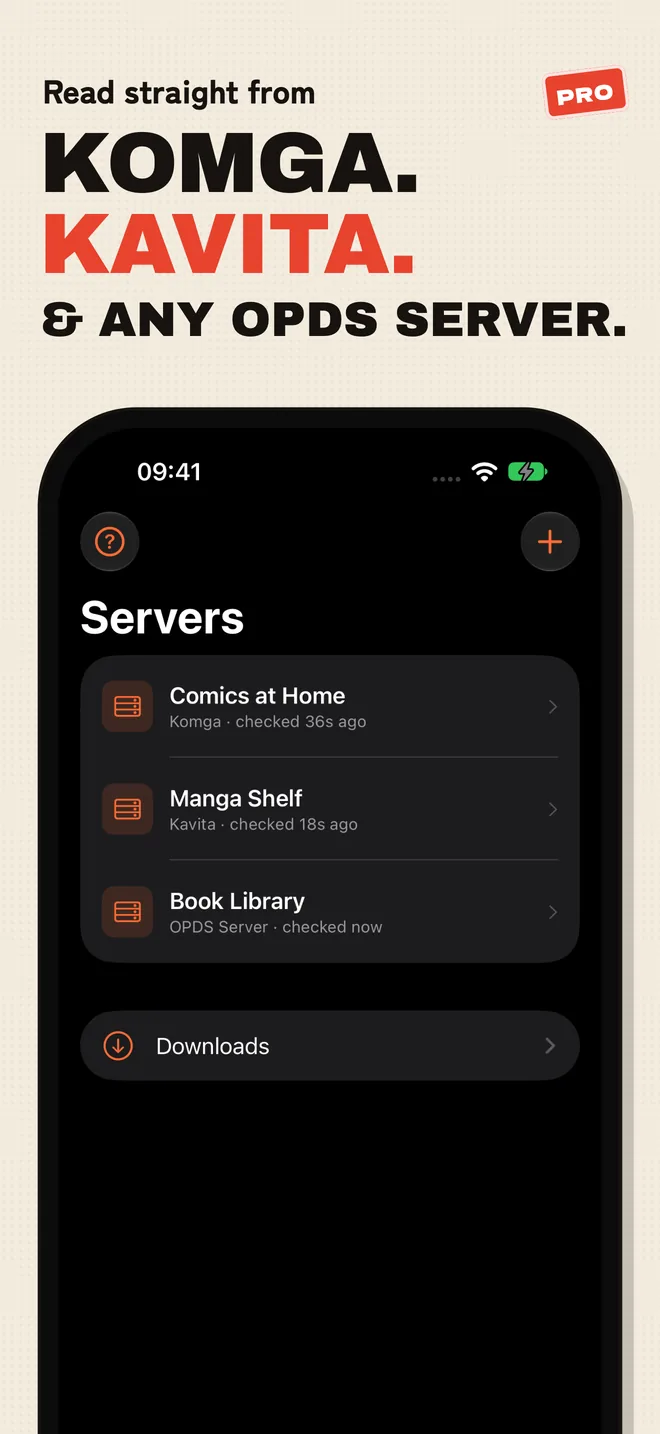
What you get from a server:
- Streaming. Open a volume straight from the server without downloading it, so a huge library takes no space on the phone.
- Downloads for offline. Download a volume, a whole series or only the unread books before a trip.
- Keep Downloaded. For a series or reading list on Komga or Kavita, ComicFlow keeps the next unread books on the device and can delete the ones you have read.
- Your place, synced. Progress syncs both ways with the server, and downloaded books can also sync with KOReader devices.
- Manga order from the server. A Komga series marked right to left opens that way without you touching the setting.
Server libraries are part of ComicFlow Pro. You can enter your server and tap Test without Pro, so you know it connects before you pay. Saving the server is the step that needs Pro. The 3.7 release notes cover the rest.

Which route should you use? #
| Watch folder on a share | Komga or Kavita server | |
|---|---|---|
| Runs on the NAS | SMB file sharing | Komga, Kavita or another OPDS server |
| Price in ComicFlow | Included in the $2.99 app | Needs the $6.99 one-time Pro unlock |
| Volumes on the iPhone | Copied into the library | Streamed, or downloaded when you want |
| Offline reading | Yes, every imported volume | Downloaded volumes |
| Progress sync | iCloud Sync between your own devices | Both ways with the server, and KOReader |
If your NAS only shares folders, start with the watch folder. It takes five minutes and nothing changes on the NAS. If you already run a server, or your collection is far bigger than your phone, the server route is the better fit.
When it doesn't connect #
The watch folder says it is not available. The share is asleep or not connected, which happens after a restart or when you are away from home. Open the folder once in Files so it reconnects, then pull down in the library or tap the refresh arrow in Sources. As long as the folder is still there on the NAS, you do not need to remove it and add it again.
Nothing new shows up. ComicFlow checks when it opens and when you pull down in the library, not the moment a file lands on the NAS. Pull down, or tap the refresh arrow in Sources.
Big volumes take a while. Adding a volume reads the whole file, so a large one takes a few seconds. Leave ComicFlow open while the counter is still moving.
A file won't open. ComicFlow reads CBZ, CBR, ZIP, RAR and PDF. It does not open EPUB, so if your NAS has a volume only as EPUB, that one will not come in. For other broken files, why a CBZ or CBR won't open walks through the usual causes.
Away from home. An SMB share is normally only reachable on your home network. Volumes already imported read anywhere, so import what you want before you leave.
What it costs #
ComicFlow is $2.99 on the App Store, once. That includes watch folders, importing from Files, Wi-Fi Upload, right-to-left reading, Up next, collections and iCloud Sync. There are no ads or ad tracking. It sends anonymous usage analytics that you can switch off in Settings, then Privacy, then Share Usage Data, and that switch starts off in the EU, EEA, UK and Switzerland. The privacy policy lists what it covers.
ComicFlow Pro is an optional $6.99 one-time unlock, not a subscription. It adds Komga, Kavita and OPDS servers, EPUB export for Kobo, Boox, reMarkable and PocketBook, series, Face ID-locked collections, reader presets, themes and alternate app icons. You do not need it to read manga from a NAS share.
Related reading #
- ComicFlow 3.7 release notes: Komga, Kavita and OPDS servers
- Transfer comics to iPhone over Wi-Fi: send volumes from a browser on your computer
- Back up your digital comic collection: where a NAS fits in a backup plan
- Moving from Android to iPhone with your manga: bringing Mihon downloads across
- How to build a manga library on iPhone: sources and setup
- Read comics offline on iPhone and iPad: an offline library that goes where you go
Frequently asked questions
Can I read manga stored on a NAS on my iPhone?
Yes. Connect to the NAS in the Files app with Connect to Server, then add a folder on that share as a watch folder in ComicFlow. New CBZ, CBR, ZIP, RAR and PDF volumes in it are copied into your library on the iPhone, so they open in the reader and keep working offline.
Do I need Komga or Kavita to read manga from a NAS?
No. A plain SMB share mounted in the Files app is enough for ComicFlow's watch folders, and that route is included in the $2.99 app without Pro. Komga, Kavita and OPDS servers are an optional extra, and saving a server needs the $6.99 one-time Pro unlock.
Does ComicFlow stream manga from the NAS or copy it?
A watch folder copies each volume into ComicFlow's library on your iPhone, which uses phone storage but means the volume reads with no connection. Streaming without downloading is part of the Komga, Kavita and OPDS server support in ComicFlow Pro.
Why does my watch folder on the NAS say it is not available?
Usually the share is not connected right now, for example after a restart or when you are away from home. Open the folder once in the Files app so it reconnects, then pull down in ComicFlow's library or tap the refresh arrow on the folder's row in Settings, under Sources.
Will manga from my NAS read right to left?
Yes. Switch the reader to Right to Left (Manga) once. ComicFlow keeps that for the file, and when the volume has a series name in its ComicInfo.xml, for every book in that series. Komga series marked right to left open that way on their own.
Is ComicFlow a subscription?
No. ComicFlow is a one-time $2.99 purchase with no subscription and no ads. The Pro unlock is a separate one-time $6.99 purchase and is optional.