
Your manga shelf is full. Maybe you are moving abroad and boxes of tankobon cost real money to ship. Maybe you want the whole run of a series on your phone for the commute, or some of your volumes are out of print and you would rather not wear them out. Either way, the question is the same: how do you get manga you already own onto your iPhone, and read it like manga?
In Japan this has a name, jisui (自炊), which means scanning your own books. This guide covers two ways to do it, with nothing but an iPhone or with a sheet-fed scanner, and then how to read the scans right to left with spreads intact. The reader I use is ComicFlow, which I build: $2.99 once, with an optional $6.99 one-time Pro unlock.
Disclosure: I make ComicFlow at Applestan. Every ComicFlow feature below was checked against the app's source code for version 3.7, and the iPhone scanning steps against Apple's support pages. The files I checked are listed at the end.

First, a word on keeping it yours #
The rules on private copies are different from one country to the next, so check what applies where you live. What holds almost everywhere is that sharing or uploading scans is not allowed. Scan volumes you bought, for your own reading, and keep the files to yourself. That is also the only kind of manga this guide is about.
Two ways to scan, and which one fits #
| iPhone only | Sheet-fed scanner | |
|---|---|---|
| What you need | Your iPhone | A document scanner, and usually a way to remove the spine |
| The book afterwards | Unharmed | Usually cut apart |
| Speed | One page at a time | A whole volume in one pass |
| Page quality | Good, with some curve near the spine | Flat and even |
| Best for | A few favorite volumes, out-of-print books you want to keep | Clearing a whole shelf |
Starting with the iPhone is a cheap way to find out whether you want your whole collection digital before you spend money on a scanner.
Method 1: Scan manga with just your iPhone #
The Files app has a document scanner built in. It finds the page edges, flattens the perspective and saves everything as one PDF.
- Open the Files app and go to the folder where you want the scan, for example a folder in iCloud Drive called
Manga Scans. - Tap the More button, then Scan Documents.
- Hold the iPhone above the page. In Auto mode it captures when the page is steady. In Manual mode, tap the shutter or press a volume button, which leaves your other hand free to hold the book open.
- Drag the corners if the frame missed the page edge, then tap Keep Scan. Repeat for every page.
- Tap Done, choose a location, and tap Save.
Apple's guide to scanning documents has the same steps for the Notes app, and on iOS 26 and later you can pick the flash and an image filter before you start.
Scan in manga order #
This is the part people get wrong with their first volume. A Japanese-style volume opens from the right, so its front cover is on what a Western reader would call the back. Scan in reading order:
- Start with the front cover, then the first page inside.
- When a page pair is open in front of you, scan the right-hand page first, then the left.
- Keep going until the back cover.
The scanner adds pages in the order you capture them, and ComicFlow reads them in that order. Get it right here and nothing has to be fixed later.
Tips for cleaner pages #
- Light from above and to the side. A window or a lamp off to one side avoids glare on glossy covers and keeps your own shadow off the page.
- Hold the book open gently. Press near the outer edge, not across the art. The curve near the spine is the main weakness of phone scanning, so open the book as far as it goes without stressing the spine.
- One page per scan. Frame a single page rather than the whole open book. Single pages come out bigger and sharper on a phone screen.
- Keep the gray in gray pages. Manga shading is screentone, fine dot patterns that a harsh black-and-white filter can wash out. If your scanner offers a grayscale filter, it usually keeps screentone better.
- One file per volume. Save each volume as its own PDF with a clear name, such as
Series Name Vol 03.pdf. Library search finds it by that name later.
Method 2: A sheet-fed scanner for a whole shelf #
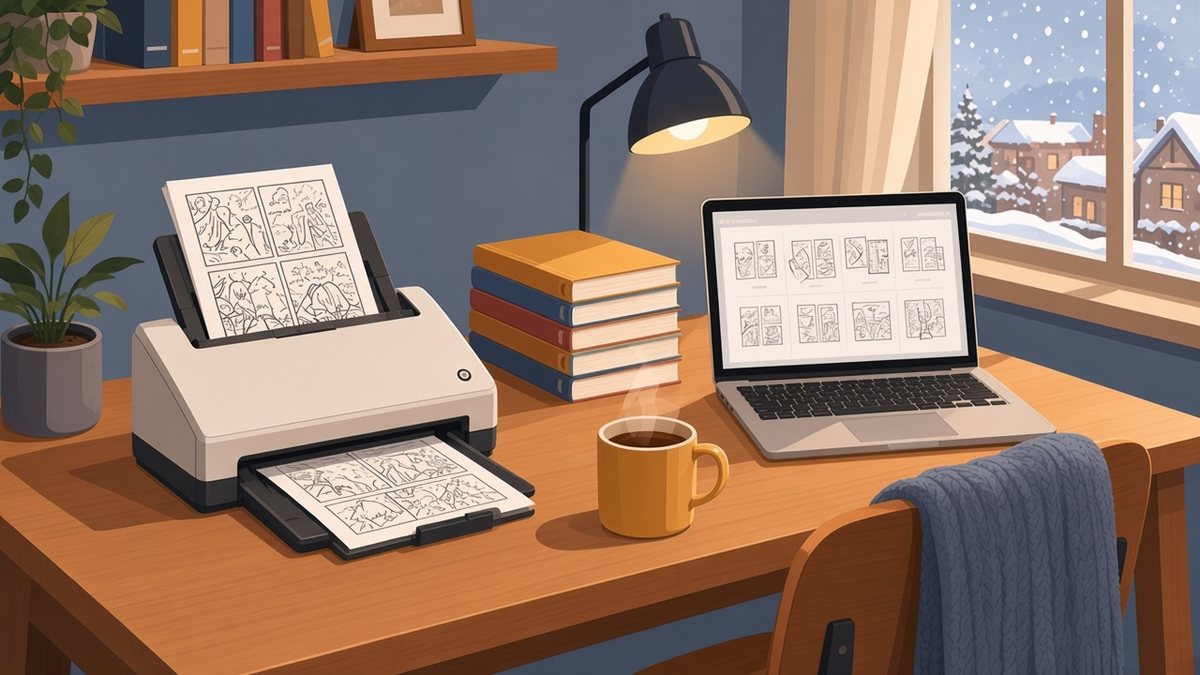
The classic jisui method is to remove the spine and feed the loose pages through a sheet-fed document scanner. A whole volume goes through in one pass, and every page comes out flat. The cost is the book. Do not do this to anything you want to keep on the shelf.
Most document scanners save either a PDF or a folder of JPEG images. Both work:
- A PDF imports into ComicFlow as it is.
- A folder of images needs packing into one file first, because ComicFlow imports archives and PDFs, not loose folders. On a Mac, right-click the folder and choose Compress. On Windows, right-click and send it to a compressed (zipped) folder. ComicFlow opens the
.zipas it is, or you can rename it to.cbz.
Name the images so they sort in reading order, which almost every scanner does on its own (0001.jpg, 0002.jpg and so on). ComicFlow sorts pages with numbers counted properly, so page2 comes before page10 either way, and it skips the __MACOSX junk a Mac adds to its zips.
Get the scans into ComicFlow #
Pick whichever matches where the files are. All of these are included in the $2.99 app without Pro.
- On the iPhone already. Open ComicFlow and tap the orange + next to the library search field (on an empty library it says Import Comics), then pick the PDFs from the folder you saved them in.
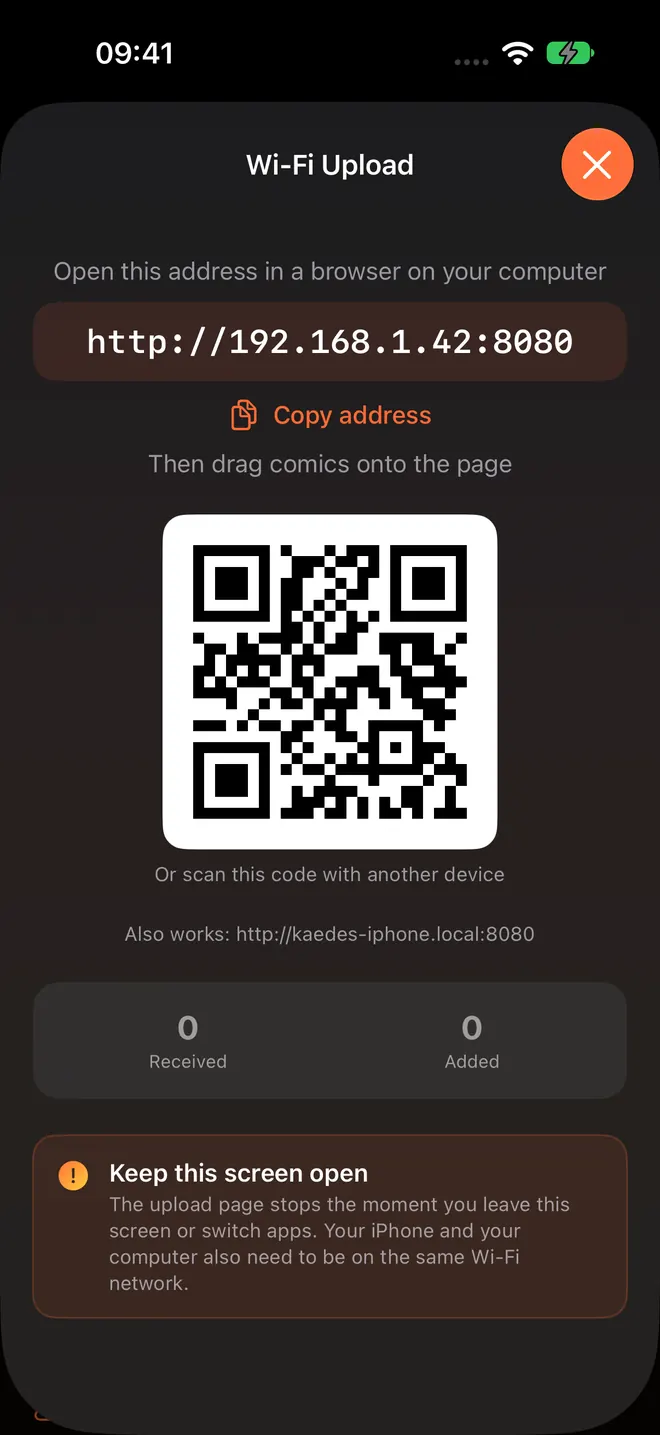
- On a computer. In ComicFlow go to Settings, then Sources, then Wi-Fi Upload, type the address it shows into your computer's browser, and drag the files onto the page. Keep the ComicFlow screen open until the Added count stops moving. Transferring comics over Wi-Fi has the details.
- Every new scan, automatically. If you scan into an iCloud Drive folder, go to Settings, then Sources, then Add Watch Folder, and pick that folder. New scans are imported when you open ComicFlow or pull down on the library, and the originals stay in iCloud Drive.
Read your scans like manga #
Once a volume is in the library, a minute of setup makes it read like the printed book.
- Right to left. Open the volume, tap the gear for Reader Settings and set Reading Direction to Right to Left (Manga). Swipes, the page slider and spreads all flip to match, and ComicFlow remembers the direction for that book. If you chose Manga when ComicFlow asked what you read on first launch, new books already open this way. Reading manga right-to-left on iPhone goes deeper.
- Two-page spreads. Leave Page Layout on Auto. ComicFlow shows two pages side by side whenever the screen is wide enough, which on an iPhone means turning it sideways, and on an iPad works in portrait too. A scanned PDF is laid out like a printed book, with the cover on its own and the pages after it paired the way they were printed.
- Pick up where you stopped. Your page is saved as you read, and the Continue Reading card at the top of the library takes you back to it. With iCloud Sync on, your place follows you between iPhone and iPad.
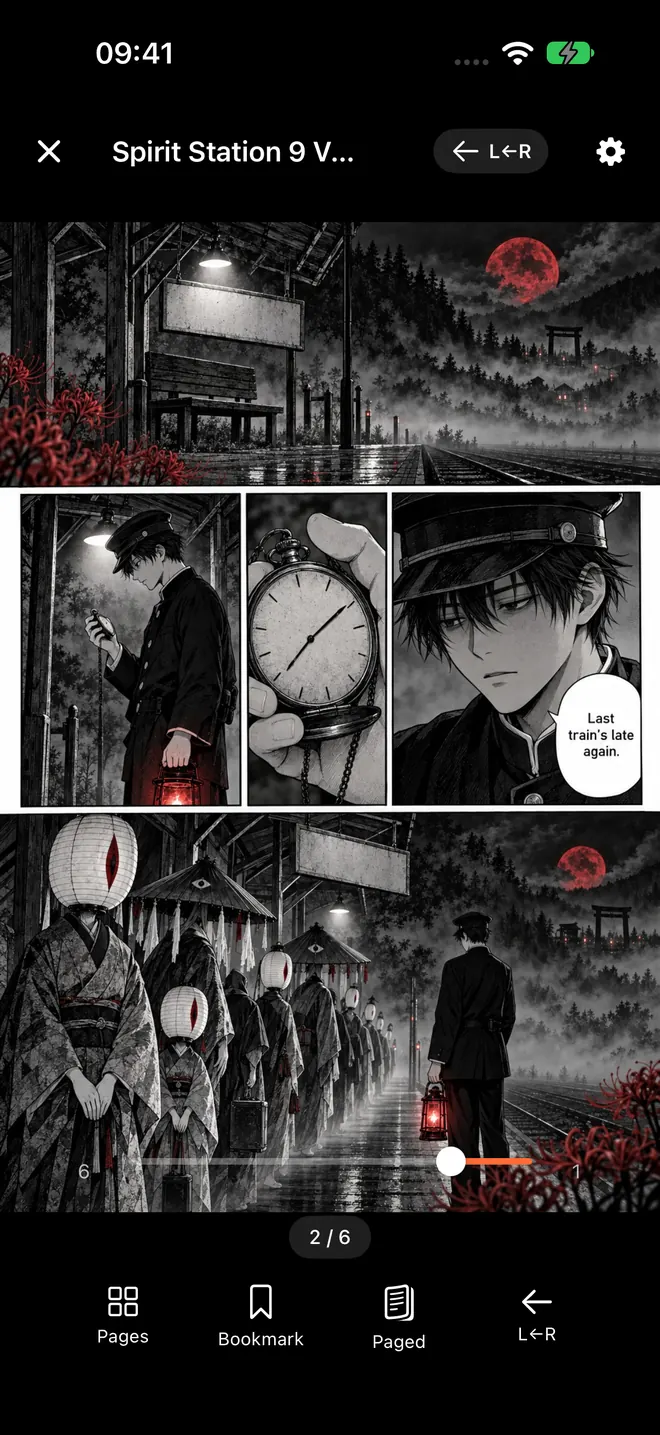
If the lettering in your scans feels small on a phone, our guide to manga text that is too small on iPhone covers zooming into speech bubbles and when to turn sideways.
When to turn a scan into a CBZ #
A PDF straight from the scanner reads well, and you can leave it as it is. There are two cases where a CBZ is the better file.
You scanned spreads as one wide page. A sheet-fed scanner, or a phone scan of a whole open book, sometimes captures a two-page spread as one wide image. On an iPhone held upright that spread is tiny. ComicFlow's Split Wide Pages setting shows each half on its own, in reading order, starting with the right half for right-to-left books. It works on CBZ and other archives, not on PDFs, which lay out their own pages.
You want the scans to work everywhere. CBZ is the format comic readers, comic servers and most e-readers handle best.
To convert, open ComicFlow's Convert tab, tap Browse Files and pick the scan PDF, choose CBZ as the output format, and tap Convert to CBZ. ComicFlow renders each page as a JPEG up to 2,560 pixels on the long side and packs them into a CBZ. When it says Export Ready!, share the file to Save to Files, then import that CBZ with the + button. CBZ conversion is included in the $2.99 app without Pro, and your original PDF is left as it was.
Keep the originals safe #
Scanning a shelf takes evenings. Do not let the only copy live inside one app on one phone. Keep the PDFs or CBZs in iCloud Drive (the watch folder above does this for you) and a second copy on a computer or an external drive. Backing up your digital comic collection has a simple setup.
If you also read on an e-reader, ComicFlow Pro can export the same scans as EPUB for Kobo, Boox, reMarkable and PocketBook. You can set up the export without Pro, and Pro unlocks the export itself. Reading comics on a Kobo, Boox or reMarkable explains the options.
What it costs #
ComicFlow is $2.99 on the App Store, once. That includes importing PDF, CBZ, CBR, ZIP and RAR, right-to-left reading, two-page spreads, Wi-Fi Upload, watch folders, collections, iCloud Sync and conversion to PDF or CBZ. There are no ads or ad tracking. It sends anonymous usage analytics that you can switch off in Settings, then Privacy, then Share Usage Data, and that switch starts off in the EU, EEA, UK and Switzerland. The privacy policy lists what it covers.
ComicFlow Pro is an optional $6.99 one-time unlock, not a subscription. It adds EPUB export for e-readers, Komga, Kavita and OPDS servers, Face ID-locked collections, reader presets including a Manga preset, themes and alternate app icons. You do not need it to scan and read your own manga.
Quick checklist #
- Scan volumes you own, for yourself, and keep the files private.
- Scan in reading order: front cover first, right-hand page before left.
- One PDF per volume, with the series name and volume number in the file name.
- Import with the + button, Wi-Fi Upload or an iCloud Drive watch folder.
- Set Right to Left (Manga) and leave Page Layout on Auto.
- Convert to CBZ only if you scanned spreads as single wide pages.
How this was checked #
ComicFlow claims in this post were checked against the version 3.7 source code, in these files:
- Import formats, the + button and the file picker:
ComicFlow/Services/ComicFilePickerTypes.swift,ComicFlow/Services/ImportPipeline.swift,ComicFlow/Views/LibraryView.swift - Watch folders and Wi-Fi Upload accepting PDF:
ComicFlow/Services/Sources/WatchFolderScanner.swift,ComicFlow/Services/Sources/WiFiUploadServer.swift,ComicFlow/Views/Sources/SourcesSettingsSection.swift - Page sorting and macOS zip junk:
ComicFlow/Services/ArchivePageOrdering.swift,ComicFlow/Services/ArchiveEntryFilter.swift - Right-to-left, spreads and PDF layout:
ComicFlow/Reader/Views/ComicReaderView.swift,ComicFlow/Reader/Views/ReaderControlsOverlay.swift,ComicFlow/Reader/Utilities/SpreadPlan.swift,ComicFlow/Views/OnboardingView.swift - PDF to CBZ conversion:
ComicFlow/Models/ConversionState.swift,ComicFlow/Services/PDFPageRasterizer.swift,ComicFlow/Services/Exporters/CBZExporter.swift,ComicFlow/Services/Exporters/OutputFormat.swift - What Pro covers:
ComicFlow/Services/Pro/ProGate.swift
The iPhone scanning steps come from Apple's support page How to scan documents on your iPhone or iPad, read on October 23, 2026.
Related reading #
- How to build a manga library on iPhone: where to buy digital volumes you own
- Read manga right-to-left on iPhone: the reader settings for manga order
- Track manga series on iPhone: keep a growing scanned collection in order
- Transfer comics to iPhone over Wi-Fi: Wi-Fi Upload step by step
- Back up your digital comic collection: keep your scans safe
Frequently asked questions
Can I scan manga with just my iPhone?
Yes. The Files app has a built-in document scanner. Tap the More button, then Scan Documents, capture each page, and save the result as a PDF. Pressing a volume button works as the shutter, which leaves your other hand free to hold the book open. ComicFlow imports that PDF as it is.
Will my scanned manga read right to left?
Yes, as long as you scanned the pages in reading order, starting with the front cover. In ComicFlow, set Reading Direction to Right to Left (Manga) in the reader settings, or choose Manga when the app asks what you read on first launch. ComicFlow remembers the direction for each book.
Should I keep my manga scans as PDF or CBZ?
Either reads well in ComicFlow. A PDF straight from the iPhone scanner is fine. Convert to CBZ when you scanned two-page spreads as single wide pages, because the Split Wide Pages setting works on CBZ files and not on PDFs. CBZ conversion is included in the $2.99 app without Pro.
Is it legal to scan manga I own?
The rules on private copies differ from country to country, so check yours. What holds almost everywhere is that sharing or uploading your scans is not allowed. Scan volumes you bought, for your own reading, and keep the files to yourself.
Do I need ComicFlow Pro to read scanned manga?
No. Importing PDF, CBZ and ZIP files, right-to-left reading, two-page spreads, Wi-Fi Upload, watch folders and PDF to CBZ conversion are all included in the $2.99 app without Pro. The optional $6.99 one-time Pro adds EPUB export for e-readers, comic servers, Face ID-locked collections and reader presets.