
You finally got the new iPhone. The old Android phone is in a drawer, and on it is a few years of manga in Mihon: every chapter you downloaded for the train, the series you were halfway through, the folder of volumes you scanned yourself. The first search on the iPhone is usually "Mihon for iPhone", and the answer is short. There isn't one.
That does not mean the library stays behind. The chapters Mihon downloaded are ordinary CBZ files, and CBZ files open on iPhone. This guide covers what comes over, what does not, and how to move a whole Mihon download folder to an iPhone in one go. The reader I use for it is ComicFlow, which I build: $2.99 once for the reader and library, with an optional $6.99 one-time Pro unlock. I worked as an Android developer for years, so this move is close to home.
Disclosure: I make ComicFlow at Applestan. ComicFlow features below were checked against the app's code for version 3.7, and Mihon settings against Mihon's own source and FAQ.

There is no Mihon for iPhone #
Mihon is an Android app, and the Mihon FAQ says plainly that there is no iOS or iPadOS version and no plan for one. It also warns that anything calling itself "Mihon for iOS" is not from the Mihon team. If an App Store listing uses the name or the icon, treat it with suspicion.
So the question is not which app to install as a copy of Mihon. It is how to get the manga you already have onto the new phone, and keep reading it in the right order.
What comes with you, and what stays on Android #
Here is the honest split before you start copying anything.
Comes over to iPhone:
- Downloaded chapters saved as CBZ. Each one is a normal comic archive you can copy anywhere.
- Your Local source folder. Volumes you added to Mihon yourself, as CBZ or ZIP files.
- A Komga or Kavita server. If Mihon read from a server at home, the server keeps your library, and an iPhone app can read it too.
Stays in Mihon:
- Extensions and sources. ComicFlow has none. It reads files you have and servers you run, and it does not browse or download from websites.
- Your .tachibk backup. It only restores into Mihon and similar Android apps.
- Categories, tracker logins and read status of downloaded chapters. Mihon keeps those in its own database, not inside the CBZ files.
If that list looks right for how you read, the rest takes about as long as the copying does.
Step 1: Make sure your chapters are CBZ files #
Open Mihon and go to More, then Settings, then Downloads, and check that Save as CBZ archive is on. Current Mihon versions switch it on by default, but if you came from an old Tachiyomi install, some chapters may still be plain folders of images.
ComicFlow imports CBZ, CBR, ZIP, RAR and PDF files. It does not import a loose folder of images. For any chapter that is still a folder, either delete and download it again with the setting on, or zip the folder with a file manager app and rename the .zip to .cbz (ComicFlow opens it either way).
There is one more reason CBZ is the right format here. Mihon writes a small ComicInfo.xml file into every chapter it saves, with the series title, the chapter name and the chapter number. ComicFlow reads that file when it imports a CBZ or ZIP, so each chapter arrives knowing which series it belongs to. Leave it in the archive.
Step 2: Find the folder on your Android phone #
Mihon keeps downloads, the Local source and automatic backups in one place you picked when you set it up. To see where, go to More, then Settings, then Data and storage, and look at Storage location.
Inside that folder you will find:
downloads, with one folder per source and one folder per series inside it, and a.cbzfile for each chapterlocal, with the series you added yourself
You do not have to flatten any of this. Copy the folders for the series you want, or the whole downloads folder, and keep the structure as it is.

Step 3: Move the chapters to your iPhone #
Pick the route that matches how much you are moving. All three are included in the $2.99 app without Pro.
A few series: Wi-Fi Upload from the Android phone's browser #
ComicFlow's Wi-Fi Upload works with any browser on the same Wi-Fi network, and that includes the browser on your old Android phone.
- On the iPhone, open ComicFlow and go to Settings, then Wi-Fi Upload. Leave that screen open.
- On the Android phone, open Chrome or any other browser and type the address the iPhone shows, such as
http://192.168.1.42:8080. - Tap Choose files, go to Mihon's storage folder, and select the chapters you want. You can pick several at once.
- Watch Received and Added on the iPhone, and keep both screens open until the numbers stop changing.
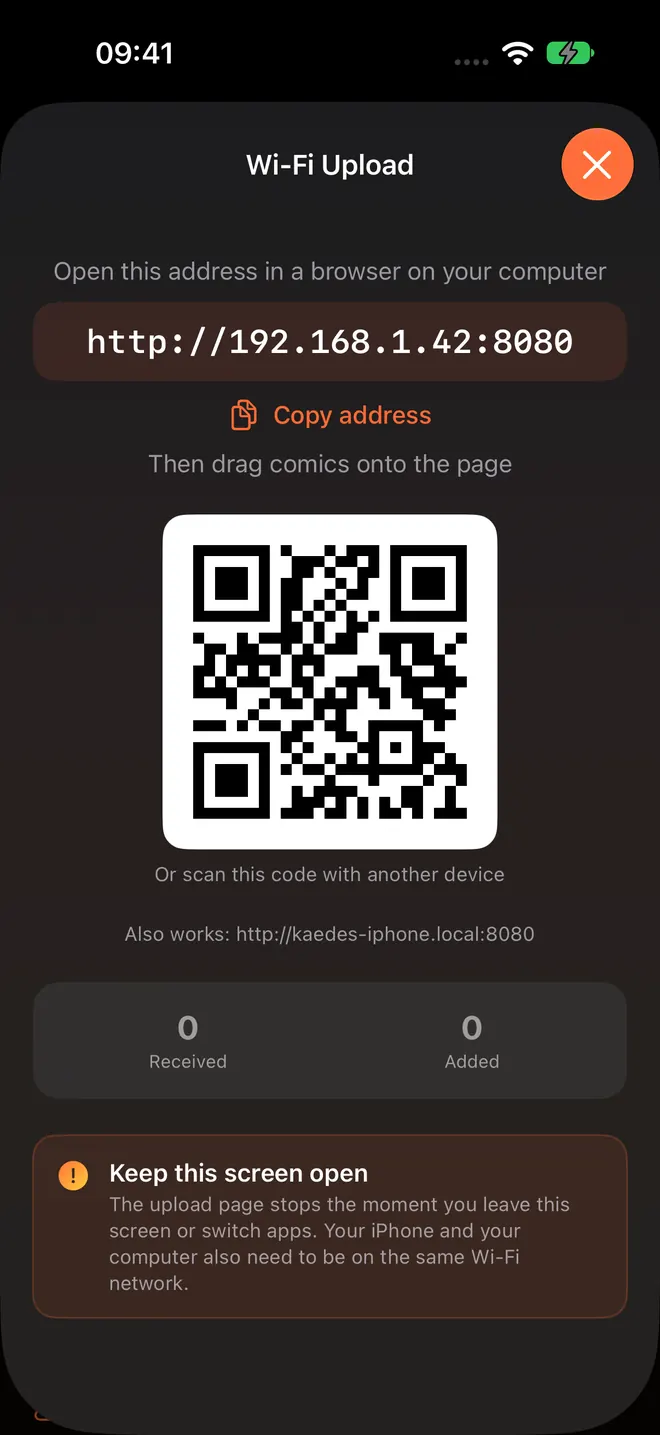
A chapter that is already in the library with the same name and size is skipped, so sending the same folder twice does not give you duplicates. The full walkthrough is in transferring comics to iPhone over Wi-Fi.
A big library: a USB-C flash drive and a watch folder #
For hundreds of chapters, a flash drive is faster than picking files in a browser.
- Plug a USB-C flash drive into the Android phone and copy Mihon's
downloadsfolder (or just the series folders you want) onto it. - Plug the drive into the iPhone. iPhones with a USB-C port take it directly.
- In ComicFlow, go to Settings, then Sources, then Add Watch Folder, and pick the folder on the drive.
ComicFlow scans the watch folder and every folder inside it, so Mihon's source and series folders work as they are. Each chapter is copied into ComicFlow's library with its cover and page count, which means the manga stays on the iPhone after you unplug the drive. If a scan seems to stop early, pull down on the library to scan again.
Over the internet: a cloud drive folder #
If the two phones are not in the same place, upload the folder from Android to a cloud drive whose iPhone app shows up in the Files app. Then add that folder in ComicFlow with Add Watch Folder, the same way as the flash drive. The first scan can take a while, because each chapter has to download from the cloud drive before ComicFlow can add it.
Step 4: Already on Komga or Kavita? Add the server #
Plenty of Mihon readers do not keep downloads at all. They run a Komga or Kavita server at home and read from it. In that case there is nothing to copy, because the library lives on the server.
Since version 3.7, ComicFlow reads from Komga, Kavita and any OPDS server. Add the same server on the Servers tab, at home, over Tailscale or over the internet. You can stream a chapter without downloading it, or download it for the train. Your place syncs both ways with the server, and manga opens right to left when Komga marks the series that way.
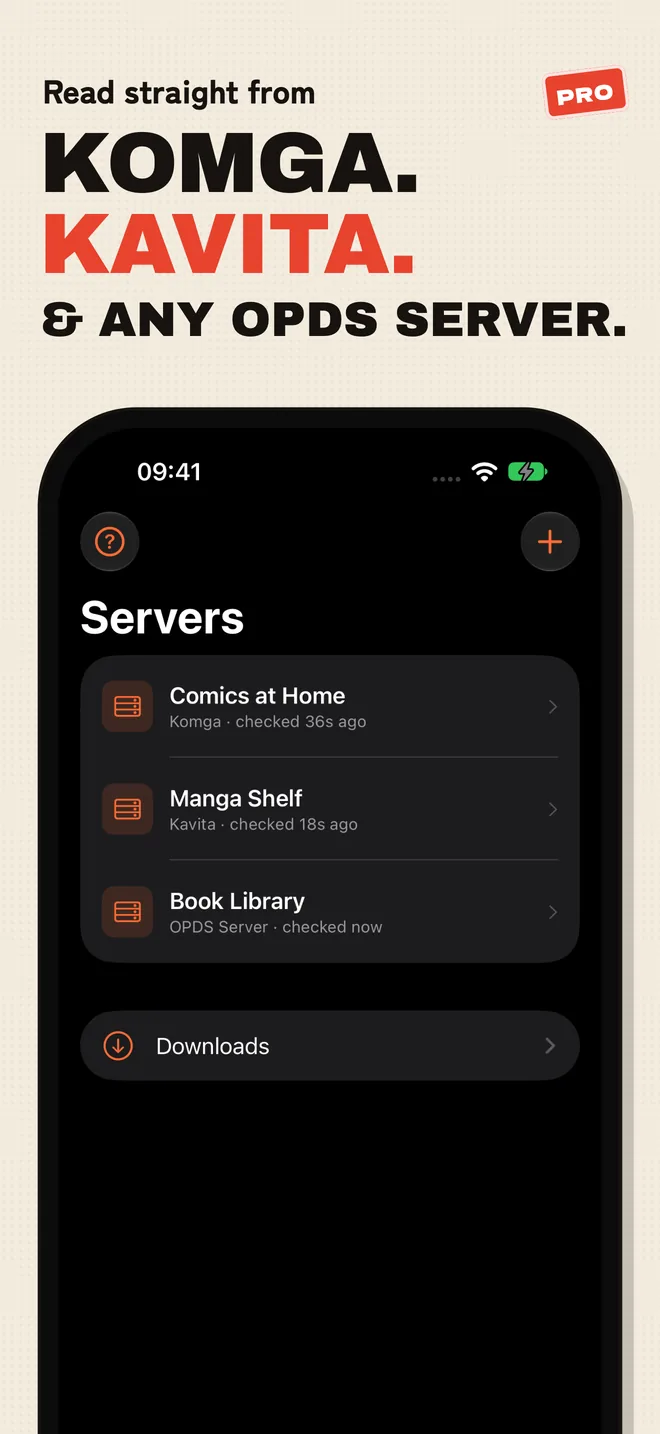
ComicFlow shows the read progress your server has. If Mihon's tracker has synced the chapters you finished to Komga or Kavita, they show as read in ComicFlow too. Servers are part of ComicFlow Pro. Testing the connection works in every copy, and saving the server needs the $6.99 one-time unlock.
Step 5: Set up the reader for manga #
Once the chapters are in, a couple of minutes of setup makes the iPhone feel like home.
- Find a series fast. Library search matches the series name from
ComicInfo.xml, so typing the title brings up every chapter of it, even when each chapter is named "Chapter 12". - Set the direction once per series. Open the first chapter, tap the gear for Reader Settings, and set Reading Direction to Right to Left (Manga). ComicFlow remembers the direction and reading mode for the whole series, so the next chapter of that series opens the same way. Reading manga right-to-left on iPhone has the details.
- Go straight to the next chapter. On the last page, an Up next card offers the next unread chapter of the same series, in chapter-number order. It is included in the $2.99 app without Pro.
- Group long series. Mihon saves one file per chapter, so a long series means a lot of covers. Put each series in its own collection to keep the library grid tidy. Tracking manga series on iPhone shows a setup that works for a dozen ongoing series.
- Webtoons and manhwa. Switch to Vertical Scroll for long strips. ComicFlow remembers that per series too.
What it costs #
ComicFlow is $2.99 on the App Store, once. That covers the reader, the library, right-to-left reading, Wi-Fi Upload, watch folders, collections, iCloud sync between iPhone and iPad, and conversion to PDF or CBZ. It has 0 Ads or Ad Tracking. It sends anonymous usage analytics that you can switch off in Settings, then Privacy, then Share Usage Data, and the privacy policy lists exactly what that covers.
ComicFlow Pro is an optional $6.99 one-time unlock, not a subscription. It adds Komga, Kavita and OPDS servers, reader presets including a Manga preset, Face ID-locked collections, and EPUB export for Kobo, Boox, reMarkable and PocketBook. You can set up an EPUB export without Pro, and Pro unlocks the export itself.
Troubleshooting the move #
- A chapter will not import. It is probably still a folder of images, or a leftover file from a download Mihon never finished (those end in
_tmp). Re-download it in Mihon with Save as CBZ archive on. - Chapters show up, but not in order. Up next follows the chapter number in
ComicInfo.xml. Chapters saved by very old Tachiyomi builds may not have one. Sort the library by name, or add the series to a collection and read from there. - A file opens elsewhere but not in ComicFlow. See why a CBZ or CBR file won't open for the usual causes.
- Wi-Fi Upload page stops responding. The upload page only runs while ComicFlow's Wi-Fi Upload screen is open on the iPhone. Keep the iPhone unlocked with the screen open, and both phones on the same Wi-Fi.
Related reading #
- Transfer comics to iPhone over Wi-Fi: Wi-Fi Upload step by step
- ComicFlow 3.7: Komga, Kavita and OPDS: reading from your own server
- Read manga right-to-left on iPhone: the reader settings for manga order
- Track manga series on iPhone: keep ongoing series apart
- How to build a manga library on iPhone: where to get volumes you own
Frequently asked questions
Is there a Mihon app for iPhone?
No. Mihon is Android only, and its own FAQ says there are no plans for an iOS or iPadOS version. Any App Store listing that uses the Mihon name was not made by the Mihon team. What you can bring to iPhone is the manga itself: downloaded CBZ chapters, your Local source folder, or a Komga or Kavita server.
Can I move my Mihon downloads to iPhone?
Yes, if they are saved as CBZ files. Turn on Save as CBZ archive in Mihon's download settings, find the downloads folder inside Mihon's storage location, and copy it to the iPhone with ComicFlow's Wi-Fi Upload, a USB-C flash drive or a cloud drive folder. ComicFlow reads the ComicInfo.xml Mihon puts in each chapter, so chapters keep their series name and chapter number.
Can ComicFlow import a Mihon or Tachiyomi backup file?
No. ComicFlow does not read .tachibk backups, and it has no extensions or online sources. It reads manga files you copy to the phone and, with the optional Pro unlock, Komga, Kavita and OPDS servers. Categories, tracker logins and installed sources stay in Mihon.
Do I need ComicFlow Pro to move my manga?
Not for files. Wi-Fi Upload, watch folders, right-to-left reading and collections are all included in the $2.99 app without Pro. Reading from a Komga, Kavita or OPDS server needs the optional $6.99 one-time Pro unlock. You can test the connection to your server before you buy it.
Will my reading progress come over from Mihon?
Not for downloaded files, because Mihon keeps read status in its own database, not in the CBZ. If you read through a Komga or Kavita server, ComicFlow (with the optional Pro unlock) shows the read progress your server has and syncs progress with Komga and Kavita both ways. Chapters you finished in Mihon show as read only if Mihon's tracker has synced them to the server.