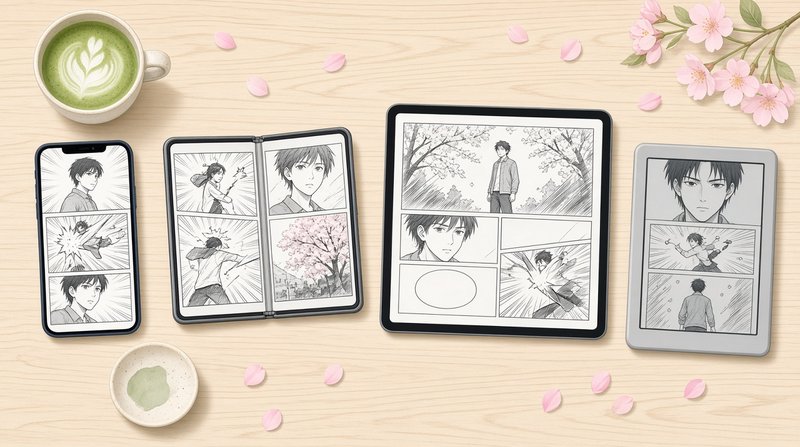
A lot of manga readers already have a library manager, and it is Calibre. It runs on a PC or Mac, it keeps every volume with its cover, series and number, and it has been around for years. The question comes later: how do you get all of that onto your iPhone without copying files by hand every week?
Calibre has a built-in answer, the Content server. It shares your library on your home network, and it includes an OPDS catalog that reading apps can browse. ComicFlow, the manga and comic reader I build for iPhone and iPad, reads that catalog. You pick a volume, it downloads, and it opens right to left.
Disclosure: I make ComicFlow at Applestan. The ComicFlow steps below are checked against the app's source code for version 3.7. The Calibre steps follow Calibre's own Content server manual.

Short version: in Calibre, click Connect/share, then Start Content server, and note the address it shows, like 192.168.1.5, port 8080. In ComicFlow, open the Servers tab, tap +, type 192.168.1.5:8080 and tap Test. Sign in if Calibre asks. Then open a volume, tap Download to Read, and set Reading Direction to Right to Left (Manga).
What you need #
- Calibre on a computer that stays on. The Content server only runs while Calibre is open, so the computer has to be awake when you want a new volume.
- Manga as CBZ, CBR or PDF in Calibre. ComicFlow reads those three formats. EPUB, MOBI and AZW3 copies made for a Kindle will not open in ComicFlow's reader.
- Your iPhone or iPad on the same Wi-Fi, at least for the first setup. Reading away from home has its own section below.
- ComicFlow with Pro. Servers, Calibre included, are part of ComicFlow Pro, a one-time $6.99 unlock on top of the $2.99 app. You can test the connection before you buy it.
Step 1: Start Calibre's Content server #
Calibre's manual puts this in two clicks. Click the Connect/share button in Calibre's toolbar and choose Start Content server. Your firewall may ask whether Calibre can accept connections. Allow it.
Now click Connect/share again. Where it said Start, it now says Stop Content server, followed by an address and a port, for example [192.168.1.5, port 8080]. That is the address your iPhone will use. Write it down.
Two settings are worth a minute, both in Preferences, then Sharing over the net:
- Require a username and password. Turn this on and add a user on the User accounts tab. On a home network it is optional, but Calibre's manual says to do it before anything can reach the server from outside your home.
- Run server automatically when calibre starts. Then you never have to remember the Connect/share step again.
Step 2: Make sure your manga is in a format ComicFlow reads #
This is the step people skip, and it is the usual reason a volume will not open.
A Calibre entry can hold several formats of the same book. ComicFlow looks at every format Calibre offers for a volume and picks CBZ first, then CBR, then PDF. So a volume you once converted to AZW3 for a Kindle is fine, as long as the original CBZ is still in the same entry.
If a volume only exists as EPUB or MOBI in Calibre, ComicFlow says it can't open that format in its reader. For manga, CBZ is the better format to keep anyway: it is just the page images in a ZIP, with nothing changed. The file formats guide explains the difference.
Step 3: Add Calibre in ComicFlow #

- Open ComicFlow and go to the Servers tab.
- Tap + to add a server.
- In Address, type the address from Step 1 without
http://, for example192.168.1.5:8080. Home network addresses work over plain HTTP. - Leave Server Type on Automatic, or pick Calibre. ComicFlow looks for Calibre's catalog at
/opdson its own, so you do not need to type the path. - Tap Test. If you turned on a password in Calibre, ComicFlow asks you to sign in. Calibre uses a login method called Digest when it runs without HTTPS, and ComicFlow handles it for you.
- The first time, iOS asks whether ComicFlow may find devices on your local network. Allow it, or ComicFlow can't reach your computer.
- Save the server. Saving needs ComicFlow Pro, and your password stays in the Keychain on that device.
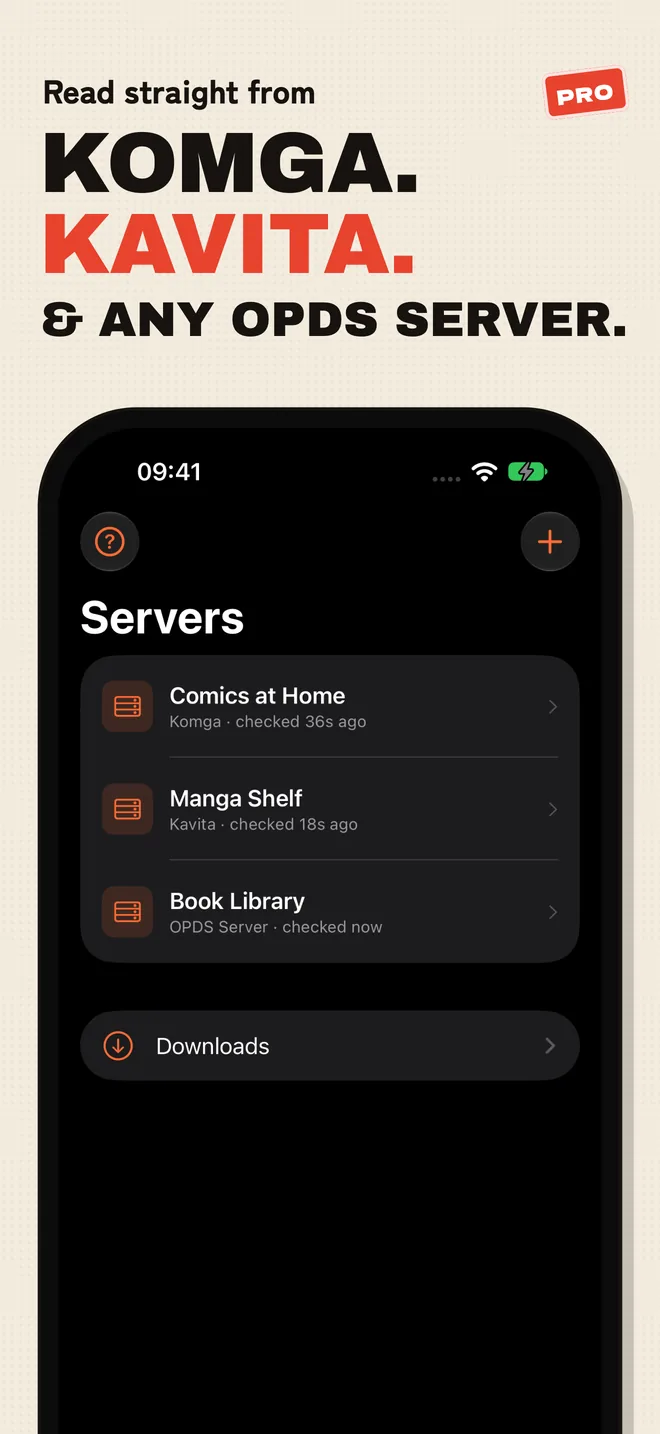
The Servers tab from ComicFlow's App Store listing. A Calibre server shows up in the same list once you add it.
Step 4: Download a volume and read it right to left #
Tap the server and you browse your library the way Calibre's catalog lays it out. Open a volume and the button says Download to Read. That is because Calibre's catalog hands out whole files, not single pages, so ComicFlow fetches the volume before it opens.
That is less of a downside than it sounds. Once a volume is downloaded, it is a normal comic in your library and reads offline, on the train or on a plane. It also stays in the Downloads list on the Servers tab.
When Calibre uses its Digest login, ComicFlow downloads one volume at a time while the app is open. On iOS 26 and later it keeps going when you leave the app, and iOS shows the progress with a cancel button.
Then set the direction. In the reader, open Reader Settings and set Reading Direction to Right to Left (Manga). ComicFlow remembers the direction for that book. Calibre's catalog doesn't tell an app which way a series reads, so this is the one setting you do yourself. The right-to-left guide covers the reader settings in more detail.
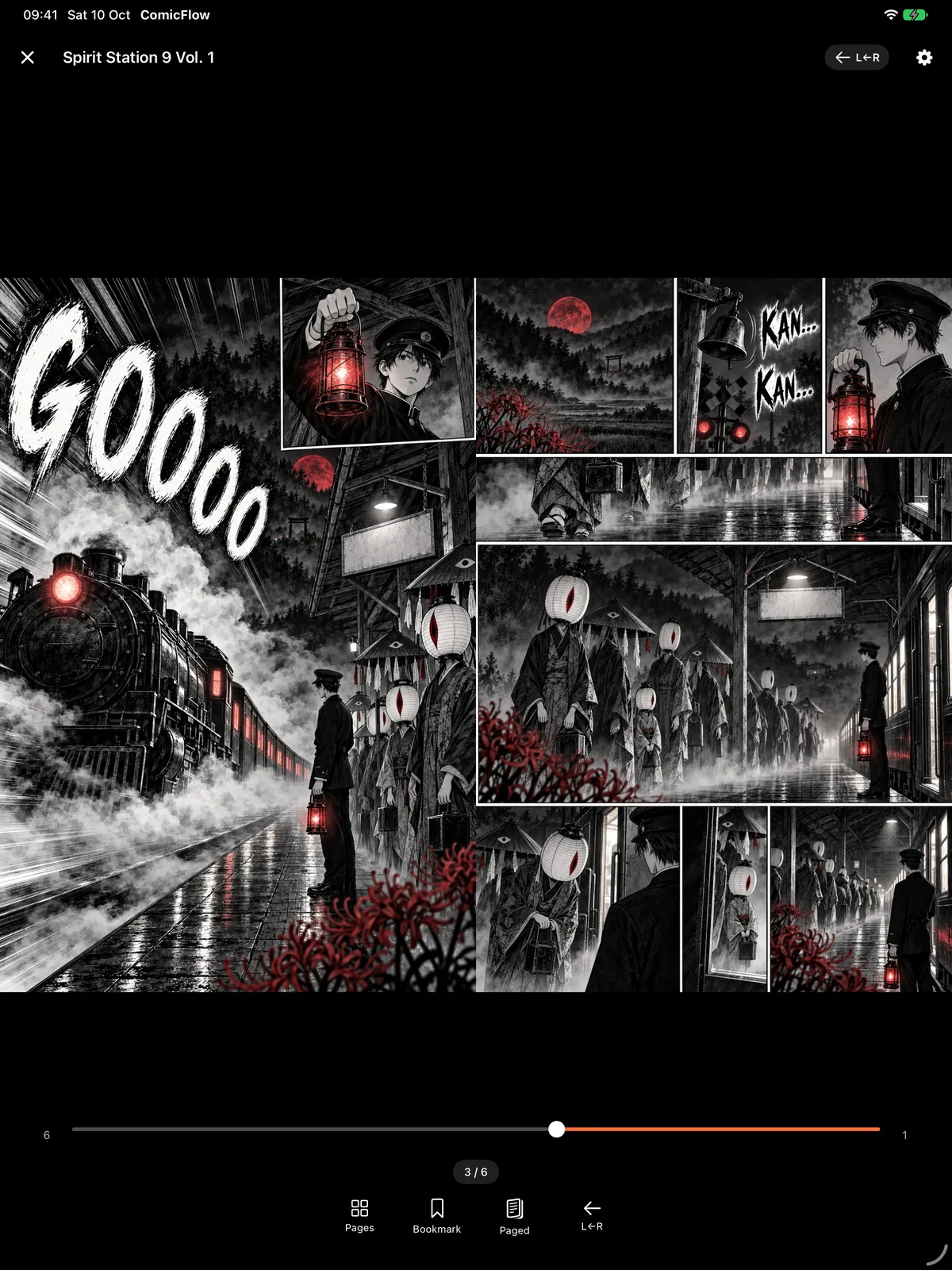
On an iPad, the same volume can show two pages side by side, even in portrait, so a double-page spread looks the way it was drawn.
Reading your Calibre library away from home #

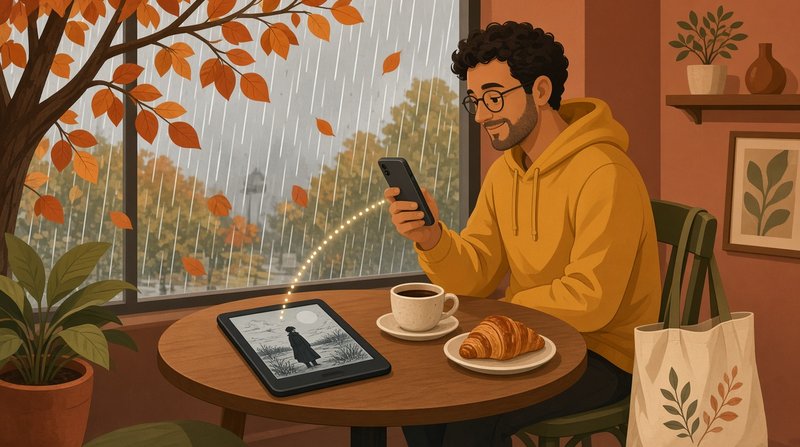
Outside your home Wi-Fi, the address from Step 1 does not work. You have two options.
Tailscale (the easy one). Tailscale makes a private network between your own devices and is free for personal use. Install it on the computer that runs Calibre and on your iPhone or iPad, then add Calibre in ComicFlow again with the computer's Tailscale address and the same port. ComicFlow's own help on the Servers tab suggests the same thing. Tailscale addresses work over plain HTTP too.
Open it to the internet (the hard one). Calibre's manual explains port forwarding on your router. If you go this way, turn on a password first and set up HTTPS. ComicFlow warns you when a password would cross the internet unencrypted.
Or skip both: download the volumes you want while you are at home, and they read offline wherever you go.
What does not sync #
Calibre's browser reader remembers your place, but it doesn't share that place with other apps. So the page you reach in ComicFlow stays in ComicFlow, and Calibre won't know about it. If you read on an iPhone and an iPad, the progress sync guide covers what ComicFlow does keep in step.
If two-way page sync with your server matters to you, Komga and Kavita do it, and ComicFlow syncs with both. If you also read on a Kobo with KOReader, the KOReader sync guide shows how that works.
Using calibre-web instead #
Some people run calibre-web on a NAS or a home server instead of the Calibre desktop app. It reads the same library, and it has its own OPDS catalog at /opds, usually on port 8083. In ComicFlow, add it the same way: type the address and port, leave Server Type on Automatic or pick calibre-web, and sign in with your calibre-web user name and password. The format rule from Step 2 is the same.
If it doesn't connect #
- Is Calibre open? Check the Connect/share menu says Stop Content server. If the computer went to sleep, the server went with it.
- Same Wi-Fi? Your iPhone and computer need to be on the same network, not one on Wi-Fi and one on mobile data.
- Firewall. Calibre's manual says to check that your firewall allows Calibre and port 8080.
- Local Network permission. If you tapped Don't Allow, turn it on for ComicFlow in the iOS Settings app under Privacy & Security, Local Network.
- Wrong password. ComicFlow tells you when the user name or password is wrong, so you know it is not a network problem.
- The volume won't open. Check its formats in Calibre. It needs a CBZ, CBR or PDF.
What it costs #
ComicFlow is $2.99 once. Reading from Calibre, Komga, Kavita and other OPDS servers is part of ComicFlow Pro, an optional $6.99 one-time unlock. Pro also adds EPUB export for Kobo, Boox, reMarkable and PocketBook, Face ID-locked collections and saved reader presets. Neither is a subscription, and there are no ads.
If your manga is just files on your computer and you don't use Calibre, you don't need a server or Pro at all. Wi-Fi Upload and watch folders are included in the $2.99 app.
How this was checked #
The ComicFlow behaviour is checked against the app's source code for version 3.7: server detection and the /opds path for Calibre and calibre-web (ServerDetector.swift), Digest login (LibrarySource.swift), which format gets downloaded (OPDSModels.swift), why Calibre volumes download instead of stream (OPDSEntry+RemoteBook.swift), the download queue (ServerDownloadManager.swift), reading direction per book (ReadingProgress.swift) and the English screen labels (en.lproj/Localizable.strings). The Calibre steps come from the calibre Content server manual.
Related Articles #
- How to Read Manga From Your NAS on iPhone: watch folders on a share, or Komga and Kavita
- ComicFlow 3.7: Read Manga and Comics From Komga, Kavita and OPDS Servers: everything servers can do
- Comic Book File Formats Explained: CBR vs CBZ vs PDF: which format to keep in Calibre
- How to Read Comics on a Kobo, Boox, or reMarkable: the e-reader side, including the Kindle and Calibre route
- ComicFlow app page: full feature list, screenshots, and App Store link
Frequently asked questions
Can I read my Calibre manga library on iPhone?
Yes. Start Calibre's Content server on your computer, then add it in an app that reads OPDS catalogs. In ComicFlow, open the Servers tab, tap the plus button and type the address Calibre shows, such as 192.168.1.5:8080. ComicFlow finds Calibre's catalog, and you can download any CBZ, CBR or PDF volume and read it right to left.
Can ComicFlow open EPUB or MOBI files from Calibre?
No. ComicFlow reads CBZ, CBR and PDF. When a Calibre book has several formats, ComicFlow picks CBZ first, then CBR, then PDF. If you converted a volume for a Kindle, keep the CBZ in the same Calibre entry so ComicFlow has a file it can open.
Can I stream manga from Calibre without downloading it?
Not from Calibre. Calibre's catalog hands out whole files, not single pages, so ComicFlow downloads each volume before it opens. The upside is that a downloaded volume reads offline. Komga and Kavita can stream page by page.
How do I read my Calibre library away from home?
The simplest way is Tailscale, free for personal use. Install it on the computer that runs Calibre and on your iPhone or iPad, then add Calibre in ComicFlow with its Tailscale address. Turn on a username and password in Calibre first.
Do I need ComicFlow Pro to read from Calibre?
Yes. Comic servers, Calibre included, are part of ComicFlow Pro, a one-time $6.99 unlock. ComicFlow itself is $2.99 once. You can type your Calibre address and test the connection before you pay for Pro, and neither purchase is a subscription.