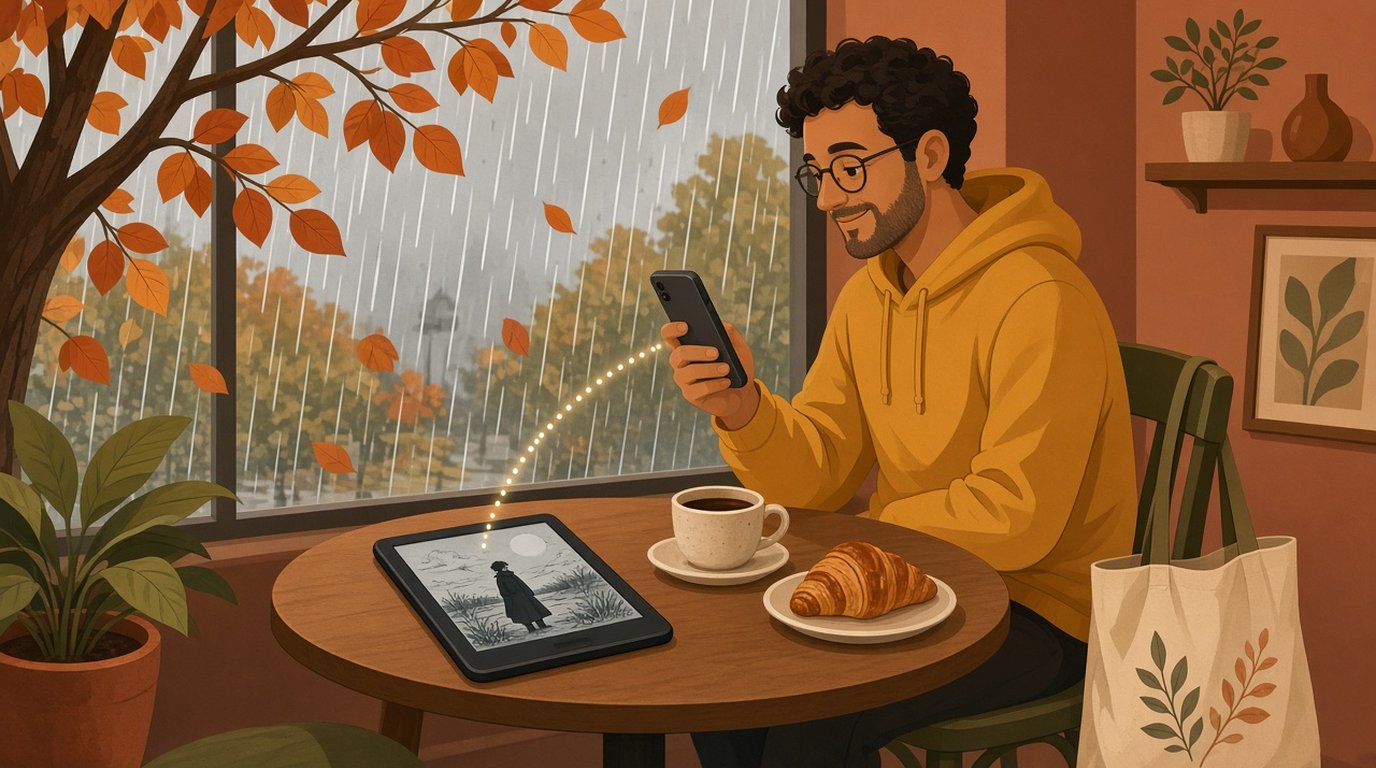
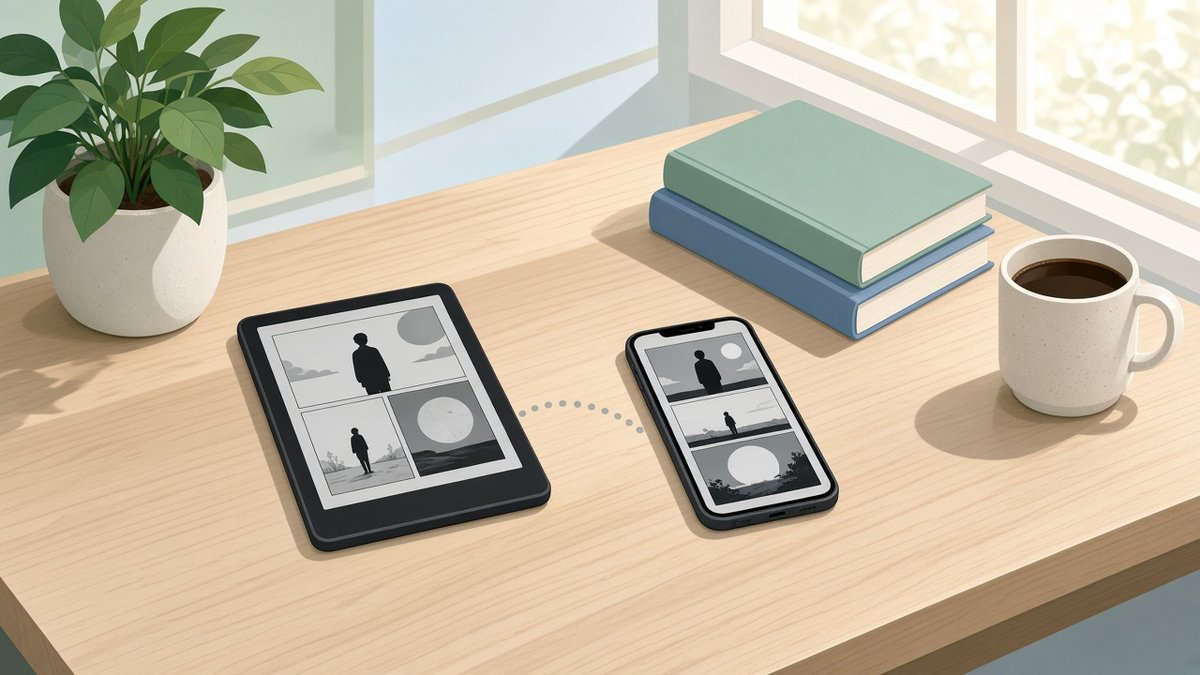
A lot of manga readers end up with two screens. A Kobo for the evening, because a black and white page on e-ink is easy on the eyes and the battery lasts for weeks. And an iPhone for the train, the lunch queue and the ten minutes before a meeting. The annoying part is the page number. You read three chapters in bed, and the next morning your phone still thinks you are at the start of the volume.
If your Kobo runs KOReader, that is fixable. KOReader has its own progress sync, and ComicFlow, the manga and comic reader I build for iPhone and iPad, speaks the same protocol since version 3.7. Put a server in the middle, and each device opens the volume on the page the other one left off.
Disclosure: I make ComicFlow at Applestan. The ComicFlow steps and sync behaviour below are checked against the app's source code for version 3.7. The KOReader menu names come from KOReader's own progress sync plugin, and the Komga setup follows Komga's KOReader guide.

Short version: run Komga 1.17 or later, give your Komga user the KOREADER_SYNC role, turn on file hashing for KOReader and create an API key. In KOReader, set Progress sync to your Komga address plus /koreader, log in with the API key and keep Document matching method on Binary. In ComicFlow, add the same Komga server, open it with Edit and switch on Sync with KOReader. Then download your volumes from Komga on both devices.
What you need #
- An e-reader running KOReader. Most people doing this use a Kobo, but KOReader also runs on PocketBook, Boox and jailbroken Kindles. The steps on the e-reader are the same.
- A server in the middle. KOReader never talks to your iPhone directly. Both devices send their page to a sync server and ask it for the latest one. Komga has had this built in since version 1.17, so the same Komga that holds your manga can hold your progress. Kavita and Stump have KOReader sync too, and a standalone KOReader sync server works if your library is on another kind of OPDS server.
- ComicFlow with Pro. Komga, Kavita and OPDS servers are part of ComicFlow Pro, a one-time $6.99 unlock on top of the $2.99 app.
- The same file on both devices. This is the part that trips people up, so it gets its own section below.
This guide uses Komga, because it covers the library and the sync in one place. If you do not run a server yet, reading manga from a NAS explains where Komga fits and what the no-server route looks like.
Step 1: Get Komga ready for KOReader #
Komga's KOReader guide lists three things to do on the server, all in the Komga web interface:
- Give your user the
KOREADER_SYNCrole. An admin sets roles on each user. Without it, Komga turns KOReader requests away. - Turn on file hashing for KOReader in the settings of the library that holds your manga. Komga then computes the same file hash that KOReader uses to recognise a volume.
- Create an API key on your account page and copy it somewhere safe. Komga shows it once. Komga suggests a separate key for each KOReader device, which also makes it easy to tell them apart later.
Step 2: Point KOReader at Komga #
On the Kobo, open any book in KOReader first. The progress sync menu only appears while a book is open.
- Open the top menu, then Progress sync.
- Tap Custom sync server and enter your Komga address followed by
/koreader, for examplehttp://192.168.1.20:25600/koreader. - Tap Register / Login. Enter the Komga API key as the user name and anything you like as the password. Komga does not check it. Then tap Login, not Register.
- Open Document matching method and check that Binary is selected. It is KOReader's default, and it matches books by file content, which is what ComicFlow and Komga do as well.
KOReader can sync on its own with Automatically keep documents in sync, or only when you tap Push progress from this device now and Pull progress from other devices now. Automatic sync is the comfortable choice for a phone and Kobo pair. KOReader warns that it may nag you to switch Wi-Fi on when you close a book, depending on the device, so if that gets old, push by hand when you put the Kobo down.
To get your manga onto the Kobo, add Komga as an OPDS catalog in KOReader and download from there. That way the Kobo gets the exact file Komga has.
Step 3: Add Komga to ComicFlow and switch on KOReader sync #
On the iPhone, open the Servers tab and tap +. Enter the same Komga address and sign in, either with your Komga email and password or with an API key. Tap Test, and once it connects, save the server. Saving is the step that needs Pro.
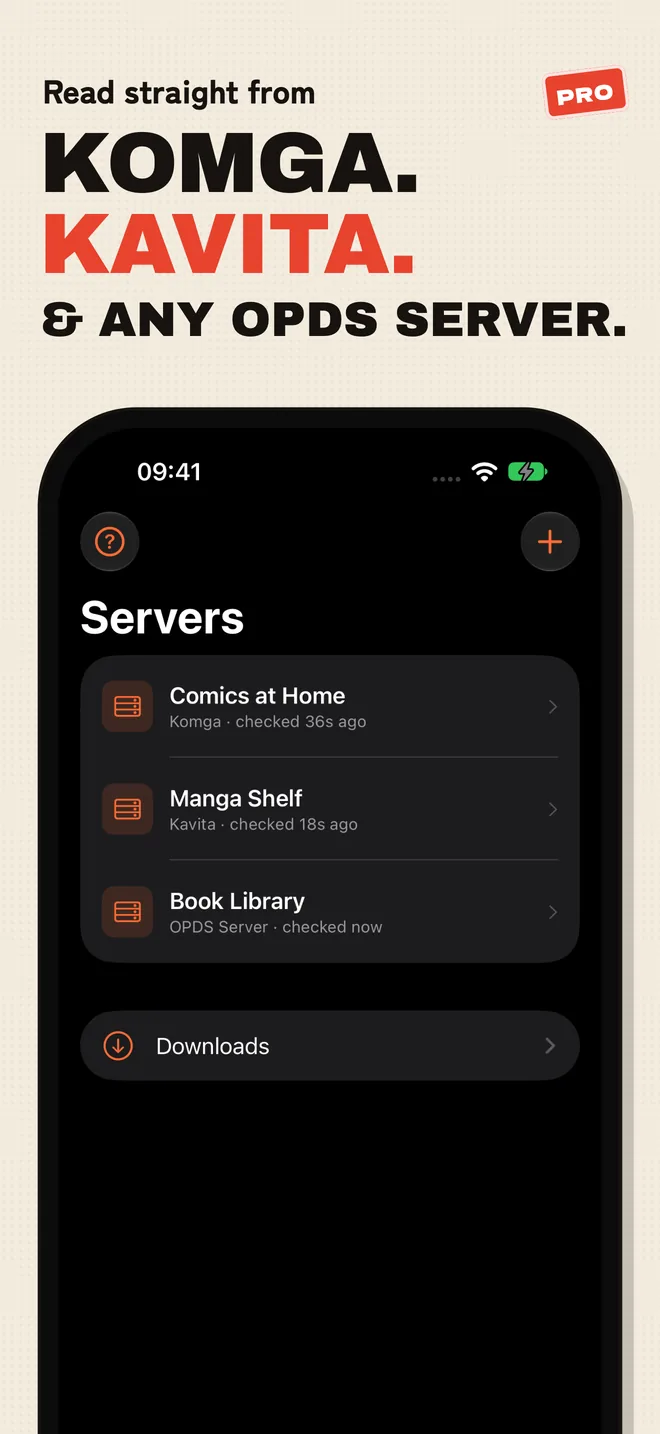
The KOReader settings only show up when you edit a server you already saved, so go back to the Servers tab and swipe left on your Komga row (or touch and hold it), then tap Edit. Under KOReader Sync:
- Switch on Sync with KOReader.
- Leave KOReader Sync Address empty. ComicFlow then uses Komga's own KOReader sync, the same
/koreaderaddress you gave KOReader. - KOReader User Name: if you signed in to Komga in ComicFlow with an API key, you can leave this empty and ComicFlow uses that key. If you signed in with your email and password, paste a Komga API key here, because Komga's KOReader sync only accepts an API key as the user name. KOReader Password can stay empty, Komga ignores it.
Save, and that is the whole setup on the phone.
Step 4: Download the volumes you want to carry #
KOReader sync in ComicFlow covers downloaded books, because the sync is keyed to a hash of the file and a streamed book has no file on the phone. Open a book on the server and tap Download, or open a series and tap Download All or Download Unread before you leave the house. Downloaded books show up in your library and in the Downloads list on the Servers tab, and they keep syncing their progress.
If you follow a long series, Keep Downloaded on a Komga series keeps the next unread volumes on the phone and can clear out the ones you have finished, so the next volume is always there when the train has no signal.
Streaming still syncs, by the way, just not through KOReader. A book you open straight from Komga without downloading syncs its page both ways with Komga's own reading progress.
How the handoff works day to day #
This is what happens in ComicFlow, from the app's sync code:
- When you open a downloaded volume, ComicFlow asks the server for the latest page and jumps there if it is newer than yours.
- While you read, it sends your page about 5 seconds after you stop on one, and right away when you close the reader or switch to another app.
- With no connection, nothing is lost. Unsent pages stay marked and go out the next time ComicFlow comes to the front.
- If both devices moved, the most recent page wins. That is the same rule ComicFlow uses for iCloud sync between your own iPhone and iPad.
- Finishing a volume on the Kobo marks it as read in ComicFlow too.
So a normal day looks like this. You read on the train, close ComicFlow at your stop, and the page goes up. That evening you open the same volume in KOReader, it pulls the page (on its own with automatic sync, or after you tap Pull), and you carry on. Next morning, ComicFlow opens on the page where you fell asleep.
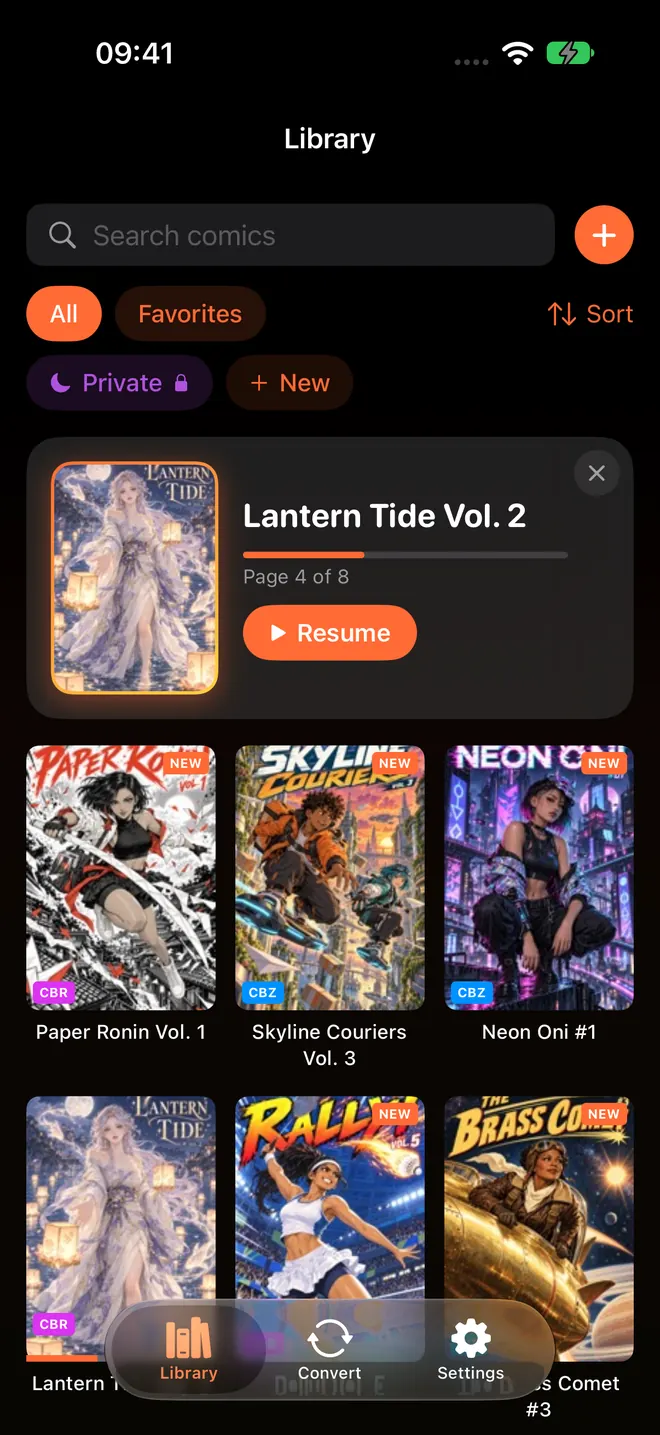
The Continue Reading card at the top of the library is the quickest way back in on the phone.
The one rule: the same file on both sides #
KOReader, Komga and ComicFlow all recognise a volume by a hash of the file itself, not by its title. Two files with the same manga inside but different bytes are two different books to them. This is where most manga setups break:
- Converted copies. A volume you ran through Kindle Comic Converter for the Kobo is a new file. It will not share a page with the original CBZ on your phone.
- Re-tagged or repacked copies. Editing the
ComicInfo.xmlor rezipping a CBZ changes the file, even when every page is the same. - ComicFlow's e-reader export. Send to E-Reader in Pro builds a new EPUB for your device. That EPUB is a separate file, so it does not sync with the original. For KOReader sync, give the Kobo the original CBZ from Komga instead. KOReader reads CBZ as it is.
- Files you imported from Files. A volume you added to ComicFlow from Files, a watch folder or Wi-Fi Upload has no link to the server, so it has nothing to sync with. Download it from the server in ComicFlow instead.
If you change a file on the server, download it again on both devices.
Not on Komga? #
Kavita and Stump. Both have KOReader sync built in. With the address left empty, ComicFlow can work out their KOReader address from the server's API key, so it finds it on its own when it has one. If sync does not start, fill in KOReader Sync Address, KOReader User Name and KOReader Password the way your server's KOReader guide describes for KOReader itself. Kavita syncs archives through KOReader from version 0.8.9, and its guide asks for a forced scan of older libraries so every book gets a hash.
Calibre or another OPDS server. Run a KOReader sync server next to it, or use the one KOReader offers, and enter its address and your KOReader account in the server's KOReader Sync section in ComicFlow. Use the same account on the Kobo. The same-file rule still applies, so download from the same OPDS server on both devices.
When the page does not come across #
KOReader says there is no progress. Check Document matching method is on Binary, and that the volume on the Kobo came from the same server as the one on your phone. Then push from the device that has the newer page.
ComicFlow opens on the old page. The volume has to be downloaded, not streamed, for KOReader sync. Close and reopen it once you are online. ComicFlow asks for the latest page when a volume opens.
Login fails in KOReader. For Komga, the user name has to be an API key, not your email, and the user needs the KOREADER_SYNC role.
Old Komga. KOReader sync arrived in Komga 1.17. Update the server first.
A volume will not open in ComicFlow. ComicFlow reads CBZ, CBR, ZIP, RAR and PDF. It does not open EPUB, so a volume that exists on your server only as EPUB can sync on the Kobo but will not open on the phone.
What it costs #
ComicFlow is $2.99 on the App Store, once. That covers the reader, right-to-left manga, the library, Continue Reading and iCloud Sync between your own iPhone and iPad. There are no ads or ad tracking. It sends anonymous usage analytics that you can switch off in Settings, then Privacy, then Share Usage Data, and that switch starts off in the EU, EEA, UK and Switzerland. The privacy policy lists what it covers.
KOReader sync is part of ComicFlow Pro, an optional $6.99 one-time unlock, not a subscription. Pro covers Komga, Kavita and OPDS servers with streaming, downloads, Keep Downloaded and progress sync, plus EPUB export for e-readers, Face ID-locked collections and reader presets. You can enter your server and tap Test without Pro, so you know it connects before you pay.
Related reading #
- How to read manga from your NAS on iPhone: watch folders, or Komga and Kavita on the NAS
- ComicFlow 3.7 release notes: everything that came with server support
- How to read comics on a Kobo, Boox or reMarkable: getting CBR and CBZ files onto e-ink
- How to keep your place across iPhone and iPad: iCloud sync between your own Apple devices
- How to track manga series you're still reading on iPhone: a setup for several long runners
- How to read manga on iPhone right to left: reading direction, once per series
Frequently asked questions
Is there an iPhone app that syncs reading progress with KOReader?
Yes. ComicFlow 3.7 and later speaks KOReader's progress sync for manga and comics you download from a Komga, Kavita or OPDS server. Turn on Sync with KOReader in the server's settings, and the page you reach on your iPhone is the page KOReader offers you on your Kobo, and the other way round.
Do I need a server to sync manga between KOReader and iPhone?
Yes. KOReader sync needs a sync server in the middle, and in ComicFlow it works for books downloaded from a server you added on the Servers tab. Komga 1.17 and later has KOReader sync built in, so one Komga server can hold your manga and your progress. A separate KOReader sync server works too.
Why does KOReader not pick up the page I read on my iPhone?
Usually the two devices do not have the same file. KOReader's default Binary matching and ComicFlow both identify a volume by its file content, so a copy converted with Kindle Comic Converter, re-tagged, or exported as EPUB counts as a different book. Download the same file from the same server on both devices.
Does KOReader sync work for manga I stream in ComicFlow?
ComicFlow's KOReader sync covers downloaded books, because KOReader identifies a volume by a hash of the file. Streamed books still sync their page both ways with Komga or Kavita through the server's own reading progress.
Do I need ComicFlow Pro for KOReader sync?
Yes. Comic servers, including downloads and progress sync, are part of ComicFlow Pro, a one-time $6.99 unlock. ComicFlow itself is $2.99 once. Neither is a subscription, and you can test the connection to your server before you pay for Pro.