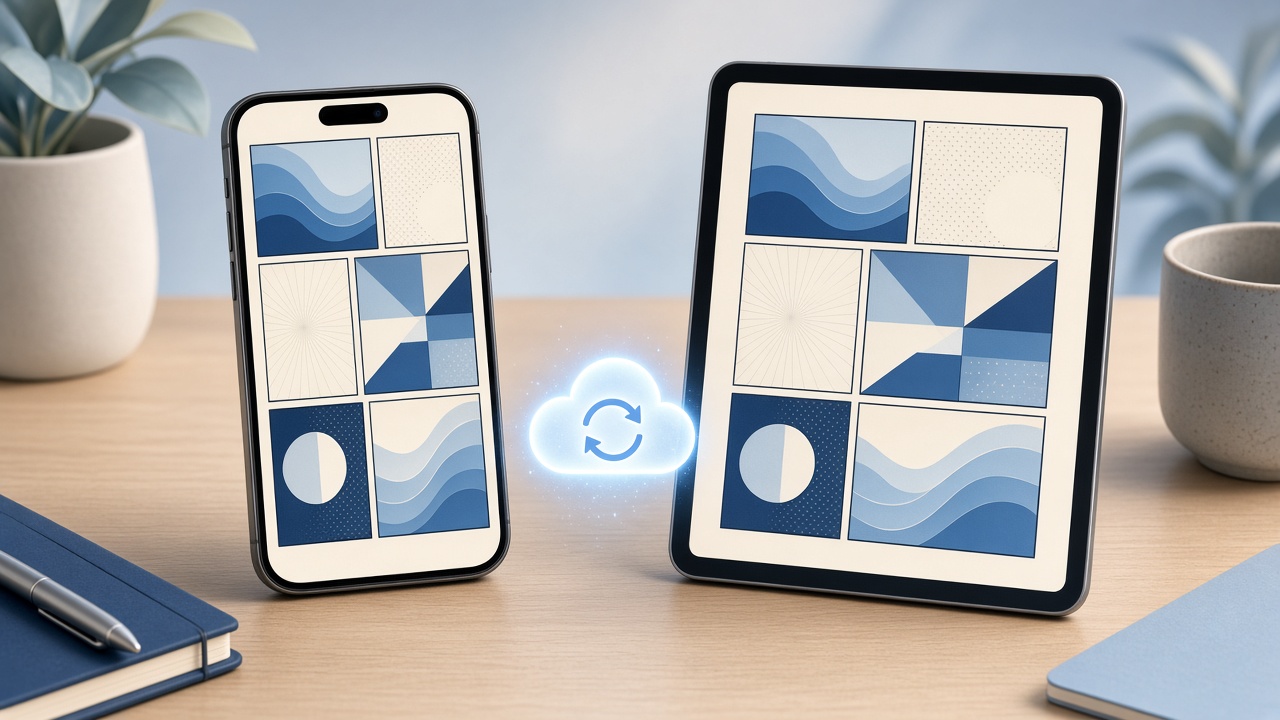
You read twelve pages on the train on your iPhone. That evening you open the same comic on your iPad and want to land on page thirteen, not page one. It is a small thing, and it is the difference between a library that feels like one collection and two devices that happen to hold the same files.
Here is how that works in ComicFlow, what it syncs, and what it leaves alone.
What ComicFlow Syncs #
ComicFlow has optional iCloud sync. When it is on, it keeps these matched across your iPhone and iPad:
- Your reading progress, so you pick up on the right page
- Your bookmarks
- Your ratings
It is optional, and it can be turned off. If you prefer to keep everything strictly on one device, switch it off and the app works the same way, fully offline, with no account.
The comic files themselves are a separate matter, which is the next section.
What It Does Not Do #
Sync is about your place and your library details, not the files. ComicFlow keeps your comic files on your device, so each device needs its own copy of a comic. If a comic is missing on the iPad, you have not hit a sync bug. The file just has not arrived there yet.
There are a few easy ways to get the same files onto both devices.
Getting the Same Comics on Both Devices #
Use a watched folder. In Settings, under Sources, point ComicFlow at a folder in Files. iCloud Drive works, and so does a network share you have mounted in Files or a USB drive. New comics in that folder import themselves with covers and page counts. Watched folders are rescanned when the app opens and on pull-to-refresh in the Library. Point both your iPhone and your iPad at the same iCloud Drive folder and both libraries fill up from one place.
Use Wi-Fi Upload. In Settings, open Wi-Fi Upload. ComicFlow shows an address and a QR code. Open that address in a browser on your computer, on the same Wi-Fi, and drag comics onto the page. No cable, nothing to install. Do it once per device.
AirDrop or the Files app. Still the quickest way to move a handful of files. See our guide to transferring comics to iPhone for every route.
Making the Hand-Off Smooth #
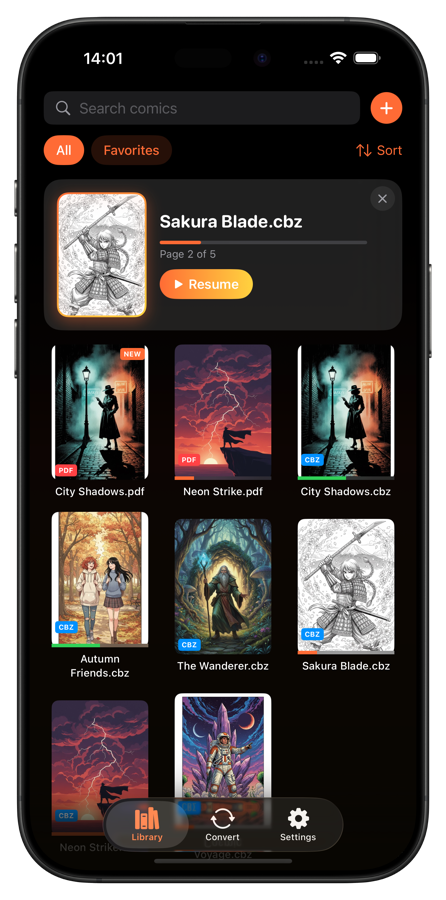
Start from the Continue Reading card. ComicFlow remembers your page, reading direction and fit mode for every file, and the Continue Reading card in the library jumps back to where you stopped.
Bookmark pages you want to find again. One tap saves a page. Orange dots on the page scrubber mark bookmarked pages, and the bookmark list lets you jump back to them.
Rate and tag as you finish. Ratings sync too, so the verdict you gave a volume on your phone is there when you browse on the iPad. If your library is getting big, our guide on how to organize a digital comic collection covers collections and tags.
If Sync Seems Off #
A few things worth checking, none of them specific to comics:
- Make sure you are signed in to iCloud on both devices, with the same Apple Account.
- Give it a moment after you close a comic before you open the other device.
- Confirm the comic really exists on both devices, as covered above.
Do You Even Need Sync? #
If you only read on one device, no. Turn it off and nothing changes about how the app reads. If you move between an iPhone and an iPad, it is the thing that makes the second device feel like a continuation instead of a restart. For the bigger-screen side of that, see our guide to reading comics on iPad.
ComicFlow is a one-time purchase on the App Store, with no subscription and no ads.

Related Articles #
- How to Transfer Comics to iPhone from PC or Mac. Every way to get files onto your device
- How to Organize Your Digital Comic Collection. Collections, ratings, tags and progress
- How to Back Up Your Digital Comic Collection. Protect the files themselves
- How to Read Comics on iPad. Layouts and tips for the bigger screen