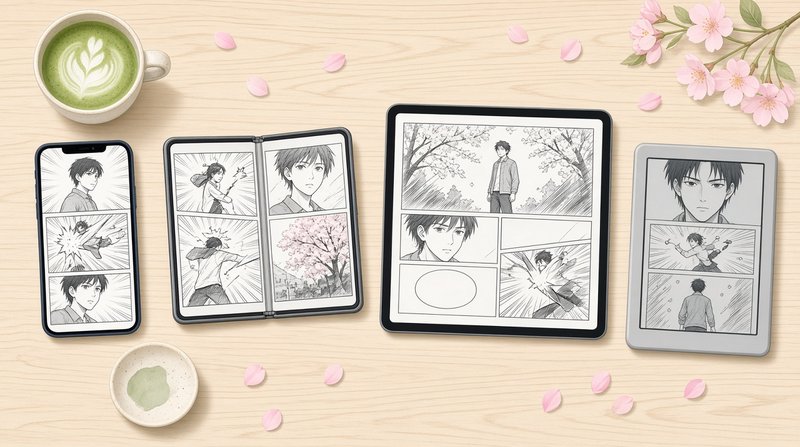
You get on the train, pull out your phone and want to be back in your manga before the doors close. Instead you open the app, scroll the library, find the volume and wait for it to open. By then you are already at the next stop.
ComicFlow, the manga and comic reader I build for iPhone and iPad, already remembers your page in every book. Since version 3.7, it can also take you straight back to that page from outside the app. You can say it to Siri, press the Action button or tap the back of your iPhone.
Disclosure: I make ComicFlow at Applestan. The ComicFlow steps below are checked against the app's source code for version 3.7.

Short version: ComicFlow has one action called Continue Reading. It opens the manga you were reading last, at your page. Say "Continue reading in ComicFlow" to Siri, or put the action on your Action button or on Back Tap. You set it up once.
What Continue Reading opens #
When you open the ComicFlow library, the Continue Reading card sits at the top. It shows the cover, the page you are on, a progress bar and a Resume button.
The Siri and Shortcuts action opens that same book. It picks the book you opened most recently that you have started but not finished. When you reach the last page of a volume, ComicFlow counts it as finished, so the action moves on to the next book you have in progress.
The book opens the way you left it: same page, same reading direction, same reading mode. So a manga you read right to left opens right to left, and a webtoon you read in Vertical Scroll stays in Vertical Scroll.
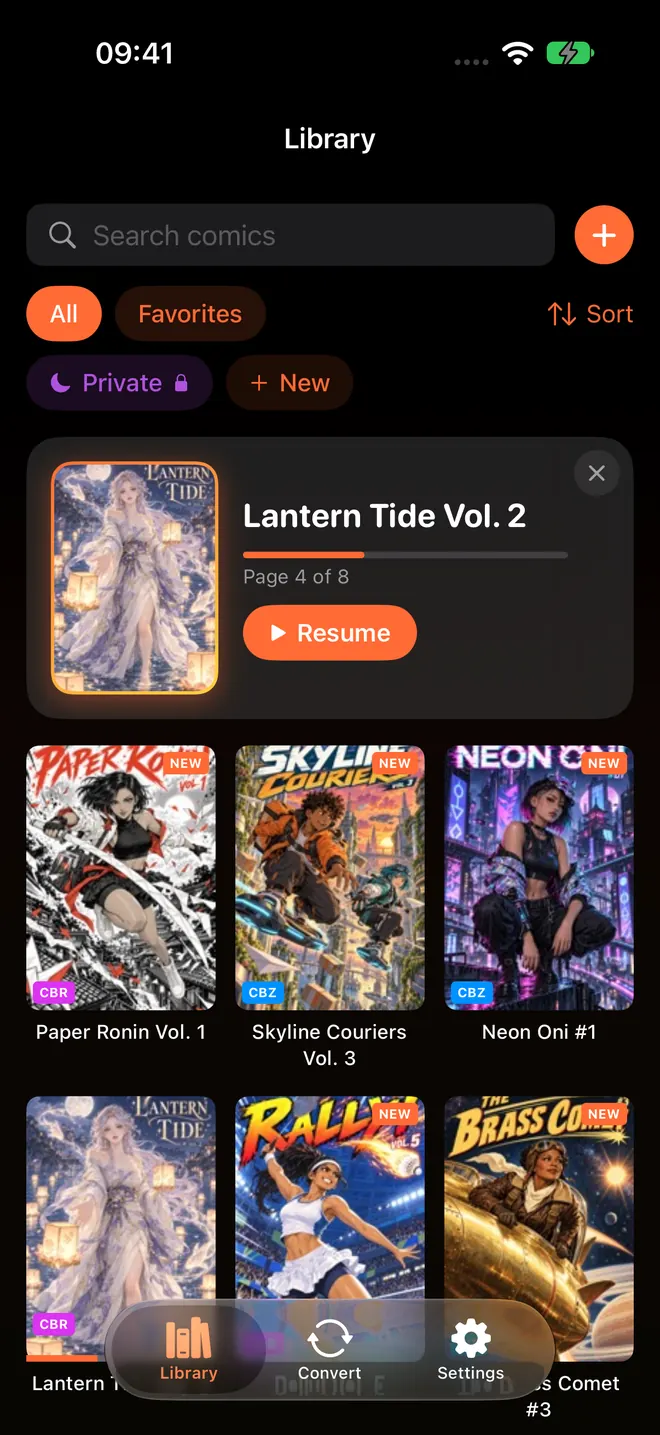
The Continue Reading card in the library. Siri and the Action button open this book for you.
One thing on privacy. If you keep some books in a locked collection, those books never show up on the card, and the action never opens them. Someone who grabs your phone and says "Continue reading in ComicFlow" will not land in your private shelf.
Option 1: Ask Siri #
This one needs no setup. Once you have ComicFlow 3.7 and have opened it once, say:
- "Continue reading in ComicFlow"
- "Open my comic in ComicFlow"
ComicFlow opens and your book opens with it. This is handy in bed with the phone on the nightstand, or with AirPods in on a walk to the station.
These two phrases are in English for now. If your Siri is set to another language, use the shortcut from Option 4 and give it a name in your own language. Siri runs a shortcut when you say its name.
Option 2: Find it in Spotlight #
Swipe down on the Home Screen and type ComicFlow. Next to the app you should see the Continue Reading action. Tap it and you are back in your book. This also works on iPad.
Option 3: Put it on the Action button #
If your iPhone has an Action button, this is the fastest way in. One long press and your manga is open.
- Open Settings and tap Action Button.
- Swipe through the options until you reach Shortcut.
- Tap Choose a Shortcut and pick Continue Reading from ComicFlow.
If you do not see ComicFlow in that list, make the shortcut in Option 4 first, then pick it here by its name.
Now a long press on the Action button opens your current volume, even when you are holding a coffee in the other hand.

Option 4: Make a shortcut, then use Back Tap #
A shortcut lets you use the action anywhere iOS runs shortcuts. It also gives you a name you can say to Siri in any language.
- Open the Shortcuts app and tap + to make a new shortcut.
- Search for ComicFlow and add Continue Reading.
- Give the shortcut a short name, like "Manga".
Now you can put it on Back Tap. Back Tap lets you double tap or triple tap the back of your iPhone to run something.
- Open Settings, then Accessibility, then Touch.
- Scroll down and tap Back Tap.
- Choose Double Tap or Triple Tap and pick your shortcut.
Two taps on the back of the phone and your manga opens.
When the book opens #
You land on your page in the reader, ready to swipe. If you read right to left, the direction button at the top shows L←R and the page slider runs from the right.
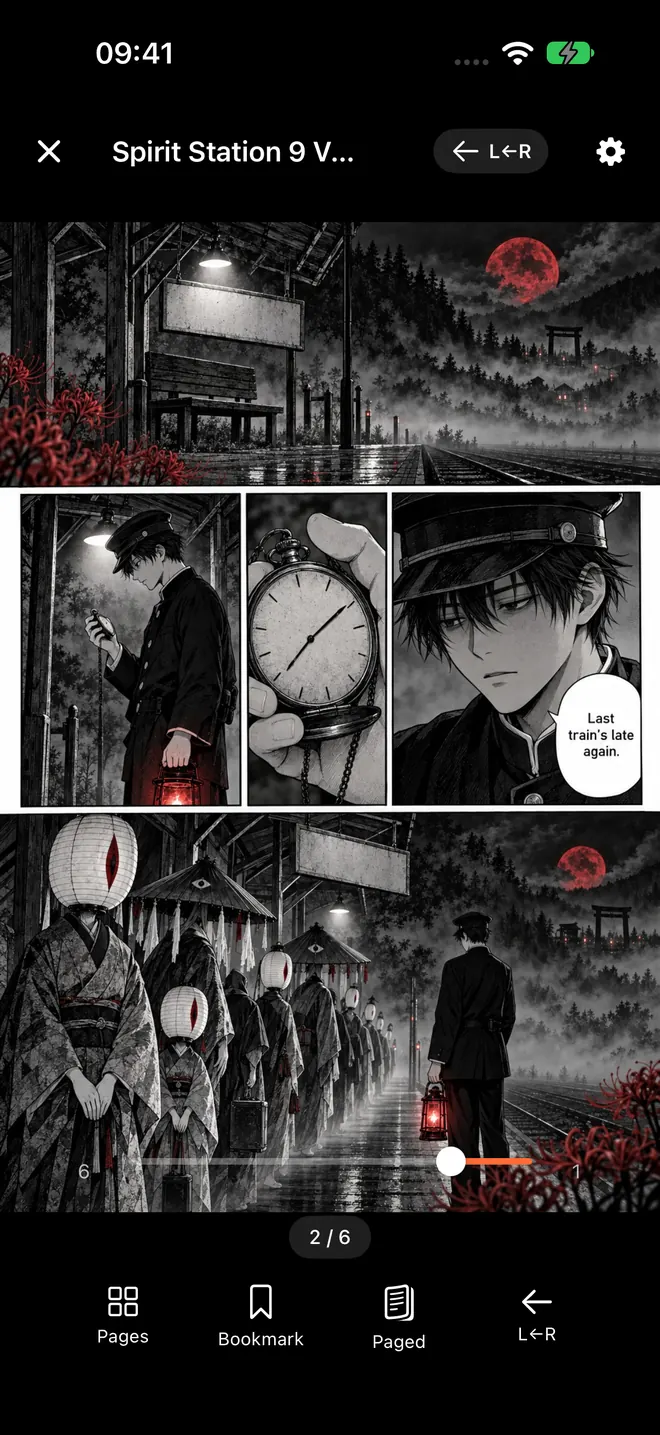
A manga volume reopened at page 2, right to left, the way it was left.
When you reach the end of a volume, ComicFlow shows Up next with the next book of the series, if it knows the series. It gets the series name from the ComicInfo data that many CBZ and CBR files carry, from your server, or from the series you type into the book's details. The series tracking guide has more on series.
Books from your own server #
With ComicFlow Pro, you can read from your own Komga, Kavita or OPDS server. If the book you read most recently was streamed from your server, Continue Reading opens that one instead, at your page. The NAS guide shows how to connect a server.
On iPad and iPhone Duo #
Siri, Spotlight and the Shortcuts action work the same way on iPad and on iPhone Duo. The Action button and Back Tap are iPhone settings, so on iPad use Siri or your shortcut. If you also use iCloud Sync, the page you reach on your iPhone is the page your iPad opens later. The sync guide has the details.
What it costs #
ComicFlow is $2.99 once. Continue Reading with Siri, Spotlight, the Action button and Back Tap is part of that price, for every book in your library. ComicFlow Pro is an optional $6.99 one-time unlock that adds reading from your own comic server, EPUB export to e-readers, Face ID-locked collections and saved reader presets. Neither one is a subscription, and there are no ads.
How this was checked #
The ComicFlow behavior is checked against the app's source code for version 3.7: the Continue Reading action, its two Siri phrases and its Shortcuts entry (ContinueReadingIntent.swift), how the library picks the Continue Reading book, leaves out locked collections and prefers a more recent server book with Pro (LibraryView.swift), when a book counts as finished (Comic.swift), and the saved page, direction and mode for each book (ReadingProgress.swift, ComicReaderView.swift). The Action button and Back Tap steps are iOS settings, not part of ComicFlow.
Related Articles #
- How to Keep Your Place in a Comic Across iPhone and iPad: iCloud Sync for your page, bookmarks and ratings
- How to Track Manga Series You're Still Reading on iPhone: series, next volumes and the Continue Reading card
- How to Read Manga One-Handed on iPhone: for the train, bed or an umbrella
- How to Read Manga on iPhone: RTL Reading Setup: right to left, set once per book
- ComicFlow app page: full feature list, screenshots, and App Store link
Frequently asked questions
Can Siri open the manga I was reading?
Yes, with ComicFlow. Say "Continue reading in ComicFlow" or "Open my comic in ComicFlow" and the app opens the book you were reading last, at the page you stopped on. These two phrases are in English. If your Siri speaks another language, make a shortcut with the Continue Reading action, give it a name in your language, and say that name to Siri.
How do I open my manga with the Action button?
Open Settings, tap Action Button, swipe to Shortcut and choose ComicFlow's Continue Reading action. If it is not in the list, first make a shortcut in the Shortcuts app with that action and pick your shortcut instead. After that, a long press on the Action button opens your current manga.
Which book does Continue Reading open?
The book you opened most recently that you have started but not finished. It is the same book the Continue Reading card at the top of the ComicFlow library shows. Books in a locked collection are never picked.
Do I need ComicFlow Pro for the Siri and Shortcuts action?
No. The Continue Reading action is part of the $2.99 app for books in your library. If you have ComicFlow Pro, the one-time $6.99 unlock, it can also reopen a book you were streaming from your Komga, Kavita or OPDS server.
Does it work on iPad?
Yes. Siri, Spotlight and the Shortcuts app work the same way on iPad. The Action button and Back Tap are iPhone features, so on iPad you use Siri or a shortcut instead.