
You finally found the whole series. All twelve volumes, as one tidy download, a ZIP or a RAR with a CBZ or CBR for every volume inside. You send it to your iPhone, and your reader says no. Or it opens one huge "book" that makes no sense.
That is a normal problem for manga readers. Complete runs are often packed into a single archive, because that is easier to share and easier to store. A comic reader expects pages inside an archive, not more archives. This guide shows how to get every volume onto your iPhone or iPad as its own book. It uses ComicFlow 3.8, which I build: $2.99 once, with an optional $6.99 one-time Pro unlock. Neither renews.
Disclosure: I make ComicFlow at Applestan. Features and prices below match the live App Store listing and the ComicFlow support FAQ. Only use files you own or that are DRM-free.

The short answer #
Add the ZIP or RAR to ComicFlow like any other comic. If the file holds whole comics and no page images, ComicFlow takes each volume out on its own and adds it to your library. You do not unpack anything on a computer first.
It works from three places:
- The file picker. In the Library, tap the orange plus button next to the search field and choose the ZIP or RAR.
- Open in ComicFlow. In Files, Mail or an AirDrop, tap share and choose ComicFlow.
- Wi-Fi Upload. Drag the file onto the upload page from a browser on your computer. Sending comics over Wi-Fi explains how that page works.
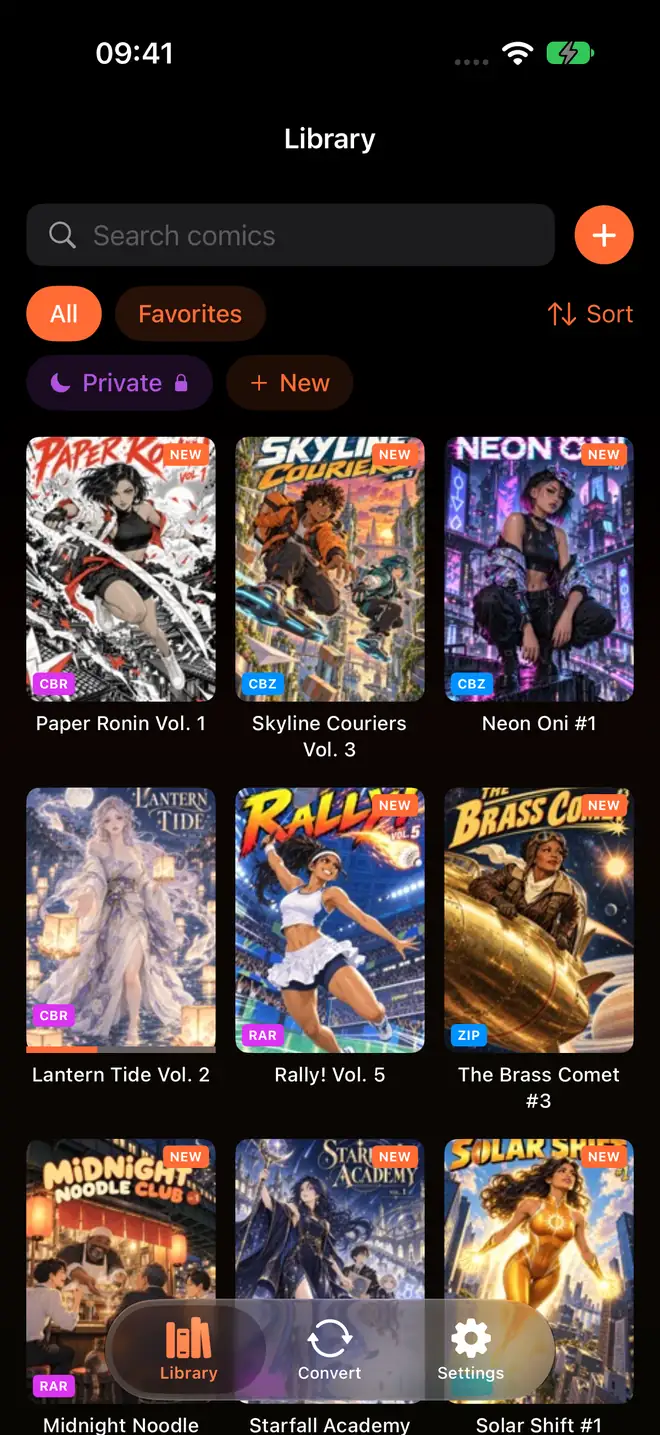
The Library on iPhone. The orange plus button next to the search field is where you add files.
What counts as a set of comics #
A normal CBZ is a ZIP of page images, and a CBR is a RAR of page images. ComicFlow opens those as one book, as always. A set is different: the ZIP or RAR holds comics instead of pages.
ComicFlow treats a file as a set when it holds only comics and no pages. The comics inside can be:
- CBZ and CBR files
- ZIP and RAR files
- PDF files
Text files and other small extras in the archive do not get in the way.
Two cases are not handled as sets:
- A file that mixes page images with whole comics. ComicFlow cannot tell what you want from it, so it does not split it up.
- 7z archives and password-protected files inside a set. The rest of the set still imports. The ones ComicFlow cannot take are named in the result, with the reason.
If you are not sure what your file is, comic book file formats explained shows how to tell the formats apart.

What happens after you tap Import #
ComicFlow looks inside the file first. If it is a set, it works through it one comic at a time:
- It checks that your iPhone or iPad has enough free storage for every comic in the set, plus room for the largest one while it is being unpacked. If there is not enough, it tells you how many comics are in the file and stops before it fills your storage.
- It takes the first comic out into a temporary folder and imports it like any other file, with its cover, page count and format.
- It removes the temporary copy and moves on to the next one.
Working one at a time keeps memory use low, even when the set is several gigabytes. Every volume ends up as its own book, so each has its own cover and its own reading progress.
Comics that are already in your library are skipped, so importing the same set twice does not give you doubles. If a few volumes fail, you still get the ones that worked, and the message lists the files that did not.
Once the volumes are in the library, you can delete the original ZIP or RAR if you want the space back.
Check the series before you read #
A quick look saves a surprise later.
- Volume names. ComicFlow keeps each comic's own file name. If the names inside the archive are clear, such as the series title and a zero-padded volume number, your library will be easy to sort.
- Direction. Open one volume and set Right to Left (Manga) in Reader Settings. ComicFlow remembers the direction for each volume, and for a whole series when it knows the series. Read manga right to left on iPhone covers that setting.
- Collections. Put the whole run into one collection, so the series stays together. Build a manga library on iPhone has ideas for that.
Big sets: use Wi-Fi Upload or AirDrop #
A complete manga series can be a lot of data. Pick the way that fits the size.
- AirDrop works well from a Mac. Tap Accept, then choose Open in ComicFlow.
- Wi-Fi Upload is good when the file lives on a Windows PC or Linux computer. Keep the Wi-Fi Upload screen open until the transfer finishes. It accepts files up to 4.29 GB per upload.
- Files and iCloud Drive work too, if the file has finished downloading to the device before you open it.
If a set is bigger than one upload allows, split it into two ZIP files on your computer and import them one after the other.
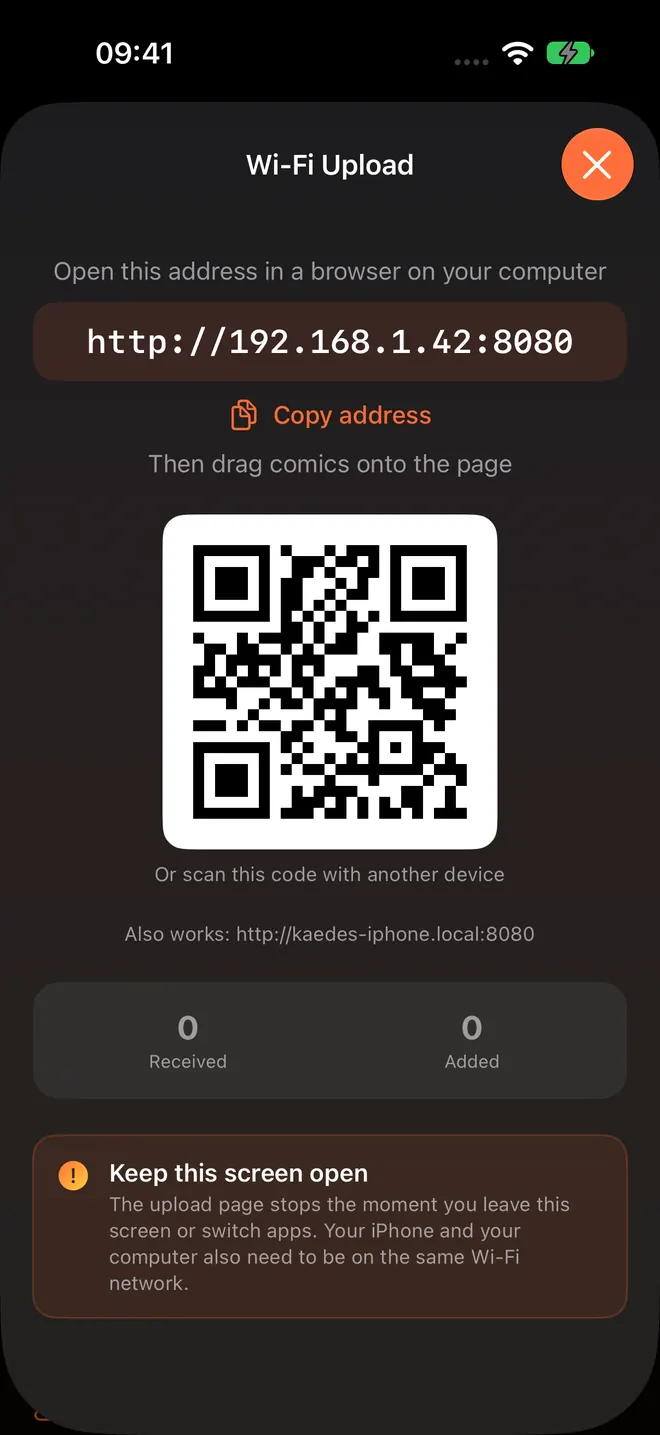
The Wi-Fi Upload screen. Open the address in a browser on your computer and drop the ZIP or RAR on the page.
Two things that are not part of this #
Convert still takes one comic at a time. If you give the Convert tab a file that holds several comics, it declines, and its message now points you to importing the file into your Library instead. Import the set first. Then convert the volumes you want, for example to PDF for another app. Convert CBZ to PDF on iPhone has the steps.
Watched folders and server downloads do not unpack sets in 3.8. A scan that quietly copies several gigabytes you did not ask for is a bad surprise, so those routes bring each file in as it is. For a set, use the picker, Open in ComicFlow or Wi-Fi Upload.
It is part of the $2.99 app #
Importing a set of comics, page curl and Trim Margins, the other new things in version 3.8, are all in the $2.99 app and do not need Pro. ComicFlow Pro is an optional $6.99 one-time unlock. It is not a subscription. It adds comic server reading (Komga, Kavita and OPDS), Face ID-locked collections, EPUB export for Kobo, Boox, reMarkable and PocketBook, and reader presets, including a Duo preset for the iPhone Duo.
If you mostly want to get a complete series onto your phone and read it, you do not need any of that.
Related reading #
- Transfer comics to iPhone: every way to get files onto the device
- Why CBZ and CBR files won't open: when a file refuses to open
- Where to buy DRM-free manga: legal sources for files you can keep
- Keep your manga files offline: a library that no outage can take away
- How to read Humble Bundle comics on iPhone and iPad: another source of big downloads
Frequently asked questions
How do I import a ZIP or RAR that holds several manga volumes on iPhone?
In ComicFlow 3.8, add the file the way you add any comic: with the file picker, with Open in ComicFlow from Files, Mail or AirDrop, or with Wi-Fi Upload. If the ZIP or RAR holds whole comics (CBZ, CBR, ZIP, RAR or PDF) instead of page images, ComicFlow adds each volume to your library on its own.
Does ComicFlow unpack the ZIP into one big book or into separate volumes?
Into separate volumes. Each comic inside the file becomes its own book in the library, with its own cover and its own reading progress, so volume 3 is not mixed up with volume 4.
Do I need ComicFlow Pro to import a set of comics?
No. Importing a ZIP or RAR with several comics is part of the $2.99 app. ComicFlow Pro is a separate optional $6.99 one-time unlock for things like comic server reading, Face ID-locked collections, EPUB export and reader presets.
What happens if one volume inside the file is broken or can't be read?
ComicFlow imports the others and tells you which files it could not take, by file name and with the reason. A 7z archive or a password-protected file inside the set is reported the same way. Files that are already in your library are skipped, so importing the same set twice does not create copies.
Why does Convert still say it can't take my ZIP of comics?
Convert works on one comic at a time. When you give it a file that holds several comics, it now points you to importing the file into your Library instead. Import the set first, then convert the volumes you want.
Will a watched folder unpack a ZIP of comics for me?
Not in 3.8. Watched folders and downloads from your own comic server bring each file in as it is. Import a set from the file picker, Open in ComicFlow or Wi-Fi Upload.