
You hit a page you love. A two-page fight, a quiet panel that hurts, a joke you want to show a friend. Three volumes later you want it back, and you are scrubbing through hundreds of pages trying to remember where it was.
In ComicFlow, one tap saves that page, and the saved pages sit in one list with thumbnails. I build ComicFlow: $2.99 once, with an optional $6.99 one-time Pro unlock. Neither renews. Bookmarks are in the $2.99 app.
Disclosure: I make ComicFlow at Applestan. Features and prices below match the live App Store listing and the ComicFlow support FAQ. Only use files you own or that are DRM-free.

Quick answer #
- Open the manga in ComicFlow and go to the page you want to keep.
- Tap the page to show the controls.
- Tap Bookmark in the bar at the bottom. The icon fills in.
- To come back later, tap the bookmark badge at the top of the reader and pick the page from the list.
Saving a page #
A bookmark is saved on the page you are on. Tap the page once to bring up the controls, then tap Bookmark. The icon turns solid, so you can see at a glance that this page is already saved. Tap it again on the same page and the bookmark is gone.
With a hardware keyboard, for example on an iPad with a keyboard case, press B to do the same thing without touching the screen.
Bookmarks belong to that one volume. If you read a long series, each volume keeps its own list, so volume 12 does not fill up with pages from volume 3.
Finding them again #
As soon as a volume has a bookmark, a small bookmark badge with a number shows up at the top of the reader. Tap it and the Bookmarks list opens over the page.
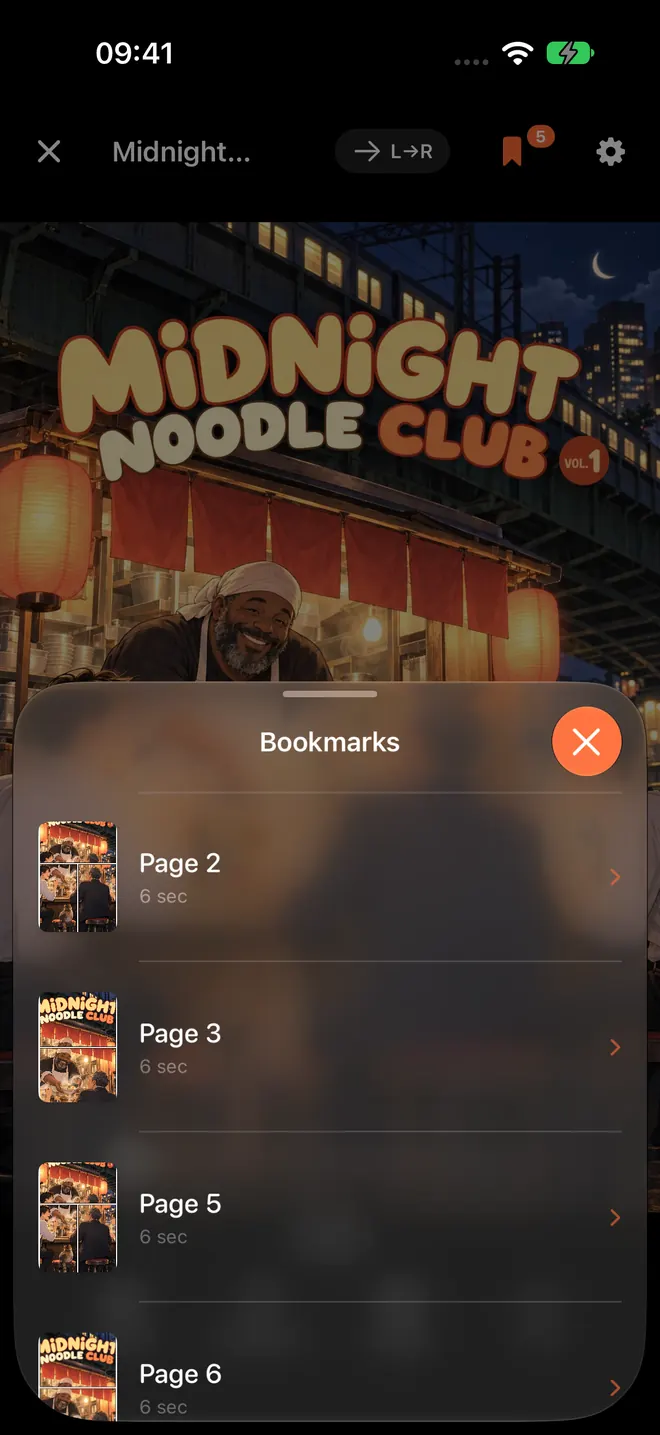
The Bookmarks list in ComicFlow on iPhone. Each row has a thumbnail of the page, its page number and how long ago you saved it. Tap a row to jump there.
The list is in page order, not in the order you saved them, so it reads like a table of contents for your favorite moments. The thumbnails help a lot with manga, where a page number alone tells you nothing, but the art tells you right away which fight it was.
There is a second way in. When the controls are showing, the page slider at the bottom has small orange dots where your bookmarks are. Drag to a dot and you are there.
To clean up, swipe left on a row in the list and tap Remove Bookmark.

An illustration drawn for this post, not a screenshot. The paper version of the same habit, with sticky flags in a printed volume.
Ways manga readers use bookmarks #
- The spreads. Big two-page spreads are the reason a lot of people read a series. Bookmark them, and later turn the phone sideways or open an iPad to see them large. The manga with the best art has a few worth saving.
- Clues in a mystery. Mark the page where something odd happens. When the reveal comes, jump back and check if it was there all along.
- Reading in Japanese. Save pages with lines you want to look up later, so you keep reading now and study after. Learn Japanese with manga on iPhone covers that setup.
- Pages to show a friend. Instead of "it is somewhere in volume 8", open the list and you are there in two taps.
Bookmarks are for pages you want to come back to. For "where did I stop", you do not need them. ComicFlow saves your place on its own, and Continue Reading at the top of the library brings you back to that page. More on that in track a manga series on iPhone.
On iPhone and iPad #
Turn on iCloud Sync in ComicFlow's Settings and your reading progress and bookmarks stay matched between iPhone and iPad. So you can mark a spread on the train and open it on the iPad at home. The comic files still need to be on both devices, because sync covers your place and bookmarks, not the files. Keep your place across iPhone and iPad has the details. Sync is optional, and you can leave it off.
Included in the $2.99 app #
Page bookmarks, right-to-left reading, zoom, collections and Continue Reading are all in the $2.99 app. Pro, the optional $6.99 one-time unlock, adds comic servers, Face ID-locked collections, EPUB export to e-readers and reader presets. There is no subscription.
Frequently asked questions
How do I bookmark a manga page on iPhone?
In ComicFlow, open the volume, tap the page to show the controls, and tap Bookmark in the bar at the bottom. The icon fills in to show the page is saved. Tap it again on the same page to remove the bookmark.
Where do I find my bookmarked pages?
Once a volume has at least one bookmark, a bookmark badge with a number appears at the top of the reader. Tap it to open the Bookmarks list, which shows every saved page in that volume in page order, with a thumbnail, the page number and when you saved it. Tap a row to jump to that page.
How do I delete a manga bookmark?
Swipe left on a page in the Bookmarks list and tap Remove Bookmark, or go to the page and tap Bookmark again.
Do bookmarks need ComicFlow Pro?
No. Page bookmarks are part of the $2.99 app. ComicFlow Pro is a separate optional $6.99 one-time unlock for comic servers, Face ID-locked collections, EPUB export and reader presets.
Do my manga bookmarks sync between iPhone and iPad?
They can. Turn on iCloud Sync in ComicFlow's Settings and your reading progress and bookmarks stay matched across your devices. The comic files themselves still need to be on each device. You can also leave sync off.
Is there a keyboard shortcut for bookmarks?
Yes. With a hardware keyboard, for example on an iPad, press B in the reader to bookmark the current page or remove its bookmark.