You've got a folder of comic files on your computer. CBR, CBZ, PDF, maybe hundreds of them. Now you want to read them on your iPhone or iPad. The problem is that iOS doesn't make it obvious how to get files from your computer onto your device, especially files in formats that Apple doesn't natively recognize.
There are actually several ways to do this, some faster than others. This guide covers every practical method for getting comics from your PC or Mac to your iPhone, ranked from fastest to most flexible. Once the files are on your device, ComicFlow reads CBR, CBZ, RAR, ZIP, and PDF directly with no conversion needed.

Quick Comparison
| Method | Speed | File Size Limit | Requires | Best For |
|---|---|---|---|---|
| AirDrop | Fast | None (practical) | Mac + Wi-Fi/Bluetooth | Quick transfers, Mac users |
| Files app (iCloud) | Medium | 50GB per file | iCloud storage | Syncing across devices |
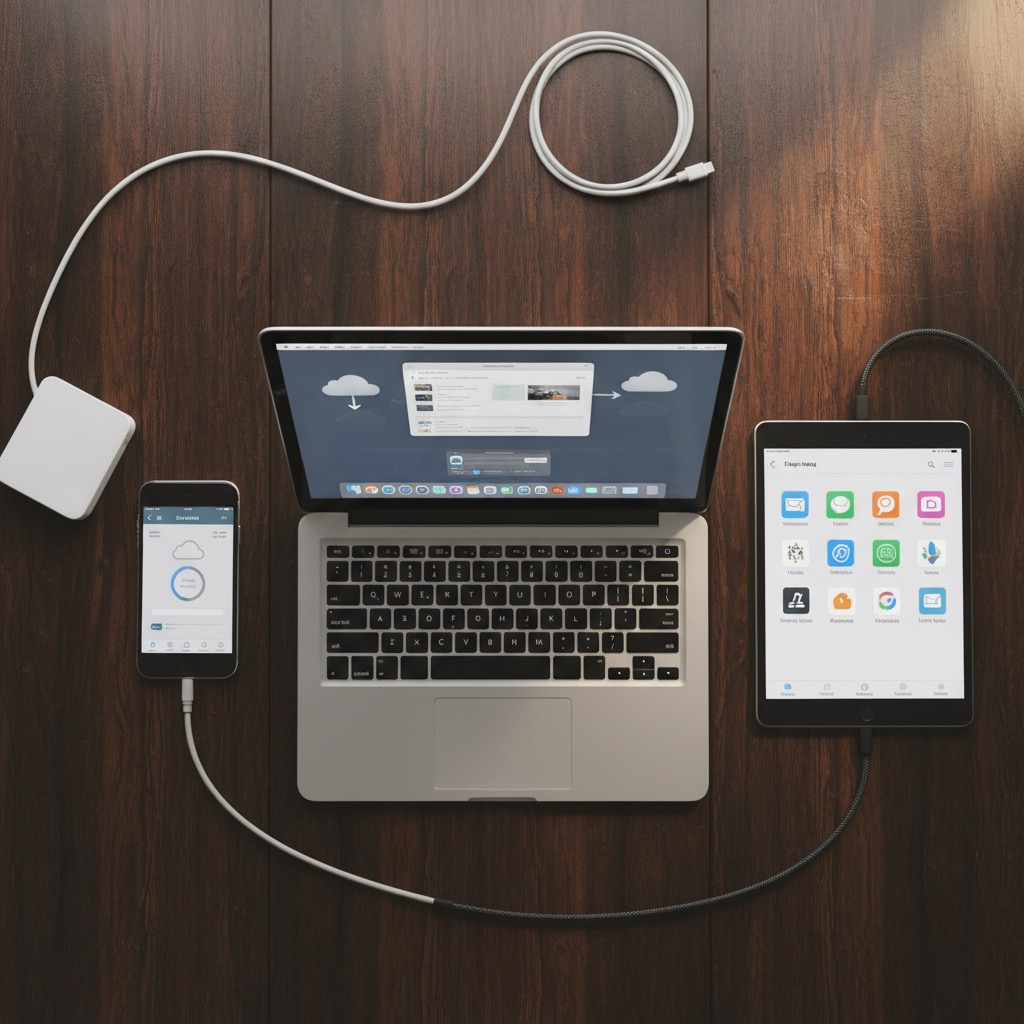
| USB (Finder/iTunes) | Fast | None | USB cable | Large collections, no internet |
| Cloud storage | Medium | Varies by service | Account + storage | Cross-platform, PC users |
| Slow | 25MB per email | Email account | Single small files | |
| Web server (local) | Fast | None | Same Wi-Fi network | Bulk transfers, any computer |
Method 1: AirDrop (Mac Only, Fastest)

If you have a Mac, AirDrop is the fastest way to move comic files to your iPhone. No cables, no accounts, no setup.
How to do it:
- Make sure Wi-Fi and Bluetooth are on for both devices
- On your Mac, select the comic files you want to transfer
- Right-click and choose Share > AirDrop
- Select your iPhone from the list
- On your iPhone, tap Accept and choose Open in ComicFlow
Pros:
- No internet required (direct device-to-device)
- No file size limits in practice
- Transfer speeds of 100-200 MB/s on modern devices
- Can send multiple files at once
Cons:
- Mac only (no Windows or Linux)
- Both devices need to be nearby
- Can be flaky if Bluetooth is acting up
Speed: A 200MB comic takes about 2-3 seconds. You can AirDrop your entire collection in batches.
Method 2: Files App with iCloud Drive
If you already use iCloud, this is the simplest approach for ongoing syncing. Put comics in iCloud Drive on your computer, and they show up on your iPhone automatically.
How to do it:
- On your computer, move comic files into your iCloud Drive folder
- Wait for them to sync (progress shows in the menu bar on Mac or system tray on Windows)
- On your iPhone, open the Files app
- Navigate to iCloud Drive and find your comics
- Tap a file, then tap the share icon and choose Open in ComicFlow
Pros:
- Works from Mac and Windows (iCloud for Windows available)
- Files sync automatically
- Access from any device signed into your Apple ID
- No need to be on the same network
Cons:
- Requires iCloud storage (5GB free, may need to upgrade)
- Upload speed depends on your internet connection
- Large collections eat through storage quickly
- Files need to download on iPhone before reading
Tip: Create a dedicated Comics folder in iCloud Drive. Keeps things organized and makes it easy to find files from the Files app.
Method 3: USB Transfer via Finder or iTunes
For large collections, nothing beats a direct cable connection. No internet dependency, no storage limits, no waiting for cloud syncing.
On Mac (macOS Catalina or later):
- Connect your iPhone to your Mac with a USB cable
- Open Finder and select your iPhone in the sidebar
- Click the Files tab
- Find ComicFlow in the app list
- Drag and drop your comic files directly into the ComicFlow section
On Windows (or older Mac):
- Install iTunes if you don't have it
- Connect your iPhone with a USB cable
- Click the device icon in iTunes
- Go to File Sharing
- Select ComicFlow and drag files into the documents area
Pros:
- Fastest method for large collections (USB 3.0 speeds)
- No internet or cloud storage needed
- No file size limits
- Transfer hundreds of files at once
Cons:
- Requires a cable
- Finder/iTunes file sharing interface is basic
- Need to have ComicFlow installed first for the app to appear
Speed: A 10GB comic collection transfers in under a minute via USB 3.0. This is the method to use if you're moving your entire library at once.
Method 4: Cloud Storage (Google Drive, Dropbox, OneDrive)
If you're on Windows or use a cross-platform cloud service, this is your best bet. Upload once, download on any device.
How to do it:
- Upload comic files to your cloud service (Google Drive, Dropbox, OneDrive, etc.)
- On your iPhone, install the cloud service's app
- Open the file in the cloud app, or use the Files app (most cloud services integrate with it)
- Tap the file, then share to ComicFlow
Pros:
- Works with any computer (Windows, Mac, Linux, Chromebook)
- Access files from anywhere
- Most services offer generous free storage (15GB for Google Drive)
- Files stay available for re-download if you delete them from your phone
Cons:
- Upload and download speeds depend on internet
- Free storage fills up fast with comic files
- Need to download files before reading (no streaming)
- Some services compress files or have per-file size limits
Best cloud services for comics:
| Service | Free Storage | Max File Size | Files App Integration |
|---|---|---|---|
| Google Drive | 15GB | 5TB | Yes |
| Dropbox | 2GB | 2GB (free) / 50GB (paid) | Yes |
| OneDrive | 5GB | 250GB | Yes |
| iCloud Drive | 5GB | 50GB | Native |
Method 5: Email Attachments
The simplest method, but only practical for small files. Most email services cap attachments at 25MB, and many comic files are 50-200MB each.
How to do it:
- Attach the comic file to an email on your computer
- Send it to yourself
- Open the email on your iPhone
- Tap the attachment and choose Open in ComicFlow
When this actually works:
- Single issues under 25MB
- Manga chapters (typically 5-15MB each)
- Compressed CBZ files with lower-resolution images
When it doesn't:
- Full graphic novels (usually 100-500MB)
- High-resolution scans
- Batch transfers of any kind
Email is the fallback method. It works in a pinch, but there are better options for anything beyond a single small file.
Method 6: Local Web Server
A more technical option, but surprisingly useful if you're transferring a large collection from any computer on your local network. Some apps (including file managers) let your iPhone receive files over your local Wi-Fi network via a web browser on your computer.
The general approach:
- Connect both devices to the same Wi-Fi network
- Use a file manager app on your iPhone that offers a "Wi-Fi Transfer" feature
- Open the provided URL in your computer's web browser
- Upload comic files through the browser interface
- Move the files to ComicFlow
Pros:
- Works with any computer that has a web browser
- Fast transfer speeds on local network
- No cloud storage or accounts needed
- Good for bulk transfers
Cons:
- Requires both devices on the same Wi-Fi
- More technical to set up
- Depends on third-party file manager apps
Which Method Should You Use?
You have a Mac and a few files: AirDrop. Nothing beats the speed and simplicity.
You have a Mac and a large collection: USB via Finder. Drag and drop your entire library in one go.
You have a Windows PC: Cloud storage (Google Drive is the easiest with 15GB free) or USB via iTunes.
You're transferring one file quickly: Email works if it's under 25MB. AirDrop if you have a Mac.
You want ongoing access across all devices: iCloud Drive. Put comics there once, access everywhere.
You're tech-savvy with a huge collection: USB transfer for the initial bulk import, then AirDrop or iCloud for new additions.
After the Transfer
Once your comics are in ComicFlow, you're set:
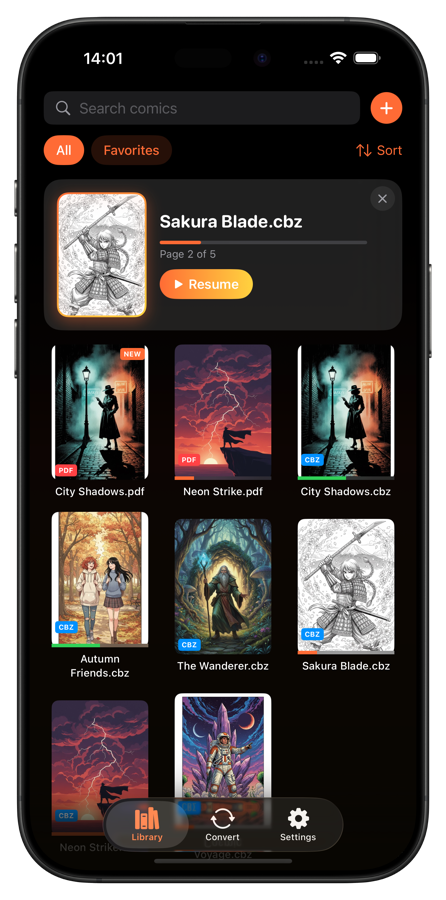
- All formats supported. CBR, CBZ, RAR, ZIP, and PDF open directly with no conversion
- Covers load automatically. Your library shows actual comic covers, not generic file icons
- Reading progress saves. Pick up exactly where you left off on any comic
- Organize with collections. Group comics by series, genre, or reading status. Learn how to organize your collection
- Read any format. Left-to-right for Western comics, right-to-left for manga, vertical scroll for webtoons
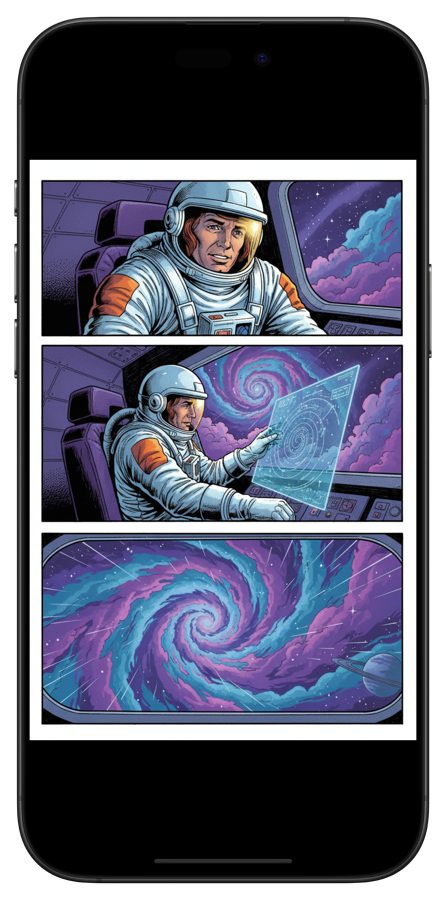
The hardest part is getting the files onto your phone. Once they're there, ComicFlow handles everything else. One-time purchase, works offline, no account needed.
Your comics belong in your pocket, not stuck on your computer.
Related Articles
- How to Read CBR and CBZ Files on iPhone and iPad — Open your transferred comic files and start reading
- How to Back Up Your Digital Comic Collection — Protect your collection with a solid backup strategy
- Where to Find DRM-Free Digital Comics You Actually Own — Find comics worth transferring to your device
- How to Read Comics Offline on iPhone and iPad — Build a fully offline library once your files are transferred