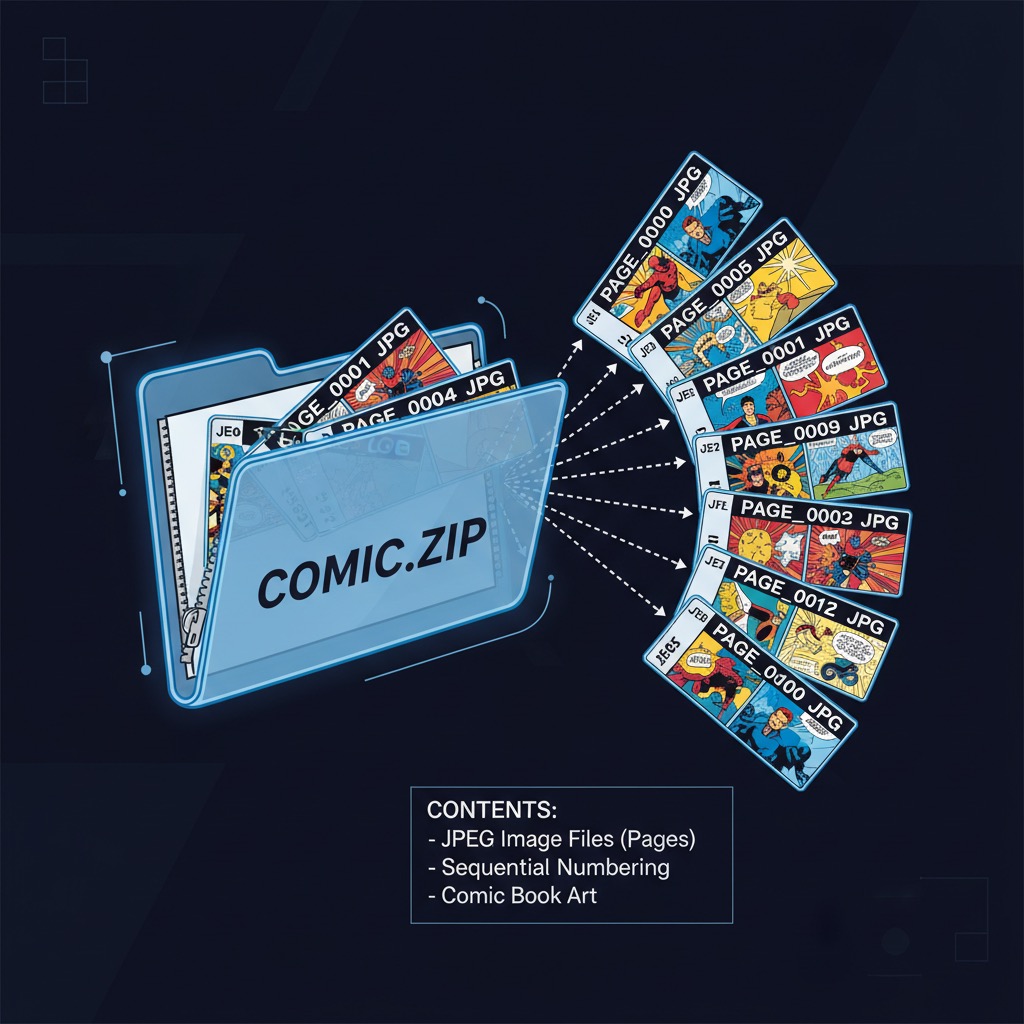
A CBZ is a folder of page images wrapped in a ZIP file. A PDF is a document. Turning one into the other sounds like a small job, and it is, but a few details decide whether the result is a clean file you will actually use or a 400 MB brick. This post covers what the conversion does to your pages, which quality level to pick, and where it stops working. For the full step-by-step walkthrough, which also covers CBR, RAR and ZIP files, read how to convert CBR and CBZ to PDF on iPhone.
Disclosure: I make ComicFlow, the app used in the steps below. Everything here describes how it behaves in version 3.5. The other options at the end are tools I don't make.

Do You Actually Need a PDF? #
Probably not, if all you want is to read the comic. A comic reader opens a CBZ as it is, with the pages in order and your place saved. Our guide to reading CBR and CBZ files on iPhone covers that.
A PDF makes sense when:
- You want the comic in Apple Books next to your other books
- You are sending it to someone who has no comic reader
- You want to print it or mark it up
- You want one format that every device opens
If you read right-to-left manga, think twice. A PDF has no reading direction that Apple Books uses for comics, so a manga converted for Books pages the wrong way round.
The Short Version #
Import the CBZ into ComicFlow, open the Convert tab, choose PDF as the output, pick High, Medium or Low, and start the conversion. You can select several files at once, and the PDF can be viewed or shared when it finishes. It runs offline, with no account, and the comic never leaves the device. CBZ is also offered as an output, but converting a CBZ to a CBZ is hidden when every file is already one.
Each step with screenshots is in the step-by-step guide to converting CBR and CBZ to PDF on iPhone.
What the Conversion Does to Your Pages #
Knowing this helps you pick a quality level instead of guessing.
Pages are put in the right order. ComicFlow sorts pages by their full path inside the archive, with numbers counted properly, so page2 comes before page10. A CBZ with one folder per chapter keeps each chapter together and in order.
Junk files are ignored. A CBZ zipped on a Mac often carries hidden __MACOSX and ._ files that look like images but aren't. ComicFlow skips them, so they don't turn into blank first pages.
Each page becomes a JPEG on its own PDF page. The page is shrunk if it is larger than the preset allows, re-encoded, and placed in the PDF at its own proportions. A page ComicFlow can't decode is left out rather than stopping the whole conversion.
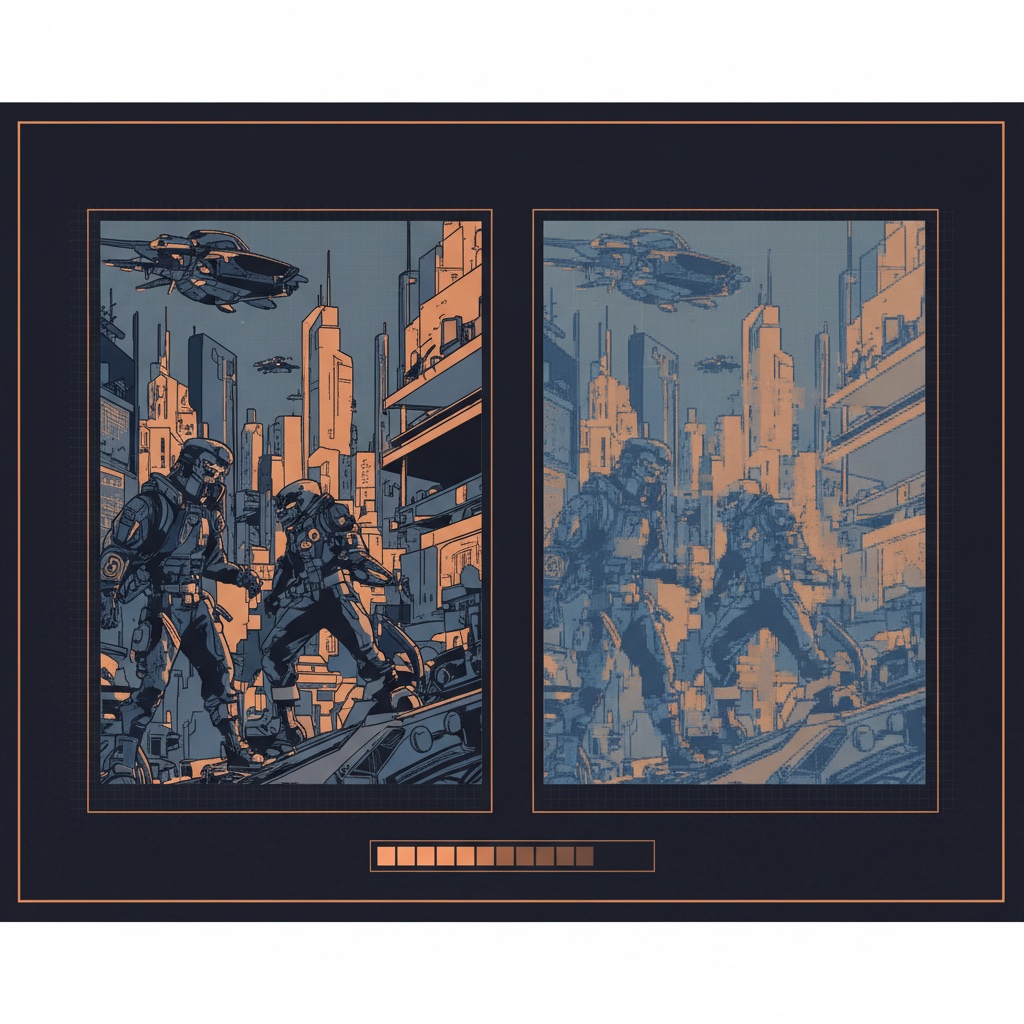
The presets cap the page size. In 3.5 the long edge of a page is limited to about 3000 pixels at High, 2048 at Medium and 1500 at Low. A page already smaller than the cap is not scaled up.
Very large comics may drop a step in quality. A PDF is held in memory while it is built, so the finished size decides whether a conversion succeeds. ComicFlow measures a sample page and, if the whole PDF would be too big for your device, lowers the JPEG quality a little instead of crashing. The ceiling depends on how much memory the device has. If you have an older iPhone and a 300-page scan, expect this.
Formats ComicFlow can read as pages include JPEG, PNG, GIF, WebP, BMP, TIFF, HEIC and AVIF.
Which Quality Level Should You Pick? #
| Level | Good for | Trade-off |
|---|---|---|
| High | Art you care about, printing, a reading copy you will keep | Largest file |
| Medium | Most reading on a phone or tablet, and sending by email or message | Slightly softer fine lines |
| Low | Saving space, quick sharing | Visible softening, small text suffers |
Medium is enough for most situations. As an example from our CBR to PDF guide, a 50 MB comic can come out around 45 MB at High, 20 MB at Medium and 8 MB at Low. Those are examples, not promises. A comic of flat line art compresses much further than a full-colour scan.
If a file lands bigger than you wanted, convert again at a lower level from the original CBZ rather than compressing the PDF a second time. Every pass through JPEG costs a little detail. The same goes for compressing a PDF on iPhone afterwards, which works but starts from a copy that has already been encoded once.
Converting Several CBZ Files at Once #
Select more than one file and ComicFlow queues them. Each row shows its own progress, then a tick and the new size. When a file can't be converted, the row says why instead of showing a bare error.
Batch conversion is also where memory matters most, so on an older device it helps to convert a few volumes at a time rather than a whole shelf.
What ComicFlow Can't Convert #
Some CBZ files will stop with a message. The usual ones:
- Password-protected archives. Encrypted ZIPs are rejected. Remove the password on a computer first.
- ZIPs with unusual compression. A ZIP that uses a method other than the standard ones can't be read. Re-zip the pages with standard compression on a computer.
- Archives that contain archives. If the CBZ holds other CBZ or CBR files instead of pages, unpack it and add the comics one at a time.
- Archives with no images. If the file holds only documents or text, there is nothing to turn into pages.
- Damaged files and half-finished downloads. A download that saved an error web page under the comic's name is detected and reported as such.
- 7z and CB7. Recognised but not supported. Convert to CBZ on a computer first.
None of these are specific to PDF output. They apply to reading too, and why a CBZ or CBR file won't open goes through the fixes.
Other Ways to Convert CBZ to PDF #
ComicFlow isn't the only route, and it isn't the right one for every job.
- Calibre on a Mac or PC. Free, handles whole folders, and gives you far more settings. Tick "Disable comic processing" or your colour pages come out black and white. Our roundup of the best CBR to PDF converters compares it with the online options.
- Online converters. Fine for one small file you don't mind uploading. You give up control over quality and send the comic to someone else's server.
For a one-off on a computer, Calibre is the better tool. For a phone or tablet with no computer nearby, on-device conversion is the point.
Quick Answers #
What happens to the CBZ? The conversion writes a new PDF. It doesn't edit the CBZ you picked.
Does it work without internet? Yes, start to finish.
What does it cost? ComicFlow is $2.99 once, with no subscription and no ads. Exporting to CBZ is free for everyone.
Related Articles #
- How to Convert CBR and CBZ to PDF on iPhone. The main step-by-step walkthrough, including CBR and RAR files
- Comic Book File Formats Explained: CBR vs CBZ vs PDF. What is inside each format
- Best CBR to PDF Converters for iPhone, Mac, and PC. Five tools compared
- Why Your CBZ or CBR File Won't Open, and How to Fix It. When a conversion stops with a message
- How to Read CBR and CBZ Files on iPhone. When you can skip conversion entirely
Frequently asked questions
Why is my converted PDF so large?
Each page is re-encoded as a JPEG, and the quality level you pick caps the page size. High keeps the most detail and makes the biggest file. If the result is bigger than you want, convert the original CBZ again at a lower level instead of compressing the PDF a second time.
Is a CBZ file already a PDF?
No. A CBZ is a ZIP archive of page images, one image per page. A PDF is a document format. Converting means placing each image on its own PDF page, in reading order.
Does converting CBZ to PDF lower the quality?
Yes, a little, and you control how much. ComicFlow re-encodes each page as JPEG and caps its size depending on the preset you pick. High keeps the most detail and makes the biggest file, Low makes the smallest file and softens fine detail.
Can I convert several CBZ files at once?
Yes. ComicFlow takes several files in one go and shows progress for each. If one fails, that file shows the reason and the rest carry on.
Will a converted manga keep its right-to-left order?
The pages are placed in the same order as the CBZ, but a PDF has no reading direction setting that Apple Books honours for comics. If you read manga, reading the CBZ directly in a comic reader is usually the better choice.
Can ComicFlow convert a password-protected CBZ?
No. Encrypted archives are rejected with a message saying so. Remove the password on a computer first.