You have CBR or CBZ comic files and you need them as PDFs. Maybe for Apple Books, for sharing with someone, for printing, or just because PDF works everywhere. The right CBR to PDF converter depends on what device you're on and how many files you're dealing with.
Quick Comparison
| Tool | Platform | Formats | Quality Control | Offline | Price |
|---|---|---|---|---|---|
| ComicFlow | iPhone, iPad | CBR, CBZ, RAR, ZIP | 3 presets (High/Med/Low) | Yes | $2.99 once |
| Calibre | Mac, Windows, Linux | CBR, CBZ, CB7, and more | Manual settings | Yes | Free |
| CloudConvert | Browser (any device) | CBR, CBZ | Custom dimensions | No | Free (750/month) |
| Zamzar | Browser (any device) | CBR, CBZ | None | No | Free (limited) |
| FreeConvert | Browser (any device) | CBR, CBZ | Basic | No | Free (limited) |
Best for iPhone and iPad: ComicFlow
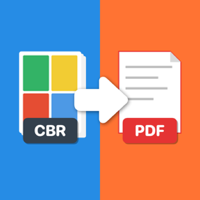
If you're on an iPhone or iPad, ComicFlow is the only converter you need. It handles CBR, CBZ, RAR, and ZIP files and converts them to PDF directly on your device.
How it works:
- Import your comic file (from Files, Safari, AirDrop, or email)
- Tap the Convert tab
- Pick a quality preset: High (maximum detail), Medium (balanced), or Low (smallest file)
- Tap Convert and you're done in seconds
The quality presets make a real difference. A 50MB comic might produce a 45MB PDF at High, 20MB at Medium, or 8MB at Low. Medium works for 90% of situations.
What makes it stand out:
- Converts entirely on-device. Your files never get uploaded anywhere
- Also works as a full comic reader, so you can read and convert in the same app
- Handles all 5 common comic formats (CBR, CBZ, RAR, ZIP, PDF)
- One-tap sharing after conversion (AirDrop, Messages, email, cloud storage)
- No internet needed. Works on a plane, in a subway, anywhere
Price: $2.99, one-time purchase. No subscription, no ads.
There's no real alternative for on-device CBR to PDF conversion on iOS. Online converters work in Safari, but they require uploading your files to a server and don't offer quality control.

For a step-by-step walkthrough, see our full CBR to PDF conversion guide.
Best for Mac and PC: Calibre
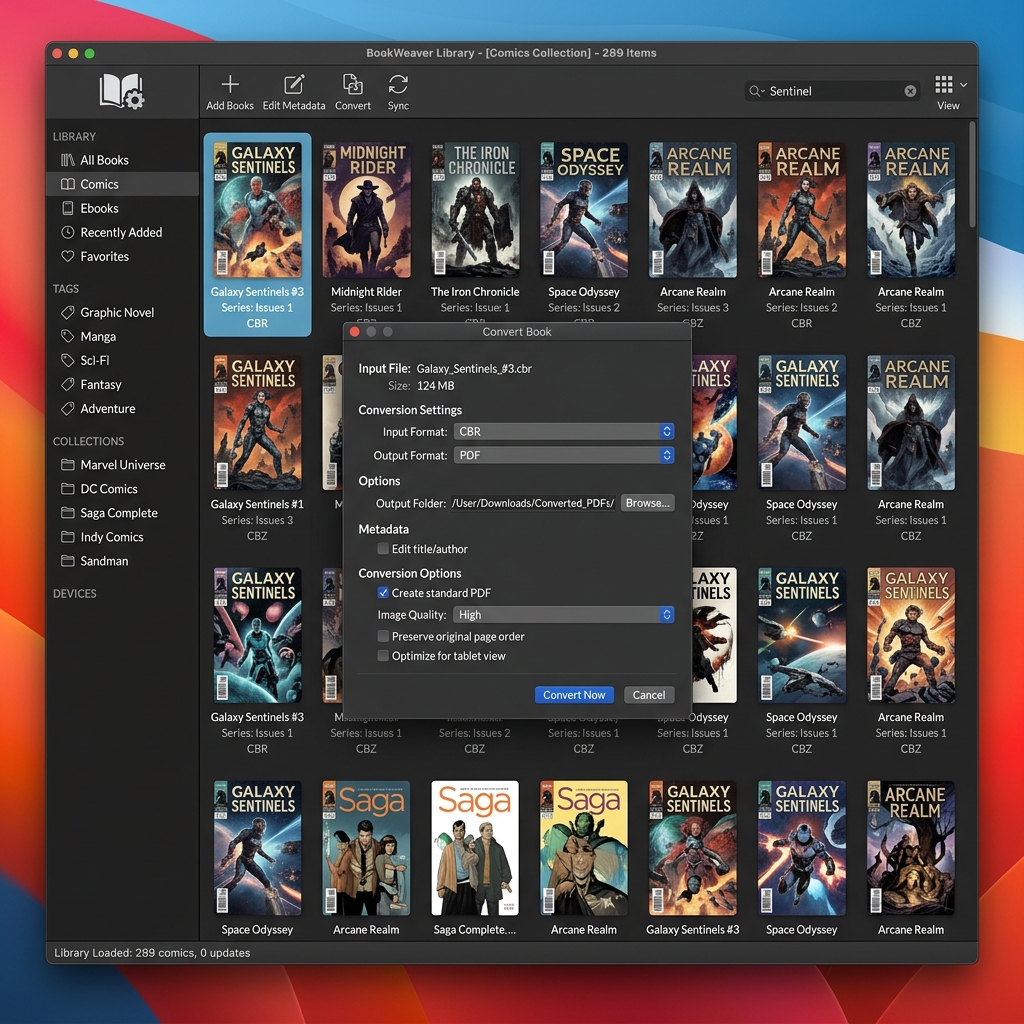
Calibre is a free, open-source ebook manager that runs on Mac, Windows, and Linux. It wasn't built specifically for comics, but it handles CBR to PDF conversion well once you know the right settings.
How to convert:
- Download Calibre from calibre-ebook.com and install it
- Click Add books and select your CBR or CBZ file
- Select the file in your library, then click Convert books
- Set the Output format dropdown to PDF
- Go to Comic Input on the left sidebar and check "Disable comic processing"
- Click OK and wait for the conversion to finish
Important: Step 5 matters. If you skip the "Disable comic processing" checkbox, Calibre will convert your color comics to black and white. This trips up a lot of people.
Pros:
- Completely free, no limits on file count or size
- Works on Mac, Windows, and Linux
- Handles CBR, CBZ, CB7, and dozens of other formats
- Batch conversion for large collections
- Highly configurable output settings
Cons:
- The interface is cluttered and takes some getting used to
- That "Disable comic processing" gotcha catches everyone at least once
- Overkill if you just need a quick conversion
- No mobile version
Calibre is the best desktop option by far. If you're converting a big collection on your computer, nothing else comes close.
Best Online Converters
If you don't want to install anything, browser-based converters work in a pinch. You're uploading files to someone else's server, so keep that in mind for anything sensitive.
CloudConvert
CloudConvert is the most reliable online option. It's been around since 2012 and is ISO 27001 certified. The free tier gives you 750 conversions per month with a 100MB file size limit. You can upload from your computer, Google Drive, Dropbox, or a URL, and it lets you set custom output dimensions and auto-zoom. If you're going to use an online converter, this is the one.
Zamzar
Zamzar strips away all the options. Upload a CBR, pick PDF, download the result. The free tier limits you to 2 files per day at 50MB each, and there's no quality control at all. Good when you just need one file converted and don't care about tuning the output.
FreeConvert
FreeConvert sits between the other two. It handles batch conversion (multiple files at once) and supports files up to 1GB on the free tier with 25 conversions per day. Basic compression settings are available. Best option if you have a handful of files and don't want to install software.
The Problem With Online CBR to PDF Converters
Online tools are convenient for a quick one-off, but they come with real tradeoffs.
The biggest is privacy. You're uploading comic files to someone else's server. Most services claim they delete files after conversion, but you're trusting their word.
Then there's speed. Upload time plus server processing plus download time adds up fast. A file that converts in 3 seconds locally on your iPhone can take over a minute through a browser round-trip.
Free tiers also cap file sizes between 50MB and 1GB. That sounds like a lot until you try to convert a high-resolution manga volume. And most online tools give you zero control over output quality, unlike ComicFlow and Calibre which both let you tune compression.
For a single small file, online converters are fine. For anything else, a local tool saves time and keeps your files private.
Which CBR to PDF Converter Should You Pick?
The short version: if you're on an iPhone or iPad, ComicFlow is the only app that converts locally with quality control, and it doubles as a full comic reader. On a Mac or PC, Calibre handles everything for free, including batch jobs across hundreds of files. Just remember to disable comic processing or your colors disappear. If you'd rather not install anything, CloudConvert has the most generous free tier and the best reputation among browser-based tools. Android users can find dedicated converters on the Play Store, or use CloudConvert in the browser.
Related Articles
- How to Convert CBR and CBZ to PDF on iPhone - Step-by-step guide to converting comics on your iPhone
- Comic Book File Formats Explained: CBR vs CBZ vs PDF - What these formats are and why there are so many
- How to Read CBR and CBZ Files on iPhone and iPad - Read comic files directly without converting
- 5 Best Comic Reader Apps for iPhone and iPad - Full comparison of iOS comic readers