
Every photo you take on your iPhone embeds hidden data you probably never think about. GPS coordinates pinpointing exactly where you stood. The date and time down to the second. Your camera model, lens settings, even which direction you were facing. This is called metadata, and it travels with your photo every time you share it.
When you text a photo to a friend, post it on a forum, or email it to a stranger on Craigslist, that metadata can go with it. Anyone who knows where to look can extract your home address from a living room photo or your workplace from a lunch break selfie. PhotoStrip strips GPS location, camera info, timestamps, or all metadata from hundreds of photos at once. Everything happens on your iPhone, nothing gets uploaded to any server.

What Metadata Is Hidden in Your Photos?
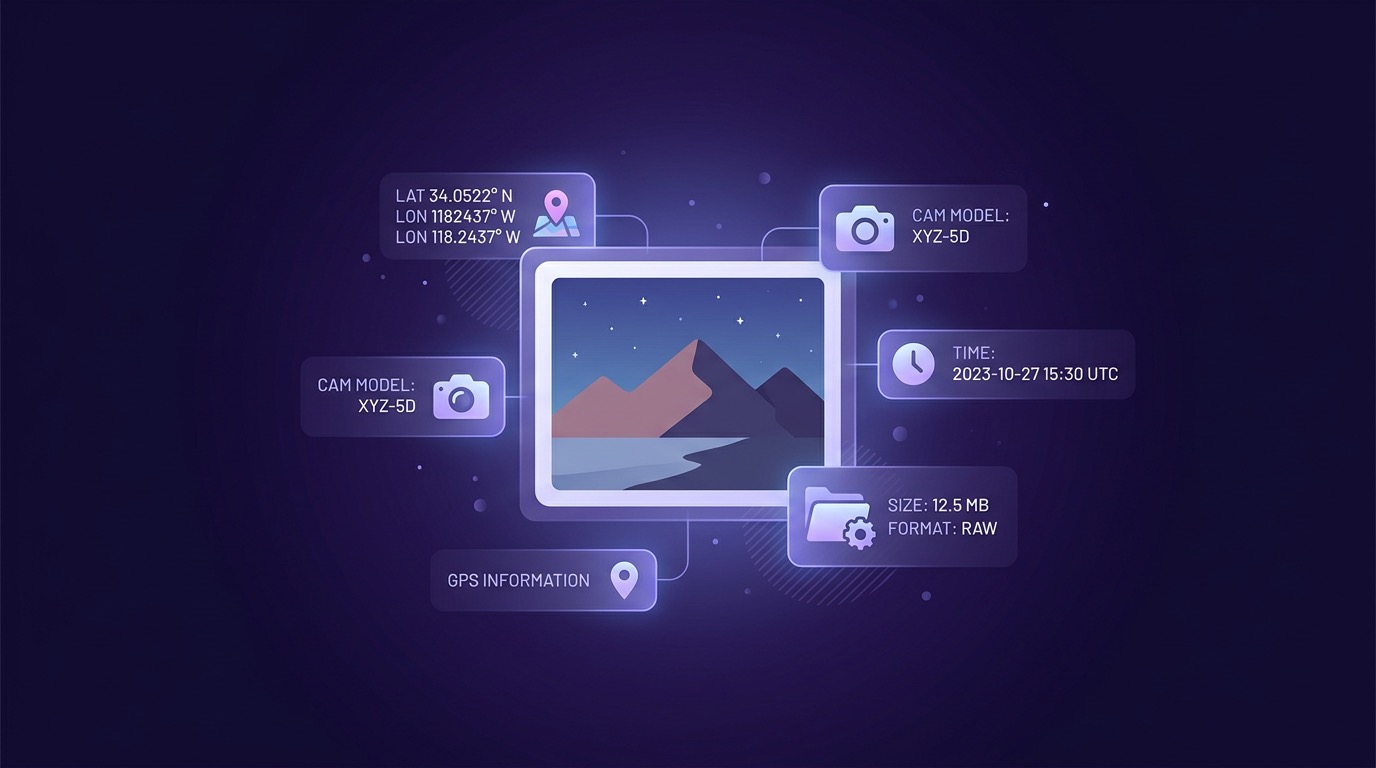
Your iPhone stores several types of metadata in every photo, bundled into what's called EXIF data (Exchangeable Image File Format). This is what's typically embedded:
Location data (GPS coordinates) Latitude, longitude, and sometimes altitude. Accurate enough to identify the exact building you were in. This is the most privacy-sensitive piece of metadata.
Date and time When the photo was taken, down to the second. Includes the timezone, which can reveal your travel patterns.
Camera and device info iPhone model, iOS version, lens type (wide, ultra-wide, telephoto), and focal length. Not sensitive on its own, but it fingerprints your device.
Image settings ISO, shutter speed, aperture, whether the flash fired, HDR status. Photographers care about this; casual users usually don't.
Orientation and dimensions How the phone was held, the resolution, and color space. This affects how the image displays but isn't a privacy concern.
Thumbnail A small embedded preview image. In rare cases, this can retain data from a cropped or edited photo, meaning the original framing could be recoverable.
Why You Should Care About Photo Metadata
Most of the time, metadata is harmless. It helps your Photos app organize images by location and date. But there are specific scenarios where it becomes a genuine privacy risk:
Selling items online. Photos of furniture, electronics, or vehicles taken at your home contain your home's GPS coordinates. Anyone with a metadata viewer can extract them.
Dating apps and forums. Profile photos or images shared in chats may contain location data. Some platforms strip metadata automatically; many don't.
Sharing with strangers. Sending photos via email, AirDrop to unknown contacts, or uploading to websites that don't strip EXIF data exposes your location history.
Journalism and activism. Sources who share photos without removing metadata risk revealing their identity, location, or the timing of their documentation.
Real estate and rental listings. Photos of your apartment or house can confirm the exact address, even if you intentionally omitted it from the listing.
The safest approach is to just strip metadata before sharing, every time. It takes seconds, and there's no downside.
How to Check What Metadata Your Photos Contain
Before removing metadata, it helps to see what's there. On your iPhone:
- Open the Photos app and select any photo
- Tap the info button (ⓘ) or swipe up on the photo
- Look for the map. If you see a map thumbnail, your photo has GPS data
- Check the details. You'll see camera model, dimensions, file size, and lens info
This built-in view shows you the basics, but it doesn't show everything. Some EXIF fields (like the embedded thumbnail or detailed lens data) aren't visible in the Photos app.
For a full breakdown, apps like PhotoStrip show you exactly what metadata exists and let you choose which categories to strip. GPS only, timestamps only, camera info, or everything at once.
The iOS Built-In Method (Limited)
Apple added a basic location-stripping option in iOS 15+:
- Open the Photos app
- Select the photo(s) you want to share
- Tap the Share button
- Tap Options at the top of the share sheet
- Toggle off Location
- Share via your chosen method
What this does: Removes GPS coordinates from the shared copy.
What this doesn't do:
- Remove camera info, timestamps, or other EXIF data
- Strip metadata from the original photo (only the shared copy)
- Work in batch beyond what the share sheet supports
- Give you control over which metadata categories to keep or remove
- Convert formats or compress at the same time
If all you need is to remove location from a few photos before texting them, this works. But if you want to strip all metadata, process dozens or hundreds of photos, or combine metadata removal with format conversion, you need a dedicated tool.
How to Strip All Metadata from Photos on iPhone
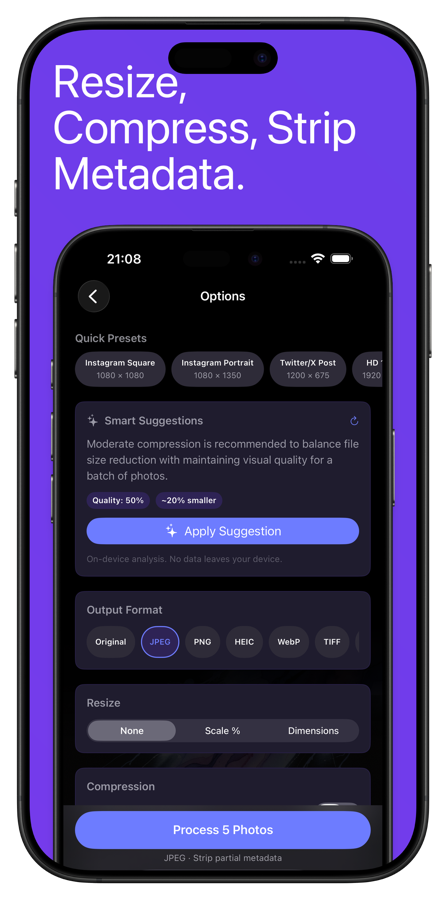
PhotoStrip handles metadata removal as part of its batch processing pipeline. The steps are simple:
- Open PhotoStrip and select the photos you want to process
- Go to Options. You'll see controls for resize, compress, convert, and metadata
- Choose what to strip. GPS location, camera info, timestamps, or all metadata
- Tap Process. Your photos are processed on-device in seconds
You can strip metadata on its own, or combine it with other operations. Need to remove GPS, convert from HEIC to JPEG, and resize to 1080px for a forum upload? Do it all in one pass.
Key detail: Everything happens on your device. Your photos are never uploaded to any server. For a privacy tool, this matters. You shouldn't have to send your photos to someone else's computer just to make them more private.
Batch Processing: Hundreds of Photos at Once

Where metadata stripping really shines is batch processing. Stripping one photo at a time isn't practical when you're dealing with dozens or hundreds:
Preparing a portfolio. Photographers sharing work online often want to remove camera settings (so competitors can't reverse-engineer their technique) while keeping photos in a specific format and resolution.
Listing multiple items for sale. Took 30 photos of things you're selling? Strip GPS from all of them before uploading to Marketplace, Craigslist, or eBay.
Archiving travel photos. Want to share your vacation album with family but don't want 200 photos broadcasting every location you visited? Batch strip and share.
Social media content. Creators preparing content for platforms that don't automatically strip EXIF can process entire batches before uploading.
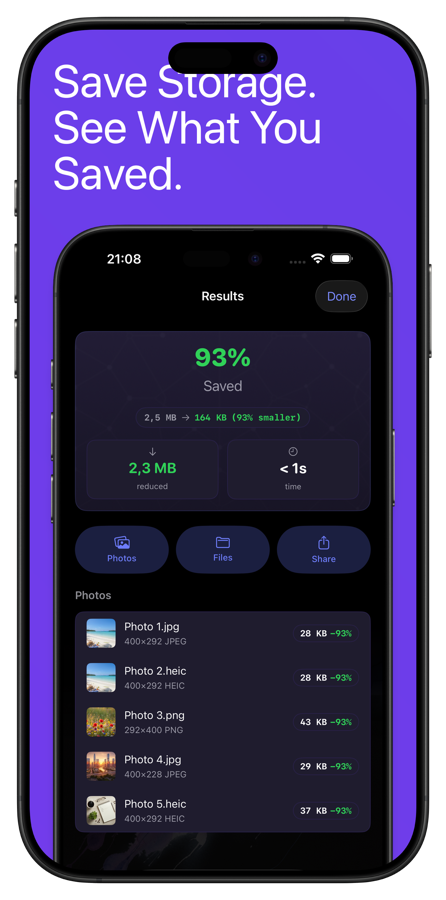
PhotoStrip processes hundreds of photos in a single batch without crashing. Select your photos, configure your settings once, and let it run. The results screen shows you a before-and-after comparison for every photo so you can verify quality.
Which Platforms Strip Metadata Automatically?
Not all sharing platforms handle metadata the same way:
| Platform | Strips GPS? | Strips EXIF? | Notes |
|---|---|---|---|
| iMessage | No | No | Full metadata preserved |
| Yes | Yes | Strips most metadata | |
| Signal | Yes | Yes | Strips all metadata by default |
| Telegram | Partial | Partial | Strips when sent as "photo," keeps when sent as "file" |
| Yes | Yes | Strips on upload | |
| Yes | Yes | Strips on upload, but Facebook stores it internally | |
| Twitter/X | Yes | Yes | Strips on upload |
| No | No | Full metadata preserved as attachment | |
| AirDrop | No | No | Full metadata preserved |
| Discord | No | No | Full metadata preserved |
| Depends | Depends | Varies by upload method |
The takeaway: If you're sharing via iMessage, email, AirDrop, or Discord, your metadata goes along for the ride. Strip it yourself before sharing.
Metadata Removal vs. Format Conversion
A common misconception is that converting a photo to a different format removes metadata. It depends.
Converting HEIC to JPEG. Some conversion tools strip metadata during conversion. Many preserve it. Don't assume conversion equals metadata removal.
Screenshots. Taking a screenshot of a photo creates a new image with new metadata (your device, current timestamp), but removes the original photo's EXIF data. Low quality workaround, but it works in a pinch.
Re-saving in an editor. Photo editing apps handle metadata inconsistently. Some preserve it, others strip it or add their own.
The reliable approach is to explicitly strip metadata. Don't leave it to chance. With PhotoStrip you can convert formats and strip metadata in the same operation, so you know exactly what's in the output file.
What to Keep, What to Remove
You don't always need to remove everything. Here's a practical guide:
Always remove before sharing with strangers:
- GPS location (the biggest privacy risk)
- Detailed timestamps (reveals your routine)
Remove if you're privacy-conscious:
- Camera/device info (fingerprints your phone model)
- All EXIF data (cleanest option)
Usually safe to keep:
- Image dimensions and orientation (needed for proper display)
- Color space info (affects how the image renders)
PhotoStrip gives you granular control. Strip GPS only, strip timestamps only, strip camera info only, or nuke everything. Choose what fits your situation.
Make It a Habit
The easiest way to protect your privacy isn't to think about metadata every time you share a photo. It's to build a simple habit:
- Before sharing photos with anyone outside your trusted circle, run them through a metadata stripper
- Before uploading to any platform you're not sure about, strip GPS at minimum
- Before selling anything online, strip all metadata from product photos
It takes less than 30 seconds to process a batch of photos. That's a small price for not accidentally broadcasting your home address to the internet.