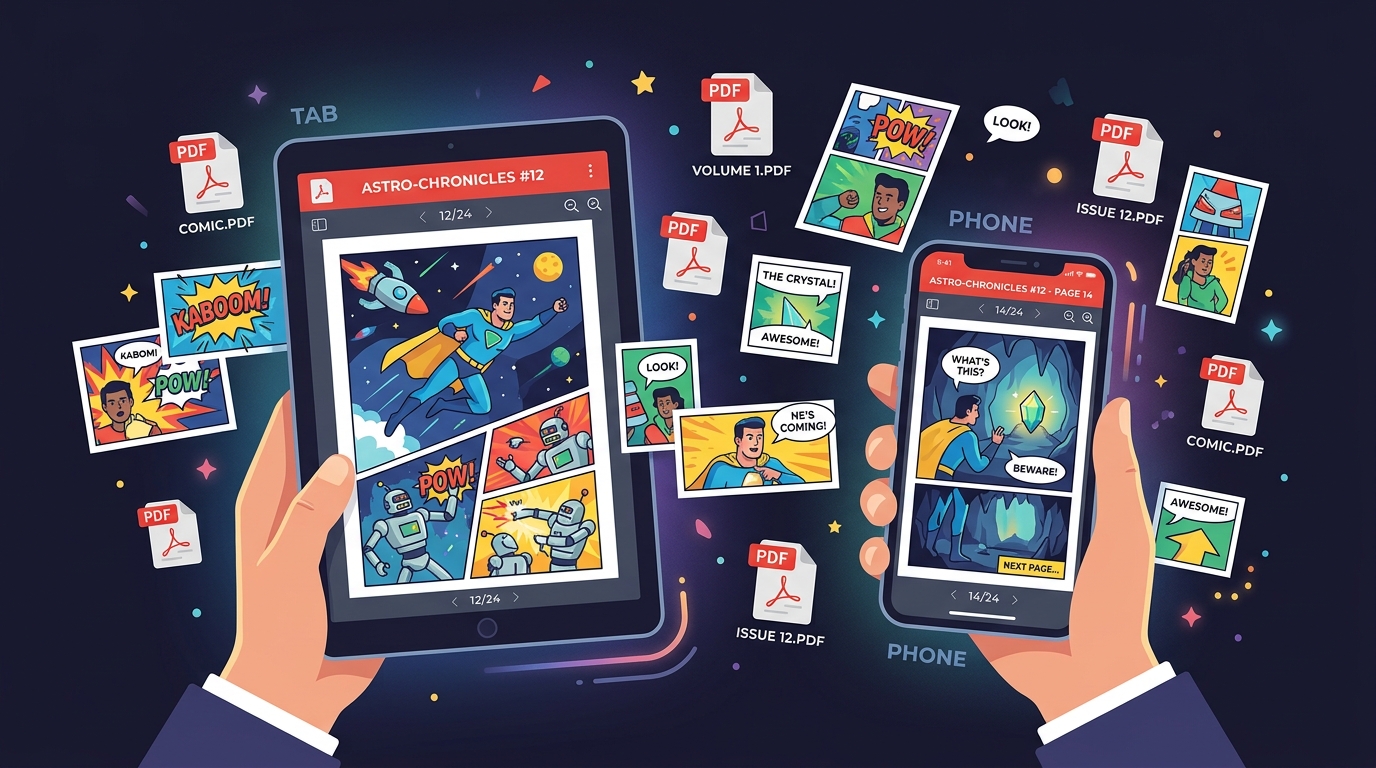
PDF is probably the most common comic file format you already have. If you've bought digital comics from Humble Bundle, downloaded graphic novels from Image Comics, or received review copies from indie creators, you've got PDFs. The problem is that reading them on iPhone or iPad is surprisingly bad if you're using the wrong app.
Apple Books technically opens PDFs. So does the Files app. But neither is built for comics. You get tiny text, awkward zooming, no reading progress, and zero library management. ComicFlow reads PDF comics natively alongside CBR and CBZ files, with a proper full-screen reader, page preloading, and library organization built in.

Why Apple Books Is Bad for Comics
Apple Books handles text-based PDFs fine. Novels, textbooks, reports. But comics are image-heavy documents where layout matters, and Apple Books treats them like any other PDF:
No full-screen reading. The interface chrome (toolbars, page scrubber, margins) eats into your screen. On a 6.1-inch iPhone, that lost space matters when you're trying to read speech bubbles.
Slow page rendering. High-resolution comic pages (especially splash pages and double spreads) stutter when swiping in Apple Books. You'll see blank white frames while pages load. A dedicated comic reader preloads pages in the background so the next page is ready before you swipe.
No reading progress tracking. Close a PDF in Apple Books and good luck remembering which issue of a 50-part series you were on. There's no "continue reading" feature across multiple files.
No library organization. All your PDFs sit in one flat list. No collections, no tags, no ratings. If you have 200 comic PDFs, finding what you want is a scrolling exercise.
No reading modes. Comics, manga, and webtoons all need different reading layouts. Apple Books gives you one: left-to-right page turns. That's it.
Where PDF Comics Come From
Before getting into how to read them, it helps to know why you probably have PDFs in the first place:
| Source | Format You Get | Notes |
|---|---|---|
| Humble Bundle | PDF + CBZ + EPUB | Most popular source for bundles |
| Image Comics | PDF + CBZ | Direct from publisher |
| DriveThru Comics | DRM-free indie and small press | |
| Kickstarter creators | Backer rewards, preview copies | |
| Comic conversions | Converted from CBR/CBZ for sharing | |
| Scanned collections | Vintage comics, out-of-print issues | |
| Library apps (Hoopla, Libby) | PDF (some) | Borrowed digital comics |
PDF is the universal fallback. If a publisher only offers one digital format, it's almost always PDF. That means your comic collection probably has a mix of CBZ for dedicated comic stores and PDF for everything else.
How to Read PDF Comics in ComicFlow
Getting PDF comics into ComicFlow takes about 30 seconds:
Import from Files
- Open the Files app on your iPhone or iPad
- Find your PDF comic files (iCloud Drive, Downloads, or wherever they are)
- Long-press the file and tap Share
- Choose ComicFlow from the share sheet
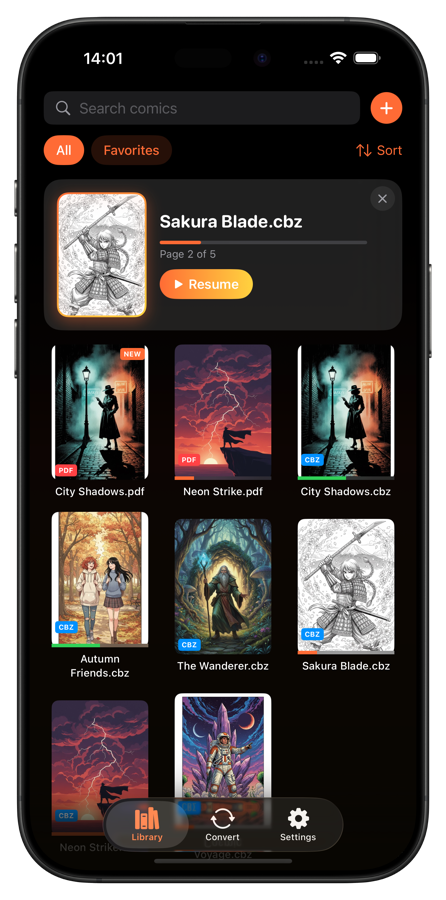
- The comic appears in your library with its cover automatically extracted
Import via AirDrop
If the PDFs are on your Mac:
- Select the files in Finder
- Right-click, Share, AirDrop
- Pick your iPhone or iPad
- When prompted, open in ComicFlow
Import Multiple Files
Got a whole folder of PDFs? You can select multiple files in the Files app and share them all at once. ComicFlow imports them in batch and extracts covers for each one.
PDF vs. CBZ: Does Format Matter?
If you have the same comic available as both PDF and CBZ, which should you use? Here's how they compare for reading on a phone:
| CBZ | ||
|---|---|---|
| Page rendering | Good | Good |
| File size | Usually larger | Usually smaller |
| Zoom quality | Vector text stays sharp | Depends on source resolution |
| Reading speed | Fast | Fast |
| Conversion options | Already PDF | Can convert to PDF in ComicFlow |
| Compatibility | Opens in almost anything | Needs a comic reader app |
For reading in ComicFlow, both formats perform the same. The reader handles PDF pages just like image-based CBZ pages, with full-screen display, preloading, and smooth 60fps swiping.
The one difference: if you want to send a comic to someone who doesn't have a comic reader app, PDF is more convenient since every device can open it. CBZ requires a dedicated reader.
If you have CBR or CBZ files and want PDFs for compatibility, ComicFlow has a built-in converter with three quality presets (High, Medium, Low) that handles the conversion on-device.
Organizing a PDF Comic Library
Once you have more than a dozen PDF comics imported, organization becomes important. ComicFlow treats PDFs the same as any other comic format in its library:
Collections. Create collections for series, publishers, or reading lists. Drag your Humble Bundle PDFs into a "Humble Bundle" collection. Group your manga volumes together. Create a "Read Next" queue.
Ratings and tags. Rate comics as you finish them. Add tags for genre, publisher, or anything else that helps you filter later.
Reading progress. This is the big one. ComicFlow tracks your page position in every PDF automatically. Open a comic and you're right where you left off. The "Continue Reading" section shows your in-progress comics so you never lose your place in a series.
Reading Modes for Different Comic Types
Not all PDF comics read the same way. A Western comic, a manga volume, and a webtoon compilation all have different layouts, and ComicFlow lets you match the reading mode to the content:
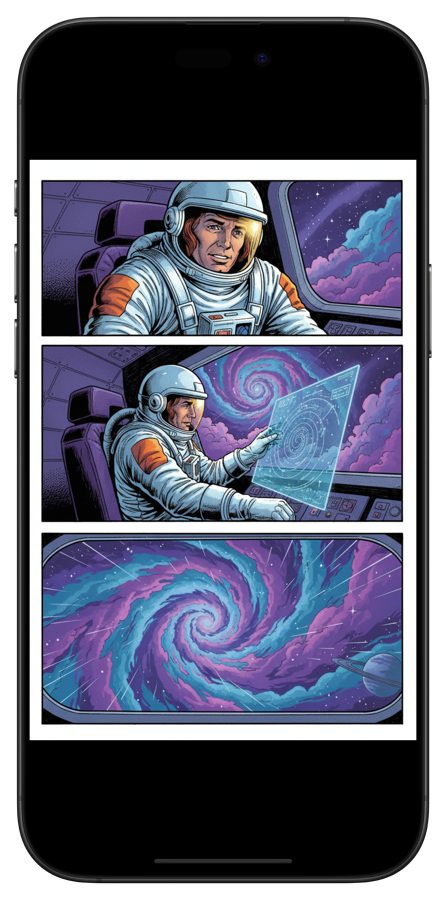
Single page (default). Standard left-to-right page turns. Works for most Western comics and graphic novels.
Right-to-left (manga). Japanese manga reads back-to-front. RTL mode flips the swipe direction so you read pages in the correct order. If your manga PDFs feel "wrong" in other apps, this is probably why.
Vertical scroll. Webtoon compilations packaged as PDFs scroll continuously instead of flipping pages. This matches how webtoons are designed to be read.
Double spread (landscape). Rotate your iPad to landscape and see two pages side by side, just like a physical comic book. Splash pages and double spreads display correctly.
Continuous scroll. Pages flow into each other vertically. Good for long reading sessions where you don't want the interruption of page turns.
PDF Comics on iPad vs. iPhone
The experience differs between devices, and it's worth knowing what to expect:
iPhone works well for standard comic pages. Modern iPhones have sharp enough screens that speech bubbles are readable without zooming on most comics. Manga volumes are particularly comfortable since they're designed for smaller formats. Zooming is there when you need it, but you won't need it often.
iPad is where PDF comics really shine. The larger screen means double-page spreads display at near-print size. Splash pages look incredible. You can read in landscape mode with two pages showing, which is the closest digital experience to holding a physical comic. If you read a lot of graphic novels or oversized format comics, iPad is the better device for it.
Both devices sync through your local file system. Import comics on your iPad for the best reading experience, or keep your collection on your iPhone for reading during commutes. ComicFlow works the same on both.
Tips for the Best PDF Reading Experience
A few things that make PDF comic reading noticeably better:
Download to local storage, not cloud. If your PDFs live in iCloud Drive, they might need to re-download when you open them. Import them into ComicFlow so they're always stored locally and ready instantly.
Check file sizes before importing. Some publisher PDFs are print-resolution (300+ DPI) and can be 500MB per issue. That's overkill for a phone screen. If storage is tight, use ComicFlow's converter to re-export at a smaller size.
Use the right reading mode from the start. If you import a manga PDF and it feels off, switch to RTL mode before you start. It's easier than adjusting mid-read.
Create a "New Imports" collection. When you batch-import 20 PDFs from a Humble Bundle purchase, dump them into a staging collection first. Then sort them into proper series collections as you start reading them.
Rate as you go. It takes one tap. After 50+ comics, your ratings become a reliable guide for what to reread or recommend.
Stop Fighting Apple Books
PDF comics deserve a real comic reader. Apple Books was built for text documents and ebooks, not for image-heavy visual content that needs full-screen display, reading progress across dozens of files, and different reading modes for different formats.
ComicFlow reads PDF comics alongside CBR and CBZ files in one library. Full-screen reader, automatic progress tracking, collections and ratings, five reading modes, and zero internet required. One-time purchase, no subscription, no account needed.
If you've got a stack of PDF comics sitting in your Files app or buried in Apple Books, import them into ComicFlow and see the difference a proper comic reader makes.