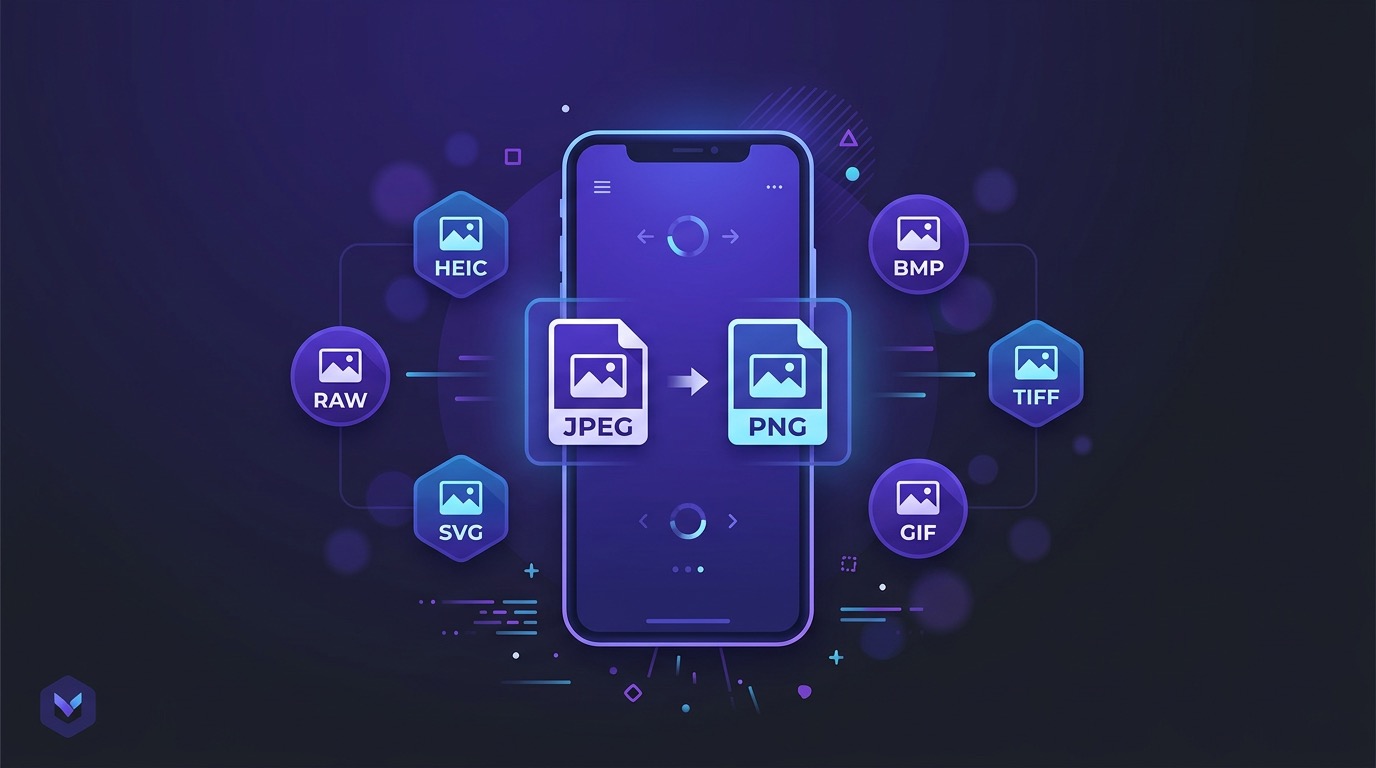
You took a great photo on your iPhone. You try to upload it to a website and it gets rejected. You email it to someone on a Windows PC and they can't open it. You drag it into a web form and nothing happens. The file ends in .heic, and whatever you're trying to do with it doesn't understand that format.
This is one of the most common photo frustrations for iPhone users. Your phone saves photos in HEIC by default, but large parts of the world still expect JPEG. PhotoStrip converts HEIC to JPEG in bulk, right on your iPhone. Select your photos, pick JPEG as the output format, and you're done. No uploads, no subscriptions, no quality loss.

What Is HEIC, Exactly?
HEIC stands for High Efficiency Image Container. It's based on the HEIF (High Efficiency Image Format) standard, which itself uses the same compression technology as H.265 video. Apple adopted it as the default photo format starting with iOS 11 in 2017.
The technical pitch is simple. HEIC produces files that are roughly half the size of equivalent JPEGs while maintaining the same visual quality. A 12-megapixel photo that would be 4MB as a JPEG might only be 2MB as HEIC. Over thousands of photos, that adds up to gigabytes of saved storage.
HEIC also supports features that JPEG doesn't. It can store 10-bit color depth (JPEG maxes out at 8-bit), transparency (like PNG), and even image sequences (Live Photos are stored this way). It's technically a better format in almost every measurable way.
So why would you ever want to leave it behind?
Why Your iPhone Uses HEIC by Default
When Apple switched the default camera format to HEIC, the goal was storage efficiency. iPhones were (and still are) available with fixed storage that can't be expanded. Cutting photo file sizes in half means users can store roughly twice as many photos before hitting their limit.
Apple also uses HEIC for iCloud Photos. Smaller files mean faster syncing and less iCloud storage consumed. For Apple's ecosystem, HEIC makes perfect sense.
The problem is that Apple's ecosystem isn't the whole world. HEIC was designed by the Moving Picture Experts Group (MPEG), and while it's an open standard, adoption outside of Apple has been slow. Windows didn't add native HEIC support until Windows 10 version 1803, and even now some Windows apps still choke on the format. Many websites, upload forms, printing services, and older software simply don't accept HEIC.
When You Actually Need JPEG
Not every situation calls for a conversion. HEIC works fine within Apple's ecosystem. If you're just keeping photos in your Camera Roll, sharing via iMessage, or syncing with iCloud, HEIC causes zero problems.
But here's where you'll run into walls:
Website uploads. Many web forms, CMS platforms, and image uploaders only accept JPEG, PNG, or GIF. Try uploading a .heic file and you'll get an error or a silent failure.
Windows and Android sharing. Sending HEIC photos to someone on a Windows PC or Android phone can result in files they can't open without installing additional software.
Printing services. Online print shops, photo book services, and poster printers typically want JPEG or TIFF. HEIC is rarely listed as an accepted format.
Social media (some platforms). While major platforms like Instagram and Facebook handle HEIC, smaller platforms and forums may not.
Email attachments. The recipient's email client or operating system may not render HEIC thumbnails or previews, leaving them with a generic file icon and confusion.
Professional workflows. Graphic designers, editors, and publishers working across mixed platforms often standardize on JPEG or TIFF to avoid compatibility headaches.
Archival storage. JPEG has been around since 1992 and is supported by virtually every piece of software ever made. HEIC is newer and less universally supported. For long-term archival, JPEG is the safer bet.
The Built-In iPhone Method (And Why It Falls Short)
Apple does offer a setting that automatically converts HEIC to JPEG when transferring photos. Go to Settings > Camera > Formats and you'll see two options:
- High Efficiency (HEIC, the default)
- Most Compatible (JPEG)
Switching to "Most Compatible" makes your camera save all new photos as JPEG going forward.
There's also a transfer setting under Settings > Photos called "Transfer to Mac or PC" with two options:
- Automatic (converts to JPEG when transferring)
- Keep Originals (transfers HEIC as-is)
The limitations are real, though:
- Switching to "Most Compatible" only affects future photos. Your existing library of HEIC photos stays as HEIC.
- The automatic transfer conversion only works when connecting to a Mac or PC. It doesn't help when you need JPEG files on your phone for uploading or sharing.
- You can't selectively convert specific photos. It's all or nothing.
- There's no quality control. You can't choose the JPEG compression level.
- You can't combine conversion with other operations like resizing or metadata removal.
For occasional use, these built-in settings are fine. But if you have hundreds of HEIC photos you need as JPEG, or you want control over the output quality and size, you need a different approach.
How to Batch Convert HEIC to JPEG with PhotoStrip
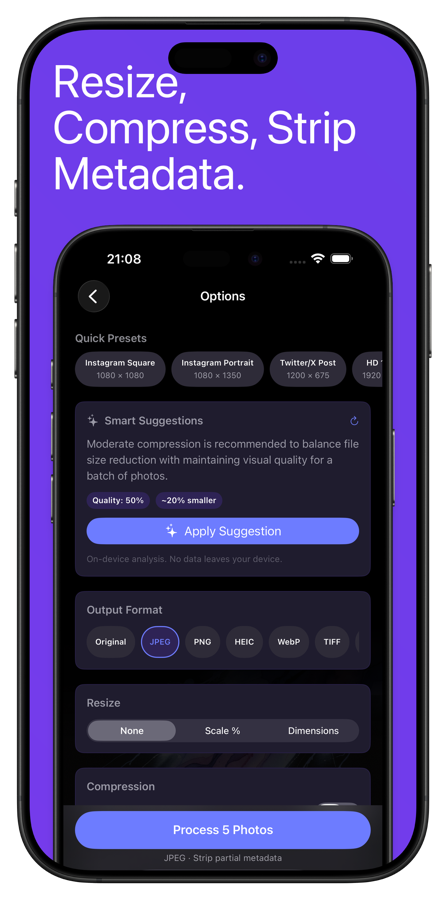
PhotoStrip handles HEIC-to-JPEG conversion as part of its batch photo processing pipeline. You can convert one photo or five hundred, and the process is the same:
1. Select Your Photos
Open PhotoStrip and pick the photos you want to convert. You can select individual shots or grab entire albums. The app shows you file format and size information so you can confirm which photos are HEIC before processing.
2. Set Output Format
In the Options screen, set the output format to JPEG. You'll also see a quality slider that controls JPEG compression. Higher quality means larger files but better image fidelity. Lower quality means smaller files with slightly more compression artifacts.
For most uses, the default quality setting produces files that are visually identical to the HEIC originals. You'd need to zoom in to pixel level to spot any difference.
3. Add Other Operations (Optional)
This is where batch processing gets useful. While you're converting format, you can also:
- Resize photos to a specific resolution (great for web uploads with size limits)
- Strip metadata to remove GPS, camera info, and timestamps for privacy
- Compress to hit a target file size
All of these happen in a single pass. Convert from HEIC to JPEG, resize to 1920px wide, and strip GPS data, all at once.
4. Process
Tap Process and PhotoStrip converts your entire batch on-device. No internet required, no files uploaded anywhere. For a batch of 100 photos, it takes a few seconds on modern iPhones.
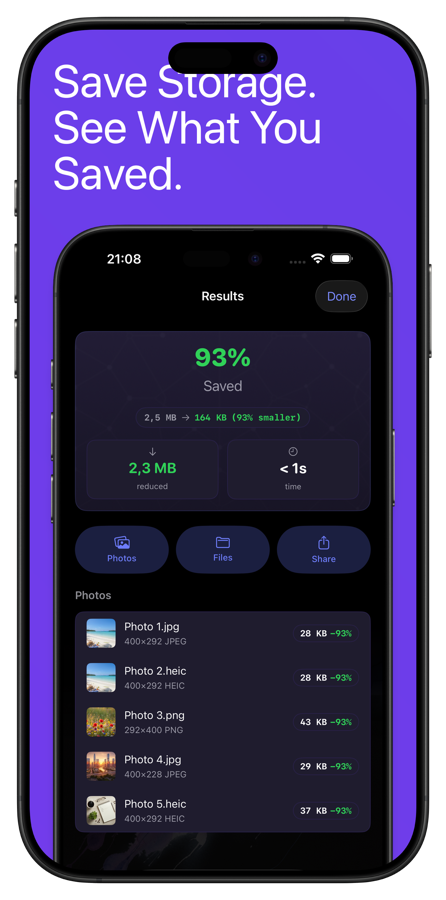
The results screen shows you every processed photo with before-and-after file sizes and formats. You can verify everything looks right before saving or sharing.
Quality Comparison: HEIC vs. JPEG
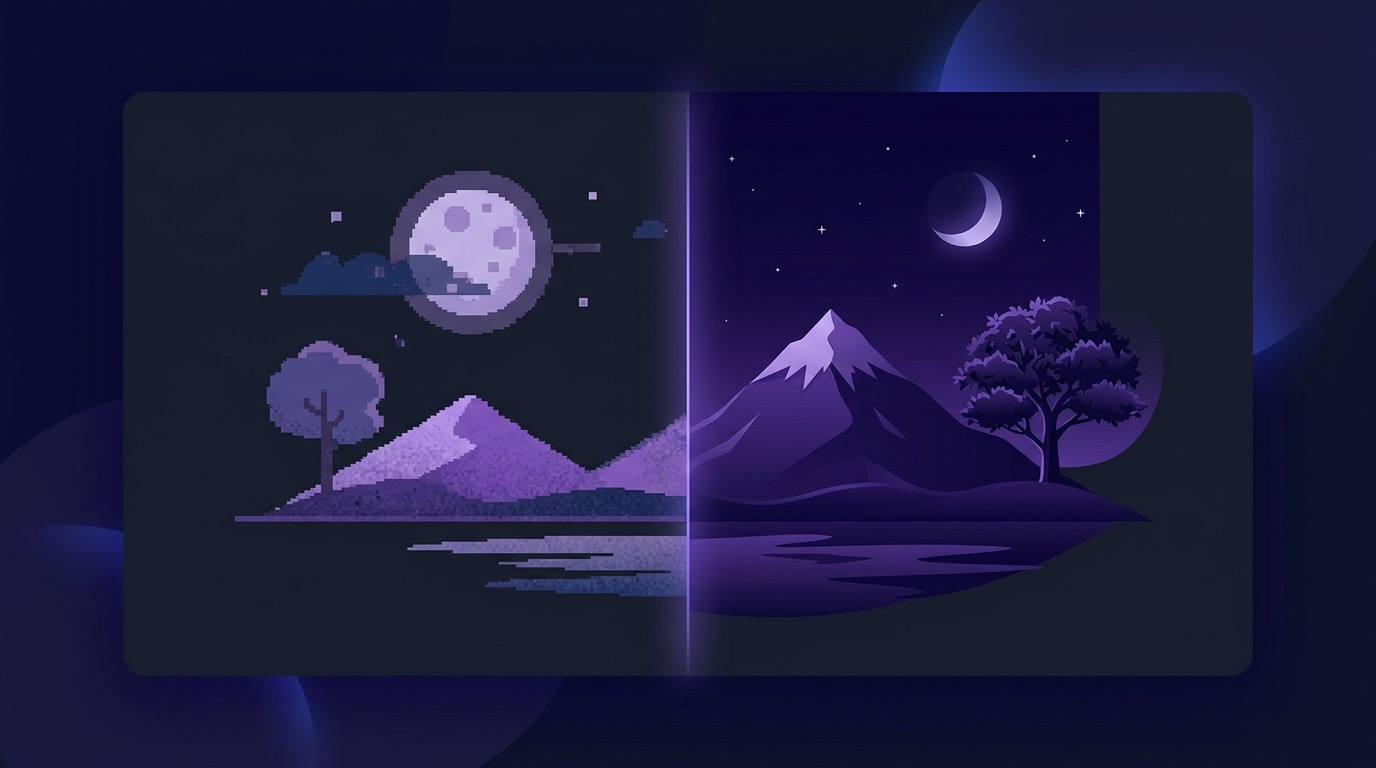
The fear with any format conversion is quality loss. So what actually happens when you convert HEIC to JPEG?
At high quality settings (90-100%): The converted JPEG is virtually indistinguishable from the HEIC original. Side-by-side, even on a large screen, you won't spot differences. The JPEG file will be larger than the HEIC, sometimes significantly, because JPEG compression is less efficient. But the visual quality is preserved.
At medium quality settings (70-85%): Still excellent for screen viewing, social media, and web use. You might notice very slight softening if you zoom in past 200%, but at normal viewing distances the photos look identical. File sizes will be comparable to or smaller than the HEIC originals.
At low quality settings (below 60%): Compression artifacts become noticeable, especially in areas with gradients like skies and skin tones. Only use this if you need the smallest possible files and don't care about zooming in.
The practical takeaway: Converting HEIC to JPEG at 85-95% quality gives you a universally compatible file with no perceptible quality loss for normal viewing. The tradeoff is a larger file size compared to HEIC, but that's the whole reason JPEG is more compatible. It's a simpler, older, more widely understood format.
One thing to keep in mind is that HEIC's 10-bit color depth gets reduced to 8-bit when converting to JPEG. For the vast majority of photos, this makes zero visible difference. You'd only notice it in very specific scenarios involving smooth gradients with subtle color transitions, and even then, only if you were comparing the files side by side on a calibrated display.
Which Format Should You Use When?
There's no single right answer. The best format depends on what you're doing with the photo.
Keep as HEIC when:
- The photos stay on your iPhone or within Apple's ecosystem
- You're syncing with iCloud and want to save storage
- You don't need to share with non-Apple users
- You want the best possible quality at the smallest file size
Convert to JPEG when:
- You're uploading to websites or web forms
- You're sharing with Windows or Android users
- You're sending photos to a printing service
- You're uploading to platforms that don't support HEIC
- You're archiving photos for long-term, universal access
- You're preparing photos for a professional workflow
Switch your camera to JPEG when:
- You regularly share photos outside of Apple's ecosystem and don't want to convert every time
- Storage isn't a concern (you have plenty of free space or unlimited iCloud)
- You work with software that doesn't handle HEIC well
A middle-ground approach: Keep your camera set to HEIC for the storage savings, and batch convert to JPEG only when you need to. This gives you the best of both worlds. Your library stays efficient, and you convert on demand when compatibility matters.
Common Questions About HEIC and JPEG
Is HEIC the same as HEIF?
Mostly. HEIF is the broader format standard, and HEIC is Apple's specific implementation using HEVC (H.265) compression. When people say "HEIC" they almost always mean the .heic files that iPhones produce.
Does converting to JPEG delete the original HEIC file? Not in PhotoStrip. The app creates new JPEG copies and leaves your originals untouched in your photo library.
Is JPG different from JPEG?
No. .jpg and .jpeg are the same format. The three-letter extension comes from older Windows systems that limited file extensions to three characters. They're identical.
Can I convert JPEG back to HEIC? Technically yes, but there's no benefit. Converting JPEG to HEIC won't make the file smaller or higher quality because the quality was already reduced during the initial JPEG compression. You can't recover data that was already discarded.
Will my photos look worse after conversion? At quality settings of 85% or higher, the difference is invisible to the naked eye. PhotoStrip's default settings are tuned to preserve visual quality.
How much larger will my files be? Expect JPEG files to be roughly 1.5x to 2x the size of the HEIC originals at high quality. At medium quality, they'll be about the same size or slightly larger. At low quality, they can actually be smaller.
Stop Fighting File Formats
HEIC is a great format stuck with a compatibility problem. Until the rest of the world catches up to Apple's adoption, you'll occasionally need to convert. The good approach is to keep shooting in HEIC for the storage benefits and convert to JPEG in batches whenever you need universal compatibility.
PhotoStrip makes that conversion fast and painless. Select your photos, pick JPEG, and tap Process. Hundreds of photos converted in seconds, on your device, with full control over quality and file size.