You have 200 photos from a trip. You need to resize them all to fit a website's upload limit, convert them from HEIC to JPEG, and strip the GPS data before posting. Doing that one photo at a time would take all afternoon. Batch processing apps handle the entire set in seconds.
The problem is that most iOS photo apps focus on filters and single-image edits. Finding one that's built for bulk operations takes some digging. I tested the main options available in 2026 for batch resizing, compression, format conversion, and metadata handling. Here's what works.
Quick Comparison
| App | Batch Resize | Compression | Format Convert | Metadata Strip | Watermark | Price |
|---|---|---|---|---|---|---|
| PhotoStrip | Yes (7 modes) | Yes (with AI suggestions) | 6 formats | Yes (GPS, EXIF, all) | Yes | Free + $4.99 Pro |
| Image Size | Yes | No | JPEG/PNG | No | No | Free + $4.99 Pro |
| Compress Photos | Partial | Yes | No | No | No | Free + subscription |
| HEIC Converter | No | No | HEIC to JPEG/PNG | No | No | Free + IAP |
| Batch Resize | Yes | No | No | No | No | Free + $2.99 Pro |
| Shortcuts | Yes (basic) | No | Basic | Limited | No | Free |
1. PhotoStrip

What it does: PhotoStrip is a batch photo toolkit that combines resizing, compression, format conversion, metadata stripping, and watermarking into a single app. Select your photos, pick your operations, and process everything at once. The whole pipeline runs on-device.
Key features:
- Batch process hundreds of photos without the app crashing
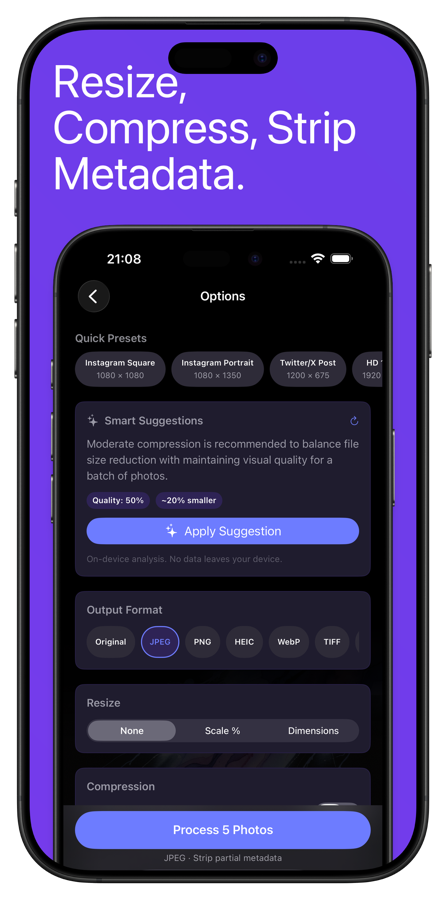
- 7 resize modes: scale percentage, fit within dimensions, exact width, exact height, crop to ratio, exact dimensions, and 6 built-in presets (social media, web, print)
- Convert between 6 formats: HEIC, JPEG, PNG, WebP, TIFF, and GIF
- Strip GPS location, camera info, timestamps, or all metadata at once
- Add text or image watermarks with control over position, opacity, font, and rotation
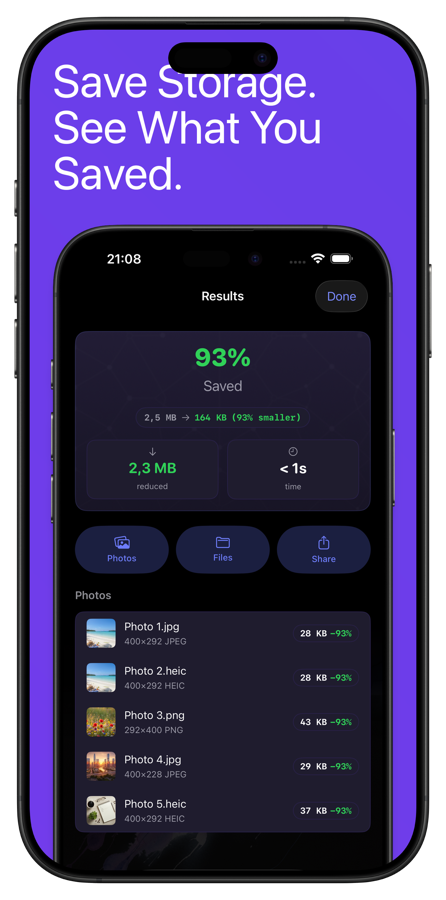
- Before-and-after comparison showing file size savings for every photo
- On-device AI suggestions for optimal compression settings
Pricing: Free to download with basic features. Pro unlock for $4.99 (one-time) removes limits and unlocks all features including watermarking and advanced resize modes.
Best for: Anyone who regularly needs to prepare batches of photos for the web, social media, printing, or sharing, and wants one app that does it all.
Pros:
- The only app on this list that handles resize, compress, convert, strip, and watermark in one place
- One-time purchase instead of a subscription
- Processes hundreds of photos reliably (tested with 500+ photos without issues)
- 100% on-device processing. Photos never leave your phone
- The before/after results screen with file size breakdowns is genuinely useful
- AI compression suggestions take the guesswork out of quality settings
- WebP and TIFF support is rare among iOS batch tools
Cons:
- The free tier has limitations that push you toward the Pro unlock
- No filter or color adjustment tools (it's a processing tool, not a photo editor)
- No cloud sync or cross-device workflow
- Relatively new app, so the community and documentation are still growing

2. Image Size

What it does: Image Size is a focused resizing tool. You pick photos, set target dimensions (pixels, millimeters, centimeters, or inches), and the app resizes them. It can output as JPEG or PNG and lets you adjust quality/compression during export.
Key features:
- Resize by pixels, mm, cm, or inches
- Maintain aspect ratio or set custom dimensions
- Output as JPEG or PNG
- DPI adjustment for print workflows
- Batch mode for processing multiple photos
Pricing: Free with ads. Pro version for $4.99 removes ads and unlocks batch mode.
Best for: People who primarily need to resize photos to specific dimensions and don't need other processing features.
Pros:
- Very focused and easy to understand. It does one thing well
- The dimension input supports multiple units, which is helpful for print
- DPI control is useful if you're preparing images for print
- Clean interface with no clutter
Cons:
- Resizing is really all it does. No compression controls, no metadata stripping, no watermarks
- Batch mode requires the Pro purchase
- Only outputs JPEG and PNG. No HEIC, WebP, TIFF, or GIF
- No format conversion (HEIC to JPEG, etc.)
- The free version has frequent ads
- If you need anything beyond resizing, you'll need a second app
3. Compress Photos & Pictures

What it does: Compress Photos is a single-purpose compression tool. Select photos, set a quality level, and it creates compressed copies. The goal is reducing file size for storage or sharing.
Key features:
- Quality slider for controlling compression level
- Batch compression of multiple photos at once
- Shows before-and-after file sizes
- Option to resize during compression
- Can delete originals after compression to free up space
Pricing: Free with ads. Subscription ($3.99/month or $19.99/year) removes ads and unlocks unlimited batch size.
Best for: People who specifically need to reduce photo file sizes for storage or sharing and want a simple tool for it.
Pros:
- Very simple interface. Slider and a button, that's basically it
- The before/after size comparison is helpful
- Batch processing works reliably
- The "delete originals" option is convenient for freeing up storage quickly
Cons:
- Subscription pricing for a compression tool feels steep
- No format conversion. Input and output are the same format
- No metadata stripping
- No watermarking
- Resize feature is basic compared to dedicated resize tools
- The monthly subscription model means you're paying forever for a simple utility
- Free version limits batch size and shows ads
4. HEIC Converter

What it does: HEIC Converter does exactly what the name says: it converts HEIC photos to JPEG or PNG. Select your HEIC files, pick an output format and quality, and it creates converted copies.
Key features:
- Convert HEIC to JPEG or PNG
- Quality slider for output files
- Batch conversion of multiple photos
- Share converted files directly from the app
- Preserves or strips EXIF data (depending on version)
Pricing: Free with ads. In-app purchase ($2.99-$4.99) to remove ads and unlock unlimited conversions.
Best for: People who only need HEIC-to-JPEG conversion and don't want to pay for a larger toolkit.
Pros:
- Does one thing and does it correctly
- Simple enough that anyone can use it immediately
- Quality control on the output JPEG
- Batch conversion works for multiple files at once
Cons:
- Only converts from HEIC. Can't convert between other formats
- No resizing, compression optimization, metadata stripping, or watermarking
- Can't convert to WebP, TIFF, or GIF
- Ads in the free version
- Very narrow use case. If Apple ever adds native HEIC conversion to Photos, this app becomes unnecessary
- No before/after size comparison
5. Batch Resize

What it does: Batch Resize is a simple, focused resizing app. Pick photos, set dimensions or a percentage, and resize. It's similar to Image Size but with a slightly different interface approach.
Key features:
- Resize by percentage or specific pixel dimensions
- Maintain aspect ratio option
- Process multiple photos in one batch
- Output to Camera Roll or share directly
Pricing: Free with ads. Pro version ($2.99) removes ads and increases batch limits.
Best for: Quick batch resizing when you don't need any other processing features.
Pros:
- Simple and fast. Minimal setup required
- Percentage-based resizing is handy when you just want everything 50% smaller
- Cheap Pro upgrade
- Lightweight app that doesn't take up much storage
Cons:
- Just resizing. No compression, conversion, metadata, or watermarks
- No format selection. Outputs in the same format as the input
- Interface is functional but dated
- Limited resize options compared to apps like PhotoStrip or Image Size
- No DPI adjustment for print
- Free version has ads and batch limits
6. Shortcuts (Apple's Built-In Automation)
What it does: Apple's Shortcuts app can automate basic photo processing tasks. You build (or download) a workflow that selects photos, applies operations, and saves the results. It's not a photo editor, but it can handle batch resize, format conversion, and some metadata operations through automation.
Key features:
- Built into iOS, no download needed
- Automate repetitive photo tasks with visual workflows
- Can resize, convert format, and do basic adjustments
- Shareable shortcuts from the community
- Integrates with other apps and system features
Pricing: Free (pre-installed).
Best for: Tech-comfortable users who want a free solution and don't mind building or downloading automation workflows.
Pros:
- Already on your iPhone. Nothing to install or pay for
- Can handle basic batch resize and format conversion
- Shareable workflows mean you can find pre-built solutions online
- Integrates with Files, Photos, and other system apps
- Can be triggered from the Share Sheet for quick access
Cons:
- Building workflows requires understanding the Shortcuts interface, which has a learning curve
- Photo processing actions are limited compared to dedicated apps
- No visual preview of changes before processing
- Error handling is minimal. If something goes wrong mid-batch, debugging is frustrating
- No before/after comparison
- Can't handle advanced operations like AI-optimized compression or watermarking
- Pre-built community shortcuts may not do exactly what you need
- Slower than dedicated apps for large batches
Why Batch Processing Matters
Single-image editing apps are everywhere. But batch processing fills a different need entirely. Here are the situations where processing photos one at a time just doesn't work:
Website and blog uploads. Most platforms have file size limits (often 5MB or less per image). If you're uploading 50 product photos or travel shots, resizing and compressing each one individually would take an hour. Batch tools do it in under a minute.
Privacy before sharing. Every iPhone photo embeds GPS coordinates, timestamps, and camera details in its metadata. Before sharing photos online or sending them to people you don't fully trust, stripping that metadata in bulk is the responsible move. Doing it per-photo is tedious. Doing it in batch is instant.
Format compatibility. Your iPhone shoots HEIC. Your website wants JPEG. Your print shop wants PNG at 300 DPI. Your designer wants WebP. Converting formats one file at a time is a waste of your afternoon. Batch conversion handles the entire folder in seconds.
Storage management. After a vacation, you might have 500 photos taking up 3GB. Batch compression can cut that in half while keeping photos that look identical at normal viewing sizes. That's real storage reclaimed with minimal effort.
Professional workflows. Photographers, social media managers, e-commerce sellers, and anyone who regularly processes large numbers of images needs batch tools. The time savings compound fast when you're doing this weekly or daily.
On-Device vs. Cloud Processing
One thing worth paying attention to is where your photos actually get processed.
On-device processing means your photos never leave your iPhone. The app does all the work locally using your phone's processor. This is better for privacy (no one else sees your photos) and works without an internet connection. PhotoStrip, Image Size, Batch Resize, and Shortcuts all process on-device.
Cloud processing means the app uploads your photos to a server, processes them there, and sends the results back. This can be faster for very heavy operations but raises privacy concerns. Your photos pass through someone else's servers, and you're trusting that they delete them afterward. Some compression apps use this approach, so check before uploading anything sensitive.
If privacy matters to you (and it should, especially with photos containing location data), stick with apps that process locally.
Which App Should You Pick?
"I need to resize, compress, convert, AND strip metadata." Get PhotoStrip. It's the only app that handles all of these in a single pass. $4.99 once and you're done.
"I only need to resize photos." Image Size or Batch Resize both work. Image Size has more options (DPI, multiple units). Batch Resize is simpler and cheaper.
"I only need to shrink file sizes." Compress Photos does that one job. Just be aware of the subscription pricing.
"I only need HEIC to JPEG conversion." HEIC Converter is fine for that narrow use case, though PhotoStrip does the same thing plus everything else.
"I don't want to pay anything." Shortcuts can handle basic resize and conversion for free, but you'll spend time building the workflow and it lacks visual feedback. The free tiers of the other apps work too, with limitations.
"I process photos regularly for work." PhotoStrip is the clear pick for professional workflows. One app, one purchase, every operation you need. The time savings over juggling multiple single-purpose apps adds up fast.
For most people, the practical choice is between a single all-in-one tool or a collection of free apps that each handle one task. If you batch process photos more than occasionally, the all-in-one approach saves both time and hassle.
Start Processing
If you're tired of resizing photos one at a time or juggling three apps to convert, compress, and strip metadata, PhotoStrip puts all of it in one place. Download it, select your photos, pick your operations, and tap Process. Hundreds of photos handled in seconds, all on your device.
Your photos are ready. Your tools should be too.