<?xml version="1.0" encoding="utf-8"?>
<feed xmlns="http://www.w3.org/2005/Atom" xml:lang="zh-Hant">
    <title>Applestan 部落格 (繁體中文)</title>
    <subtitle>在 iPhone 和 iPad 上閱讀漫畫、CBR、CBZ 與漫畫書的教學與比較,來自 Applestan。</subtitle>
    <link href="https://applestan.com/zh-hant/feed.xml" rel="self" type="application/atom+xml"/>
    <link href="https://applestan.com/zh-hant/blog/" rel="alternate" type="text/html" hreflang="zh-Hant"/>
    <updated>2026-10-10T00:00:00.000Z</updated>
    <id>https://applestan.com/zh-hant/blog/</id>
    <author>
        <name>Navid Gooran</name>
        <email>gooran@gmail.com</email>
    </author>
    <entry>
        <title>在 iPhone 上閱讀 CBR 和 CBZ 檔案：真正好用的 2 款 App（2026）</title>
        <link href="https://applestan.com/zh-hant/blog/posts/iphone-yuedu-cbr-cbz-dangan/" rel="alternate" type="text/html" hreflang="zh-Hant"/>
        <id>https://applestan.com/zh-hant/blog/posts/iphone-yuedu-cbr-cbz-dangan/</id>
        <published>2026-10-10T00:00:00.000Z</published>
        <updated>2026-10-10T00:00:00.000Z</updated>
        <summary>如何在 iPhone 或 iPad 上開啟 CBR 和 CBZ 漫畫檔案。值得考慮的兩款閱讀器、坦率的優缺點，以及那些看似可行其實行不通的辦法。</summary>
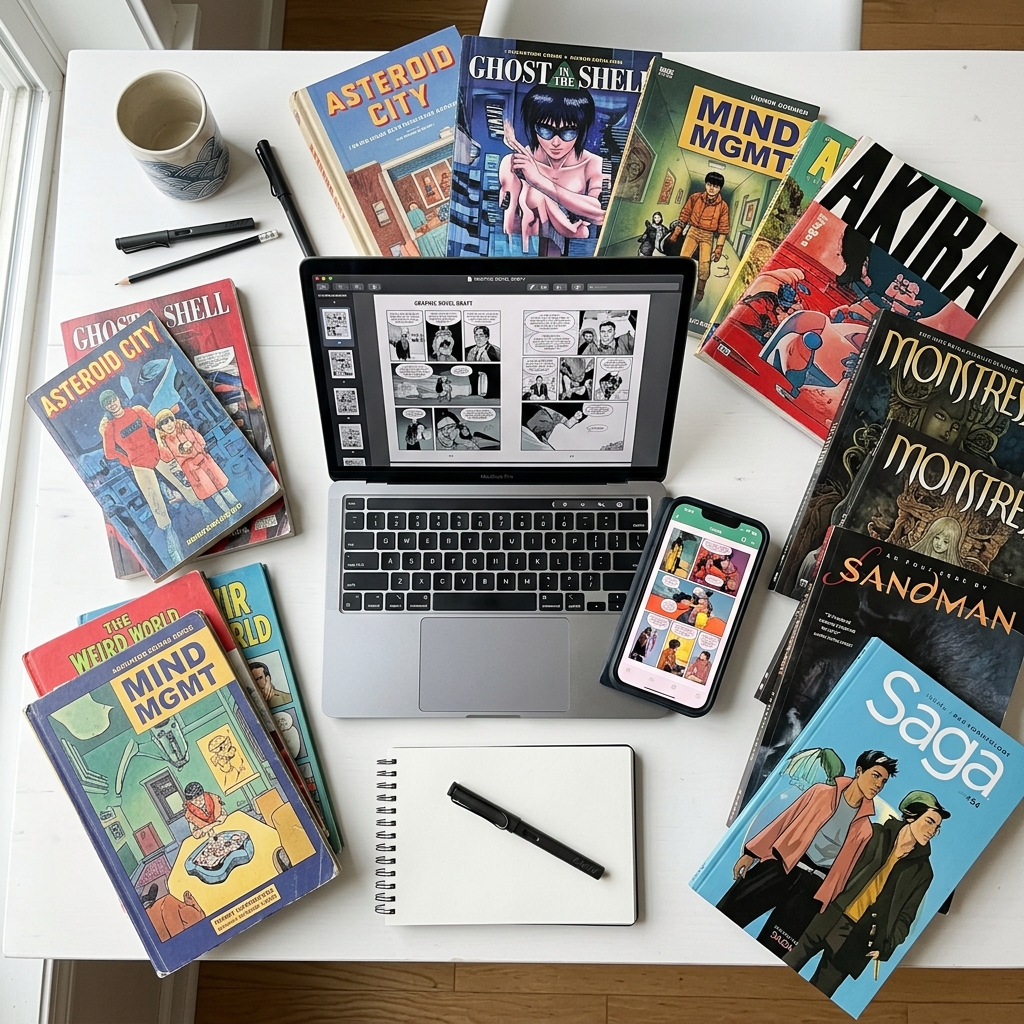
        <content type="html"><![CDATA[<p><img src="/blog/posts/images/read-cbr-cbz-hero.jpg" alt="用 ComicFlow 在 iPhone 上閱讀 CBR 和 CBZ 漫畫檔案"></p>
<p>iPhone 沒有內建的方式來開啟 CBR 或 CBZ 檔案。在「檔案」裡點一下沒有任何反應，Apple 圖書也會拒絕。要閱讀它們，需要一個專門的漫畫閱讀器 App。下面介紹值得考慮的兩款、各自擅長的地方、那些看似可行其實行不通的辦法，以及怎麼選。</p>
<blockquote>
<p><strong>宣告：</strong> 我是 <a href="https://apps.apple.com/tw/app/comicflow-cbr-cbz-to-pdf/id6757245069">ComicFlow</a> 的開發者，它是本文推薦的兩款 App 之一。我儘量做到公平比較，Panels 更合適的地方我會直接說明。</p>
</blockquote>
<div class="blog-app-cta"><a href="https://apps.apple.com/tw/app/comicflow-cbr-cbz-to-pdf/id6757245069"><img src="/assets/images/appstore_badge_white.svg" alt="在 App Store 下載 ComicFlow" width="120" height="40"></a></div>
<hr>
<h2 id="section">簡短版 <a class="heading-anchor" href="#section" aria-label="Link to this section">#</a></h2>
<ul>
<li><strong>iPhone 自己打不開 CBR 和 CBZ。</strong> 它們是裝著圖片的 RAR 和 ZIP 壓縮檔，iOS 不會把它們當作可閱讀的漫畫</li>
<li><strong>你需要一款閱讀器 App。</strong> 2026 年值得考慮的有兩款：ComicFlow 和 Panels</li>
<li><strong>對大多數人：</strong> 裝一個閱讀器，在「檔案」裡輕點檔案，選擇「用 [App] 開啟」就行。日常閱讀不需要轉換</li>
<li><strong>只在需要時才轉成 PDF：</strong> 分享、用 Apple 圖書閱讀或列印</li>
</ul>
<hr>
<h2 id="iphone-cbr-cbz">為什麼 iPhone 打不開 CBR 和 CBZ <a class="heading-anchor" href="#iphone-cbr-cbz" aria-label="Link to this section">#</a></h2>
<p>技術原因一段話講清。<code>.cbz</code> 檔案就是普通的 ZIP 壓縮檔，裡面是圖片檔案（通常是 JPEG 或 PNG，每頁一張，按順序編號）。<code>.cbr</code> 檔案是裝著同樣內容的普通 RAR 壓縮檔。iOS 從 iOS 13 起能解壓 ZIP，但沒有任何內建的 RAR 支援，因為 Apple 從未獲得這個格式的授權。就算是 iOS 能當 ZIP 開啟的 CBZ，系統也不知道這些圖片是要按順序當漫畫來讀的。你得到的是一個零散圖片的資料夾，而不是閱讀體驗。</p>
<hr>
<h2 id="section-1">看似可行其實行不通的辦法 <a class="heading-anchor" href="#section-1" aria-label="Link to this section">#</a></h2>
<p><strong>把 <code>.cbz</code> 改名為 <code>.zip</code>，在「檔案」裡開啟。</strong> 壓縮檔會被解開，你得到 <code>page_001.jpg</code>、<code>page_002.jpg</code> 等一堆圖片。要「閱讀」就得在「照片」裡一張張滑動：不能適應頁面，沒有雙頁，不記住進度，也沒有漫畫用的從右到左模式。12 頁還能忍，200 頁就是折磨。</p>
<p><strong>用 Apple 圖書開啟。</strong> 圖書只接受 PDF 和 EPUB，不接受 CBR 和 CBZ。這是大多數人最先嚐試的辦法，所以下面單獨講。</p>
<p><strong>iCloud 雲碟預覽。</strong> 有時能顯示第一頁，但沒法翻頁。</p>
<p><strong>捷徑 App。</strong> 把 CBZ 解壓後用「照片」幻燈片開啟圖片的捷徑，處理很小的檔案還行，超過約 30 MB 就吃力，也不支援從右到左。</p>
<p><strong>網頁轉換器。</strong> CloudConvert 或 Zamzar 能把 CBR 轉成 PDF，但你得把檔案上傳給第三方、等待、再下載 PDF。偶爾一次可以，整個書庫就不合適了。而且多數網站的上傳上限在 100 MB 左右，很多漫畫比這大。</p>
<hr>
<h2 id="apple-cbz-cbr">Apple 圖書能讀 CBZ 或 CBR 嗎？ <a class="heading-anchor" href="#apple-cbz-cbr" aria-label="Link to this section">#</a></h2>
<p><strong>不能。</strong> Apple 圖書只讀 EPUB 和 PDF。<code>.cbz</code> 或 <code>.cbr</code> 會提示不支援的檔案類型，即使某些舊教學說可以。</p>
<p>現實中有兩個選擇。</p>
<p><strong>1. 用能直接開啟檔案的閱讀器。</strong> 如果目的是在 iPhone 上看漫畫，既不需要 Apple 圖書，也不需要轉換。下面兩款閱讀器都能原樣開啟 CBZ 或 CBR。對大多數人來說，這才是正確答案。</p>
<p><strong>2. 轉成 PDF 再用圖書閱讀。</strong> 這確實可行，也有合理的理由，但代價不小：</p>
<ul>
<li><strong>從右到左的順序沒了。</strong> 圖書裡的 PDF 沒有 RTL 開關。漫畫會往錯誤的方向翻，事後也沒法修復。這是最大的問題。如果你看日本漫畫，轉到圖書這條路是錯的。</li>
<li><strong>每一頁都被重新編碼。</strong> 你要選一個畫質等級，這是實打實的取捨：高畫質保留細節但檔案很大，低畫質檔案小但掃描頁裡的小字會變糊。PDF 是原件的第二代複製。</li>
<li><strong>你要維護兩個檔案。</strong> CBZ 和 PDF。刪錯一個，要麼丟了存檔，要麼丟了閱讀副本。</li>
<li><strong>跨頁變得彆扭。</strong> CBZ 裡的跨頁是一張寬圖。變成 PDF 頁面後仍然是一張寬頁，豎屏下顯得很小。iPad 上還行，手機上就侷促了。</li>
</ul>
<p>圖書會記住 PDF 的閱讀位置，這一點沒問題。</p>
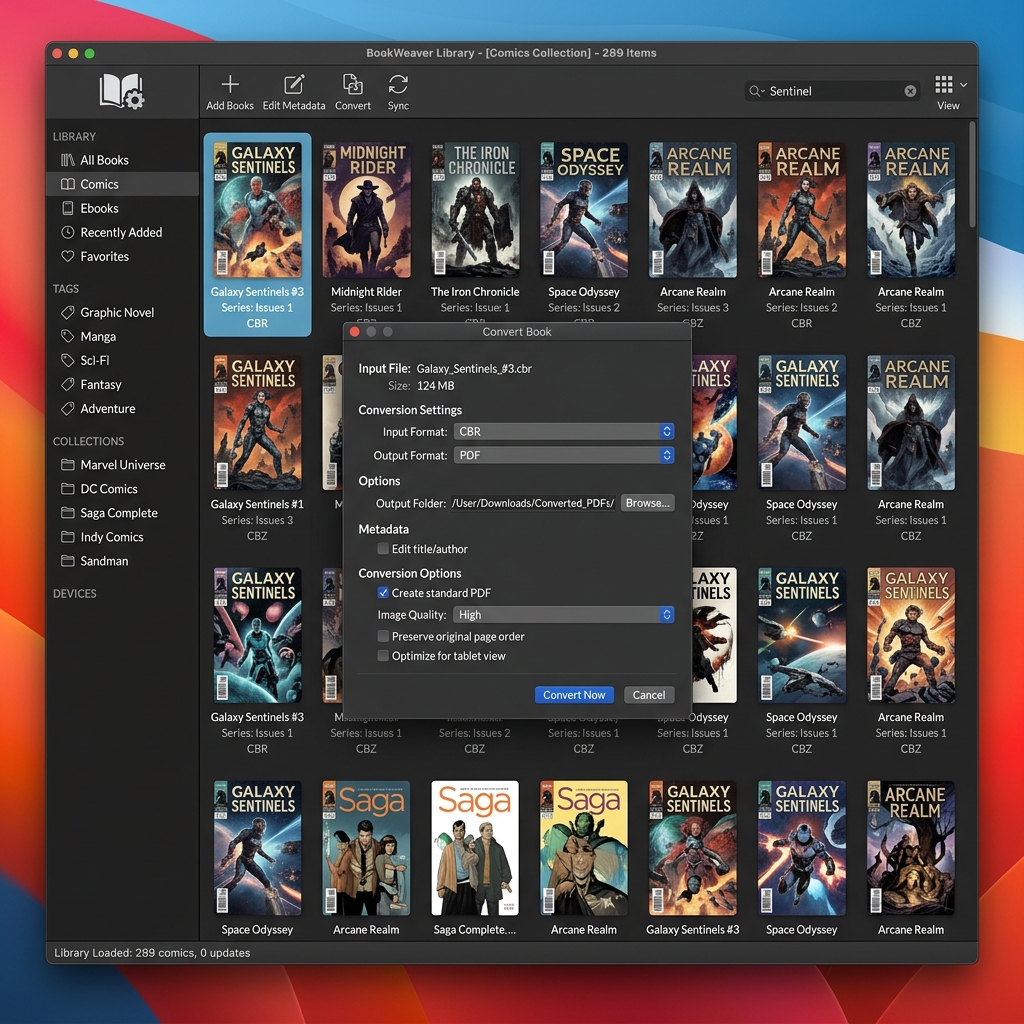
<p><strong>轉換真正合適的情況：</strong> 你的書庫都在圖書裡，想讓漫畫和電子書放一起；你在 Mac 上閱讀；想把檔案給沒有漫畫閱讀器的人；或者想做批註、列印。這時 ComicFlow 在裝置上轉換，不用上傳。選高/中/低，PDF 就會出現在「檔案」裡，可以直接在圖書中開啟。如果要一次轉幾百個檔案，Mac 或電腦上免費的 <a href="https://calibre-ebook.com/">Calibre</a> 更合適。完整步驟見 <a href="/blog/posts/convert-cbr-cbz-to-pdf-iphone/">如何在 iPhone 上把 CBR 和 CBZ 轉成 PDF</a>（英文）。</p>
<p>對於真正的書，以及在 Apple 裝置之間同步混合書庫，Apple 圖書比任何漫畫閱讀器都強。它只是不是漫畫閱讀器，而為了讓它變成漫畫閱讀器去轉換漫畫，代價比多數人預想的高。</p>
<hr>
<h2 id="section-2">值得考慮的兩款閱讀器 <a class="heading-anchor" href="#section-2" aria-label="Link to this section">#</a></h2>
<h3 id="panels">Panels <a class="heading-anchor" href="#panels" aria-label="Link to this section">#</a></h3>
<p>介面漂亮，雲端同步是這一類裡最強的（Dropbox、Google Drive、OPDS）。支援 CBR、CBZ 和 PDF。價格是 $10 買斷，雲功能另收每年 $30。如果你有成千上萬期漫畫分散在多個雲端服務裡，或者自建了 Komga、Kavita 伺服器並想用 OPDS，選 Panels。缺點是它為重度收藏者而做，價格也反映了這一點。</p>
<p><a href="https://apps.apple.com/us/app/panels-comic-reader/id1236567663">App Store 上的 Panels</a></p>
<h3 id="comicflow">ComicFlow <a class="heading-anchor" href="#comicflow" aria-label="Link to this section">#</a></h3>
<p>最適合「打開檔案，讀，完事」。$2.99 一次性購買，沒有訂閱，沒有廣告，沒有追蹤。可開啟 CBR、CBZ、RAR、ZIP 和 PDF，需要時還內建 CBR/CBZ 轉 PDF。<strong>它刻意沒有的功能：</strong> 雲端書庫同步、OPDS、按檔名自動匹配系列、伺服器串流。需要這些的話，Panels 更合適。ComicFlow 面向的是普通使用者，也就是 iCloud 裡有幾百個檔案、只想讀的人。</p>
<p><a href="https://apps.apple.com/tw/app/comicflow-cbr-cbz-to-pdf/id6757245069">App Store 上的 ComicFlow</a></p>
<h3 id="section-3">怎麼選 <a class="heading-anchor" href="#section-3" aria-label="Link to this section">#</a></h3>
<ul>
<li><strong>5000 期以上、多個雲端服務、OPDS 伺服器</strong> → Panels</li>
<li><strong>iCloud 或本機檔案、一次性買斷、不想訂閱</strong> → ComicFlow</li>
</ul>
<p>兩款都好用。真正選錯的是乾脆不看自己的漫畫。</p>
<div class="blog-phone-screenshot">
  <a href="https://apps.apple.com/tw/app/comicflow-cbr-cbz-to-pdf/id6757245069">
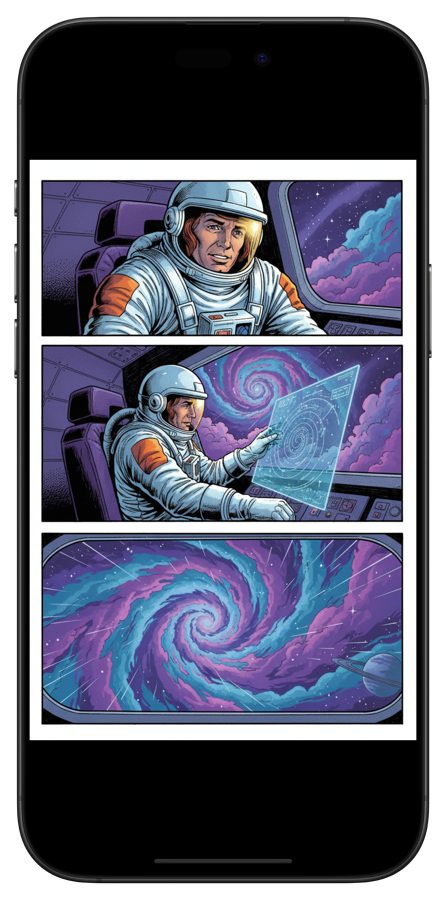
    <img src="/blog/posts/images/comicflow-reader.png" alt="ComicFlow 漫畫閱讀器在 iPhone 上顯示一本科幻漫畫">
  </a>
</div>
<hr>
<h2 id="cbr-cbz">有了閱讀器之後怎麼開啟 CBR/CBZ <a class="heading-anchor" href="#cbr-cbz" aria-label="Link to this section">#</a></h2>
<p>兩款 App 的流程相同：</p>
<ol>
<li><strong>從「檔案」：</strong> 開啟「檔案」，找到漫畫檔案，輕點並選擇「用 [App] 開啟」</li>
<li><strong>從 Safari：</strong> 輕點下載好的檔案，分享並選擇你的閱讀器</li>
<li><strong>從郵件：</strong> 輕點附件並分享給閱讀器</li>
<li><strong>從隔空投送：</strong> 從 Mac 隔空投送，選擇閱讀器作為目的地</li>
<li><strong>從 Dropbox/Google Drive：</strong> 在雲碟 App 中開啟檔案，分享並選擇閱讀器</li>
</ol>
<p>匯入後，漫畫會保留在 App 的書庫裡，可離線閱讀，坐飛機時很方便。所有傳輸方式見 <a href="/blog/posts/transfer-comics-to-iphone/">如何把漫畫從電腦或 Mac 傳到 iPhone</a>（英文）。</p>
<hr>
<h2 id="5">5 種支援格式速查 <a class="heading-anchor" href="#5" aria-label="Link to this section">#</a></h2>
<table>
<thead>
<tr>
<th>格式</th>
<th>副檔名</th>
<th>是什麼</th>
<th>能在 iPhone 上讀嗎</th>
<th>能轉成 PDF 嗎</th>
</tr>
</thead>
<tbody>
<tr>
<td>Comic Book RAR</td>
<td><code>.cbr</code></td>
<td>裝著圖片的 RAR 壓縮檔</td>
<td>能（需要閱讀器 App）</td>
<td>能</td>
</tr>
<tr>
<td>Comic Book ZIP</td>
<td><code>.cbz</code></td>
<td>裝著圖片的 ZIP 壓縮檔</td>
<td>能（需要閱讀器 App）</td>
<td>能</td>
</tr>
<tr>
<td>RAR</td>
<td><code>.rar</code></td>
<td>與 CBR 相同，副檔名不同</td>
<td>能（需要閱讀器 App）</td>
<td>能</td>
</tr>
<tr>
<td>ZIP</td>
<td><code>.zip</code></td>
<td>與 CBZ 相同，副檔名不同</td>
<td>能（需要閱讀器 App）</td>
<td>能</td>
</tr>
<tr>
<td>PDF</td>
<td><code>.pdf</code></td>
<td>標準文件格式</td>
<td>能（圖書或任何 PDF 閱讀器）</td>
<td>無需轉換</td>
</tr>
</tbody>
</table>
<p><code>.cb7</code>（7-Zip 壓縮檔）很少見，大多數閱讀器打不開，ComicFlow 也一樣。需要先在 Mac 上用 Calibre 之類的工具轉換。</p>
<hr>
<h2 id="ios">iOS 上的檔案大小 <a class="heading-anchor" href="#ios" aria-label="Link to this section">#</a></h2>
<p>匯入大型 CBR 檔案前，要知道檔案大小差別很大。掃描的合集卷可能有 300 MB，高解析度重新掃描的存檔 CBZ 可能超過 1 GB。要有兩點心理準備：</p>
<ul>
<li><strong>iOS 對每個 App 有記憶體限制。</strong> 特別大的 CBR 檔案（超過 500 MB）第一次解壓時可能會卡頓。讀過一次之後會被快取，速度就快了。</li>
<li><strong>iCloud 按需同步檔案。</strong> 輕點一個還沒讀過的 CBR，視網路情況可能要等幾秒下載。</li>
</ul>
<hr>
<h2 id="section-4">試一試 <a class="heading-anchor" href="#section-4" aria-label="Link to this section">#</a></h2>
<ol>
<li>安裝 <a href="https://apps.apple.com/tw/app/comicflow-cbr-cbz-to-pdf/id6757245069">ComicFlow</a>（$2.99 買斷）或 <a href="https://apps.apple.com/us/app/panels-comic-reader/id1236567663">Panels</a>（$10 加每年 $30）</li>
<li>輕點第一個檔案，選擇「用 [App] 開啟」</li>
<li>開始閱讀</li>
</ol>
<p>兩款都能離線使用，也都不需要賬號。按書庫規模和預算來選，而不是看哪個最便宜。</p>
<div class="blog-app-cta"><a href="https://apps.apple.com/tw/app/comicflow-cbr-cbz-to-pdf/id6757245069"><img src="/assets/images/appstore_badge_white.svg" alt="在 App Store 下載 ComicFlow" width="120" height="40"></a></div>
<hr>
<h2 id="section-5">相關文章 <a class="heading-anchor" href="#section-5" aria-label="Link to this section">#</a></h2>
<ul>
<li><a href="/zh-hant/blog/posts/cbr-zhuan-pdf-gongju-bijiao/">最好用的 CBR 轉 PDF 工具</a></li>
<li><a href="/blog/posts/best-comic-reader-apps-iphone/">2026 年 iPhone 上最好的漫畫閱讀器 App（英文）</a></li>
<li><a href="/blog/posts/comic-book-file-formats-explained/">漫畫檔案格式詳解：CBR、CBZ 與 PDF（英文）</a></li>
<li><a href="/blog/posts/transfer-comics-to-iphone/">如何把漫畫從電腦或 Mac 傳到 iPhone（英文）</a></li>
</ul>
]]></content>
        <author>
            <name>Navid Gooran</name>
        </author>
        <category term="comics"/>
        <category term="comicflow"/>
        <category term="guide"/>
    </entry>
    <entry>
        <title>CBR 轉 PDF 工具推薦：iPhone、Mac、電腦和線上方案對比（2026）</title>
        <link href="https://applestan.com/zh-hant/blog/posts/cbr-zhuan-pdf-gongju-bijiao/" rel="alternate" type="text/html" hreflang="zh-Hant"/>
        <id>https://applestan.com/zh-hant/blog/posts/cbr-zhuan-pdf-gongju-bijiao/</id>
        <published>2026-10-10T00:00:00.000Z</published>
        <updated>2026-10-10T00:00:00.000Z</updated>
        <summary>實測五款 CBR 轉 PDF 工具，覆蓋 iPhone、Mac、電腦和線上轉換。從速度、畫質控制、隱私和價格逐項對比，幫你選到合適的工具。</summary>
        <content type="html"><![CDATA[<p><img src="/blog/posts/images/best-cbr-pdf-converters-hero.jpg" alt="在 iPhone、Mac、電腦和線上對比 CBR 轉 PDF 工具"></p>
<p>手裡有 CBR 或 CBZ 格式的漫畫檔案，卻需要 PDF。也許是想用 Apple 圖書閱讀，發給別人，列印出來，或者單純因為 PDF 在哪都能開啟。該選哪款 CBR 轉 PDF 工具，取決於你用的裝置和檔案數量。</p>
<hr>
<h2 id="section">快速對比 <a class="heading-anchor" href="#section" aria-label="Link to this section">#</a></h2>
<table>
<thead>
<tr>
<th>工具</th>
<th>平臺</th>
<th>支援格式</th>
<th>畫質控制</th>
<th>離線使用</th>
<th>價格</th>
</tr>
</thead>
<tbody>
<tr>
<td><strong>ComicFlow</strong></td>
<td>iPhone、iPad</td>
<td>CBR、CBZ、RAR、ZIP</td>
<td>3 檔預設（高/中/低）</td>
<td>可以</td>
<td>$2.99 買斷</td>
</tr>
<tr>
<td><strong>Calibre</strong></td>
<td>Mac、Windows、Linux</td>
<td>CBR、CBZ、CB7 等</td>
<td>手動設定</td>
<td>可以</td>
<td>免費</td>
</tr>
<tr>
<td><strong>CloudConvert</strong></td>
<td>瀏覽器（任何裝置）</td>
<td>CBR、CBZ</td>
<td>可自訂尺寸</td>
<td>不可以</td>
<td>免費（每月 750 次）</td>
</tr>
<tr>
<td><strong>Zamzar</strong></td>
<td>瀏覽器（任何裝置）</td>
<td>CBR、CBZ</td>
<td>無</td>
<td>不可以</td>
<td>免費（有限制）</td>
</tr>
<tr>
<td><strong>FreeConvert</strong></td>
<td>瀏覽器（任何裝置）</td>
<td>CBR、CBZ</td>
<td>基礎</td>
<td>不可以</td>
<td>免費（有限制）</td>
</tr>
</tbody>
</table>
<hr>
<h2 id="iphone-ipad-comicflow">iPhone 和 iPad 首選：ComicFlow <a class="heading-anchor" href="#iphone-ipad-comicflow" aria-label="Link to this section">#</a></h2>
<div class="blog-app-icon">
    <img src="/blog/posts/images/icon-comicflow.png" alt="ComicFlow 應用圖示" width="64" height="64">
    <div class="blog-app-icon-info">
        <span class="blog-app-icon-name">ComicFlow</span>
        <span class="blog-app-icon-dev">Applestan</span>
    </div>
</div>
<p>用 iPhone 或 iPad 的話，有 <a href="https://apps.apple.com/tw/app/comicflow-cbr-cbz-to-pdf/id6757245069">ComicFlow</a> 就夠了。它支援 CBR、CBZ、RAR 和 ZIP 檔案，直接在裝置上轉成 PDF。</p>
<p><strong>使用方法：</strong></p>
<ol>
<li>匯入漫畫檔案（從「檔案」App、Safari、隔空投送或郵件）</li>
<li>輕點「轉換」標籤</li>
<li>選擇畫質預設：<strong>高</strong>（細節最多）、<strong>中</strong>（均衡）或<strong>低</strong>（檔案最小）</li>
<li>輕點轉換，幾秒鐘就完成</li>
</ol>
<p>預設的差別很明顯。一本 50 MB 的漫畫，高畫質約生成 45 MB 的 PDF，中畫質約 20 MB，低畫質約 8 MB。多數情況下選中畫質就夠用。</p>
<p><strong>ComicFlow 的特點：</strong></p>
<ul>
<li>轉換完全在裝置上進行，檔案不會上傳到任何地方</li>
<li>本身就是完整的漫畫閱讀器，讀和轉在同一個 App 裡完成</li>
<li>支援五種常見格式（CBR、CBZ、RAR、ZIP、PDF）</li>
<li>轉換後一鍵分享（隔空投送、資訊、郵件、雲碟）</li>
<li>不需要聯網，飛機上、地鐵裡都能用</li>
</ul>
<p><strong>價格：</strong> $2.99，一次性購買。沒有訂閱，沒有廣告。</p>
<p>在 iOS 上，想直接在裝置裡把 CBR 轉成 PDF，幾乎沒有別的真正選擇。線上轉換器能在 Safari 裡用，但要把檔案上傳到伺服器，也沒法控制畫質。</p>
<div class="blog-phone-screenshot">
  <a href="https://apps.apple.com/tw/app/comicflow-cbr-cbz-to-pdf/id6757245069">
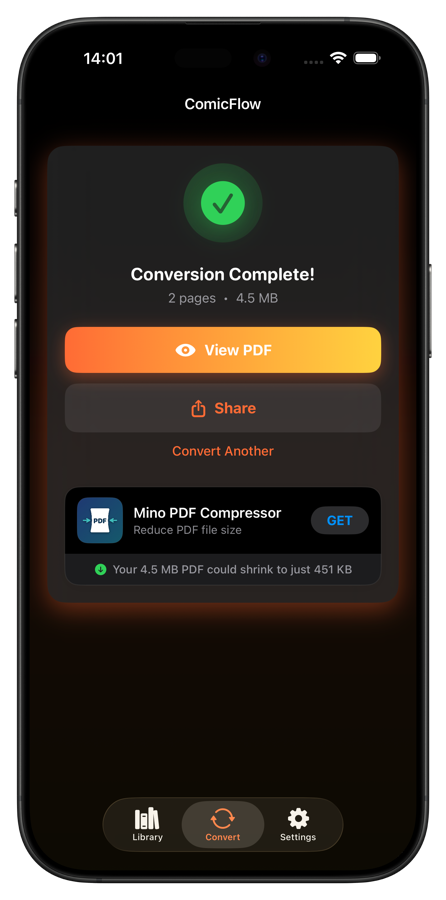
    <img src="/blog/posts/images/comicflow-conversion.png" alt="ComicFlow 轉換完成介面，帶有「檢視 PDF」和「分享」選項">
  </a>
</div>
<div class="blog-app-cta"><a href="https://apps.apple.com/tw/app/comicflow-cbr-cbz-to-pdf/id6757245069"><img src="/assets/images/appstore_badge_white.svg" alt="在 App Store 下載 ComicFlow" width="120" height="40"></a></div>
<p>想看分步說明，請閱讀<a href="/blog/posts/convert-cbr-cbz-to-pdf-iphone/">CBR 轉 PDF 完整指南</a>（英文）。</p>
<hr>
<h2 id="mac-calibre">Mac 和電腦首選：Calibre <a class="heading-anchor" href="#mac-calibre" aria-label="Link to this section">#</a></h2>
<p><img src="/blog/posts/images/best-cbr-pdf-converters-calibre.jpg" alt="Calibre 電子書管理軟體正在把 CBR 轉成 PDF"></p>
<p><a href="https://calibre-ebook.com/">Calibre</a> 是免費開源的電子書管理軟體，支援 Mac、Windows 和 Linux。它並不是專為漫畫做的，但只要設定對了，CBR 轉 PDF 的效果不錯。</p>
<p><strong>轉換步驟：</strong></p>
<ol>
<li>從 <a href="https://calibre-ebook.com/">calibre-ebook.com</a> 下載並安裝 Calibre</li>
<li>輕點 <strong>Add books</strong>，選擇 CBR 或 CBZ 檔案</li>
<li>在書庫中選中檔案，輕點 <strong>Convert books</strong></li>
<li>把 <strong>Output format</strong> 設為 PDF</li>
<li>在左側欄進入 <strong>Comic Input</strong>，勾選 <strong>「Disable comic processing」</strong></li>
<li>輕點 OK，等待轉換完成</li>
</ol>
<p><strong>重要：</strong> 第 5 步很關鍵。漏掉「Disable comic processing」這個選項，Calibre 會把彩色漫畫轉成黑白。很多人在這裡踩坑。</p>
<p><strong>優點：</strong></p>
<ul>
<li>完全免費，檔案數量和大小都不限</li>
<li>支援 Mac、Windows 和 Linux</li>
<li>支援 CBR、CBZ、CB7 等幾十種格式</li>
<li>可批次轉換大型收藏</li>
<li>輸出設定非常豐富</li>
</ul>
<p><strong>缺點：</strong></p>
<ul>
<li>介面雜亂，需要時間適應</li>
<li>「Disable comic processing」這個坑，每個人至少踩一次</li>
<li>只想快速轉一個檔案的話有點大材小用</li>
<li>沒有手機版</li>
</ul>
<p>在電腦上，Calibre 是目前最好的選擇，沒有之一。要轉換一大批收藏，別的工具都比不上。</p>
<hr>
<h2 id="section-1">線上轉換器 <a class="heading-anchor" href="#section-1" aria-label="Link to this section">#</a></h2>
<p>如果不想安裝任何東西，瀏覽器裡的轉換器能應急。不過你要把檔案上傳到別人的伺服器，涉及敏感內容時請多掂量。</p>
<h3 id="cloudconvert">CloudConvert <a class="heading-anchor" href="#cloudconvert" aria-label="Link to this section">#</a></h3>
<p><a href="https://cloudconvert.com/cbr-to-pdf">CloudConvert</a> 是最可靠的線上選擇。它自 2012 年就在運營，並透過了 ISO 27001 認證。免費版每月 750 次轉換，單檔案上限 100 MB。可以從電腦、Google Drive、Dropbox 或連結上傳，還能自訂輸出尺寸和自動縮放。要用線上轉換器的話，就選它。</p>
<h3 id="zamzar">Zamzar <a class="heading-anchor" href="#zamzar" aria-label="Link to this section">#</a></h3>
<p><a href="https://www.zamzar.com/convert/cbr-to-pdf/">Zamzar</a> 把所有選項都去掉了。上傳 CBR，選 PDF，下載結果。免費版每天 2 個檔案，每個最大 50 MB，完全沒有畫質控制。適合只想轉一個檔案、不在意細節的情況。</p>
<h3 id="freeconvert">FreeConvert <a class="heading-anchor" href="#freeconvert" aria-label="Link to this section">#</a></h3>
<p><a href="https://www.freeconvert.com/cbr-to-pdf">FreeConvert</a> 介於前兩者之間。支援批次轉換（一次多個檔案），免費版可上傳最大 1 GB 的檔案，每天 25 次轉換，也有基礎的壓縮設定。檔案不多又不想裝軟體的話，它最合適。</p>
<hr>
<h2 id="cbr-pdf">線上 CBR 轉 PDF 工具的問題 <a class="heading-anchor" href="#cbr-pdf" aria-label="Link to this section">#</a></h2>
<p>線上工具適合臨時用一次，但代價也是實實在在的。</p>
<p>最大的問題是隱私。你把漫畫檔案上傳到了別人的伺服器。多數服務聲稱轉換後會刪除檔案，但你只能選擇相信。</p>
<p>其次是速度。上傳、伺服器處理再加下載，時間加起來不短。在 iPhone 上本機 3 秒就能轉完的檔案，走瀏覽器可能要一分鐘以上。</p>
<p>免費版還限制檔案大小，從 50 MB 到 1 GB 不等。聽上去不小，直到你要轉一卷高解析度的漫畫。而且多數線上工具無法控制輸出畫質，ComicFlow 和 Calibre 則都能調壓縮。</p>
<p>只轉一個小檔案的話，線上轉換器沒問題。其他情況下，本機工具更省時間，檔案也更隱私。</p>
<hr>
<h2 id="cbr-pdf-1">該選哪款 CBR 轉 PDF 工具？ <a class="heading-anchor" href="#cbr-pdf-1" aria-label="Link to this section">#</a></h2>
<p>簡單說：用 iPhone 或 iPad，<a href="https://apps.apple.com/tw/app/comicflow-cbr-cbz-to-pdf/id6757245069">ComicFlow</a> 在本機轉換並能控制畫質，同時還是完整的漫畫閱讀器。用 Mac 或電腦，Calibre 免費搞定一切，包括幾百個檔案的批次任務，只要記得關掉漫畫處理，否則顏色會丟。不想安裝任何東西的話，CloudConvert 的免費額度最寬鬆，在瀏覽器類工具裡口碑也最好。</p>
<div class="blog-app-cta"><a href="https://apps.apple.com/tw/app/comicflow-cbr-cbz-to-pdf/id6757245069"><img src="/assets/images/appstore_badge_white.svg" alt="在 App Store 下載 ComicFlow" width="120" height="40"></a></div>
<hr>
<h2 id="section-2">相關文章 <a class="heading-anchor" href="#section-2" aria-label="Link to this section">#</a></h2>
<ul>
<li><a href="/zh-hant/blog/posts/iphone-yuedu-cbr-cbz-dangan/">在 iPhone 上閱讀 CBR 和 CBZ 檔案</a></li>
<li><a href="/blog/posts/convert-cbr-cbz-to-pdf-iphone/">如何在 iPhone 上把 CBR 和 CBZ 轉成 PDF（英文）</a></li>
<li><a href="/blog/posts/comic-book-file-formats-explained/">漫畫檔案格式詳解：CBR、CBZ 與 PDF（英文）</a></li>
<li><a href="/blog/posts/best-comic-reader-apps-iphone/">iPhone 和 iPad 上最好的漫畫閱讀器 App（英文）</a></li>
</ul>
]]></content>
        <author>
            <name>Navid Gooran</name>
        </author>
        <category term="comics"/>
        <category term="comicflow"/>
        <category term="guide"/>
    </entry>
</feed>