<?xml version="1.0" encoding="utf-8"?>
<feed xmlns="http://www.w3.org/2005/Atom" xml:lang="ko">
    <title>Applestan 블로그 (한국어)</title>
    <subtitle>아이폰과 아이패드에서 만화, CBR, CBZ 파일을 읽는 방법과 비교 글입니다.</subtitle>
    <link href="https://applestan.com/ko/feed.xml" rel="self" type="application/atom+xml"/>
    <link href="https://applestan.com/ko/blog/" rel="alternate" type="text/html" hreflang="ko"/>
    <updated>2026-10-10T00:00:00.000Z</updated>
    <id>https://applestan.com/ko/blog/</id>
    <author>
        <name>Navid Gooran</name>
        <email>gooran@gmail.com</email>
    </author>
    <entry>
        <title>아이폰에서 CBR, CBZ 파일 읽기: 쓸 만한 앱 2가지 (2026)</title>
        <link href="https://applestan.com/ko/blog/posts/iphone-cbr-cbz-ilgi/" rel="alternate" type="text/html" hreflang="ko"/>
        <id>https://applestan.com/ko/blog/posts/iphone-cbr-cbz-ilgi/</id>
        <published>2026-10-10T00:00:00.000Z</published>
        <updated>2026-10-10T00:00:00.000Z</updated>
        <summary>아이폰과 아이패드에서 CBR, CBZ 만화 파일을 여는 방법. 쓸 만한 뷰어 앱 두 가지, 솔직한 장단점, 될 것 같지만 안 되는 방법까지 정리했습니다.</summary>
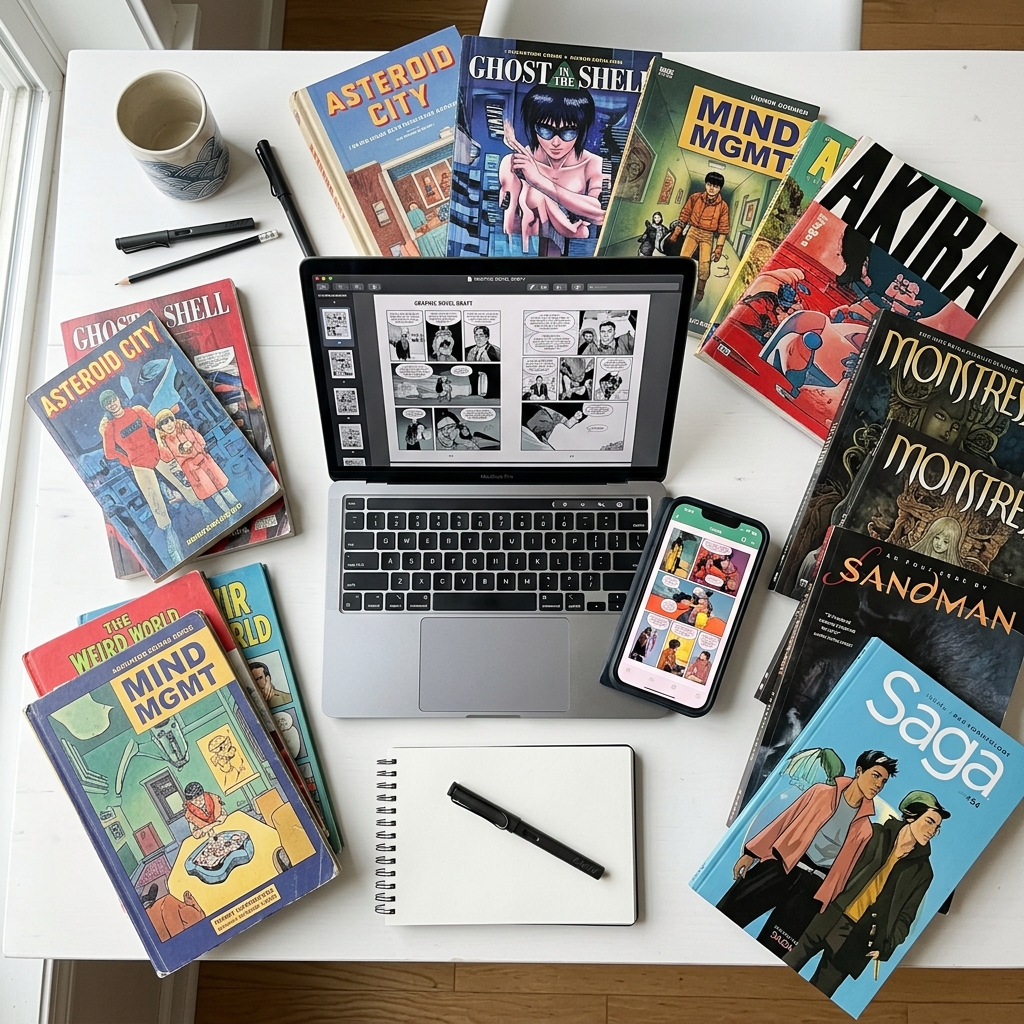
        <content type="html"><![CDATA[<p><img src="/blog/posts/images/read-cbr-cbz-hero.jpg" alt="ComicFlow로 아이폰에서 CBR, CBZ 만화 파일 읽기"></p>
<p>아이폰에는 CBR이나 CBZ 파일을 여는 기능이 기본으로 없습니다. 파일 앱에서 눌러도 아무 일도 없고, Apple 도서는 거부합니다. 읽으려면 전용 만화 뷰어 앱이 필요합니다. 아래에서 쓸 만한 앱 두 가지와 각각의 강점, 될 것 같지만 안 되는 방법, 고르는 기준을 정리했습니다.</p>
<blockquote>
<p><strong>알림:</strong> 저는 여기서 추천하는 두 앱 중 하나인 <a href="https://apps.apple.com/kr/app/comicflow-cbr-cbz-to-pdf/id6757245069">ComicFlow</a>의 개발자입니다. 최대한 공정하게 비교하려 했고, Panels가 더 맞는 경우에는 그렇게 적었습니다.</p>
</blockquote>
<div class="blog-app-cta"><a href="https://apps.apple.com/kr/app/comicflow-cbr-cbz-to-pdf/id6757245069"><img src="/assets/images/appstore_badge_white.svg" alt="App Store에서 ComicFlow 다운로드" width="120" height="40"></a></div>
<hr>
<h2 id="section">요약 <a class="heading-anchor" href="#section" aria-label="Link to this section">#</a></h2>
<ul>
<li><strong>아이폰은 CBR, CBZ를 기본으로 열지 못합니다.</strong> 이미지가 든 RAR, ZIP 압축 파일이고 iOS는 이를 읽을 수 있는 만화로 다루지 않습니다</li>
<li><strong>뷰어 앱이 필요합니다.</strong> 2026년에 고려할 만한 것은 ComicFlow와 Panels 두 가지입니다</li>
<li><strong>대부분은</strong> 뷰어를 설치하고 파일 앱에서 파일을 눌러 &quot;[앱]에서 열기&quot;를 고르면 끝입니다. 평소에 읽을 때는 변환이 필요 없습니다</li>
<li><strong>PDF 변환은 필요할 때만</strong> 하세요. 공유, Apple 도서, 인쇄가 그런 경우입니다</li>
</ul>
<hr>
<h2 id="cbr-cbz">아이폰이 CBR, CBZ를 열지 못하는 이유 <a class="heading-anchor" href="#cbr-cbz" aria-label="Link to this section">#</a></h2>
<p>기술적인 이유는 간단합니다. <code>.cbz</code>는 이미지 파일(대개 JPEG나 PNG, 페이지마다 한 장, 순서대로 번호)을 담은 평범한 ZIP이고, <code>.cbr</code>은 같은 내용을 담은 평범한 RAR입니다. iOS는 iOS 13부터 ZIP을 풀 수 있지만 RAR은 기본 지원이 전혀 없습니다. Apple이 이 형식을 라이선스하지 않았기 때문입니다. ZIP으로 열 수 있는 CBZ라 해도 iOS는 이 이미지들이 순서대로 읽는 만화라는 것을 알지 못합니다. 그저 낱장 이미지 폴더가 보일 뿐입니다.</p>
<hr>
<h2 id="section-1">될 것 같지만 안 되는 방법 <a class="heading-anchor" href="#section-1" aria-label="Link to this section">#</a></h2>
<p><strong><code>.cbz</code>를 <code>.zip</code>으로 바꿔 파일 앱에서 열기.</strong> 압축은 풀리지만 <code>page_001.jpg</code>, <code>page_002.jpg</code>가 나열될 뿐입니다. 사진 앱에서 한 장씩 넘겨야 하고 페이지 맞춤, 두 페이지 보기, 읽던 위치 저장, 만화용 오른쪽에서 왼쪽 읽기가 없습니다. 12페이지라면 참을 만하지만 200페이지라면 고역입니다.</p>
<p><strong>Apple 도서로 열기.</strong> 도서는 PDF와 EPUB만 받고 CBR, CBZ는 받지 않습니다. 가장 먼저 시도하는 방법이라 아래에 따로 설명합니다.</p>
<p><strong>iCloud Drive 미리보기.</strong> 첫 페이지가 보일 때도 있지만 다음 페이지로 넘길 수 없습니다.</p>
<p><strong>단축어 앱.</strong> CBZ를 풀어 사진 슬라이드쇼로 여는 단축어는 아주 작은 파일에서는 되지만, 대략 30MB를 넘으면 버거워하고 오른쪽에서 왼쪽 읽기도 지원하지 않습니다.</p>
<p><strong>웹 변환기.</strong> CloudConvert나 Zamzar가 CBR을 PDF로 바꿔 주지만, 파일을 제3자에게 올리고 기다렸다가 PDF를 받아야 합니다. 한 번은 괜찮아도 라이브러리 전체에는 맞지 않습니다. 업로드 한도가 100MB 안팎인 곳이 많아 용량 큰 만화는 걸리기도 합니다.</p>
<hr>
<h2 id="apple-cbz-cbr">Apple 도서에서 CBZ나 CBR을 읽을 수 있나요? <a class="heading-anchor" href="#apple-cbz-cbr" aria-label="Link to this section">#</a></h2>
<p><strong>아니요.</strong> Apple 도서는 EPUB와 PDF만 읽습니다. <code>.cbz</code>나 <code>.cbr</code>은 지원하지 않는 파일 형식 오류가 납니다. 오래된 가이드에 다른 말이 있어도 마찬가지입니다.</p>
<p>현실적인 선택지는 두 가지입니다.</p>
<p><strong>1. 뷰어 앱으로 바로 열기.</strong> 목적이 아이폰에서 만화를 읽는 것이라면 Apple 도서도, 변환도 필요 없습니다. 아래 두 뷰어는 CBZ와 CBR을 그대로 엽니다. 대부분의 사람에게 이쪽이 정답입니다.</p>
<p><strong>2. PDF로 변환해 도서에서 읽기.</strong> 실제로 가능하고 그럴 만한 이유도 있지만 치르는 대가가 있습니다.</p>
<ul>
<li><strong>오른쪽에서 왼쪽 순서가 사라집니다.</strong> 도서의 PDF에는 RTL 전환이 없어서 만화가 반대 방향으로 넘어가고 나중에 고칠 수도 없습니다. 가장 큰 문제입니다. 일본 만화를 읽는다면 도서로 변환하는 길은 맞지 않습니다.</li>
<li><strong>모든 페이지가 다시 인코딩됩니다.</strong> 높음은 디테일이 남지만 파일이 커지고, 낮음은 작지만 스캔본의 글자가 뭉개집니다. PDF는 원본의 2세대 복사본입니다.</li>
<li><strong>파일이 두 개가 됩니다.</strong> CBZ와 PDF 중 잘못 지우면 보관본이나 읽기용 사본 중 하나를 잃습니다.</li>
<li><strong>펼침면이 어색해집니다.</strong> CBZ의 펼침면은 가로로 긴 이미지 한 장인데, PDF 한 페이지가 되면 세로 화면에서 작게 보입니다. 아이패드는 괜찮지만 폰에서는 답답합니다.</li>
</ul>
<p>도서는 PDF의 읽던 위치를 기억하므로 그 점은 문제없습니다.</p>
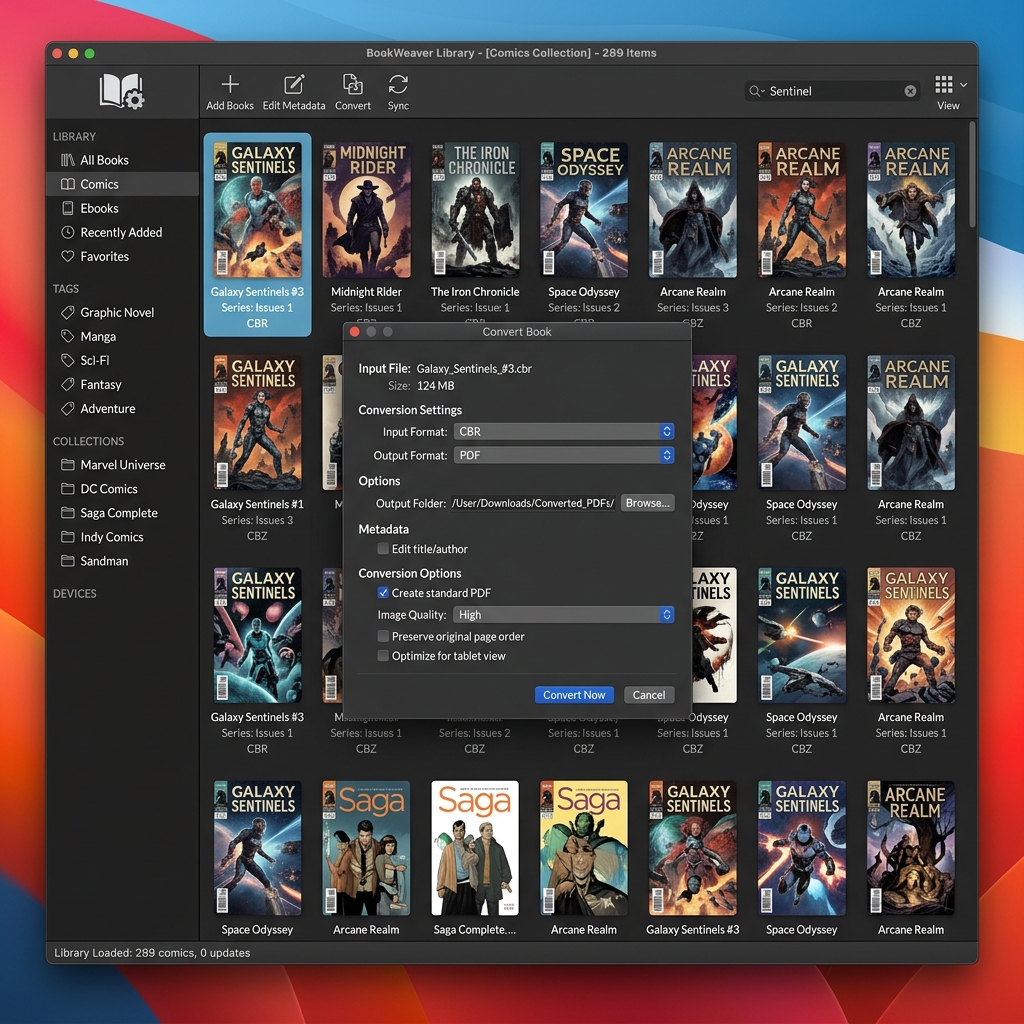
<p><strong>변환이 맞는 경우:</strong> 라이브러리가 도서에 있고 전자책 옆에 만화를 두고 싶을 때, 맥에서 읽을 때, 만화 뷰어가 없는 사람에게 파일을 줄 때, 주석을 달거나 인쇄할 때입니다. 이런 경우 ComicFlow는 업로드 없이 기기 안에서 변환합니다. 높음/중간/낮음을 고르면 PDF가 파일 앱에 저장되어 도서에서 바로 열 수 있습니다. 수백 개를 한꺼번에 바꾼다면 맥이나 PC의 <a href="https://calibre-ebook.com/">Calibre</a>가 무료이고 더 알맞습니다. 전체 과정은 <a href="/blog/posts/convert-cbr-cbz-to-pdf-iphone/">아이폰에서 CBR, CBZ를 PDF로 변환하는 방법</a>(영어)에 있습니다.</p>
<p>Apple 도서는 진짜 책이나 Apple 기기 간 동기화에는 어떤 만화 뷰어보다 낫습니다. 다만 만화 뷰어가 아니고, 도서를 만화 뷰어로 쓰려고 변환하는 비용은 생각보다 큽니다.</p>
<hr>
<h2 id="section-2">쓸 만한 뷰어 앱 두 가지 <a class="heading-anchor" href="#section-2" aria-label="Link to this section">#</a></h2>
<h3 id="panels">Panels <a class="heading-anchor" href="#panels" aria-label="Link to this section">#</a></h3>
<p>아름다운 화면과 이 분야에서 가장 강력한 클라우드 동기화(Dropbox, Google Drive, OPDS)가 강점입니다. CBR, CBZ, PDF를 지원합니다. 가격은 $10 일시불에 클라우드 기능은 연 $30입니다. 클라우드 여러 곳에 수천 권을 두었거나, 직접 운영하는 Komga나 Kavita 서버에서 OPDS를 쓴다면 Panels가 맞습니다. 단점은 본격적인 수집가를 위한 앱이라 가격도 거기에 맞춰져 있다는 점입니다.</p>
<p><a href="https://apps.apple.com/us/app/panels-comic-reader/id1236567663">App Store에서 Panels 보기</a></p>
<h3 id="comicflow">ComicFlow <a class="heading-anchor" href="#comicflow" aria-label="Link to this section">#</a></h3>
<p>&quot;파일을 누르고, 읽고, 끝&quot;에 맞춘 앱입니다. $2.99 한 번 결제로 구독, 광고, 추적이 없습니다. CBR, CBZ, RAR, ZIP, PDF를 열고 필요하면 CBR/CBZ를 PDF로 바꾸는 기능도 있습니다. <strong>의도적으로 넣지 않은 것:</strong> 클라우드 라이브러리 동기화, OPDS, 파일명 기반 시리즈 자동 인식, 서버 스트리밍. 이런 기능이 필요하면 Panels가 더 맞습니다. ComicFlow는 iCloud에 수백 개 파일을 두고 그냥 읽고 싶은 보통 사용자를 위한 앱입니다.</p>
<p><a href="https://apps.apple.com/kr/app/comicflow-cbr-cbz-to-pdf/id6757245069">App Store에서 ComicFlow 보기</a></p>
<h3 id="section-3">고르는 기준 <a class="heading-anchor" href="#section-3" aria-label="Link to this section">#</a></h3>
<ul>
<li><strong>5,000권 이상, 클라우드 여러 곳, OPDS 서버</strong> → Panels</li>
<li><strong>iCloud나 로컬 파일, 일시불, 구독 없음</strong> → ComicFlow</li>
</ul>
<p>둘 다 제대로 동작합니다. 잘못된 선택은 앱을 고르는 것이 아니라 만화를 읽지 않는 것입니다.</p>
<div class="blog-phone-screenshot">
  <a href="https://apps.apple.com/kr/app/comicflow-cbr-cbz-to-pdf/id6757245069">
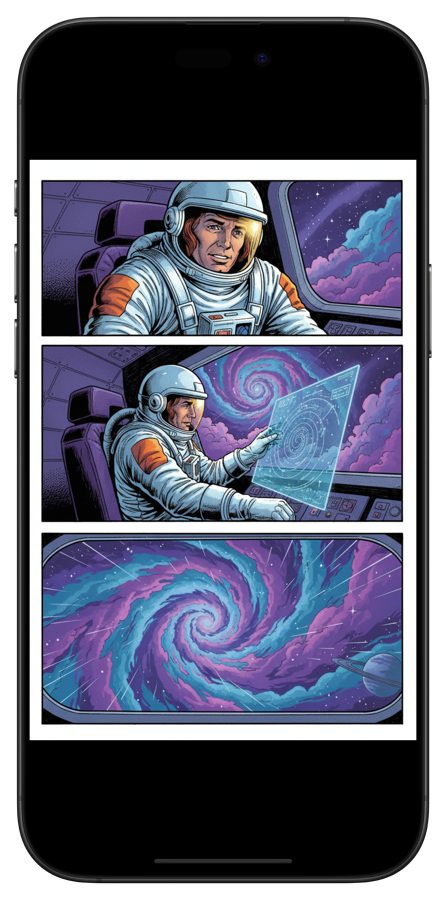
    <img src="/blog/posts/images/comicflow-reader.png" alt="아이폰에서 SF 만화를 보여 주는 ComicFlow 만화 뷰어">
  </a>
</div>
<hr>
<h2 id="cbr-cbz-1">뷰어를 설치한 뒤 CBR/CBZ 여는 방법 <a class="heading-anchor" href="#cbr-cbz-1" aria-label="Link to this section">#</a></h2>
<p>두 앱 모두 방법은 같습니다.</p>
<ol>
<li><strong>파일 앱에서:</strong> 파일 앱에서 만화 파일을 찾아 누르고 &quot;[앱]에서 열기&quot;</li>
<li><strong>Safari에서:</strong> 내려받은 파일을 눌러 공유하고 뷰어를 선택</li>
<li><strong>이메일에서:</strong> 첨부파일을 눌러 뷰어로 공유</li>
<li><strong>AirDrop에서:</strong> Mac에서 AirDrop으로 보내고 받는 앱으로 뷰어 선택</li>
<li><strong>Dropbox/Google Drive에서:</strong> 클라우드 앱에서 파일을 열고 공유해서 뷰어 선택</li>
</ol>
<p>가져온 만화는 앱 라이브러리에 남아 오프라인에서도 읽을 수 있어 비행기에서 편합니다. 전송 방법 전체는 <a href="/blog/posts/transfer-comics-to-iphone/">Mac이나 PC에서 아이폰으로 만화 옮기기</a>(영어)에 있습니다.</p>
<hr>
<h2 id="5">지원 형식 5가지 한눈에 보기 <a class="heading-anchor" href="#5" aria-label="Link to this section">#</a></h2>
<table>
<thead>
<tr>
<th>형식</th>
<th>확장자</th>
<th>설명</th>
<th>아이폰에서 읽기</th>
<th>PDF 변환</th>
</tr>
</thead>
<tbody>
<tr>
<td>Comic Book RAR</td>
<td><code>.cbr</code></td>
<td>이미지가 든 RAR 압축</td>
<td>가능 (뷰어 앱 필요)</td>
<td>가능</td>
</tr>
<tr>
<td>Comic Book ZIP</td>
<td><code>.cbz</code></td>
<td>이미지가 든 ZIP 압축</td>
<td>가능 (뷰어 앱 필요)</td>
<td>가능</td>
</tr>
<tr>
<td>RAR</td>
<td><code>.rar</code></td>
<td>CBR과 같고 확장자만 다름</td>
<td>가능 (뷰어 앱 필요)</td>
<td>가능</td>
</tr>
<tr>
<td>ZIP</td>
<td><code>.zip</code></td>
<td>CBZ와 같고 확장자만 다름</td>
<td>가능 (뷰어 앱 필요)</td>
<td>가능</td>
</tr>
<tr>
<td>PDF</td>
<td><code>.pdf</code></td>
<td>표준 문서 형식</td>
<td>가능 (도서 또는 PDF 앱)</td>
<td>해당 없음</td>
</tr>
</tbody>
</table>
<p><code>.cb7</code>(7-Zip 압축)은 드물고 ComicFlow를 포함해 대부분의 뷰어가 열지 못합니다. 맥에서 Calibre 같은 도구로 먼저 변환해야 합니다.</p>
<hr>
<h2 id="section-4">파일 크기에 대해 <a class="heading-anchor" href="#section-4" aria-label="Link to this section">#</a></h2>
<p>큰 CBR 파일을 가져오기 전에 알아 둘 점이 있습니다. 파일 크기는 천차만별입니다. 스캔한 단행본은 300MB에 달하기도 하고 고해상도로 다시 스캔한 보관용 CBZ는 1GB를 넘기도 합니다. 두 가지를 예상하세요.</p>
<ul>
<li><strong>iOS는 앱마다 메모리 한도가 있습니다.</strong> 500MB가 넘는 CBR은 처음 풀 때 버벅일 수 있습니다. 한 번 읽고 나면 캐시되어 빨라집니다.</li>
<li><strong>iCloud는 필요할 때 파일을 내려받습니다.</strong> 아직 읽지 않은 CBR을 누르면 연결 상태에 따라 몇 초 기다린 뒤 열립니다.</li>
</ul>
<hr>
<h2 id="section-5">바로 해 보기 <a class="heading-anchor" href="#section-5" aria-label="Link to this section">#</a></h2>
<ol>
<li><a href="https://apps.apple.com/kr/app/comicflow-cbr-cbz-to-pdf/id6757245069">ComicFlow</a>($2.99, 일시불) 또는 <a href="https://apps.apple.com/us/app/panels-comic-reader/id1236567663">Panels</a>($10와 연 $30) 중 하나를 설치합니다</li>
<li>첫 파일을 누르고 &quot;[앱]에서 열기&quot;를 고릅니다</li>
<li>읽습니다</li>
</ol>
<p>둘 다 오프라인에서 동작하고 계정이 필요 없습니다. 가장 싼 것이 아니라 라이브러리 규모와 예산에 맞춰 고르세요.</p>
<div class="blog-app-cta"><a href="https://apps.apple.com/kr/app/comicflow-cbr-cbz-to-pdf/id6757245069"><img src="/assets/images/appstore_badge_white.svg" alt="App Store에서 ComicFlow 다운로드" width="120" height="40"></a></div>
<hr>
<h2 id="section-6">관련 글 <a class="heading-anchor" href="#section-6" aria-label="Link to this section">#</a></h2>
<ul>
<li><a href="/ko/blog/posts/cbr-pdf-byeonhwan-app-bigyo/">CBR을 PDF로 바꾸는 최고의 변환기 비교</a></li>
<li><a href="/blog/posts/best-comic-reader-apps-iphone/">아이폰 만화 뷰어 앱 비교 (2026) (영어)</a></li>
<li><a href="/blog/posts/comic-book-file-formats-explained/">만화 파일 형식 정리: CBR, CBZ, PDF 차이 (영어)</a></li>
<li><a href="/blog/posts/transfer-comics-to-iphone/">Mac이나 PC에서 아이폰으로 만화 옮기기 (영어)</a></li>
</ul>
]]></content>
        <author>
            <name>Navid Gooran</name>
        </author>
        <category term="comics"/>
        <category term="comicflow"/>
        <category term="guide"/>
    </entry>
    <entry>
        <title>CBR PDF 변환기 추천: 아이폰, 맥, PC, 웹 비교 (2026)</title>
        <link href="https://applestan.com/ko/blog/posts/cbr-pdf-byeonhwan-app-bigyo/" rel="alternate" type="text/html" hreflang="ko"/>
        <id>https://applestan.com/ko/blog/posts/cbr-pdf-byeonhwan-app-bigyo/</id>
        <published>2026-10-10T00:00:00.000Z</published>
        <updated>2026-10-10T00:00:00.000Z</updated>
        <summary>CBR을 PDF로 바꾸는 변환기 다섯 가지를 아이폰, 맥, PC, 웹에서 비교했습니다. 속도, 화질 조절, 개인정보, 가격을 기준으로 나에게 맞는 도구를 고르세요.</summary>
        <content type="html"><![CDATA[<p><img src="/blog/posts/images/best-cbr-pdf-converters-hero.jpg" alt="아이폰, 맥, PC, 웹에서 비교한 CBR PDF 변환기"></p>
<p>CBR이나 CBZ 만화 파일이 있는데 PDF가 필요할 때가 있습니다. Apple 도서에서 보려고, 다른 사람에게 보내려고, 인쇄하려고, 또는 PDF는 어디서나 열리니까요. 어떤 CBR PDF 변환기가 맞는지는 쓰는 기기와 파일 개수에 따라 달라집니다.</p>
<hr>
<h2 id="section">한눈에 비교 <a class="heading-anchor" href="#section" aria-label="Link to this section">#</a></h2>
<table>
<thead>
<tr>
<th>도구</th>
<th>플랫폼</th>
<th>지원 형식</th>
<th>화질 조절</th>
<th>오프라인</th>
<th>가격</th>
</tr>
</thead>
<tbody>
<tr>
<td><strong>ComicFlow</strong></td>
<td>아이폰, 아이패드</td>
<td>CBR, CBZ, RAR, ZIP</td>
<td>프리셋 3단계 (높음/중간/낮음)</td>
<td>가능</td>
<td>$2.99 (한 번 결제)</td>
</tr>
<tr>
<td><strong>Calibre</strong></td>
<td>맥, 윈도우, 리눅스</td>
<td>CBR, CBZ, CB7 외 다수</td>
<td>수동 설정</td>
<td>가능</td>
<td>무료</td>
</tr>
<tr>
<td><strong>CloudConvert</strong></td>
<td>브라우저 (모든 기기)</td>
<td>CBR, CBZ</td>
<td>크기 직접 지정</td>
<td>불가</td>
<td>무료 (월 750건)</td>
</tr>
<tr>
<td><strong>Zamzar</strong></td>
<td>브라우저 (모든 기기)</td>
<td>CBR, CBZ</td>
<td>없음</td>
<td>불가</td>
<td>무료 (제한 있음)</td>
</tr>
<tr>
<td><strong>FreeConvert</strong></td>
<td>브라우저 (모든 기기)</td>
<td>CBR, CBZ</td>
<td>기본</td>
<td>불가</td>
<td>무료 (제한 있음)</td>
</tr>
</tbody>
</table>
<hr>
<h2 id="comicflow">아이폰과 아이패드에는 ComicFlow <a class="heading-anchor" href="#comicflow" aria-label="Link to this section">#</a></h2>
<div class="blog-app-icon">
    <img src="/blog/posts/images/icon-comicflow.png" alt="ComicFlow 앱 아이콘" width="64" height="64">
    <div class="blog-app-icon-info">
        <span class="blog-app-icon-name">ComicFlow</span>
        <span class="blog-app-icon-dev">Applestan</span>
    </div>
</div>
<p>아이폰이나 아이패드라면 <a href="https://apps.apple.com/kr/app/comicflow-cbr-cbz-to-pdf/id6757245069">ComicFlow</a>로 충분합니다. CBR, CBZ, RAR, ZIP 파일을 기기 안에서 바로 PDF로 변환합니다.</p>
<p><strong>사용 방법</strong></p>
<ol>
<li>파일 앱, Safari, AirDrop, 이메일 등으로 만화 파일을 가져옵니다</li>
<li>변환 탭을 누릅니다</li>
<li>화질 프리셋을 고릅니다. <strong>높음</strong>(최대 디테일), <strong>중간</strong>(균형), <strong>낮음</strong>(가장 작은 파일)</li>
<li>변환을 누르면 몇 초 안에 끝납니다</li>
</ol>
<p>프리셋에 따라 결과가 꽤 달라집니다. 50MB짜리 만화가 높음에서는 45MB, 중간에서는 20MB, 낮음에서는 8MB 정도의 PDF가 됩니다. 대부분은 중간이면 충분합니다.</p>
<p><strong>ComicFlow의 장점</strong></p>
<ul>
<li>변환이 전부 기기 안에서 이뤄집니다. 파일이 어디에도 업로드되지 않습니다</li>
<li>만화 뷰어도 겸하므로 한 앱에서 읽고 변환할 수 있습니다</li>
<li>흔한 다섯 형식(CBR, CBZ, RAR, ZIP, PDF)을 모두 다룹니다</li>
<li>변환 후 AirDrop, 메시지, 이메일, 클라우드로 바로 공유할 수 있습니다</li>
<li>인터넷이 필요 없어서 비행기나 지하철에서도 됩니다</li>
</ul>
<p><strong>가격:</strong> $2.99, 한 번 결제하면 끝입니다. 구독도 광고도 없습니다.</p>
<p>아이폰 안에서 CBR을 PDF로 바꿔 주는 앱은 사실상 이것뿐입니다. 웹 변환기는 Safari에서 쓸 수 있지만 파일을 서버에 올려야 하고 화질 조절도 없습니다.</p>
<div class="blog-phone-screenshot">
  <a href="https://apps.apple.com/kr/app/comicflow-cbr-cbz-to-pdf/id6757245069">
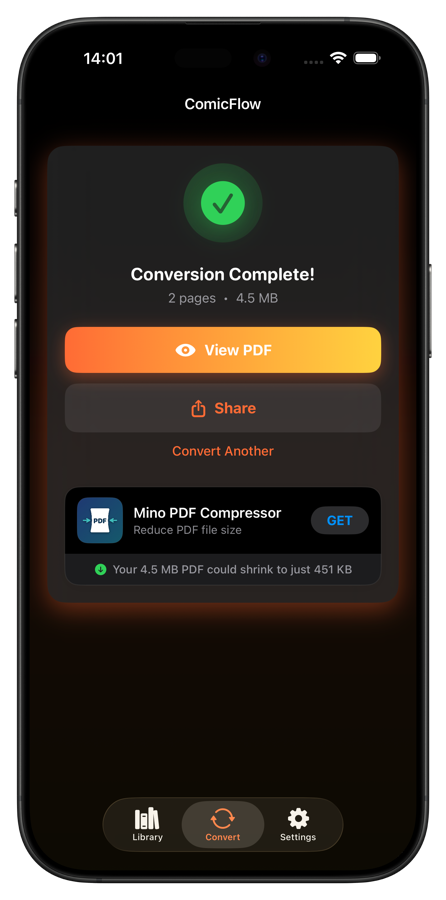
    <img src="/blog/posts/images/comicflow-conversion.png" alt="PDF 보기와 공유 버튼이 표시된 ComicFlow 변환 완료 화면">
  </a>
</div>
<div class="blog-app-cta"><a href="https://apps.apple.com/kr/app/comicflow-cbr-cbz-to-pdf/id6757245069"><img src="/assets/images/appstore_badge_white.svg" alt="App Store에서 ComicFlow 다운로드" width="120" height="40"></a></div>
<p>단계별 안내는 <a href="/blog/posts/convert-cbr-cbz-to-pdf-iphone/">CBR과 CBZ를 아이폰에서 PDF로 변환하는 방법</a> (영어).</p>
<hr>
<h2 id="pc-calibre">맥과 PC에는 Calibre <a class="heading-anchor" href="#pc-calibre" aria-label="Link to this section">#</a></h2>
<p><img src="/blog/posts/images/best-cbr-pdf-converters-calibre.jpg" alt="CBR을 PDF로 변환 중인 Calibre 전자책 관리 프로그램"></p>
<p><a href="https://calibre-ebook.com/">Calibre</a>는 맥, 윈도우, 리눅스에서 쓰는 무료 오픈소스 전자책 관리 프로그램입니다. 만화 전용은 아니지만 설정만 알면 CBR을 PDF로 잘 바꿔 줍니다.</p>
<p><strong>변환 순서</strong></p>
<ol>
<li><a href="https://calibre-ebook.com/">calibre-ebook.com</a>에서 Calibre를 내려받아 설치합니다</li>
<li><strong>책 추가</strong>를 눌러 CBR 또는 CBZ 파일을 선택합니다</li>
<li>라이브러리에서 파일을 고르고 <strong>책 변환</strong>을 누릅니다</li>
<li><strong>출력 형식</strong>을 PDF로 바꿉니다</li>
<li>왼쪽 메뉴의 <strong>만화 입력</strong>에서 &quot;<strong>만화 처리 비활성화</strong>&quot;를 체크합니다</li>
<li>확인을 누르고 변환이 끝나길 기다립니다</li>
</ol>
<p><strong>중요:</strong> 5번 단계를 빼먹으면 컬러 만화가 흑백으로 변환됩니다. 많은 분이 여기서 한 번씩 걸립니다.</p>
<p><strong>장점</strong></p>
<ul>
<li>완전 무료이고 파일 수와 크기에 제한이 없습니다</li>
<li>맥, 윈도우, 리눅스에서 모두 동작합니다</li>
<li>CBR, CBZ, CB7 등 수십 가지 형식을 처리합니다</li>
<li>대량 변환을 지원합니다</li>
<li>출력 설정을 세세하게 바꿀 수 있습니다</li>
</ul>
<p><strong>단점</strong></p>
<ul>
<li>화면이 복잡해서 익숙해지는 데 시간이 걸립니다</li>
<li>&quot;만화 처리 비활성화&quot; 함정에 누구나 한 번은 걸립니다</li>
<li>한두 개만 빨리 바꾸기에는 과합니다</li>
<li>모바일 버전이 없습니다</li>
</ul>
<p>컴퓨터에서 쓸 데스크톱 도구로는 Calibre가 단연 최고입니다. 컬렉션을 통째로 변환한다면 이만한 것이 없습니다.</p>
<hr>
<h2 id="section-1">온라인 변환기 <a class="heading-anchor" href="#section-1" aria-label="Link to this section">#</a></h2>
<p>설치가 싫다면 브라우저 변환기로도 급한 불은 끌 수 있습니다. 다만 파일을 다른 사람의 서버에 올리는 것이므로 민감한 파일이라면 신중하게 판단하세요.</p>
<h3 id="cloudconvert">CloudConvert <a class="heading-anchor" href="#cloudconvert" aria-label="Link to this section">#</a></h3>
<p><a href="https://cloudconvert.com/cbr-to-pdf">CloudConvert</a>는 온라인 변환기 중 가장 믿을 만합니다. 2012년부터 운영 중이며 ISO 27001 인증을 받았습니다. 무료 플랜은 월 750건, 파일당 100MB까지입니다. 컴퓨터, Google Drive, Dropbox, URL에서 올릴 수 있고 출력 크기와 자동 확대도 설정할 수 있습니다. 온라인 변환기를 쓴다면 이쪽을 권합니다.</p>
<h3 id="zamzar">Zamzar <a class="heading-anchor" href="#zamzar" aria-label="Link to this section">#</a></h3>
<p><a href="https://www.zamzar.com/convert/cbr-to-pdf/">Zamzar</a>는 옵션을 모두 덜어냈습니다. CBR을 올리고 PDF를 고른 뒤 받으면 끝입니다. 무료 플랜은 하루 2개, 파일당 50MB까지이고 화질 조절은 전혀 없습니다. 파일 하나를 한 번만 바꾸면 될 때 좋습니다.</p>
<h3 id="freeconvert">FreeConvert <a class="heading-anchor" href="#freeconvert" aria-label="Link to this section">#</a></h3>
<p><a href="https://www.freeconvert.com/cbr-to-pdf">FreeConvert</a>는 위 둘의 중간쯤입니다. 여러 파일을 한꺼번에 변환할 수 있고, 무료 플랜에서 파일당 1GB, 하루 25건까지 됩니다. 기본 압축 설정도 있습니다. 파일이 몇 개뿐이고 설치는 하고 싶지 않을 때 알맞습니다.</p>
<hr>
<h2 id="cbr-pdf">온라인 CBR PDF 변환기의 단점 <a class="heading-anchor" href="#cbr-pdf" aria-label="Link to this section">#</a></h2>
<p>온라인 도구는 한 번만 쓸 때 편하지만 감수할 점이 분명합니다.</p>
<p>가장 큰 문제는 개인정보입니다. 만화 파일을 다른 서버에 올리게 됩니다. 대부분 변환 후 파일을 지운다고 밝히지만, 결국 그 말을 믿는 수밖에 없습니다.</p>
<p>속도도 문제입니다. 업로드, 서버 처리, 다운로드 시간이 모두 더해집니다. 아이폰에서 3초면 끝나는 파일이 브라우저를 거치면 1분 넘게 걸리기도 합니다.</p>
<p>무료 플랜은 파일 크기도 50MB에서 1GB 사이로 제한됩니다. 고해상도 만화책 한 권이면 금방 넘습니다. 그리고 대부분은 출력 화질을 조절할 수 없습니다. ComicFlow와 Calibre는 압축을 직접 정할 수 있습니다.</p>
<p>작은 파일 하나라면 온라인 변환기도 괜찮습니다. 그 외에는 로컬 도구가 빠르고 파일도 내 손에 남습니다.</p>
<hr>
<h2 id="cbr-pdf-1">어떤 CBR PDF 변환기를 고를까 <a class="heading-anchor" href="#cbr-pdf-1" aria-label="Link to this section">#</a></h2>
<p>요약하면, 아이폰이나 아이패드에서는 <a href="https://apps.apple.com/kr/app/comicflow-cbr-cbz-to-pdf/id6757245069">ComicFlow</a>가 화질을 조절하면서 기기 안에서 변환하는 앱이고 만화 뷰어도 겸합니다. 맥이나 PC에서는 Calibre가 수백 개 파일의 일괄 변환까지 무료로 처리합니다. 단, 만화 처리를 꼭 비활성화하세요. 아니면 색이 사라집니다. 아무것도 설치하고 싶지 않다면 CloudConvert가 무료 한도가 넉넉하고 평판도 좋습니다.</p>
<div class="blog-app-cta"><a href="https://apps.apple.com/kr/app/comicflow-cbr-cbz-to-pdf/id6757245069"><img src="/assets/images/appstore_badge_white.svg" alt="App Store에서 ComicFlow 다운로드" width="120" height="40"></a></div>
<hr>
<h2 id="section-2">관련 글 <a class="heading-anchor" href="#section-2" aria-label="Link to this section">#</a></h2>
<ul>
<li><a href="/ko/blog/posts/iphone-cbr-cbz-ilgi/">아이폰에서 CBR, CBZ 파일 읽는 법</a></li>
<li><a href="/blog/posts/convert-cbr-cbz-to-pdf-iphone/">CBR과 CBZ를 아이폰에서 PDF로 변환하는 방법 (영어)</a></li>
<li><a href="/blog/posts/comic-book-file-formats-explained/">만화 파일 형식 정리: CBR, CBZ, PDF 차이 (영어)</a></li>
<li><a href="/blog/posts/best-comic-reader-apps-iphone/">아이폰과 아이패드 만화 뷰어 앱 추천 (영어)</a></li>
</ul>
]]></content>
        <author>
            <name>Navid Gooran</name>
        </author>
        <category term="comics"/>
        <category term="comicflow"/>
        <category term="guide"/>
    </entry>
</feed>